This article explains how to record an iPhone call. You can also refer to the Apple User Guide.
1. Start the Call
Open the Phone App and initiate your call as usual.

2. Enable Recording
Once the call is active, look at the top left of your screen.
Tap the Record Icon (a small waveform/circle icon).
Important: Both participants will hear an automated announcement stating that the call is being recorded.

3. End the Recording
To stop manually: Tap the stop button in the recording bar.
To stop automatically: Simply hang up the call.
Storage: Your recording is automatically saved to the "Call Recordings" folder within the Notes app.

4. Export the Audio File
Open the Notes app.
Go to the Call Recordings folder and select your recording.
Tap the Share icon (the square with an upward arrow).
Select Save to File.
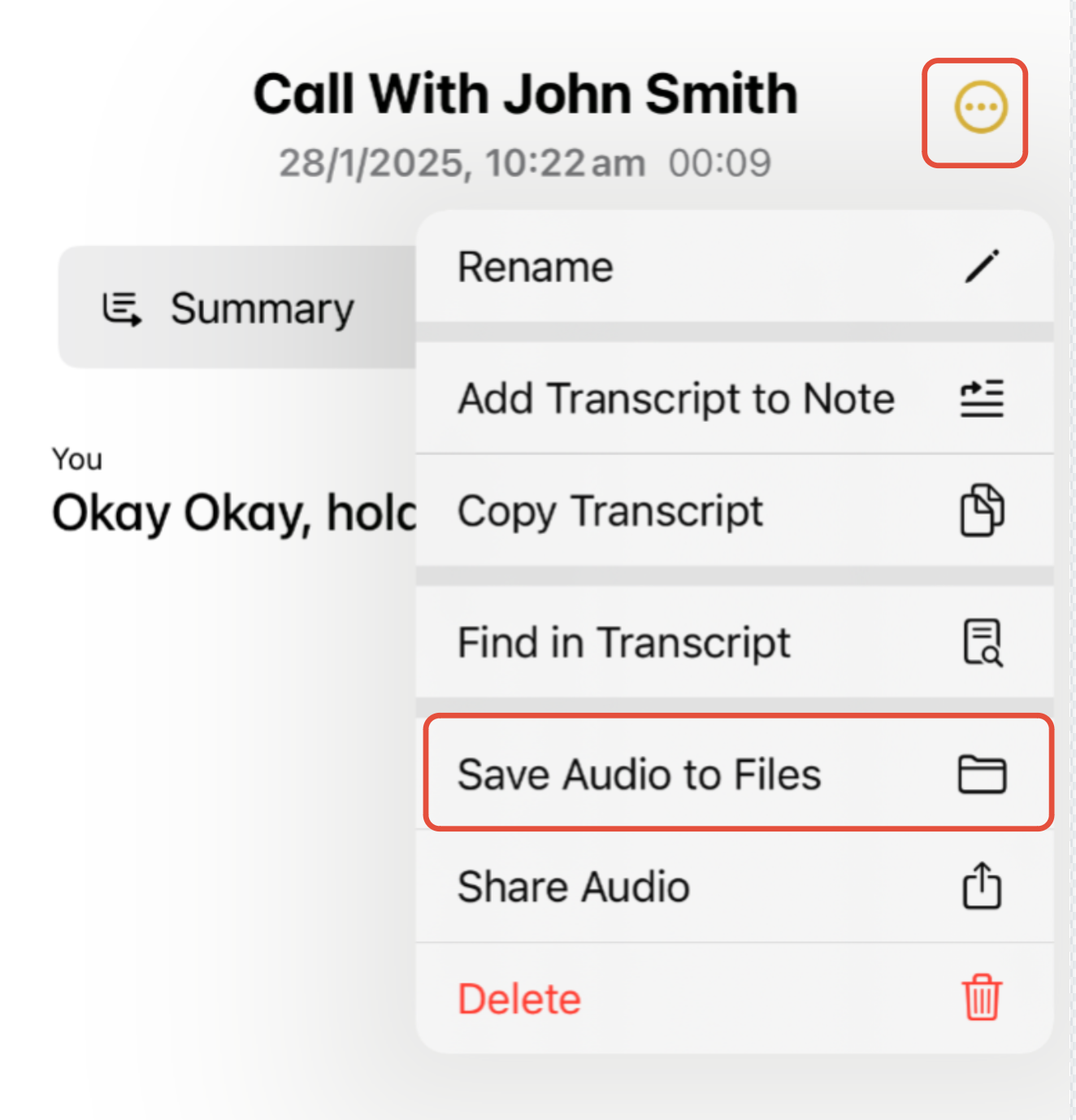
Final Step: Upload to FIlenote AI Platform
Once the audio file is saved to your phone or laptop, upload it directly to the Filenote AI Platform to generate your required output.
Was this article helpful?
That’s Great!
Thank you for your feedback
Sorry! We couldn't be helpful
Thank you for your feedback
Feedback sent
We appreciate your effort and will try to fix the article