Background
Filenote.ai automatically generates file notes based on meetings financial advisors have with clients.
To enable this, you will need to setup a Zoom App with a secure “Server-to- Server” access. More details about this type of access can be found in the following link: Zoom Documentation
Setup
Step 1: Visit the Zoom App Marketplace and sign in to your account
- Ensure you have admin access to your organisation’s Zoom
Step 2: Click “Develop” and then “Build App”
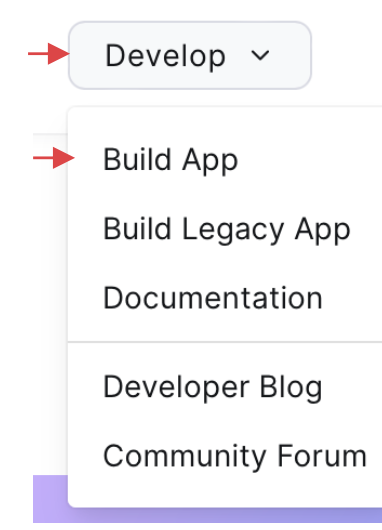
- Explain the actions under this step
Note, by default, Apps created are private to your organisation and are not published to the marketplace.
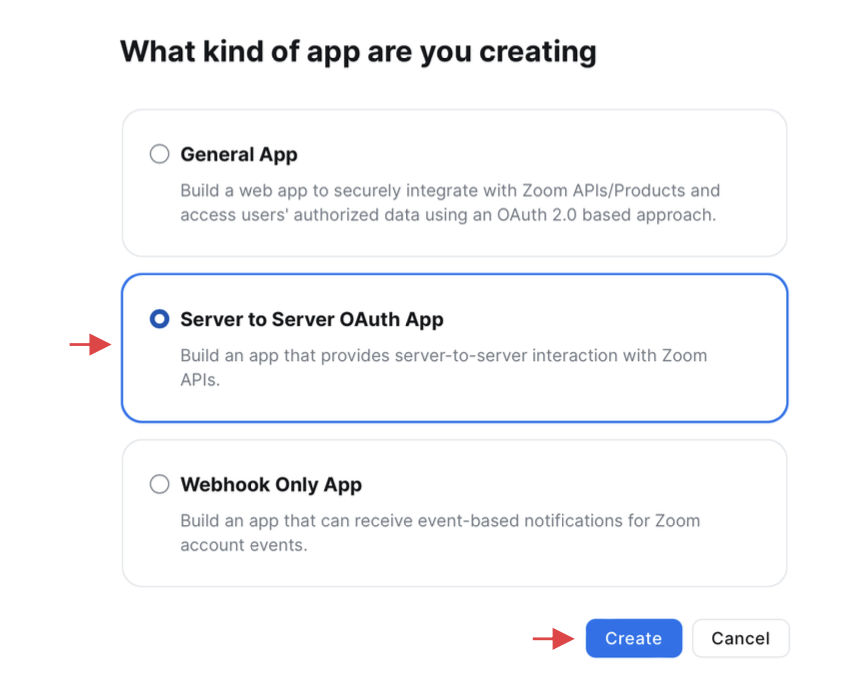
Step 3: Click ‘Server to Server OAuth App’ and select ’Create’
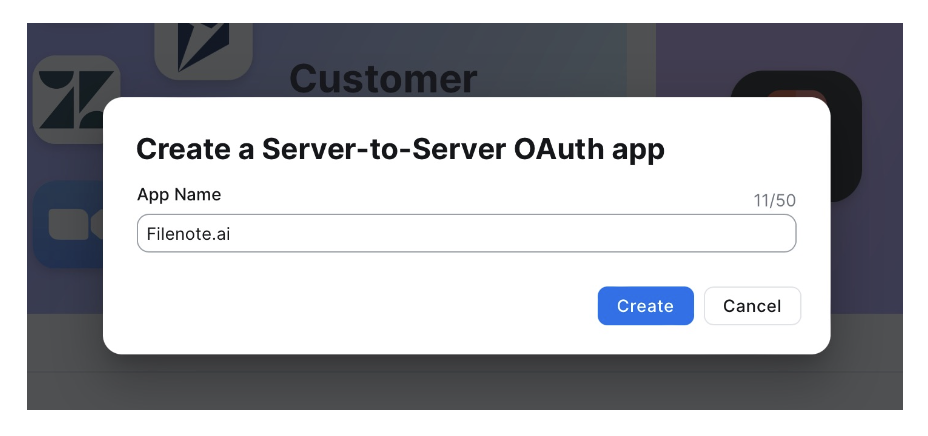
Step 4: Provide a name for the app, e.g. Filenote.ai
Step 5: The first page will have Account ID, Client ID and Client Secret for the app. Please copy and paste all 3 values and send them to your hello@blvsolutions.com via email.

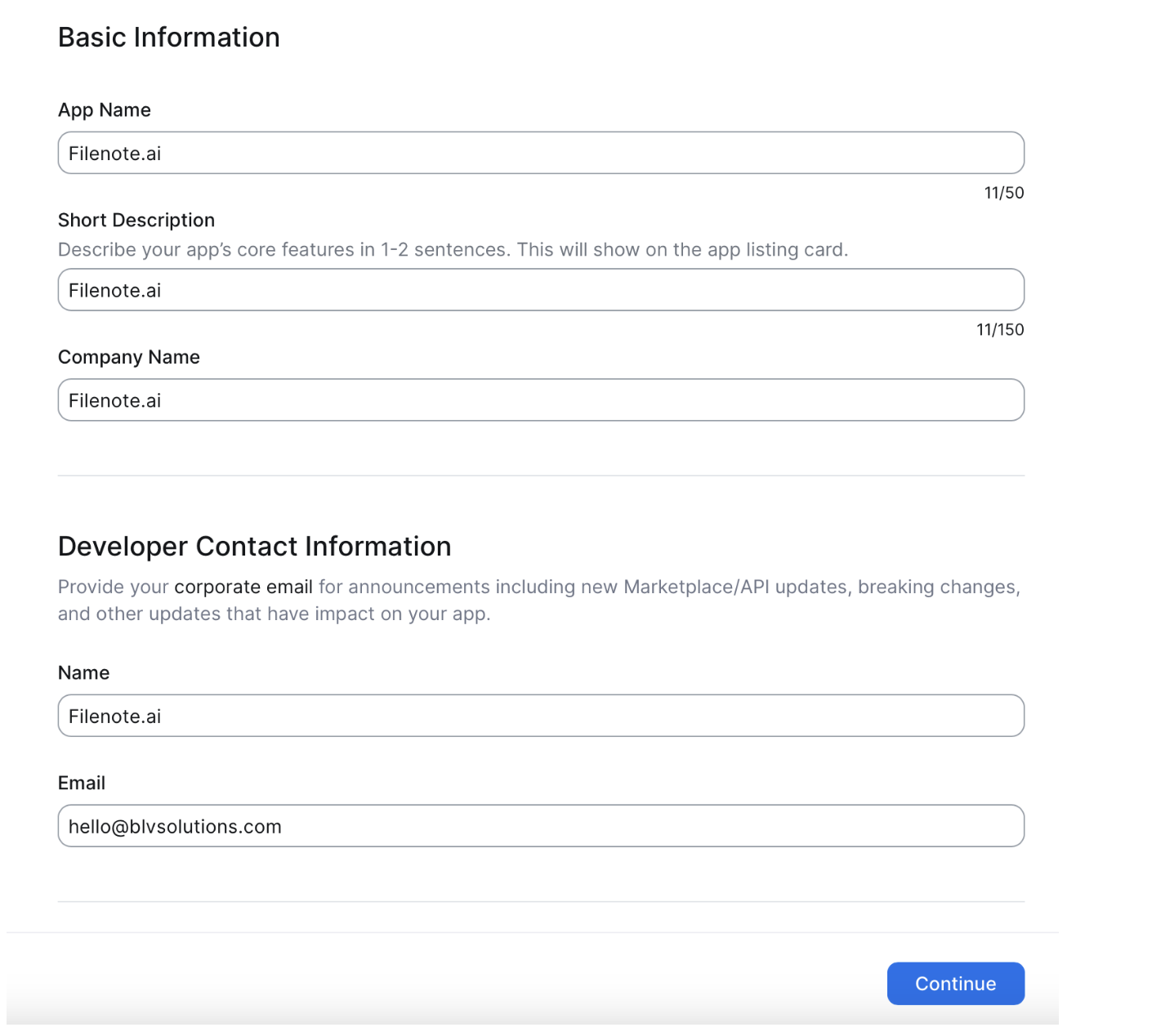
Step 6: Populate the developer information as per the following screenshot
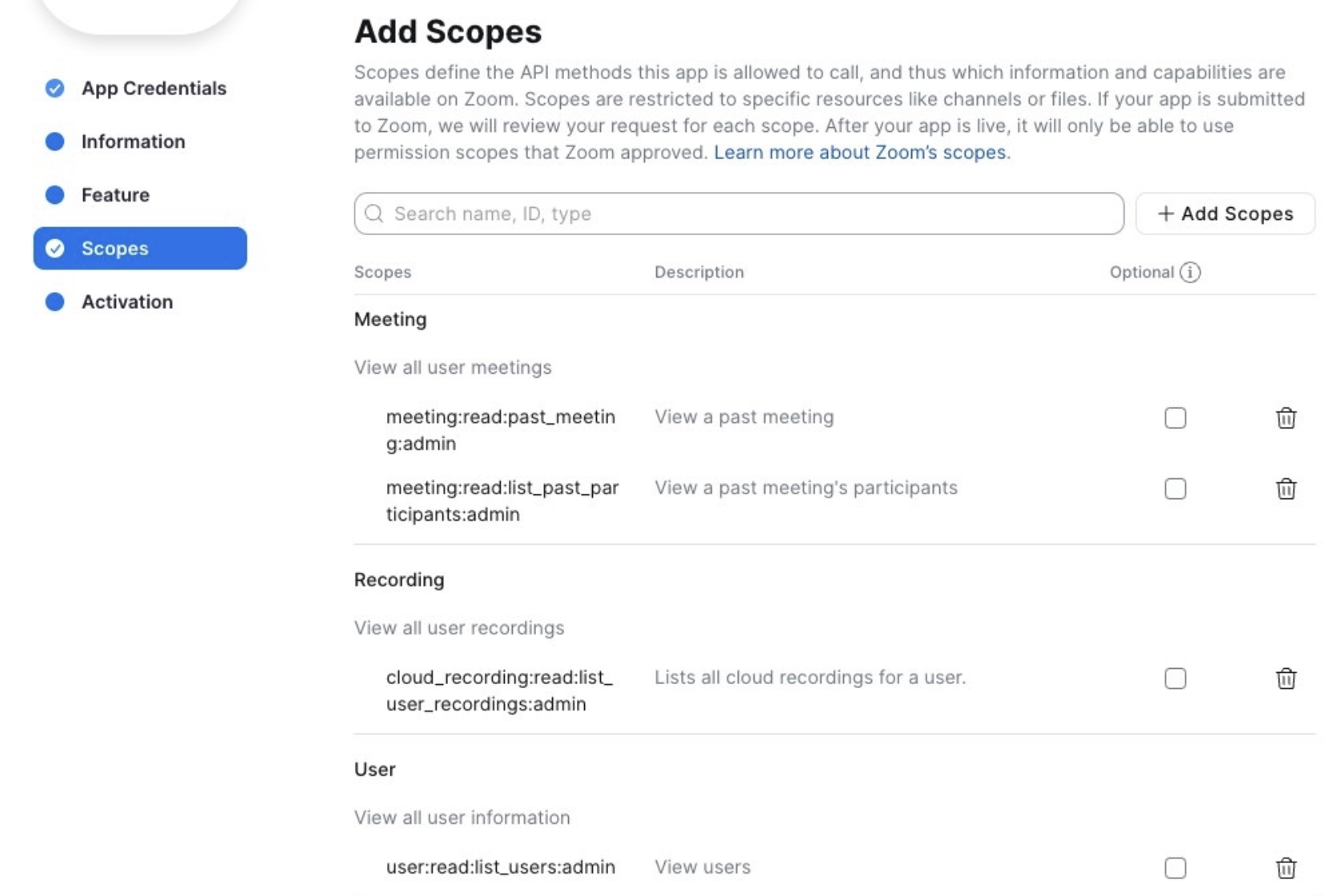
Step 7: Click on “Scopes” on the left hand side and then “Add Scopes”
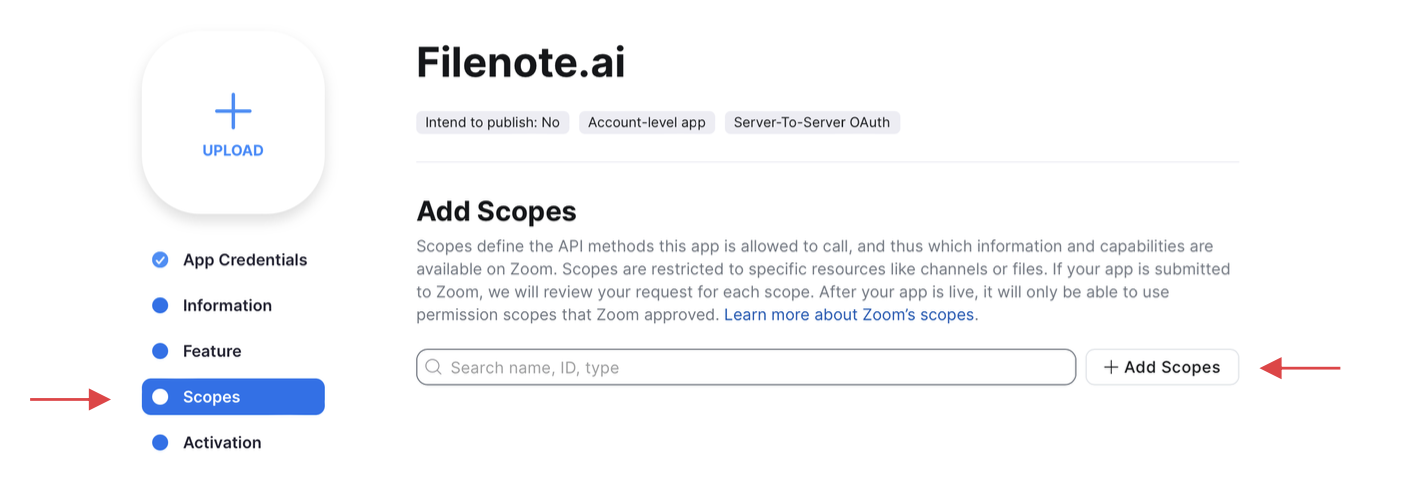
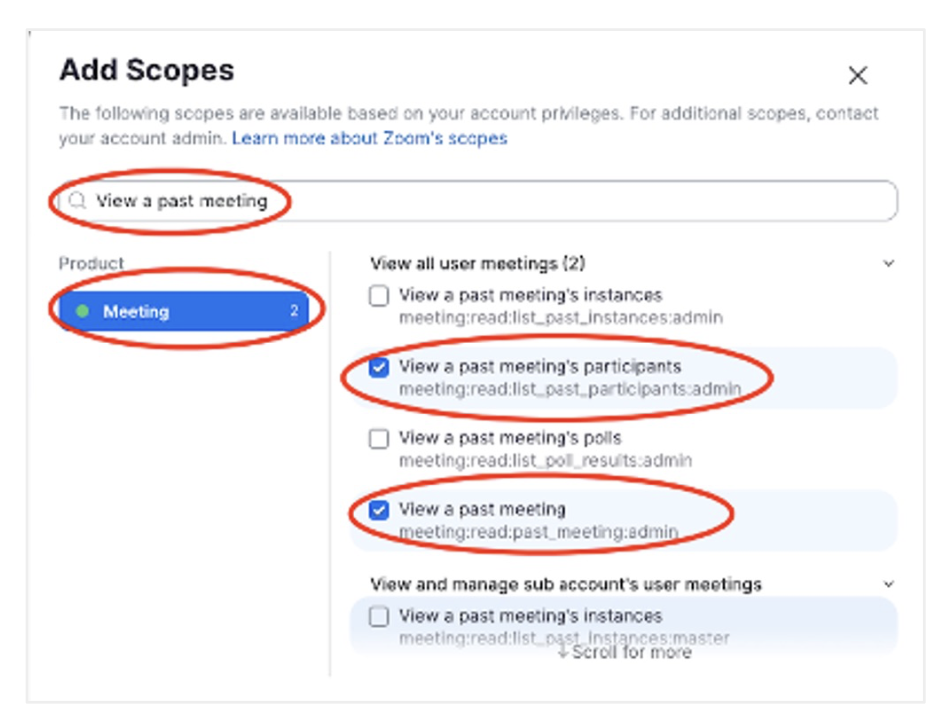
Step 8: On the pop up, separately:
Search for “View a past meeting”, Select both of the “View a past meeting’s participants” & “View a past meeting” as per the screenshot:
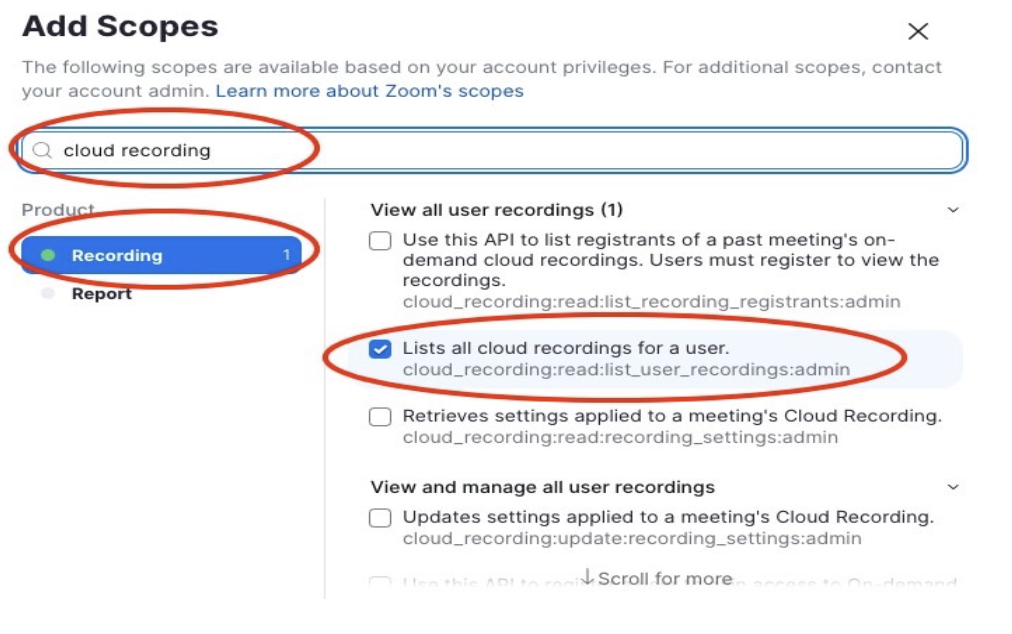
Search for “cloud recording”, select “Lists all cloud recordings for a user” as per the screenshot:
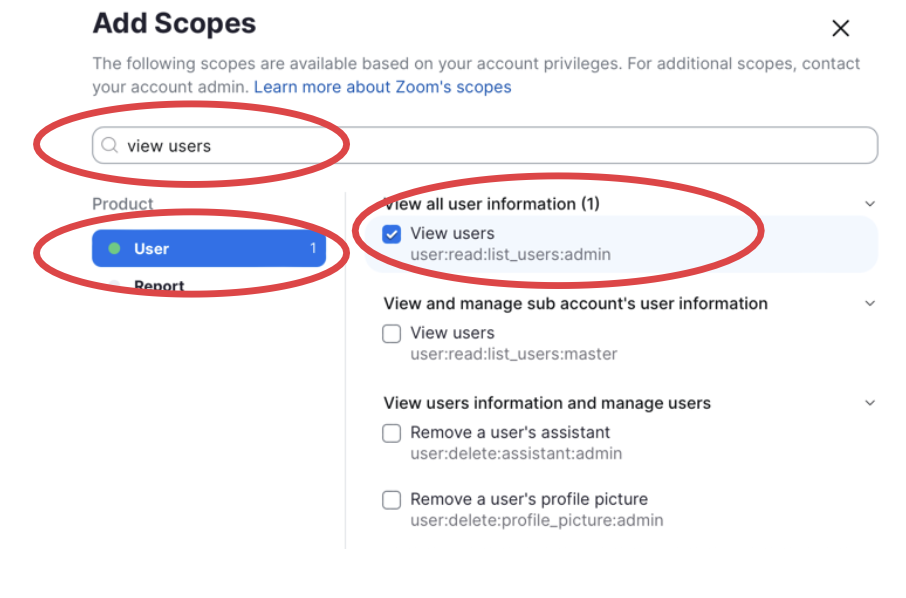
- Search for “View Users”, select “View Users” as per the screenshot:
Once completed, double check you have provisioned all the required scoped. Your scope should look identical to the below:
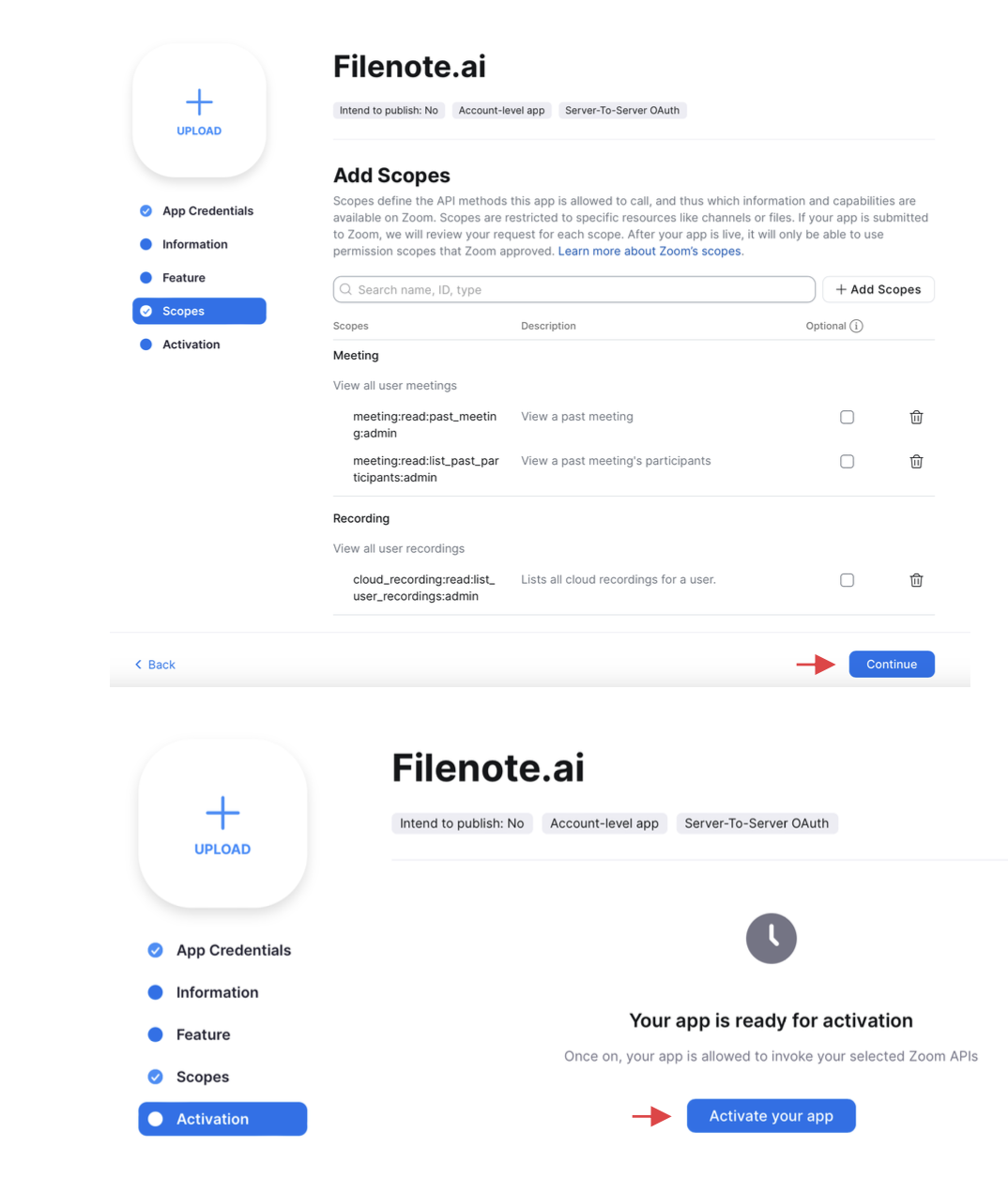
Step 9: Click “Continue” and “Activate your app” at the next screen:
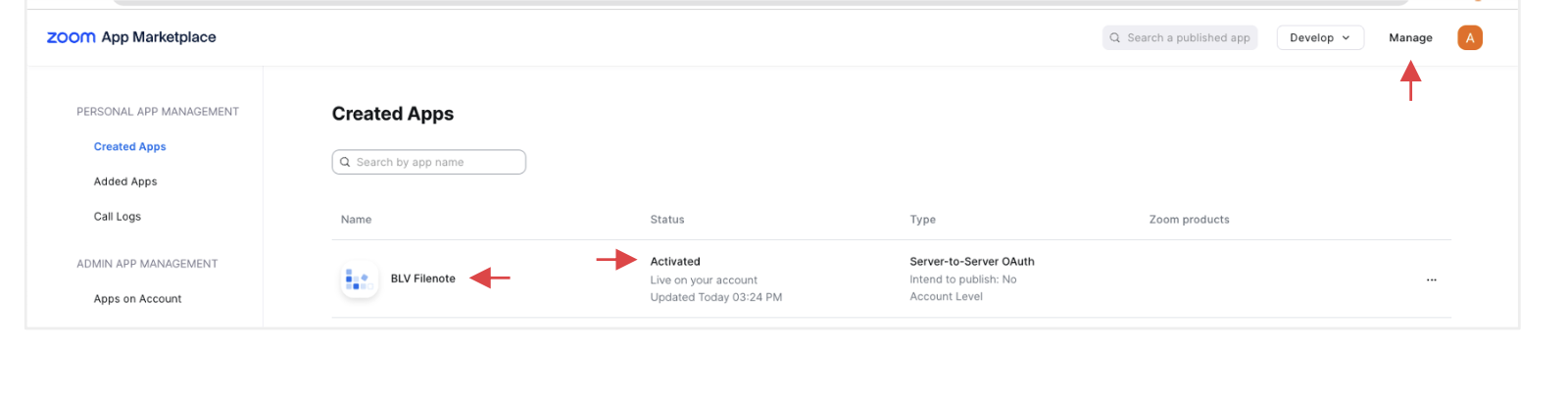
Step 10: The app is now activated. To verify you have activated, you can check it via “Manage”:
- Please copy and paste the Account ID, Client ID and Client Secret noted down in Step 5 to hello@blvsolutions.com. Use the “Copy” button to retrieve the values.
What happens next?
Once we receive the email, our delivery team will verify your credentials and complete your set up. You will receive an onboarding email outlining everything you need to know to get started within 12 hours.
Was this article helpful?
That’s Great!
Thank you for your feedback
Sorry! We couldn't be helpful
Thank you for your feedback
Feedback sent
We appreciate your effort and will try to fix the article