Follow these steps to record an online meeting using your Microsoft Teams app on your Desktop.
Launch Teams: Open the Microsoft Teams desktop application.
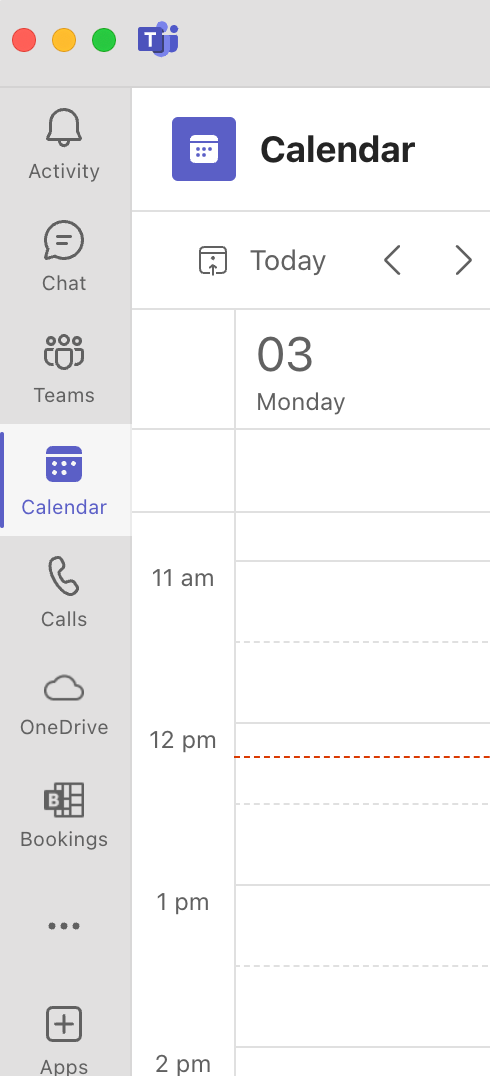
Navigate to Calendar: Click the Calendar icon on the left-hand sidebar.
Enter the Meeting:
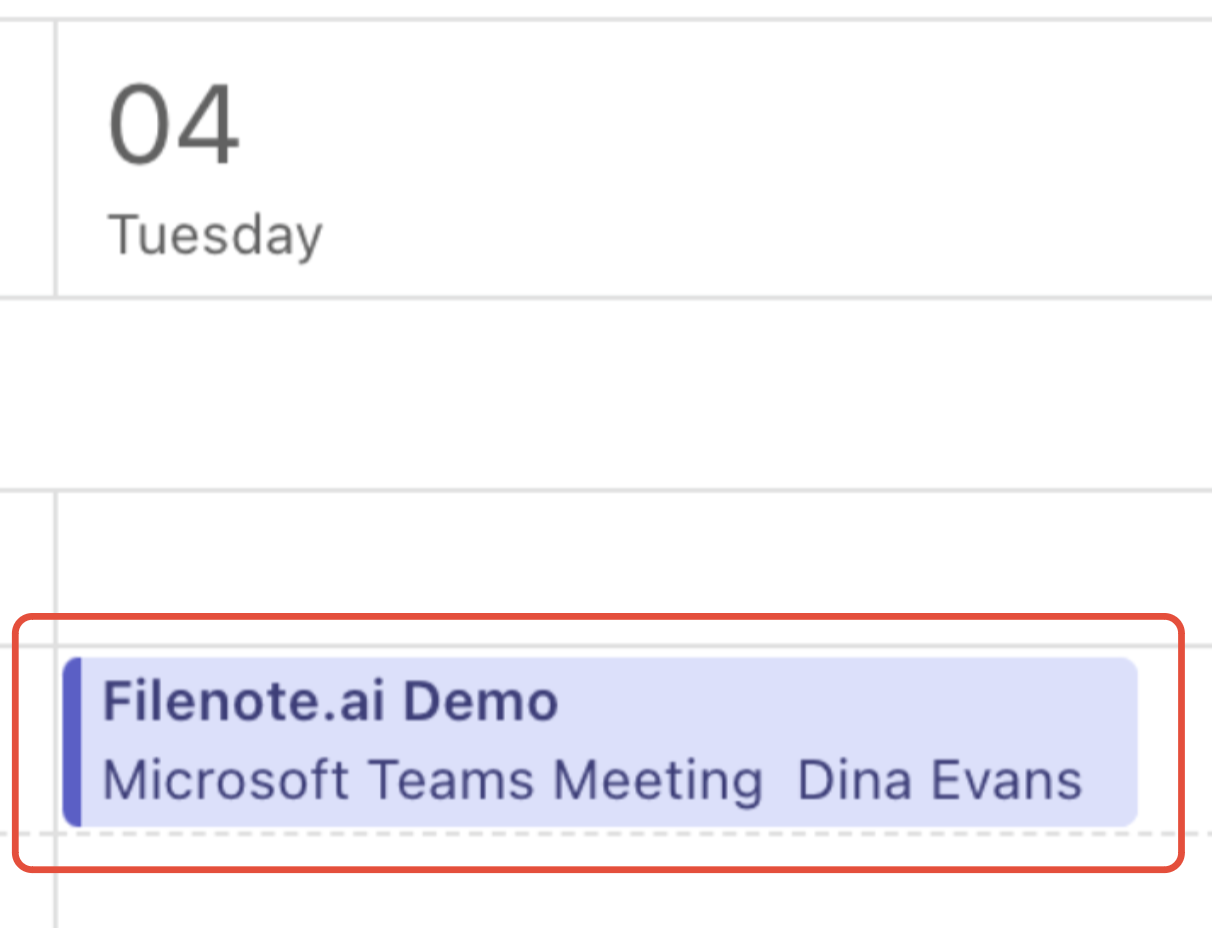
For Scheduled Meetings: Find the meeting in your diary and click Join.
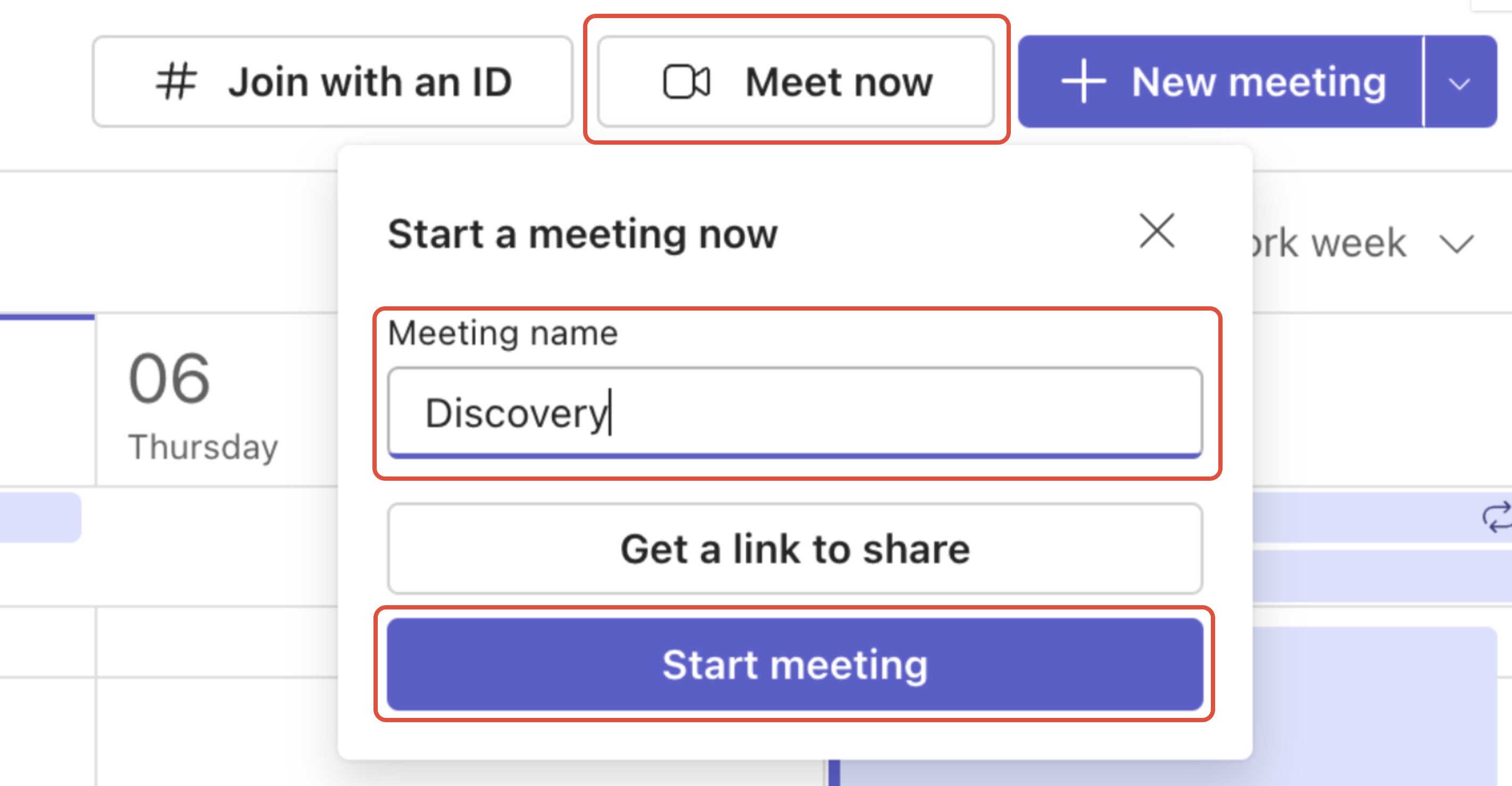
For Ad-hoc Meetings: Select Meet Now, rename the session using your specific keywords, and click Start Meeting.
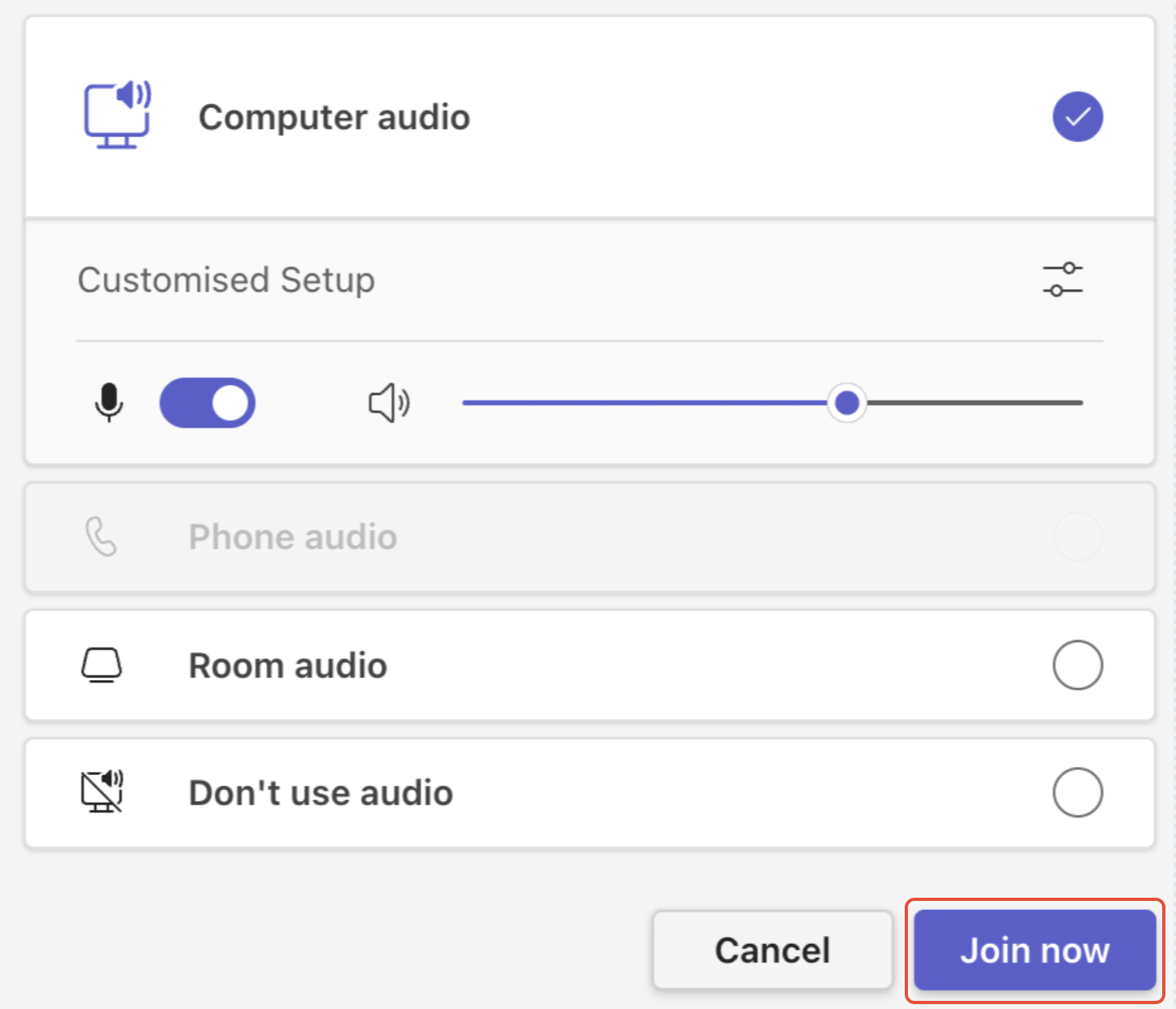
Join Audio: Check your mic and camera settings, then select Join Now.
Initiate Recording:
Click the More (...) icon at the top of the window.
Navigate to Record and transcribe.
Select Start Recording.
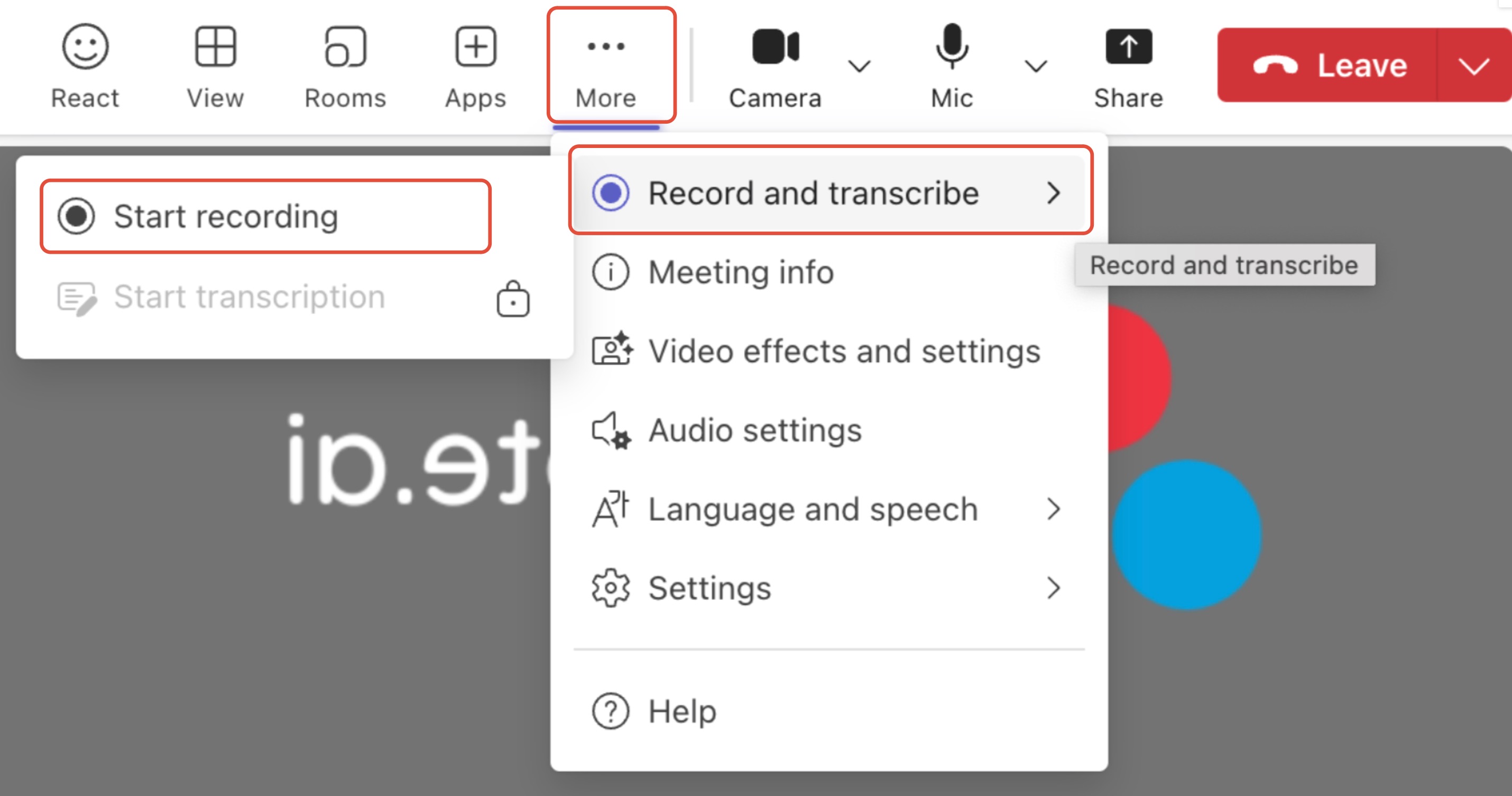
⚠️ CRITICAL: Do NOT select "Start Transcription" on its own. The Filenote AI engine requires the Recording file specifically to generate your outputs.
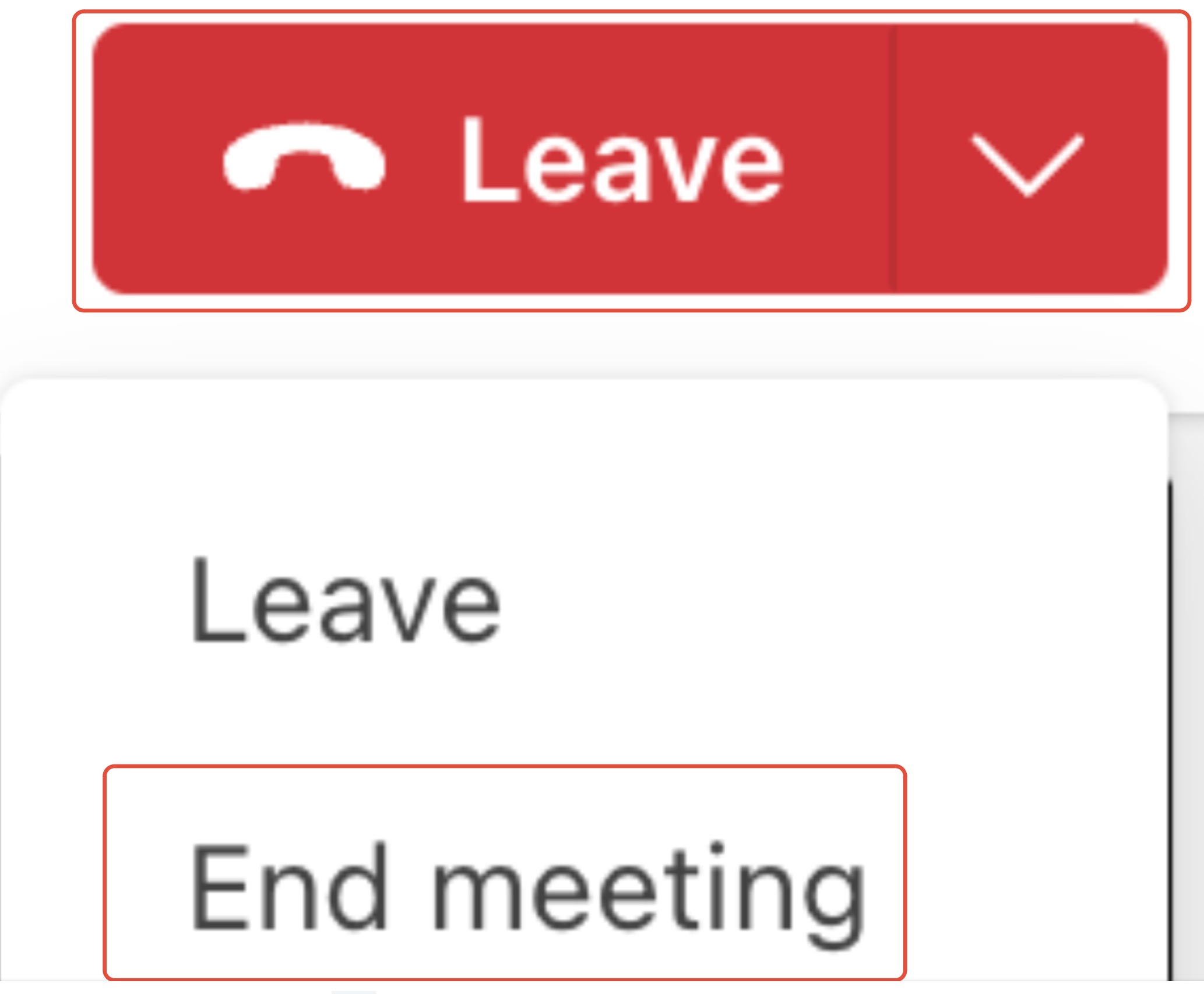
Exit & Close: Click the dropdown next to Leave and select End meeting. This ensures the session closes for everyone and the file begins processing immediately.
What Happens Next?
Once the meeting ends, the Filenote AI platform takes over the heavy lifting:
Retrieval: The system automatically pulls the audio file.
Generation: Your specific Filenote AI output documents (Mind Maps, Letters of Engagement, etc.) are created.
Delivery: Outputs are sent directly to your Tasks within the platform.
Final Touch: You can then Review, Edit, and Finalise the documents within the platform
Was this article helpful?
That’s Great!
Thank you for your feedback
Sorry! We couldn't be helpful
Thank you for your feedback
Feedback sent
We appreciate your effort and will try to fix the article