Using Keywords in Your Teams Meeting Name to Trigger the Correct Filenote AI Output
This article explains how to trigger the correct Filenote AI output using keywords in the meeting name in Teams.
Table of Contents
| 1. Overview |
| 2. The Keyword "Cheat Sheet" |
| 3. How to Use Keywords in Your Meeting Name (Teams Desktop) |
Overview
Filenote AI uses your Microsoft Teams meeting name as a command. By including specific keywords in the title, you tell the AI engine exactly which documents to generate — whether it's a Client Mind Map or an SOA Presentation Pack.
The Keyword "Cheat Sheet"
Use the table below to match your meeting type with the correct trigger.
| Meeting Type | Filenote AI Output | Keywords in Meeting Name |
|---|---|---|
| Review Default | Review File Note | No specific keywords |
| Discovery | Discovery File Note Letter of Engagement Client Mind Map | Initial Discovery First Fact Find |
| Strategy | Strategy File Note | Strategy |
| SoA Presentation | SoA Presentation File Note | Present Presentation Statement of Advice SoA |
| Fund Manager | Fund Manager File Note | Fund Manager Fund Mgr |
| Management & Board Meeting | Management & Board Meeting File Note | Board Management Mgmt |
| Ad Hoc Meeting | Ad Hoc Meeting File Note | Ad Hoc |
| ? Pro Tip: Keywords are fully customisable You can update these keywords to match your firm's specific terminology in the Workflow Settings within the Filenote AI platform. |
How to Use Keywords in Your Meeting Name to Trigger the Correct Output (Teams Desktop)
Follow these steps to ensure the correct templates and output are generated before you hit record.
Step 1 — Launch Teams
Open the Microsoft Teams Desktop App.

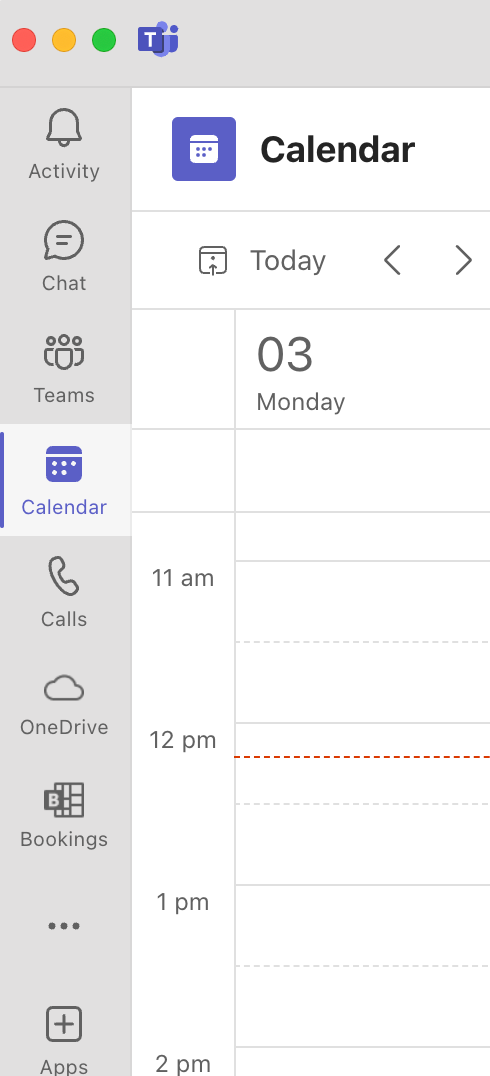
Step 2 — Access Calendar
Click the Calendar tab in the left-hand sidebar.
Step 3 — Start Meeting
Click the Meet Now button (top-right corner).
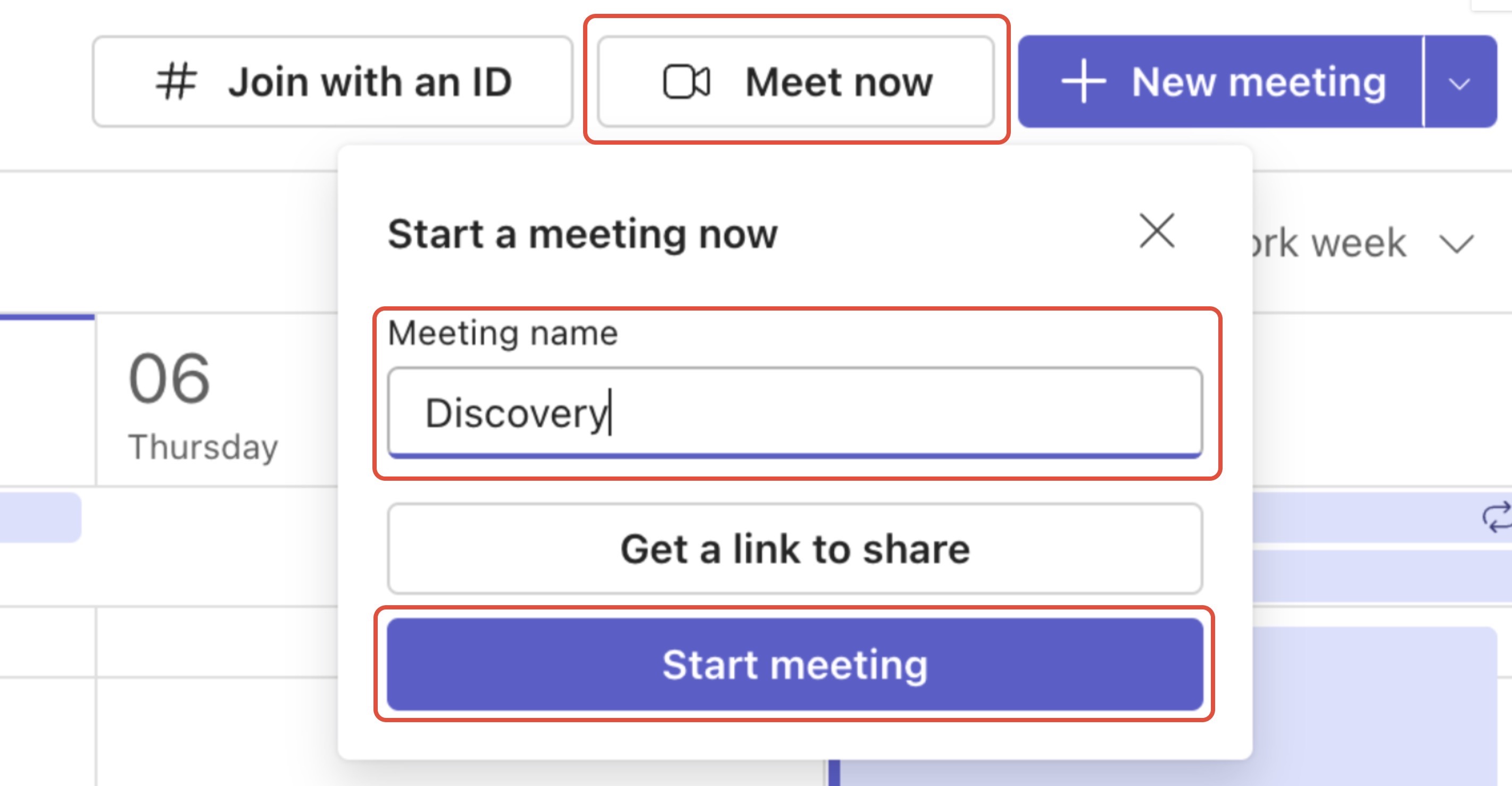
Step 4 — Assign Keywords
In the configuration window, rename the meeting to include your chosen keyword (e.g., "Discovery Meeting - Smith Family").
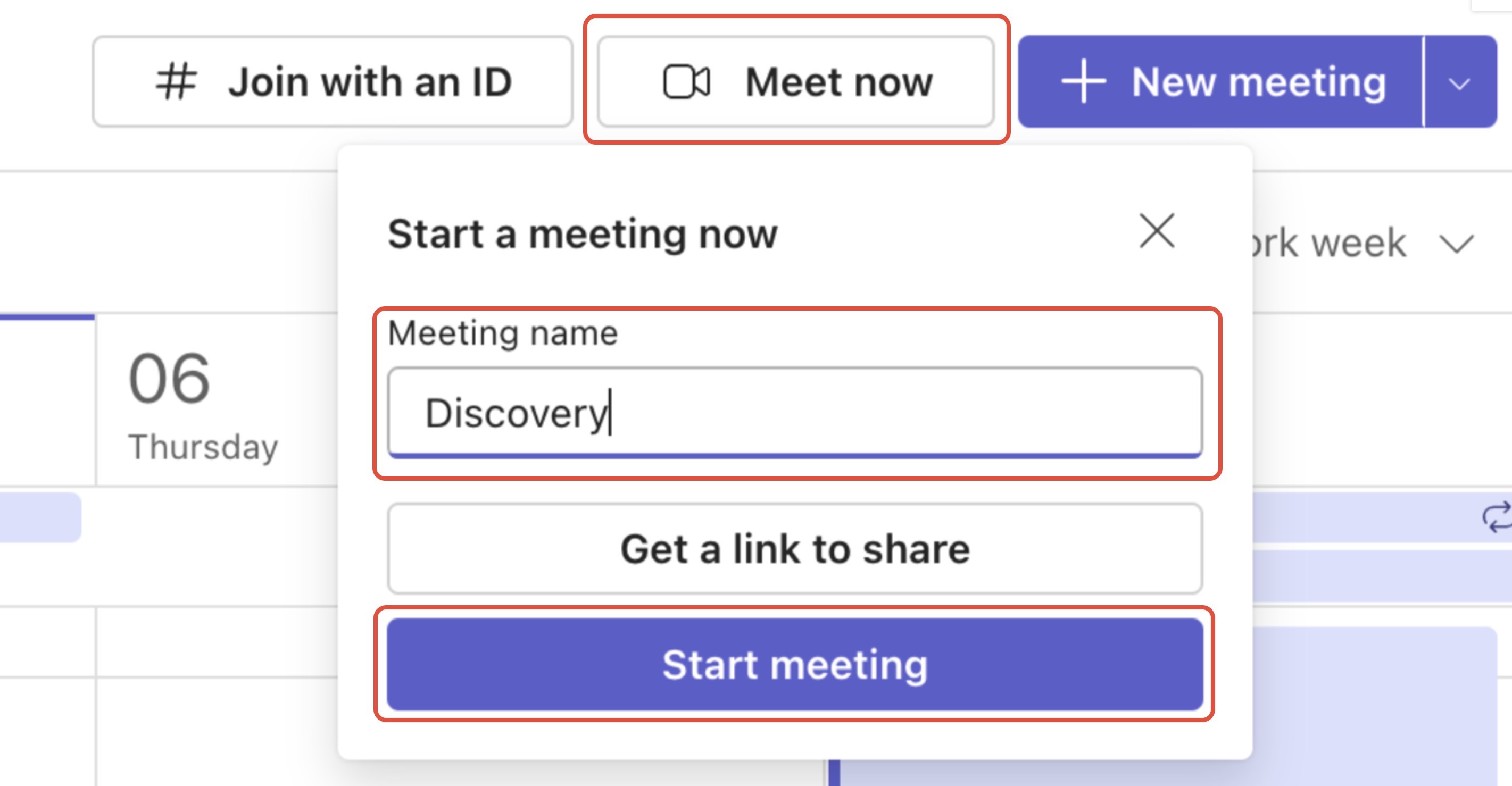
| ⚠ Important Reminder You must update the meeting name before you start the recording for the engine to catch the trigger. If you accidentally trigger the wrong template, you can manually re-trigger the correct one within the Filenote AI platform once the recording has finished processing. |
| Need help? If you run into any issues or have questions, our support team is here to help. Email Support → |
Was this article helpful?
That’s Great!
Thank you for your feedback
Sorry! We couldn't be helpful
Thank you for your feedback
Feedback sent
We appreciate your effort and will try to fix the article