Bulk Client Import: Choose How to Add Your Clients
Adding your clients to Filenote AI means you can select them in Magic Studio, link outputs to the right client, and use features like Platform Reports and Fact Find Update. There are two ways to import your client list in bulk.
| Option 1: Upload a spreadsheet | Option 2: Import from Xplan | |
|---|---|---|
| Best for | Any CRM | Xplan users |
| What you need | A CSV or Excel export from your CRM, with each client's adviser, name and CRM ID | Your Xplan login |
| What comes across | The columns you choose to import | Clients, CRM IDs and related entities, with Fact Find and IPS details synced automatically |
| ? Which should I choose? If you use Xplan, import directly. There's nothing to export, and your clients' Fact Find and IPS details come across too. For any other CRM, upload a spreadsheet. |
You'll find both options in Clients, under Import Clients.
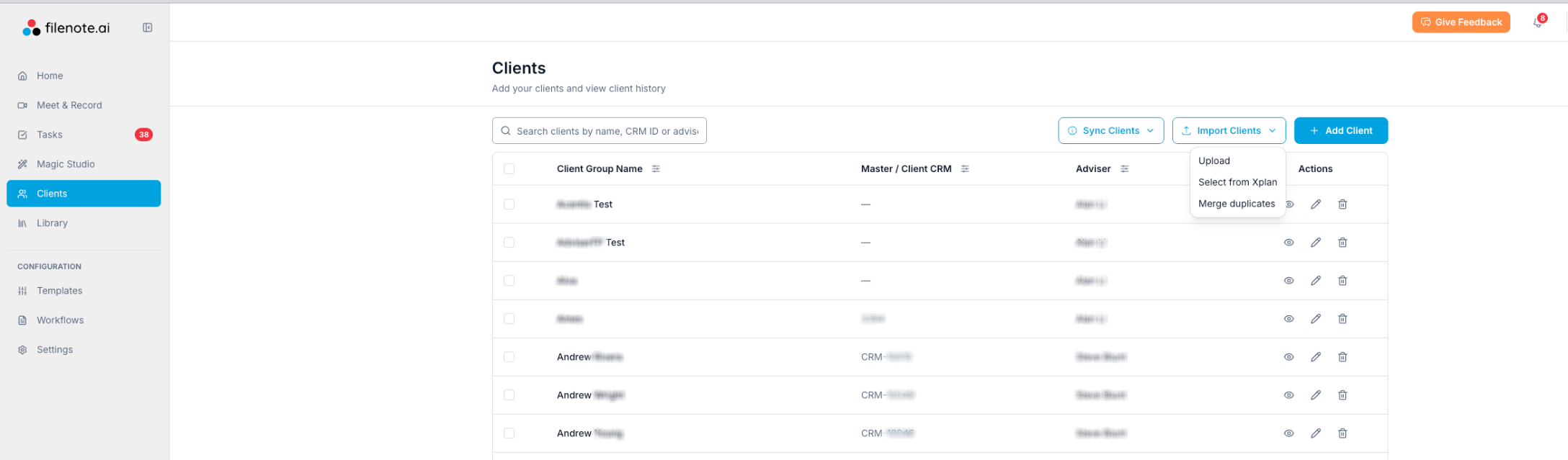
Option 1: Upload a spreadsheet (CSV or Excel)
- Export your client list from your CRM as a .csv or .xlsx file. You only need each client's adviser, name and CRM ID.
- In Clients, click Import Clients, then Upload, and choose your file.
- Map your CRM ID, adviser and client name columns, then click Confirm import.
Read the full spreadsheet guide →
Option 2: Import directly from Xplan
- In Clients, click Import Clients, then Select from Xplan.
- Sign in to Xplan, use the filters to choose which clients to import, and assign each Xplan adviser to a licensed user.
- Click Import all matches. The import runs in the background.
Signing in here ends any other Xplan session you have open, so save your work in Xplan first.
After your import
| ✓ Duplicates are flagged for you If a client already exists in Filenote AI, it's flagged as a possible duplicate. To review and merge them, go to Clients, click Import Clients, then Merge duplicates. See Merge Duplicate Clients. |
Adding just one client? In Clients, click Add Client instead.
Related articles
- Bulk Client Import: Upload a CSV or Excel File
- Import Your Client List from Xplan
- Merge Duplicate Clients
| Need help? If you run into any issues or have questions, our support team is here to help. Email Support → |
Was this article helpful?
That’s Great!
Thank you for your feedback
Sorry! We couldn't be helpful
Thank you for your feedback
Feedback sent
We appreciate your effort and will try to fix the article