Merge Duplicate Clients
Sometimes the same client ends up in Filenote AI more than once, for example if they were added manually and later imported from your CRM. Merging combines the records into one client, and keeps all their Tasks, files and history.
Filenote AI checks for duplicates each time you complete a bulk import. You can also check for duplicates at any time.
| Step 1 | Open Merge duplicates |
| Step 2 | Choose a match to review |
| Step 3 | Select the records and the primary record |
| Step 4 | Check the combined client and merge |
Step 1: Open Merge duplicates
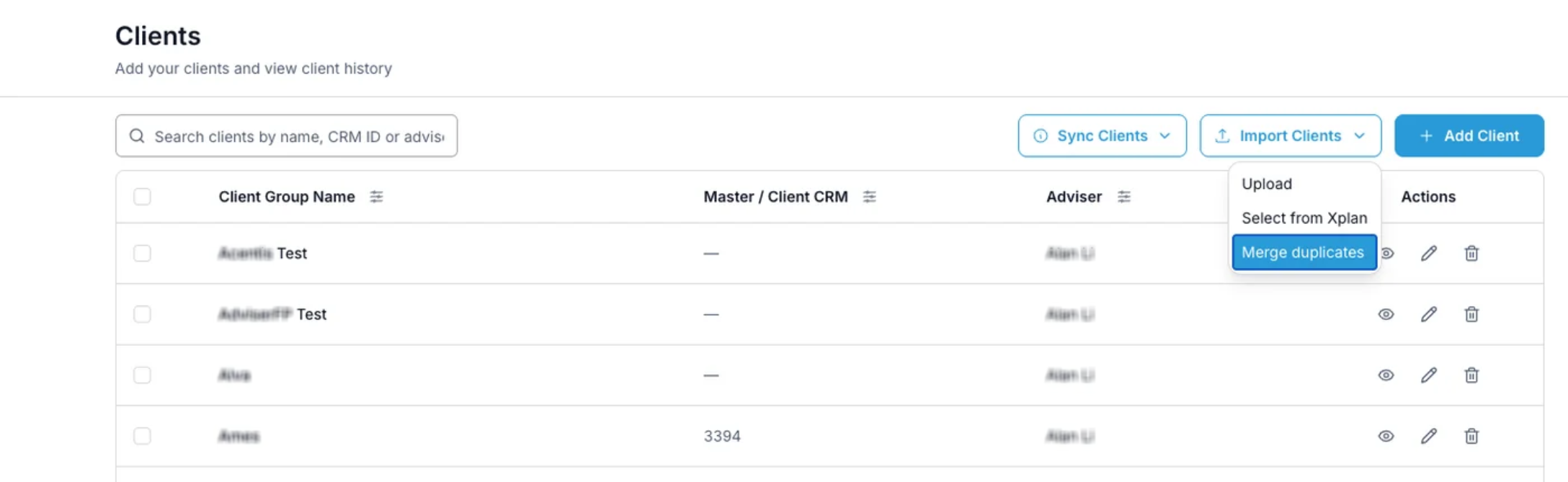
After a bulk import, any duplicates found are flagged for you to review. To check at any time, go to Clients, click Import Clients, then Merge duplicates.
Step 2: Choose a match to review
The Matches list shows each possible duplicate, how many records it includes, and why it was flagged:
| Flagged as | What it means |
|---|---|
| Same CRM ID | The records share a CRM ID, so they're very likely the same client. |
| Same name (check details) | The records share a name only. Check the details before merging, as they could be different people. |
Step 3: Select the records and the primary record
Tick the records you want to combine, then choose which one is the Primary record. Filenote AI marks the one it recommends. Any other clients in the same household stay separate.
Step 4: Check the combined client and merge
Under Combined client, check the Client name and Adviser, and change them if needed. The Master CRM ID is kept, so future imports match this client. When you're happy, click Review merge to confirm.
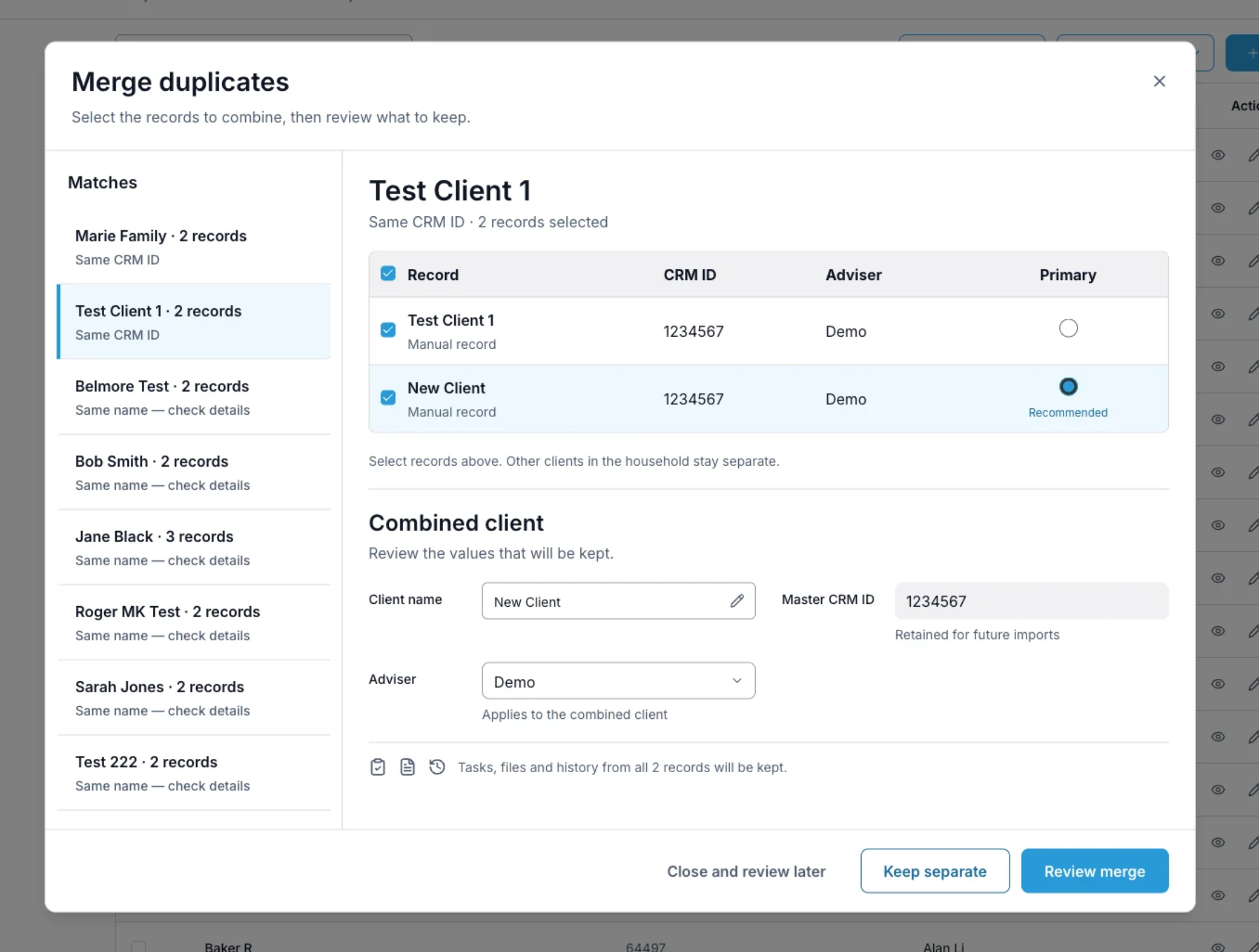
| ✓ Good to know Tasks, files and history from every merged record are kept on the combined client. Not the same client? Click Keep separate. Not sure yet? Click Close and review later and come back to it. |
Related articles
- Bulk Client Import: Choose How to Add Your Clients
- Bulk Client Import: Upload a CSV or Excel File
- Import Your Client List from Xplan
| Need help? If you run into any issues or have questions, our support team is here to help. Email Support → |
Was this article helpful?
That’s Great!
Thank you for your feedback
Sorry! We couldn't be helpful
Thank you for your feedback
Feedback sent
We appreciate your effort and will try to fix the article