Platform Reports: Run Client Reports Across Investment Platforms
Platform Reports pulls your clients' reports straight from their investment platforms, including review, valuation and performance reports, and fee statements. Many advisers use it to prepare for review meetings, running the reports for every client they're seeing that week in one go.
| ★ Why it saves time Run reports for up to 10 clients in one batch, across several platforms at once. Report date ranges are saved with each report, so a period like "the last 12 months" is applied automatically every time you run it. |
| In this article Before you start How to run Platform Reports What you'll get Good to know Related articles |
Before you start
Set these up once and every run after that is quicker:
- Import your clients. Each client needs a client name, adviser and CRM ID. See Bulk Client Import from CRM.
- Add your investment platforms and save your login details. See Platform Connect: Add Your CRM and Investment Platforms.
- Choose your report packs and set your report dates. See Report Packs: Choose Your Reports and Report Dates.
How to run Platform Reports
| Step 1 | Choose Platform Reports and a report pack |
| Step 2 | Add your clients |
| Step 3 | Confirm the platform accounts |
| Step 4 | Generate the reports |
Step 1: Choose Platform Reports and a report pack
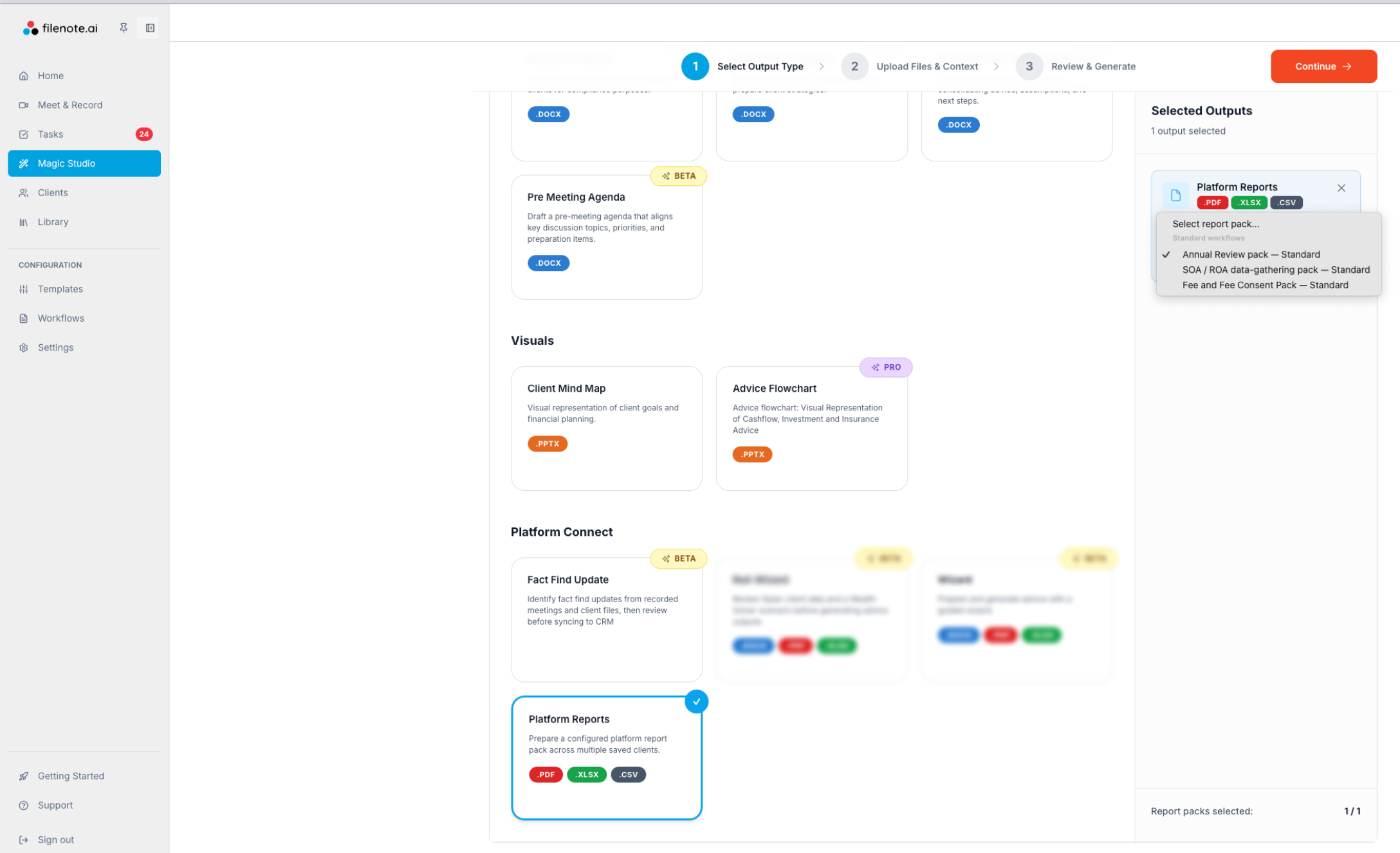
In Magic Studio, under Platform Connect, select Platform Reports. In the Selected Outputs panel, choose a report pack from the drop-down, then click Continue. The list shows the packs you've starred in Report settings.
Step 2: Add your clients
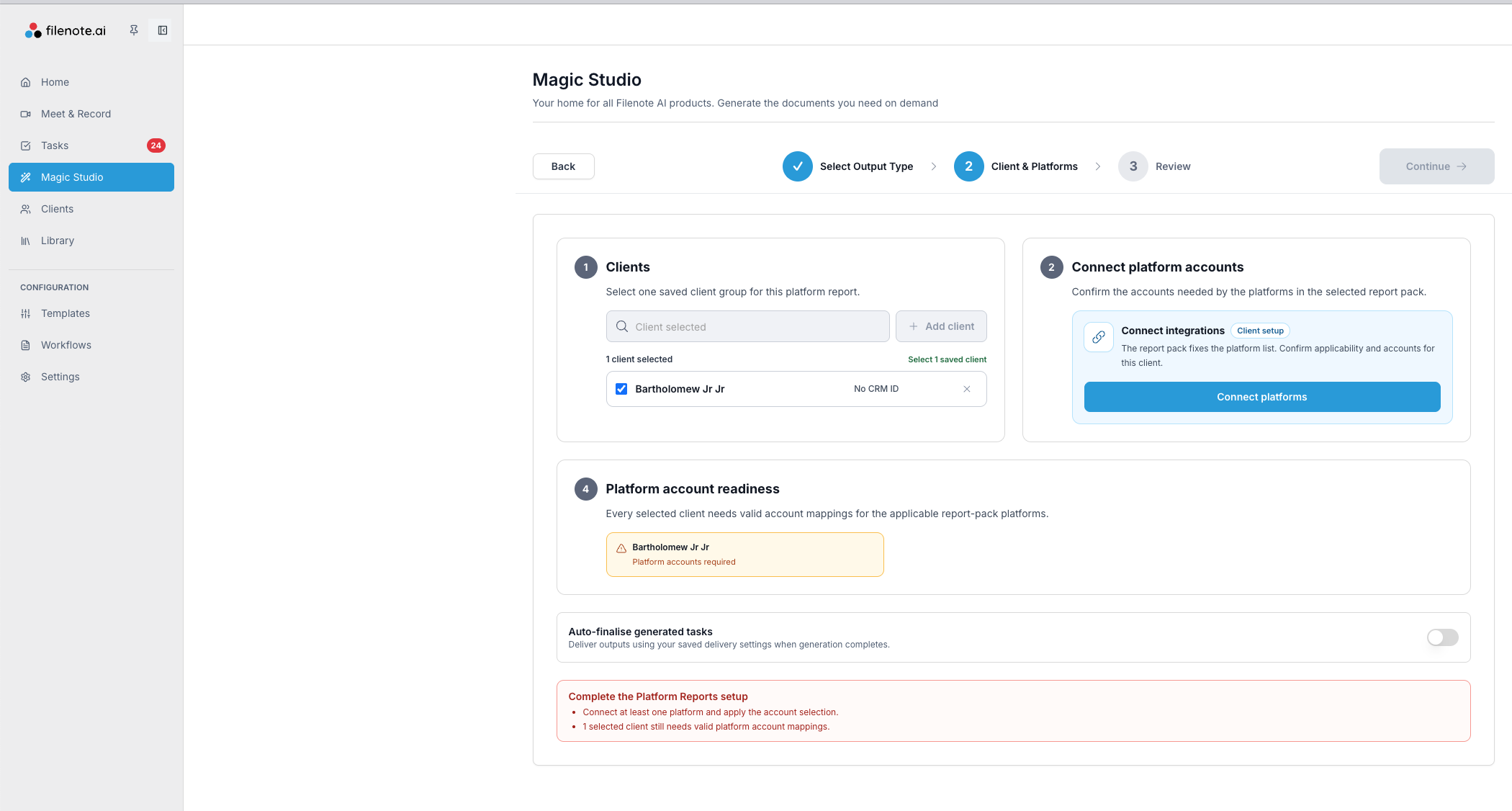
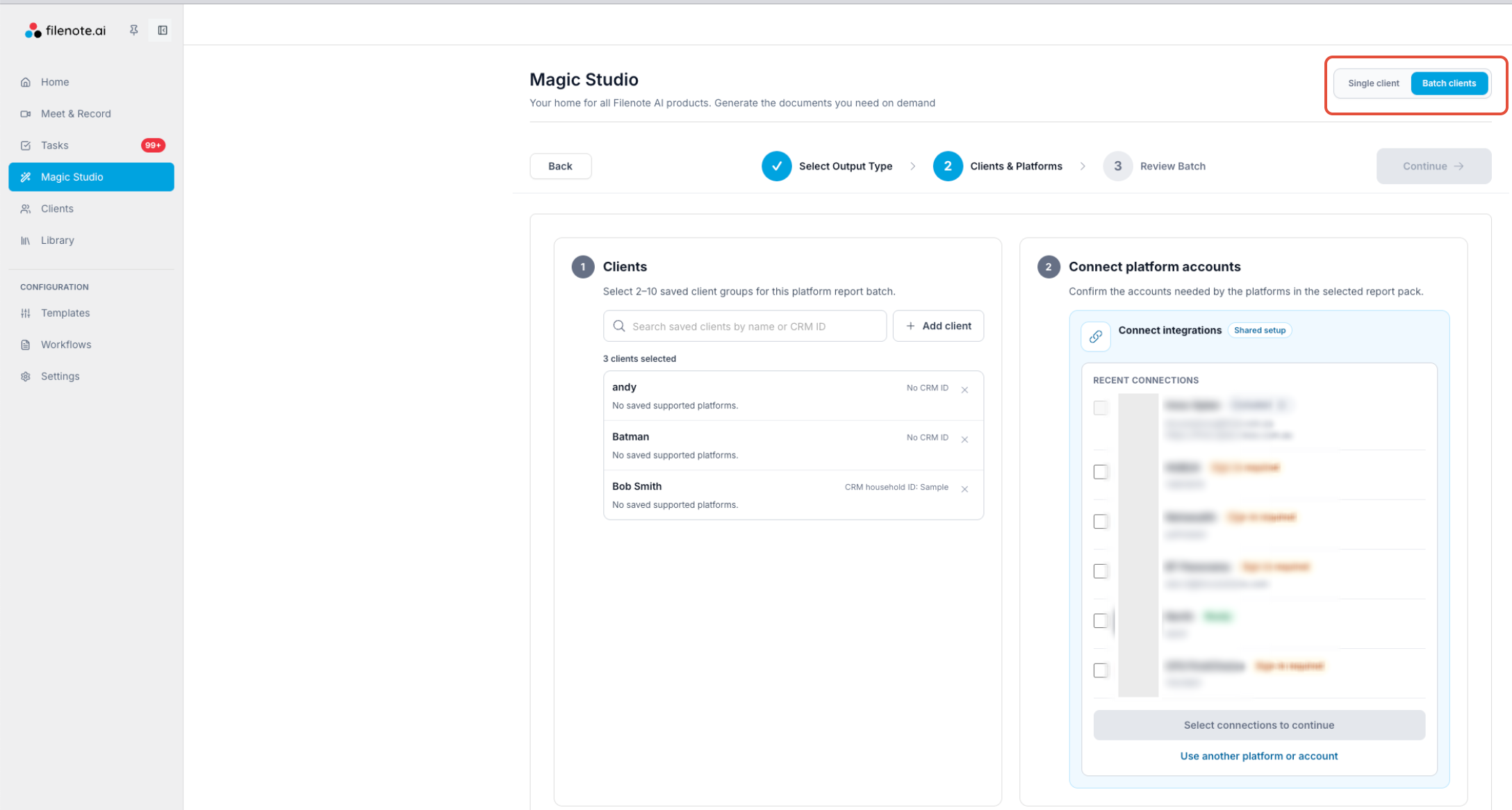
At the top right, choose Single client or Batch clients. In a batch, you can select between 2 and 10 saved clients. Search by name or CRM ID, or click Add client. Under each client, you'll see the platforms where they already have saved accounts.
Single Client
Batch Clients
Step 3: Confirm the platform accounts
- Under Connect platform accounts, tick the platforms you want to include.
- For each client, tick Include accounts for each platform, then check or add the account numbers. Click Add a row to add another account. Account names are optional.
- Sign in to each platform when prompted to complete the connection.
Every client needs account details for the platforms in the pack. Clients marked Needs attention are still missing some.
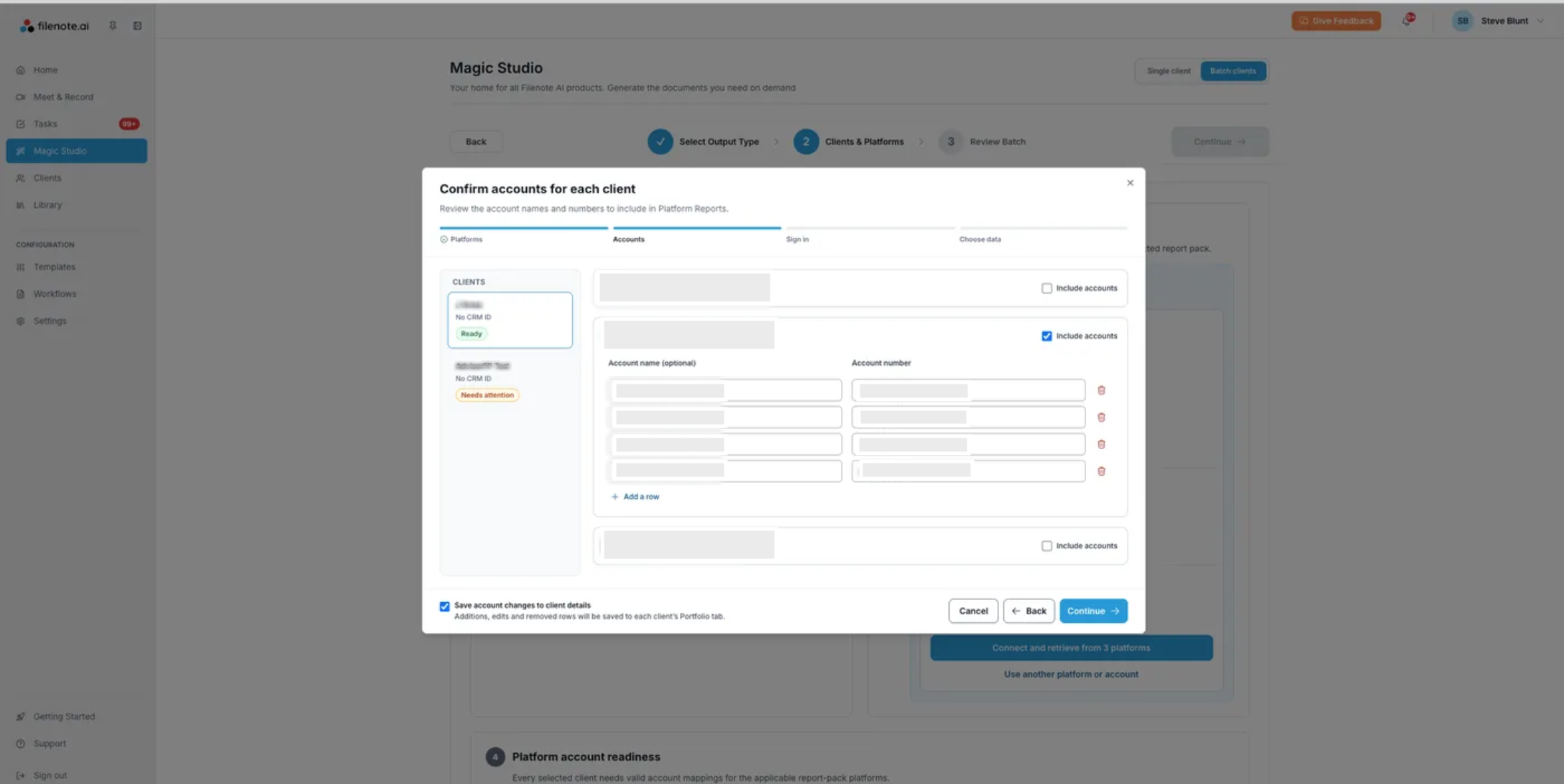
| ✓ Good to know Leave Save account changes to client details ticked. The accounts are saved to each client's Portfolio tab and filled in for you the next time you run Platform Reports for that client. |
Step 4: Generate the reports
Click Continue, check everything on the Review Batch screen, then click Generate. Filenote AI creates a separate Task for each client.
What you'll get
Open the client's Task from Tasks. Each Task contains two outputs:
| Output | What it contains |
|---|---|
| Platform Reports ZIP | All of that client's reports, in a folder for each platform and account. Click to download. |
| Run Report | A summary of the run: how many reports were requested, generated or failed, and the settings used for each one. |
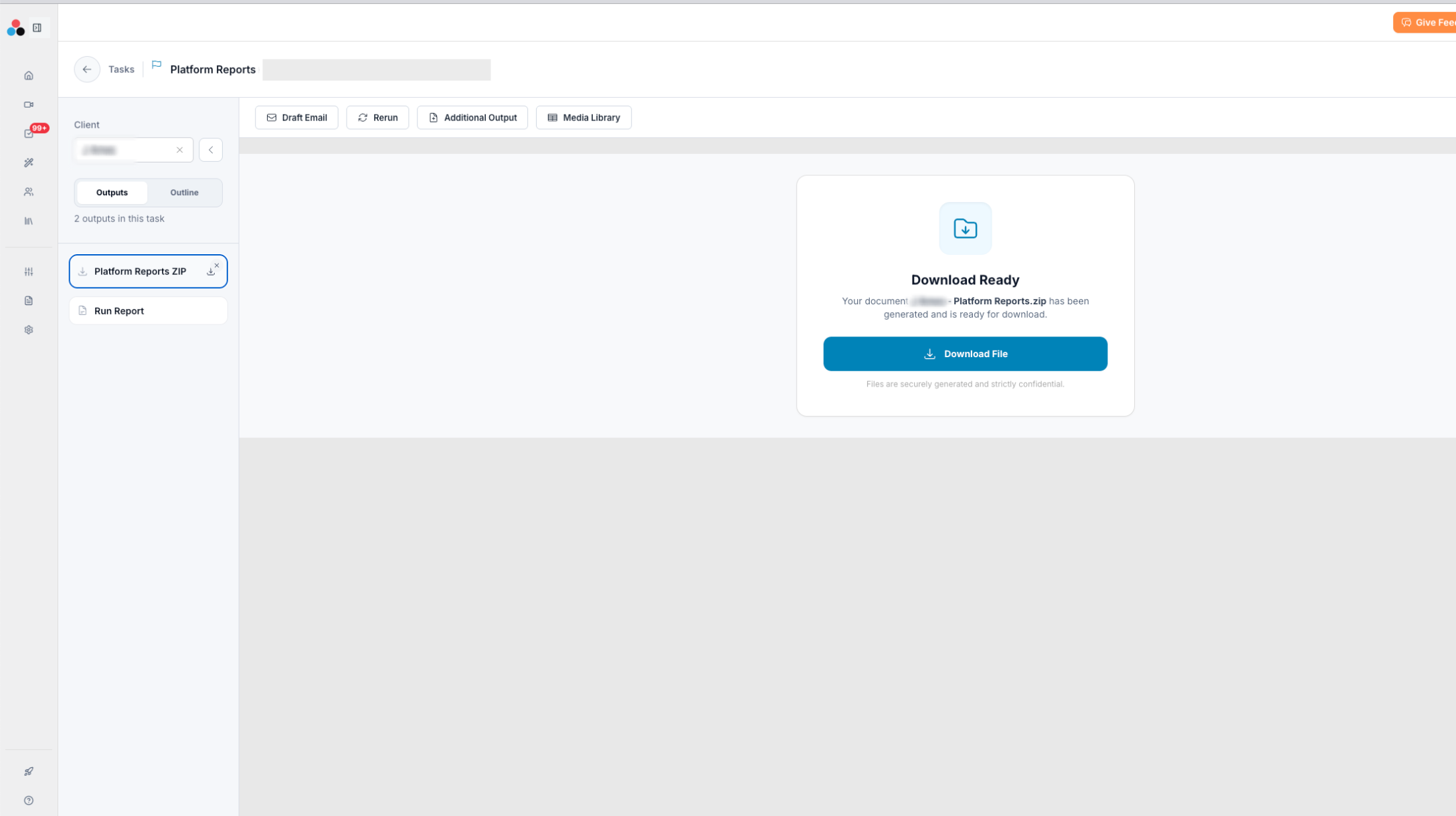
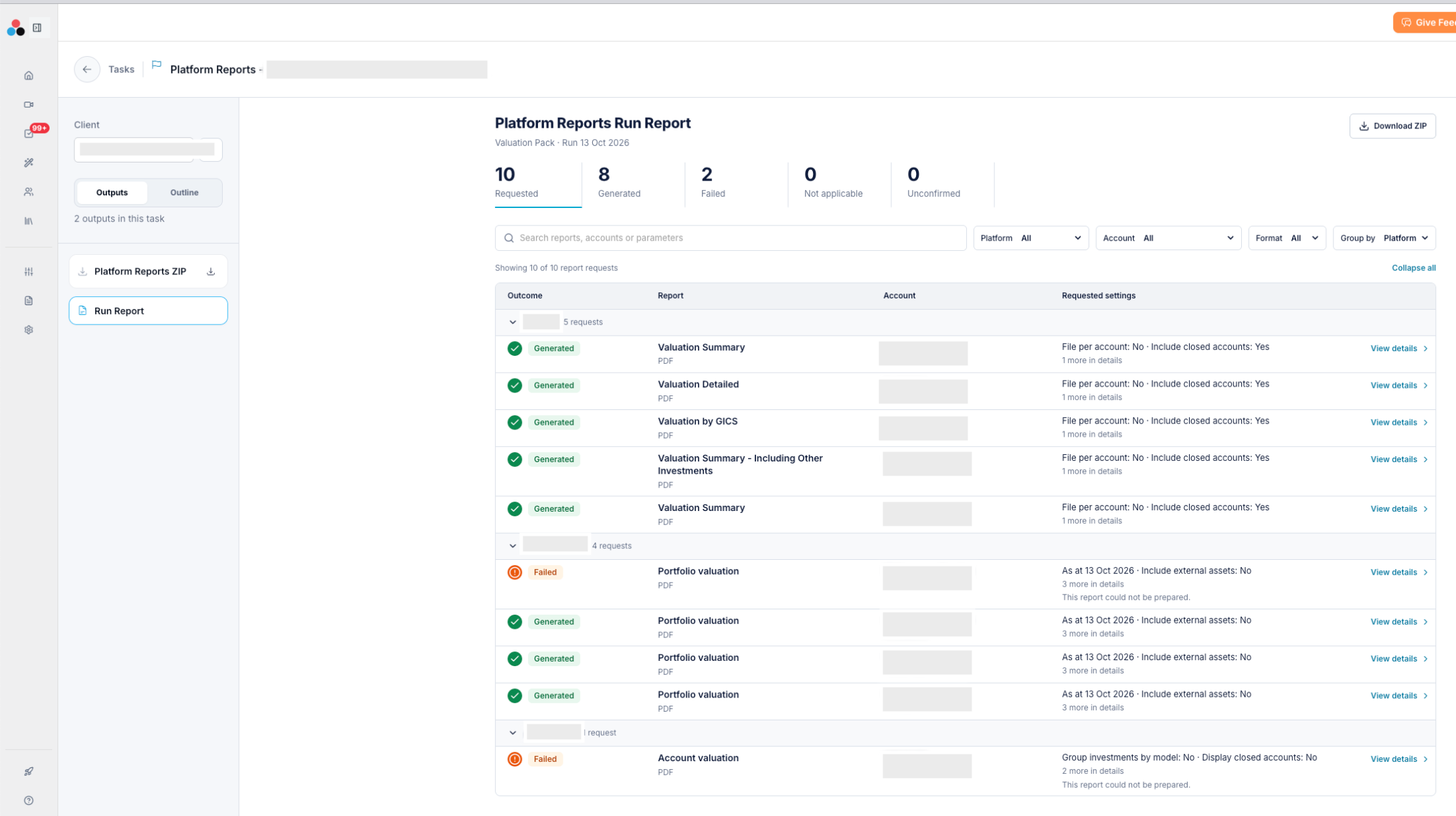
| ⚠ If a report fails Reports that couldn't be prepared are marked Failed in the Run Report, so you know exactly what to follow up. Click View details next to a report to see the settings that were used. Note: reports are generated on a 'best efforts' basis. |
Good to know
- See a client's saved accounts: go to Clients, open the client and select the Portfolio tab.
- Sync client details from your CRM: in Clients, open the client, click Platform Connect and start the sync. This fills in the client's Fact Find and Portfolio tabs.
Related articles
- Platform Connect: Add Your CRM and Investment Platforms
- Report Packs: Choose Your Reports and Report Dates
- Bulk Client Import from CRM
- Understanding Tasks
| Need help? If you run into any issues or have questions, our support team is here to help. Email Support → |
Was this article helpful?
That’s Great!
Thank you for your feedback
Sorry! We couldn't be helpful
Thank you for your feedback
Feedback sent
We appreciate your effort and will try to fix the article