This article explains how to change the plan for your organisation (upgrade or downgrade).
How to Upgrade your plan
Use this to move your organisation from the Standard Plan to the Pro Plan.
Step 1 | On the Users & Billing page, select Upgrade Plan. |
Step 2 | Review the changes |
Step 3 | Select Continue, turn on I understand this changes our subscription, then select Confirm upgrade request. |
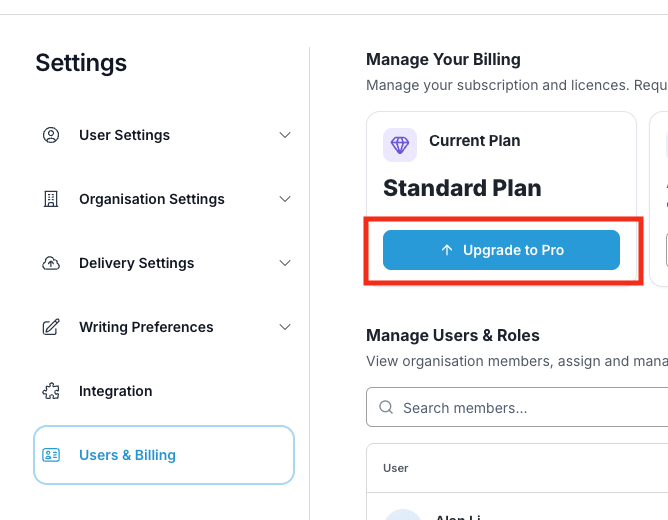
| ⚠ Important Only Admin or Billing roles can change plan. Upgrading moves your organisation to the Pro Plan and adjusts your subscription. This means that Upgrade (or Downgrade) changes all users in your organistion. This will be charged automatically to your nominated payment method via Stripe. Any discounts or terms on your account carry over automatically. |
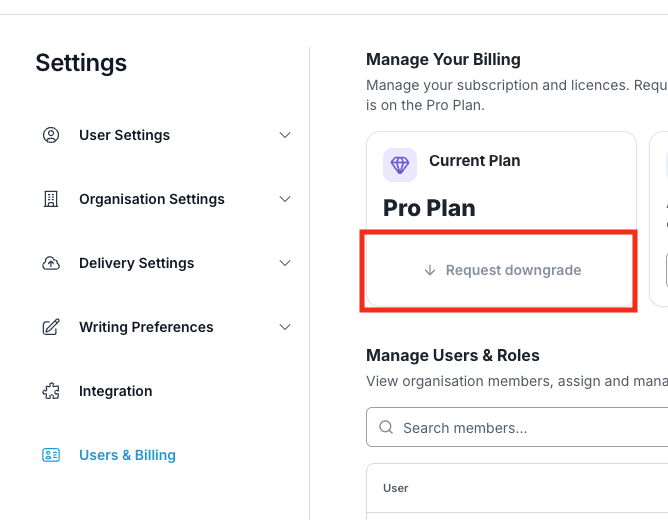
How to Downgrade your plan
Use this to move your organisation from the Standard Plan to the Pro Plan.
Step 1 | On the Users & Billing page, select Downgrade Plan. |
Step 2 | Review the changes |
Step 3 | Select Continue, turn on I understand this changes our subscription, then select Confirm upgrade request. |
| Need help? If you run into any issues or have questions, our support team is here to help. Email Support → |
Was this article helpful?
That’s Great!
Thank you for your feedback
Sorry! We couldn't be helpful
Thank you for your feedback
Feedback sent
We appreciate your effort and will try to fix the article