Managing Users & Billing from the Settings page
The Settings page is where you control how Filenote AI works for you and your organisation. This guide covers the Users & Billing section, where you can add new team members, replace or update existing ones, change what each person can do, and upgrade your plan.
| ✓ Good to know You'll need the Admin role to manage users and billing. If you can't see these options, ask a colleague who holds Admin access, or contact our support team. |
TABLE OF CONTENTS
2. Licence types and roles explained
1. Getting to Users & Billing
Open Settings, then select Users & Billing from the menu on the left. This is your home for everything to do with team members and your subscription.
Near the top you'll see four quick actions:
| Action | What it does | Which Role can Perform Action |
|---|---|---|
| Upgrade Plan | Upgrade your organisation to the Pro Plan, or downgrade to Standard Plan | Admin & Billing users |
| Manage Users | Add Advisers or Support, or replace an existing person's licence. | Admin & Billing users |
| Billing Portal | View invoices, update payment, or cancel your subscription. | Billing user |
| Raise a Ticket | Request anything not covered by the actions above. | All users |
Below these, the Organisation Licences table lists everyone included in your billing setup, along with their roles and licence type. You can search this list using the Search members box.
2. Licence types and roles explained
Before you add or change anyone, it helps to understand the two licence types and the two extra roles you'll see throughout this page.
| Type | What it means | Charge | Notes |
|---|---|---|---|
| Adviser (Paid Licence) | A full, paid seat for a financial adviser who uses Filenote AI to document meetings. | Paid user | Only 1 email for paid user will be polled (meaning recordings from that email will automatically trigger outputs) |
| Support (Free Licence) | Access for support staff who assist advisers but don't need a paid seat. | No charge | You can add up to 3 Support staff for every 1 paid licence. |
| Admin (role) | Can manage members, roles, organisation templates and settings. No limit on how many people can be Admins. | No extra charge | This is a role that can be applied to any user. |
| Billing (role) | The Stripe account owner for your organisation. Only one person can hold this role at a time. | No extra charge | Only 1 billing role per entity. This role has access to your Stripe account for payment details, change address, and access invoice history. |
| ✓ Key feature Admin and Billing are additive roles that sit on top of a person's base licence. Turning them on or off changes what someone can do, but it doesn't change your bill. |
3. User roles & permissions
Here is a summary of permissions available per role.
Note: both Admin and Billing are 'additive roles' that can be added to any user (Adviser or Support). Only an 'Admin' user can change or add roles to others.
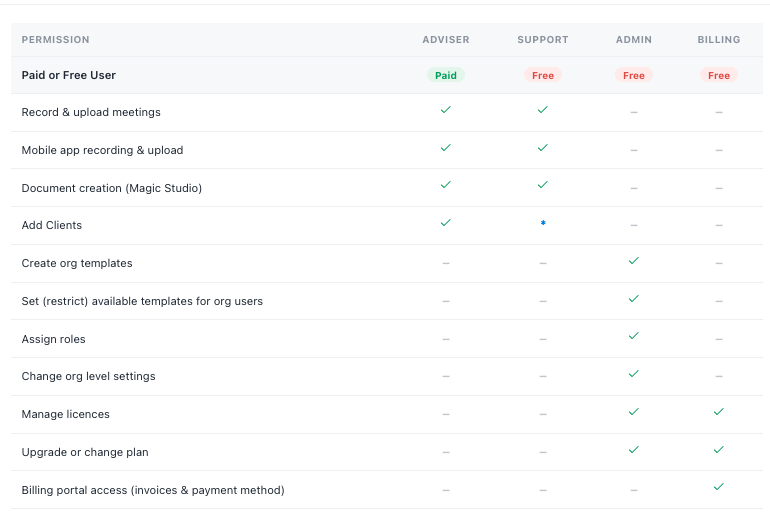
| ⚠ Important * Support can add Clients, but the Client must be assigned to an Adviser (paid user). Admin and Billing are additive roles that can be added to any user (Adviser or Support). Only an 'Admin' user can change or add roles to others. Only one Billing role (the Stripe account owner) is allowed per organisation. |
4. Add a user
Use this when you want to invite new people — Advisers, Support, or a mix of both — in a single request.
| Step 1 | Open Manage Users |
| Step 2 | Choose "Add a user" |
| Step 3 | Enter each person's details and select either "Adviser" (paid) or "Support" (free) |
| Step 4 | Review and submit |
| ★ Tip You can add several people at once, and mix Advisers and Support in the same request. To remove a row before submitting, select the bin icon beside it. |
| ⚠ Important For each 1 paid Adviser role, you can add up to 3 Support roles. Further Support roles will require an additional paid licence. Adding a paid licence (Adviser) changes your subscription and will be charged automatically to your nominated payment method via Stripe. Adding Support (Free) licences does not add a charge. Any discounts or terms on your account will be automatically applied. |
5. Change a user
There are two ways to change an existing person, depending on what you need to do. Choose the option that fits.
Option 1: Replace a licence with a new person
Use this when someone is leaving and a new person is taking their place. The new user takes over the existing licence, and the previous person's access is removed.
Step 1 | Open Manage Users and choose "Change / replace" |
Step 2 | Choose who to replace and who's taking over |
Step 3 | Select "Request replacement" and submit |
| ✓ Good to know Replacing transfers the licence to the new person, so your total licence count and charge stay the same. A ticket is raised to apply the swap in Stripe. |
Option 2: Change a user's roles
Use this when you want to give someone Admin or Billing access, or take it away — without changing their licence.
Step 1 | In Settings, click on "Users & Billing" |
Step 2 | Click the pencil beside person's name, add / remove additional role type |
Step 3 | Save |
| ⚠ Don't forget Only one person can hold the Billing role at a time. If it's already held by someone else, remove it from them first before assigning it to a new person. Any change in Billing will create a ticket. You will recieve confirmation once the ticket is completed. |
| ✓ Good to know Role changes apply straight away and update the person's access — they don't raise a ticket and don't change your bill (with Billing role being the exception). |
6. Upgrade your plan
Use this to move your organisation from the Standard Plan to the Pro Plan.
Step 1 | On the Users & Billing page, select Upgrade Plan. |
Step 2 | Review the changes |
Step 3 | Select Continue, turn on I understand this changes our subscription, then select Confirm upgrade request. |
| ⚠ Important Upgrading moves your organisation to the Pro Plan and adjusts your subscription. This means that Upgrade (or Downgrade) changes all users in your organistion. This will be charged automatically to your nominated payment method via Stripe. Any discounts or terms on your account carry over automatically. |
7. After you submit a request
| ✓ Good to know Changing plan, adding users and adding / removing "admin" role all apply straight away— they don't raise a ticket and don't change your bill (with Billing role being the exception). Billing change creates a ticket for action. Upgrade Plan - you will have upgrade plan options immediately Add Users - users will be added immediately Adding (removing) Admin role - applies immediately Changing Billing role - raises a ticket and will be applied by our team |
| Need help? If you run into any issues or have questions, our support team is here to help. Email Support → |
Was this article helpful?
That’s Great!
Thank you for your feedback
Sorry! We couldn't be helpful
Thank you for your feedback
Feedback sent
We appreciate your effort and will try to fix the article