Follow these steps to record an in-person meeting via your Microsoft Teams app on your phone.
Launch Teams: Open the Microsoft Teams application on your phone.
Go to 'Calendar': Tap the Calendar icon, typically located in the bottom navigation bar.

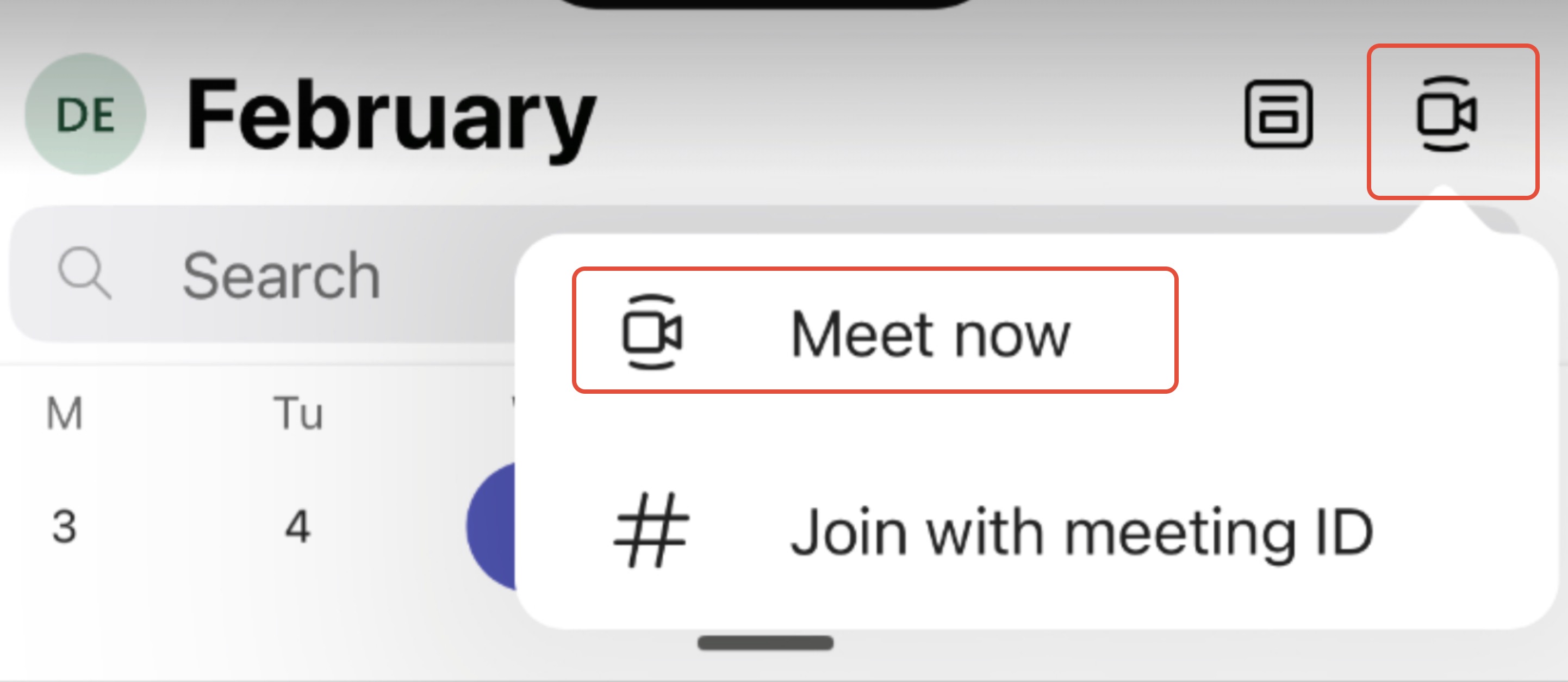
Start the Meeting: Tap the Video Recording Icon (top right) and select Meet Now.
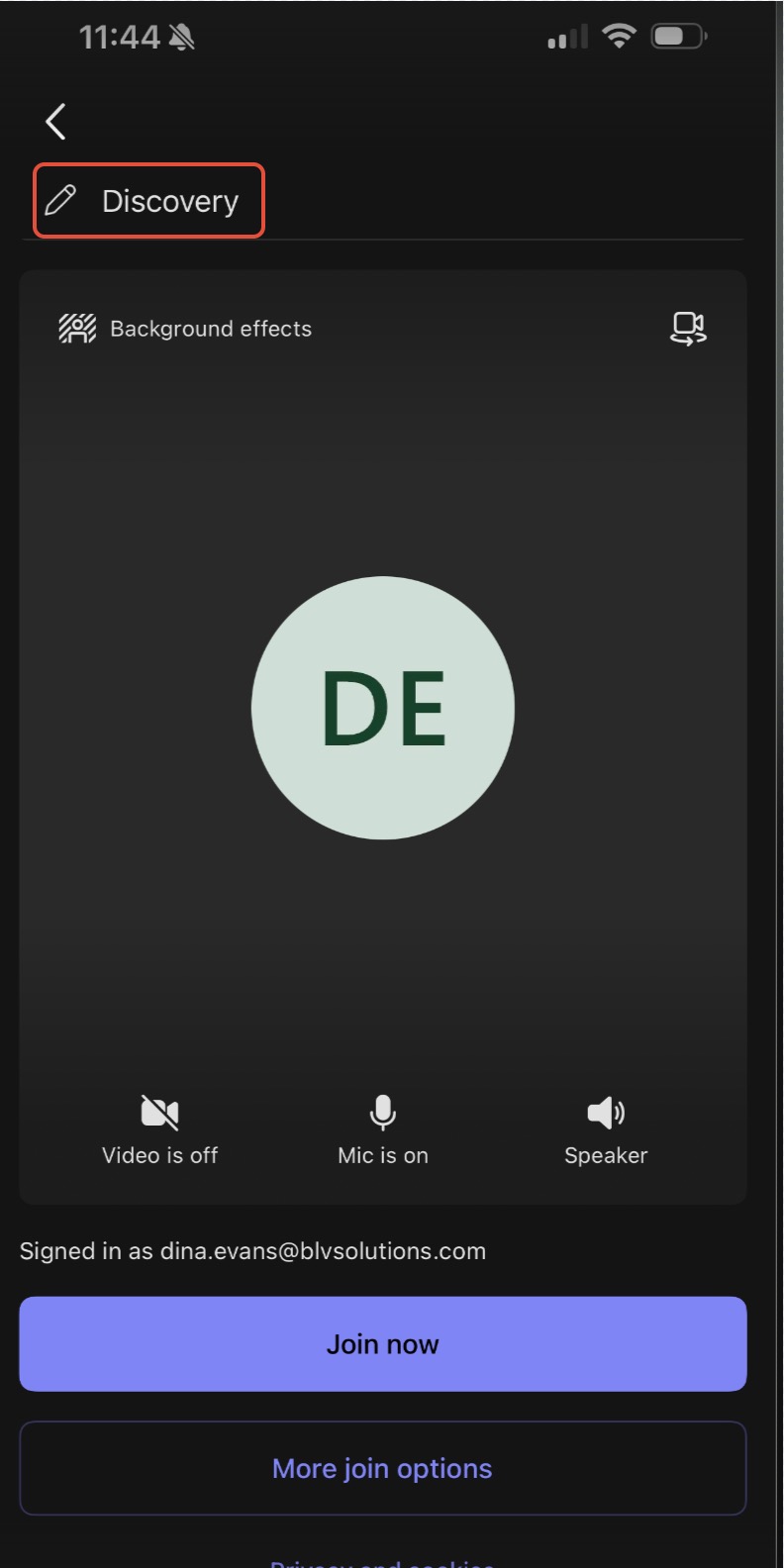
Rename for Meeting Title: Before joining, rename the meeting using your specific keywords. This tells the system exactly which template to use (e.g., "Discovery - Smith Family").
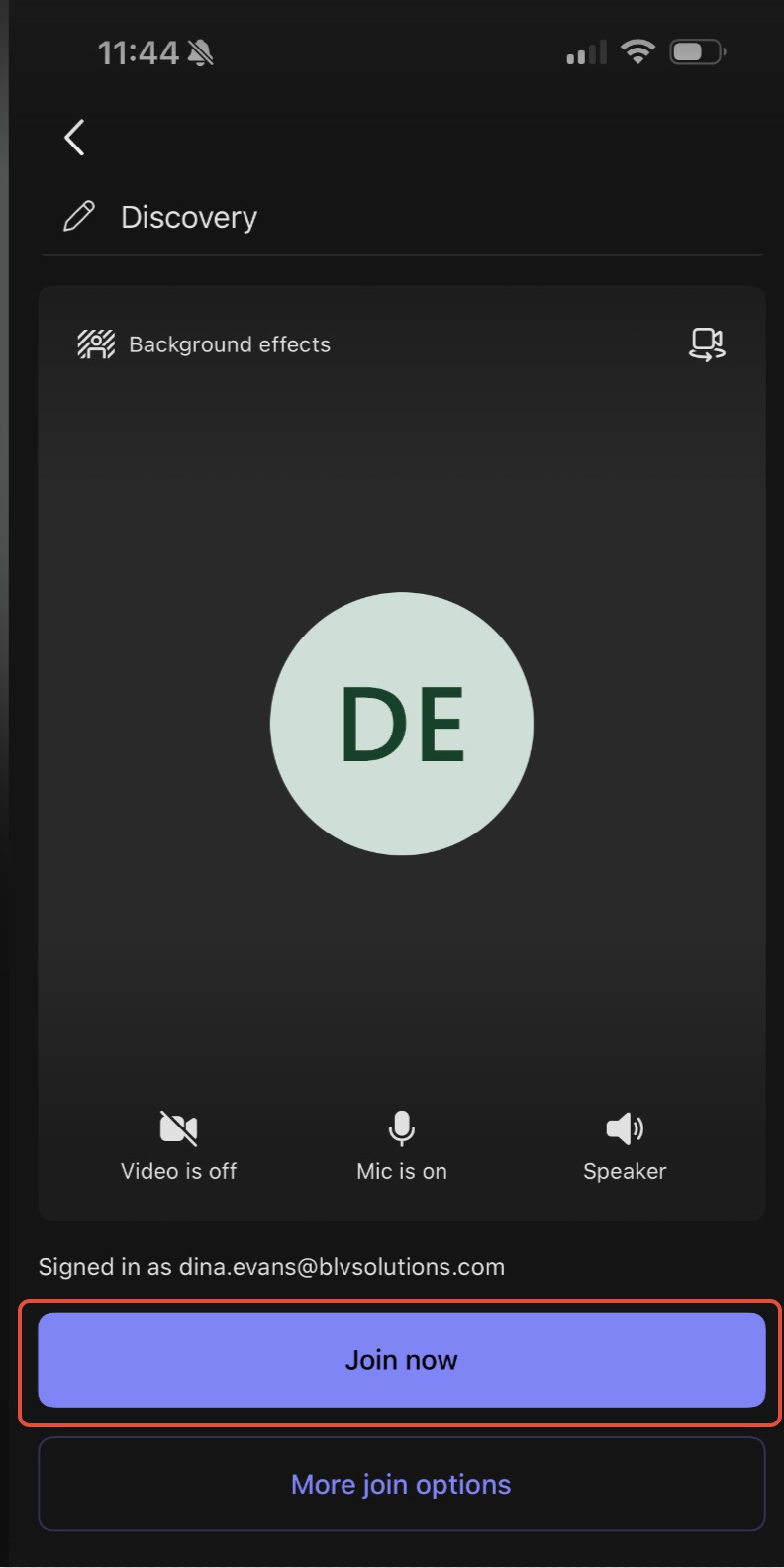
Join Now: Select the Join Now button to enter the virtual meeting room.
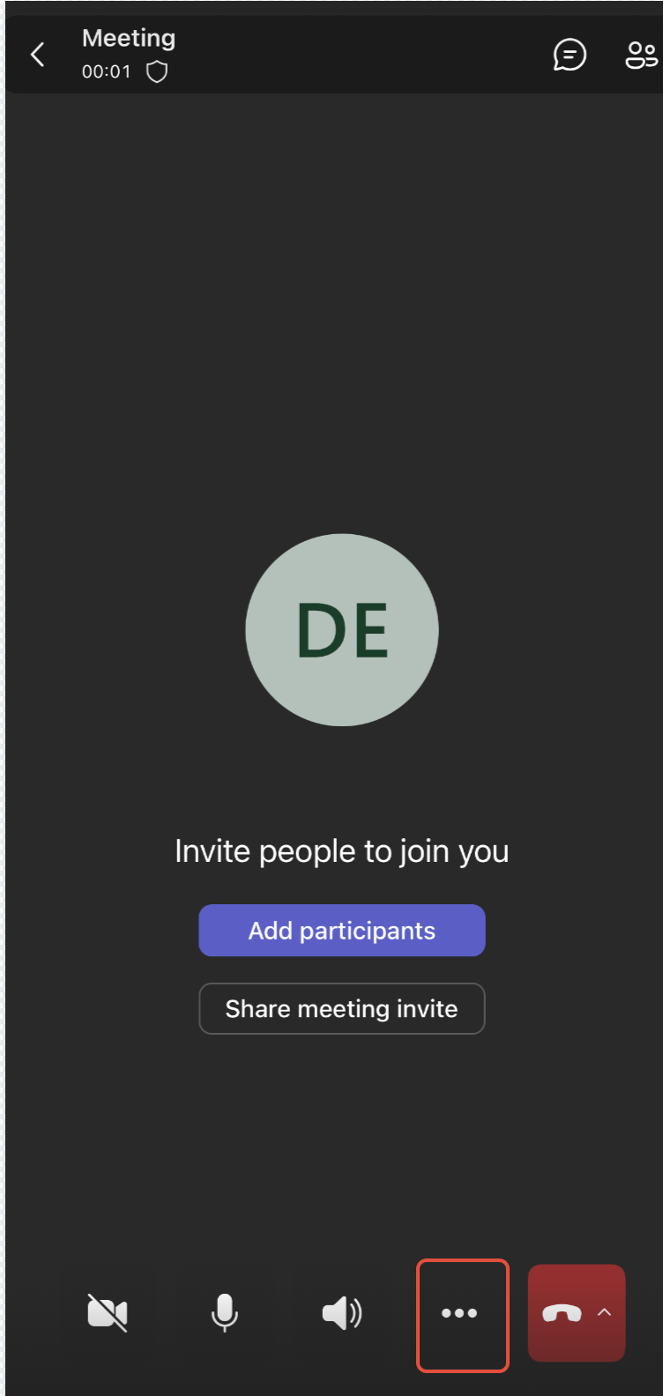
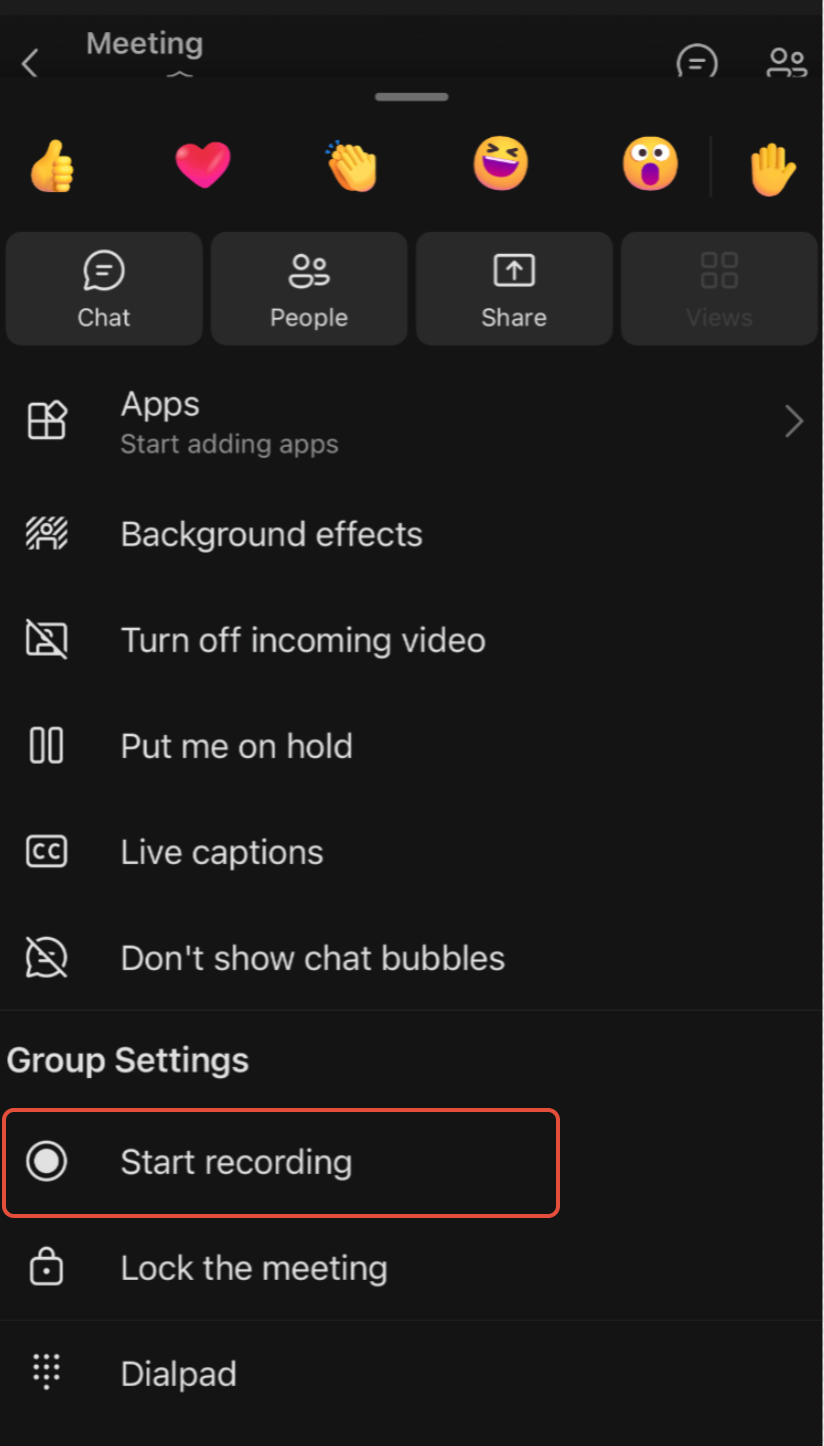
Start Recording: Tap the three dots (...) for more options, scroll down, and select Start Recording.
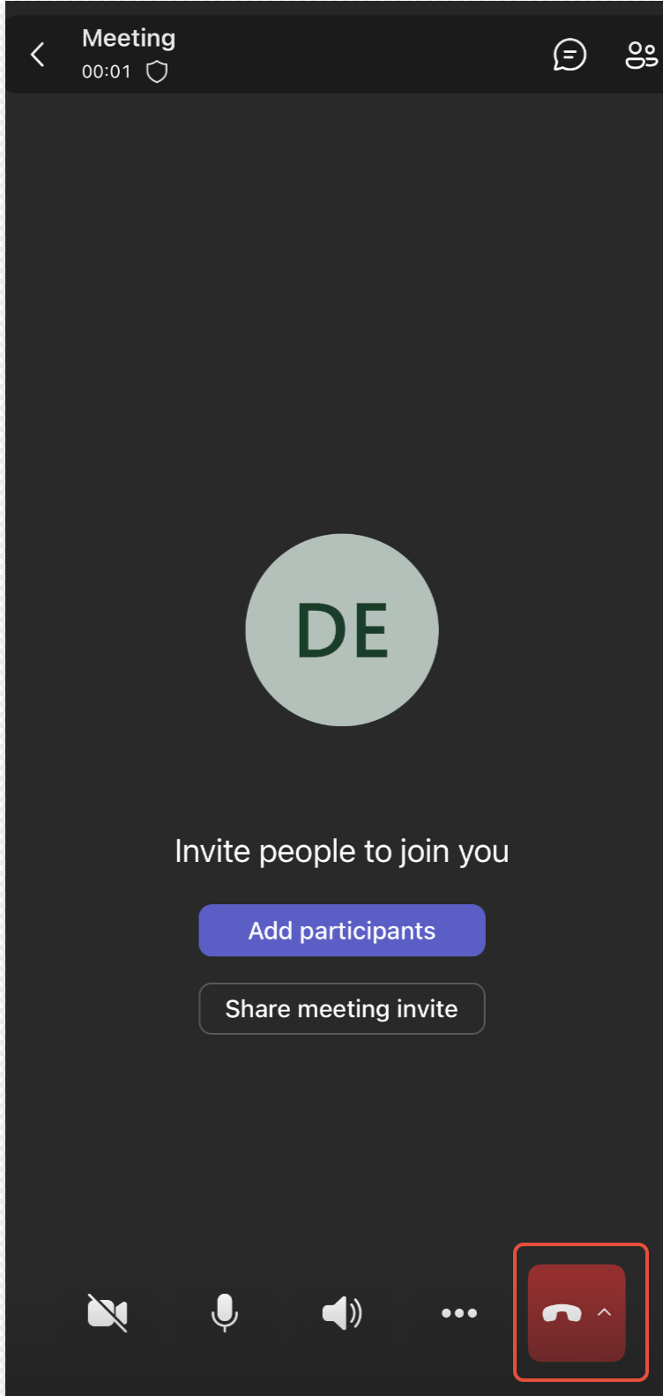
End Meeting: At the end of your session, tap the red end-call button and select End the meeting for all.
Please note:
- To ensure your meeting is captured accurately, keep the following in mind:
Microphone Access: Ensure you are not muted and that your phone is not connected to headphones. The phone needs to use its built-in microphone to pick up the voices in the room.
Stay Active: Keep the phone screen on throughout the meeting to prevent the app from entering a background/sleep state which might interrupt the recording.
Automatic Generation: Once you leave the meeting, the system will automatically begin generating your meeting output.
Was this article helpful?
That’s Great!
Thank you for your feedback
Sorry! We couldn't be helpful
Thank you for your feedback
Feedback sent
We appreciate your effort and will try to fix the article