This article explains how to trigger the correct AI generated artefacts using your Zoom app on your Phone
When creating your meeting name in Zoom, simply include one of the following key words in the meeting name to automatically trigger your desired artefacts:
Review Template (Default): no specific key words required to trigger this template
Discovery Template & Letter of Engagement & Client Mind Map: Initial; Discovery; Discover; First Fact Find
Strategy Template & Notes to Paraplanner: Strategy
SoA Presentation Template: Present; Presentation; Statement of Advice; SoA
Fund Manager Template: Fund Mgr; Fund Manager
Management & Board Meeting Template: Board; Management; Mgmt
Ad Hoc Template: Ad Hoc
Please note: These key words can be configured to suit your needs.
To add / change to the default key words, simply complete the filenote.ai Configuration Questionnaire
Step 1: Log on to Zoom App on Phone

Step 2: Go to 'Meetings'

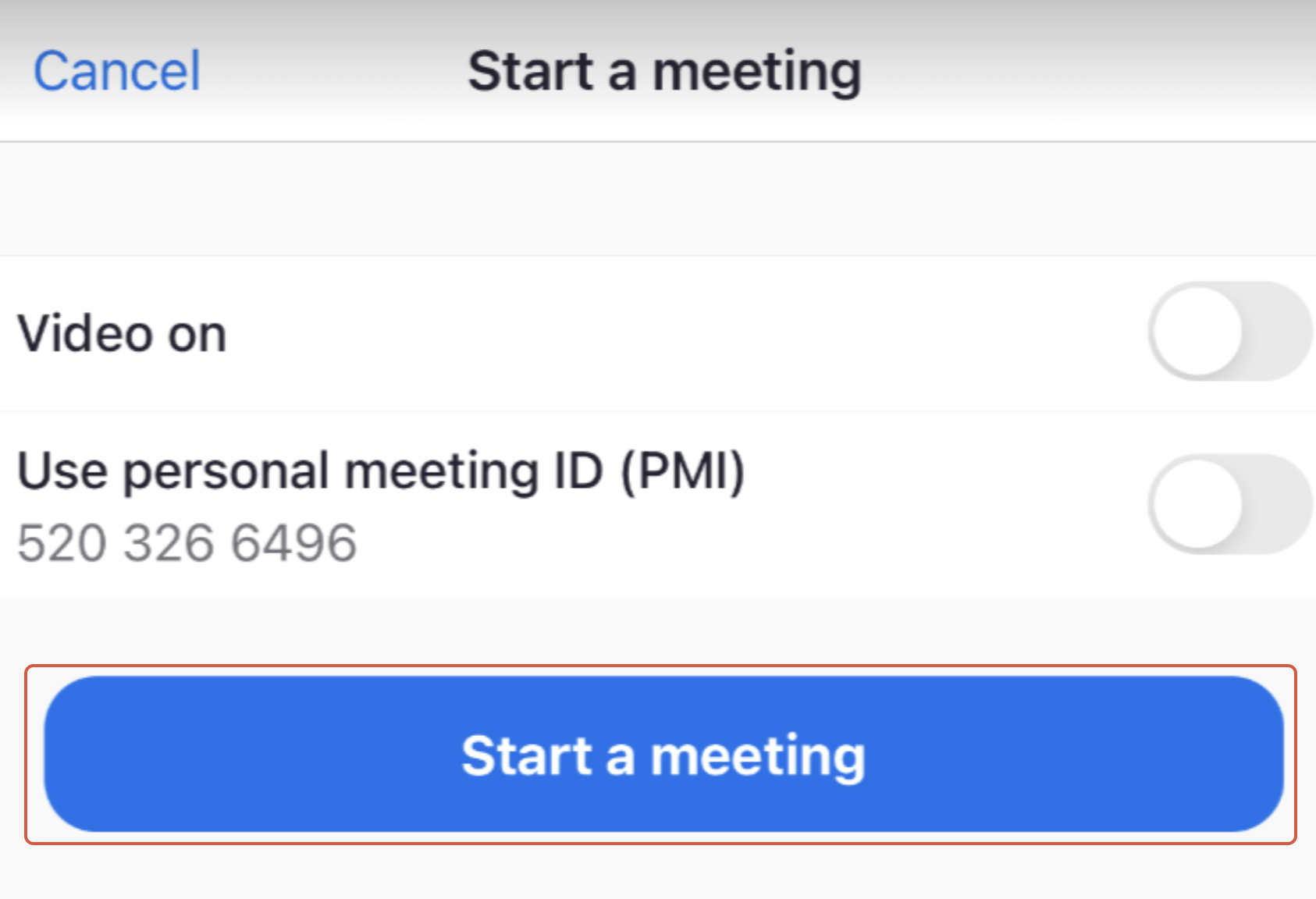
Step 3: To create a new meeting, select 'New Meeting' Icon, and Click ‘Start a Meeting’.

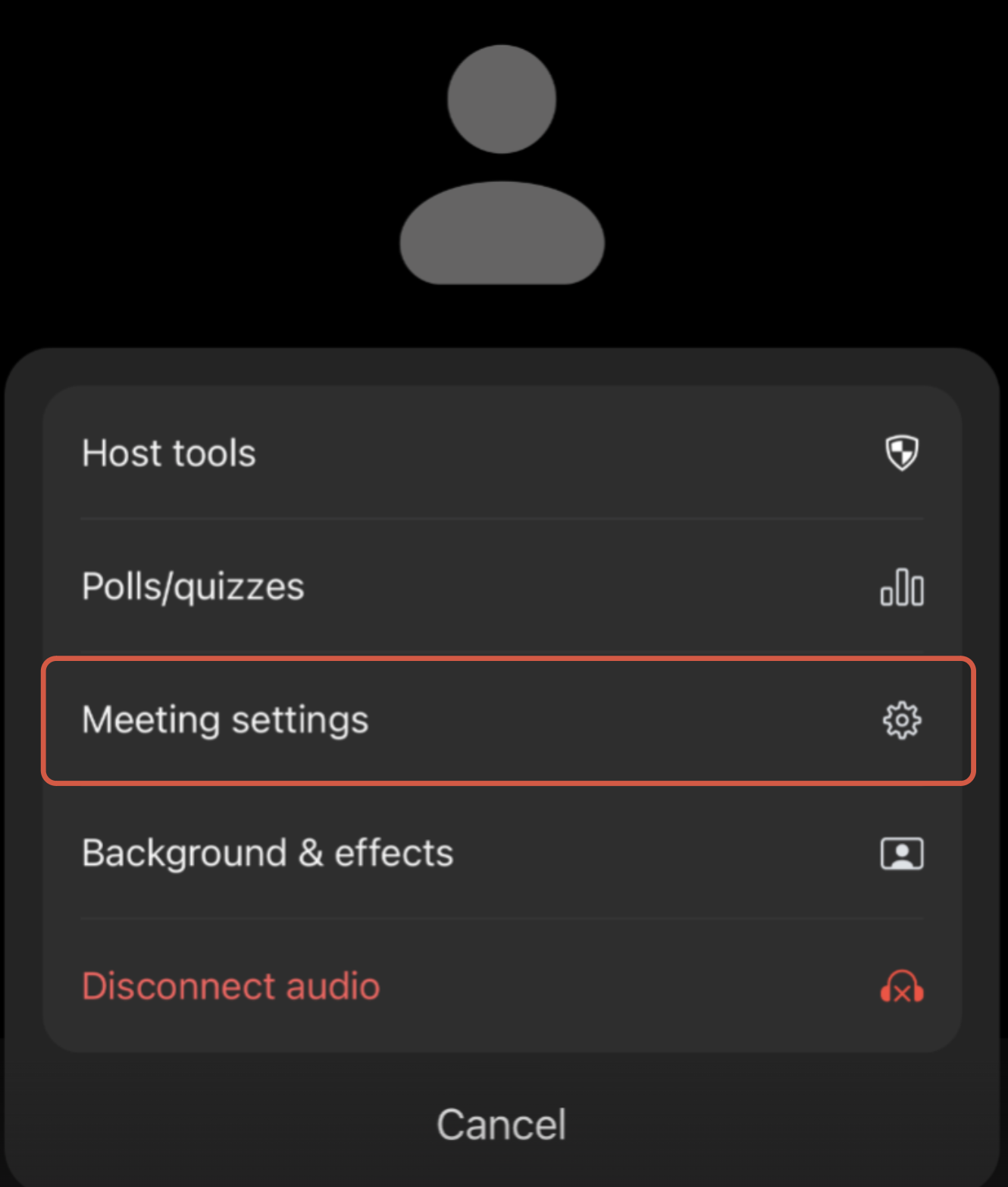
Step 4: Go to 'More', and then select 'Meeting Settings',

Step 5: Click 'Meeting topic' and enter the key words required to trigger the correct artefacts
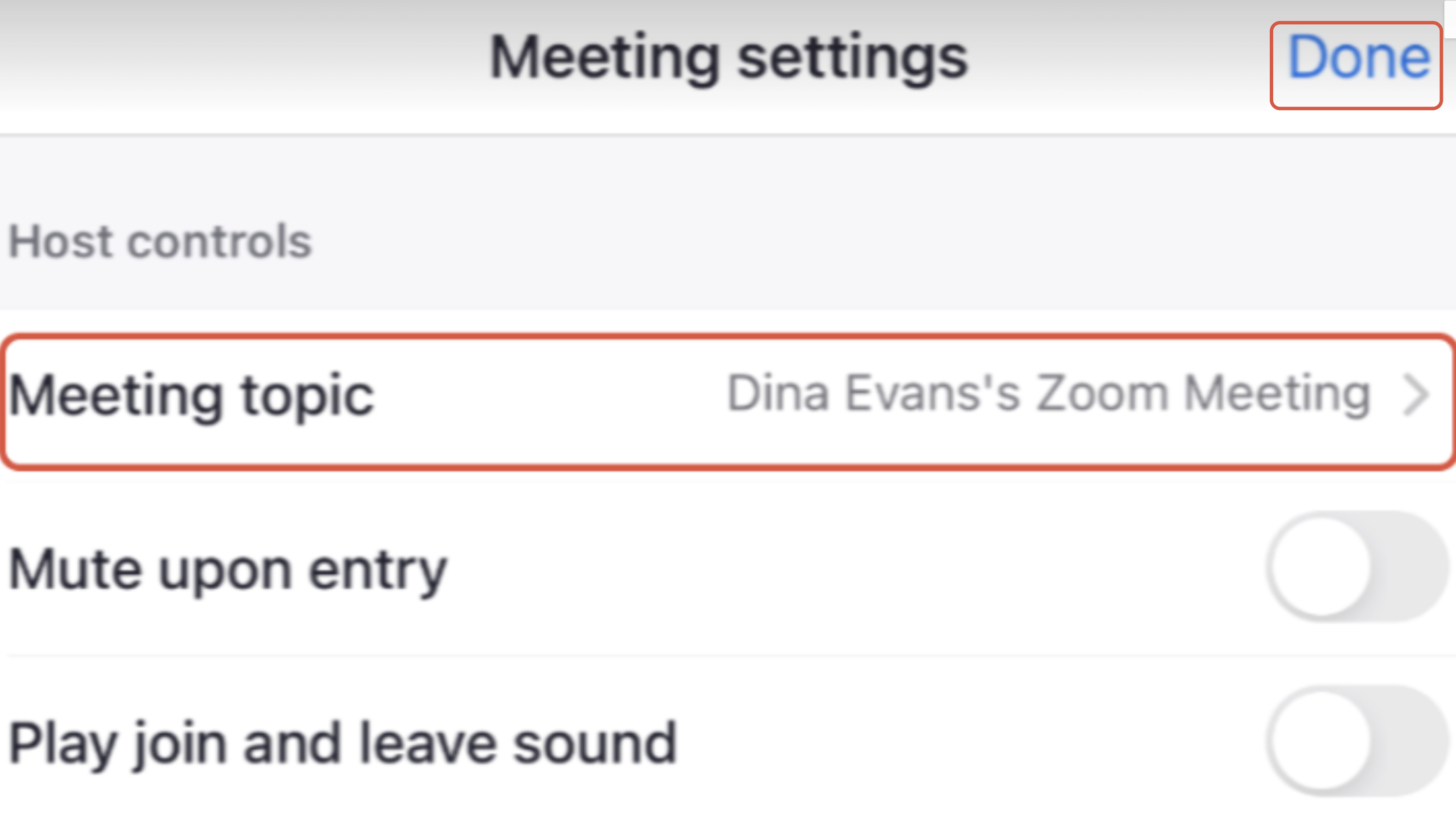
- Click 'Done' and 'Done' and ensure to record your meeting
Please note: If the meeting name is not changed, it will default to the review file note template
Was this article helpful?
That’s Great!
Thank you for your feedback
Sorry! We couldn't be helpful
Thank you for your feedback
Feedback sent
We appreciate your effort and will try to fix the article