To ensure your client meetings are captured seamlessly and processed by Filenote AI, you'll need to use Zoom’s cloud recording feature. This allows our platform to automatically retrieve the audio, saving you the manual effort of downloading and uploading files.
Recording Steps
Open Zoom: Launch and log in to the Zoom desktop application.

Start New Meeting: Select New Meeting to begin your client consultation.

Select Start to Enter the Meeting
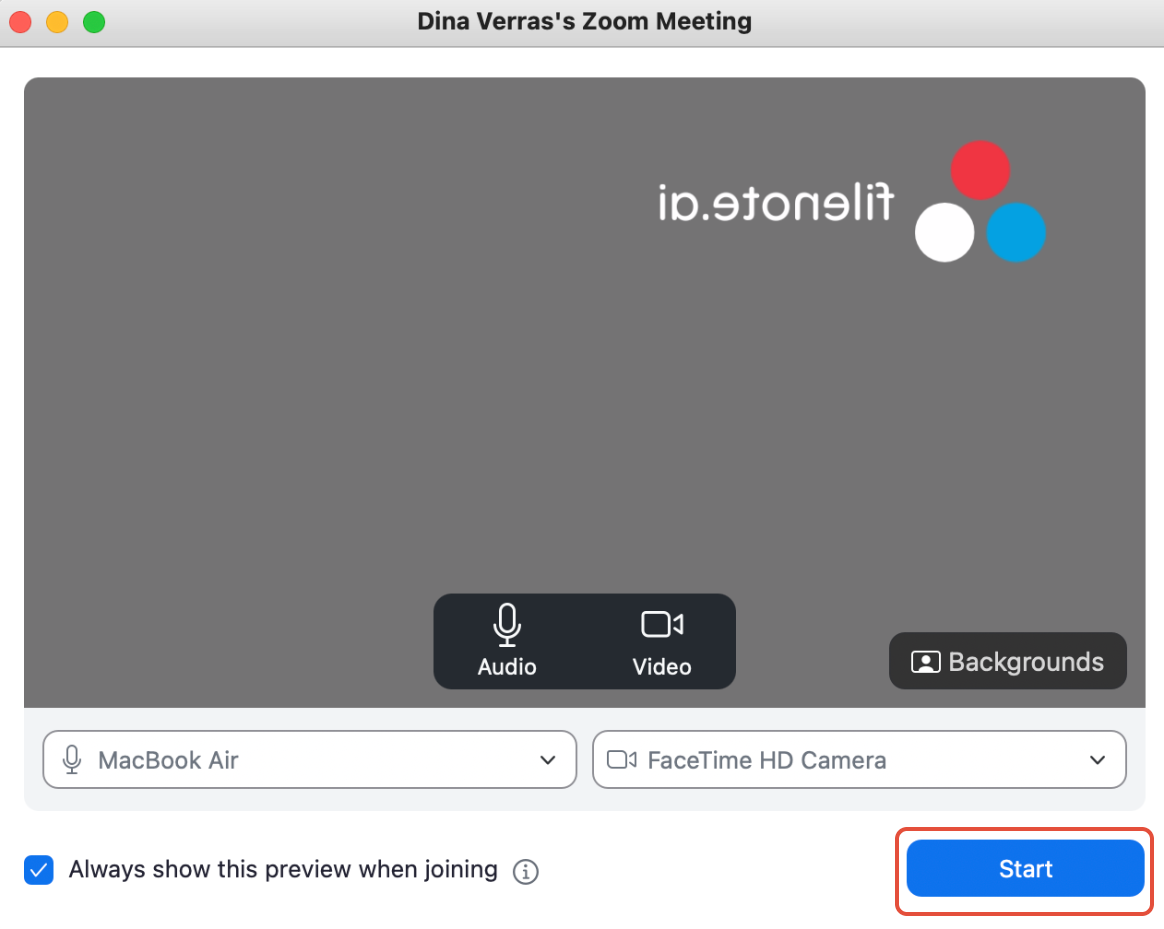
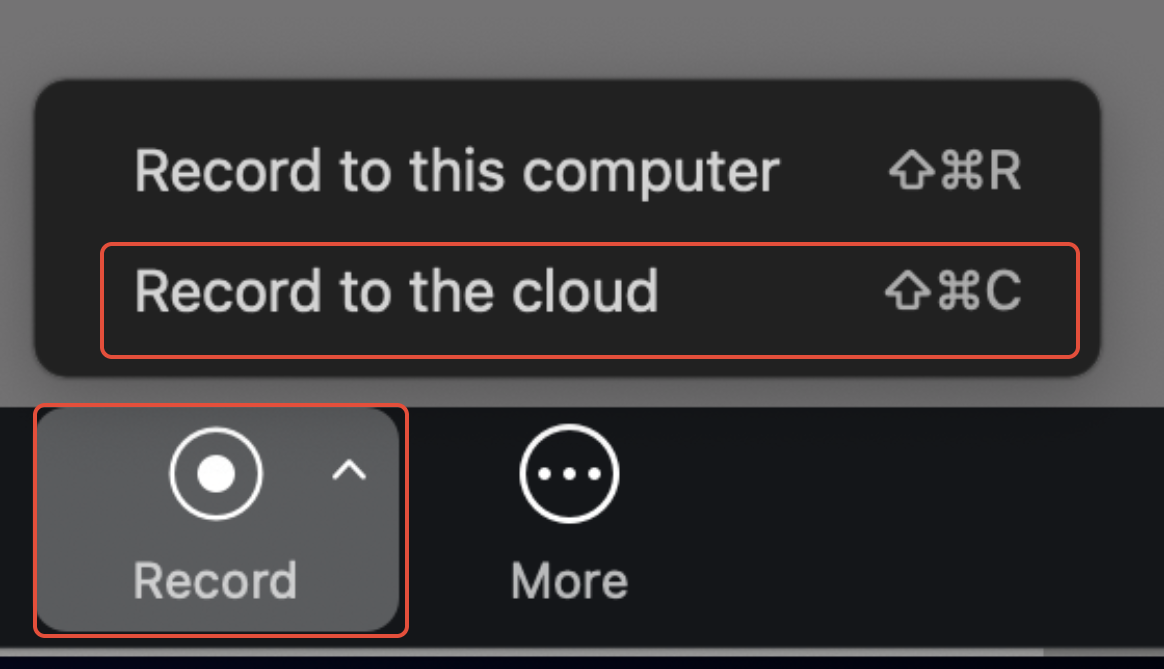
Enable Cloud Recording: Once the meeting has started, click the Record button at the bottom of the window and select Record to the Cloud.
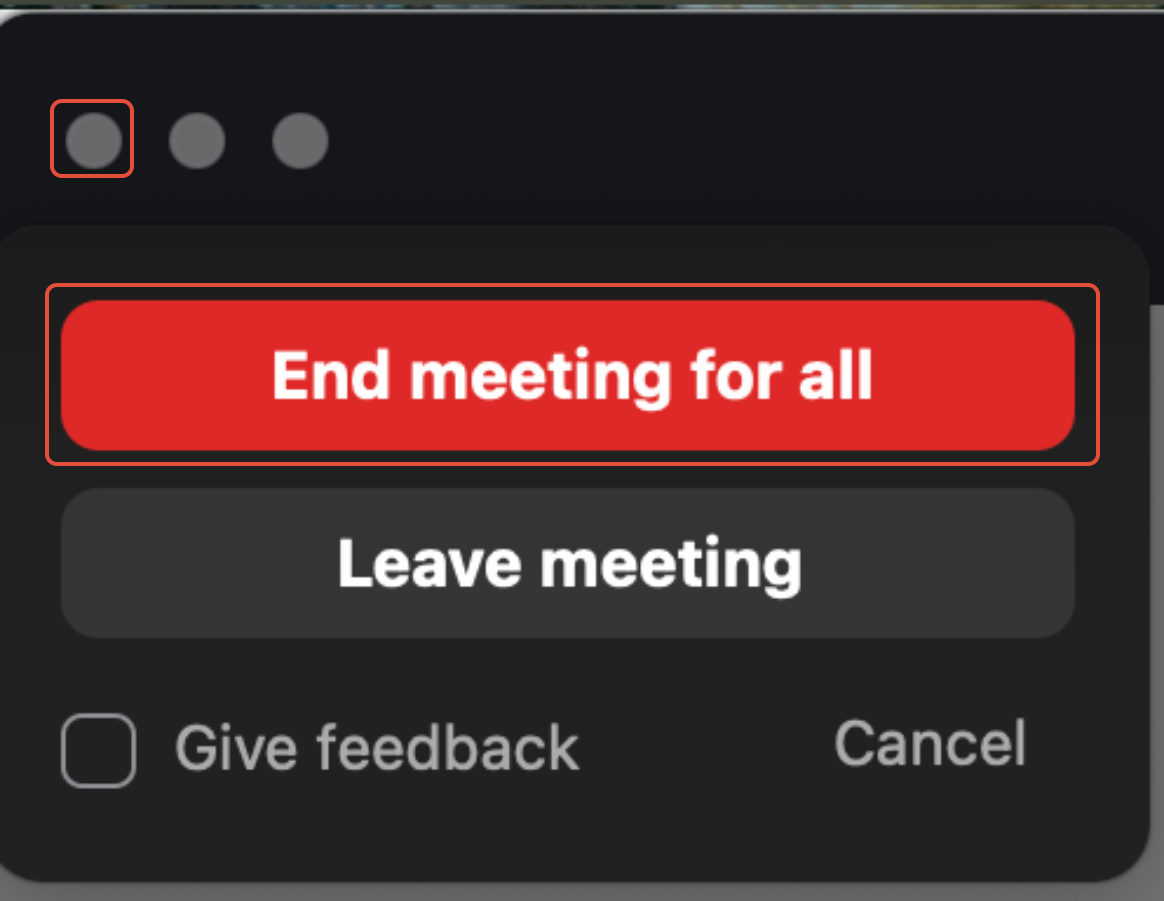
Exit and Close: Select End Meeting For All.
What Happens Next?
Once the meeting ends, the Filenote AI platform takes over the heavy lifting:
Retrieval: The system automatically pulls the audio file.
Generation: Your specific Filenote AI output documents (Mind Maps, Letters of Engagement, etc.) are created.
Delivery: Outputs are sent directly to your Tasks within the platform.
Final Touch: You can then Review, Edit, and Finalise the documents within the platform
Important:
Please do not select "Record on this computer."
Filenote AI is built to streamline your workflow by pulling data directly from the cloud. If a meeting is saved locally to your hard drive, our system cannot automatically retrieve it, which means you’ll have to manually the file to Filenote AI.
Pro-Tip
You can automate this even further by enabling "Automatic Recording" in your Zoom web portal settings. Just make sure the "Record in the cloud" option is selected, and you'll never have to worry about forgetting to hit the record button again!
Was this article helpful?
That’s Great!
Thank you for your feedback
Sorry! We couldn't be helpful
Thank you for your feedback
Feedback sent
We appreciate your effort and will try to fix the article