Recording via the Filenote AI Platform
Follow the steps below to join and record a meeting via the Filenote AI platform.
Option 1: Ad-Hoc Recording (via Home Page)
| ? Best for Unplanned meetings, or face-to-face sessions not currently in your calendar. |
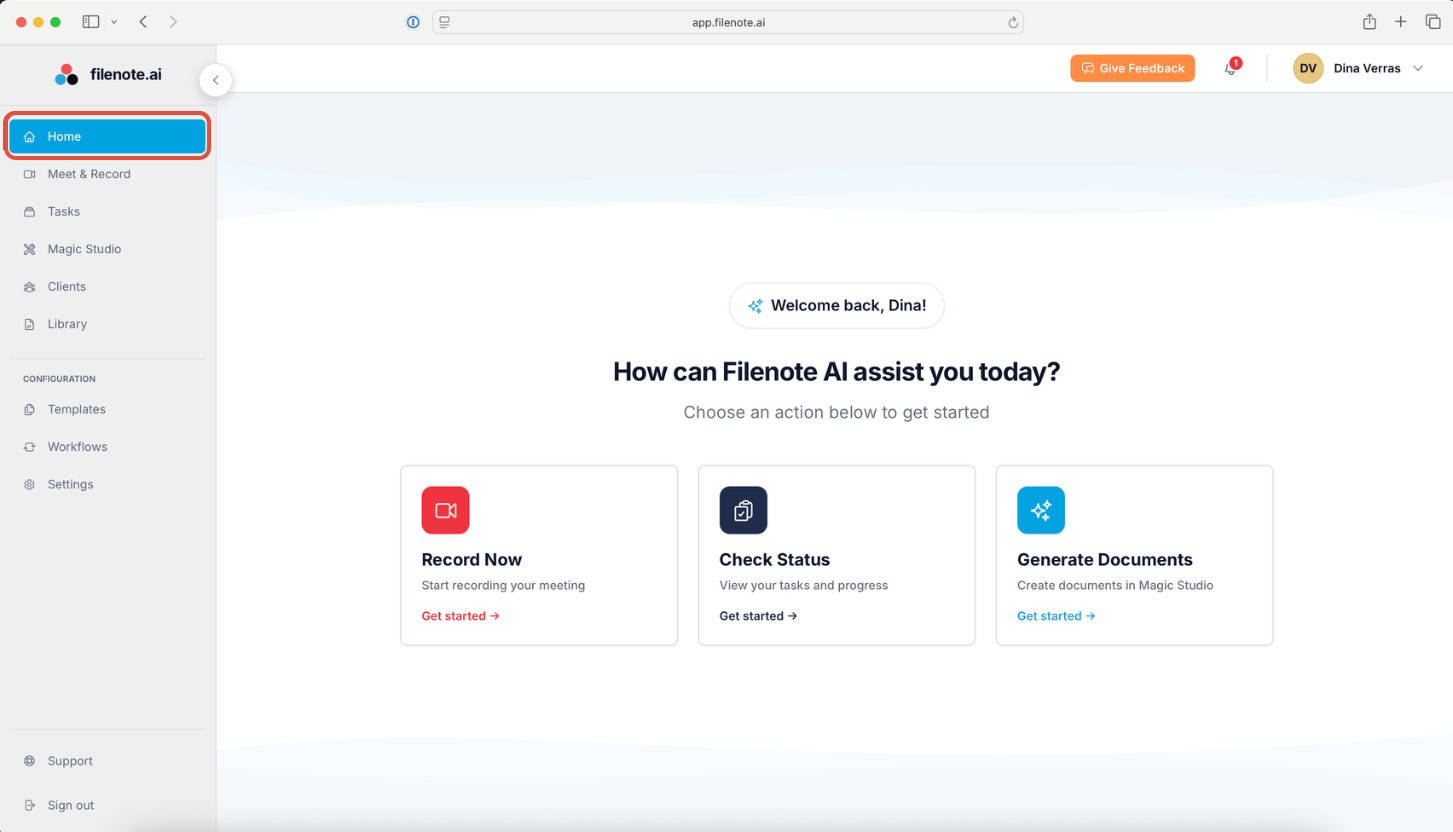
Step 1 — Navigate to the Home Page
Go to the Home Page of the Filenote AI platform.
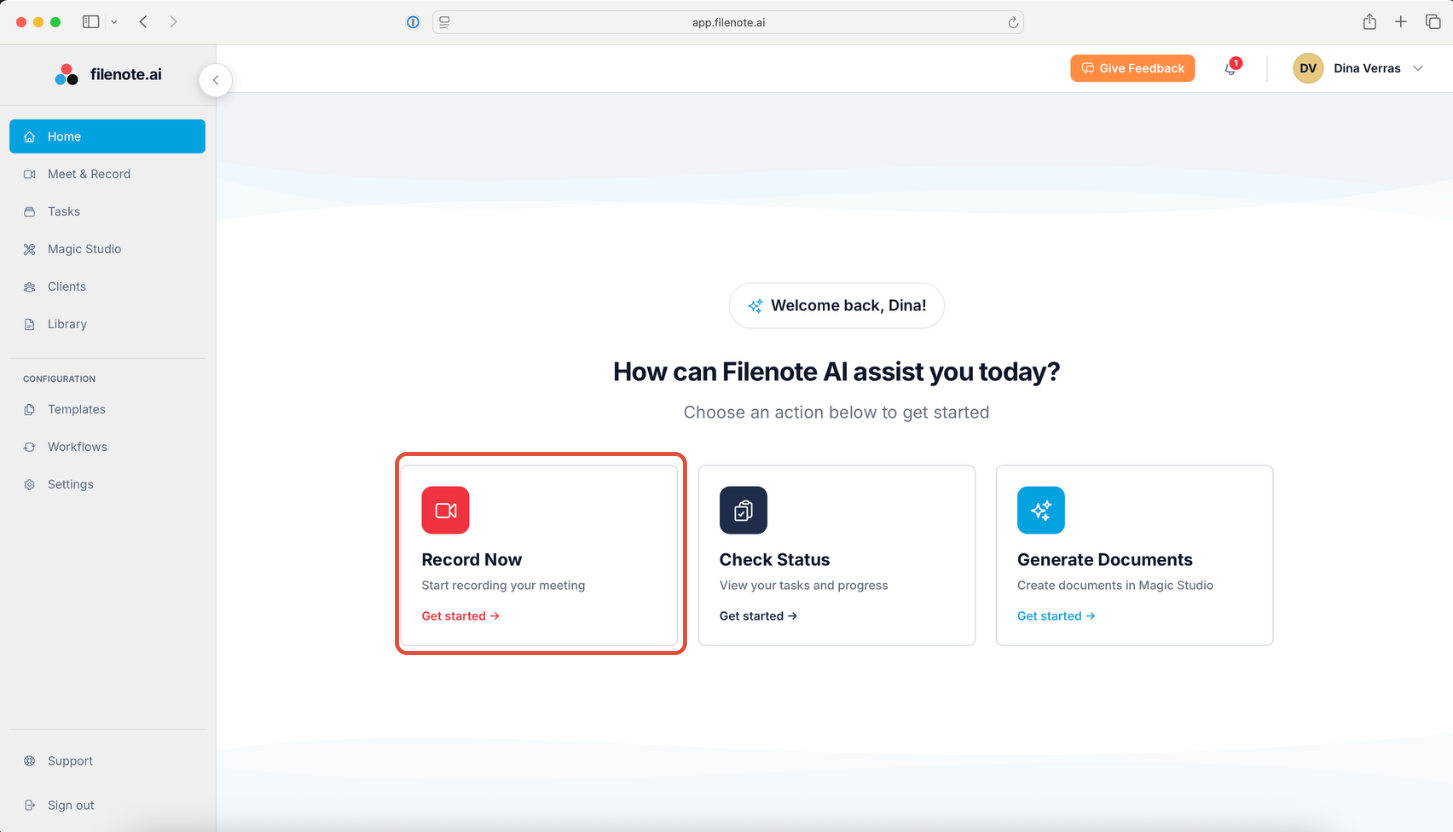
Step 2 — Click Record Now
Select the Record Now button on the Home Page.
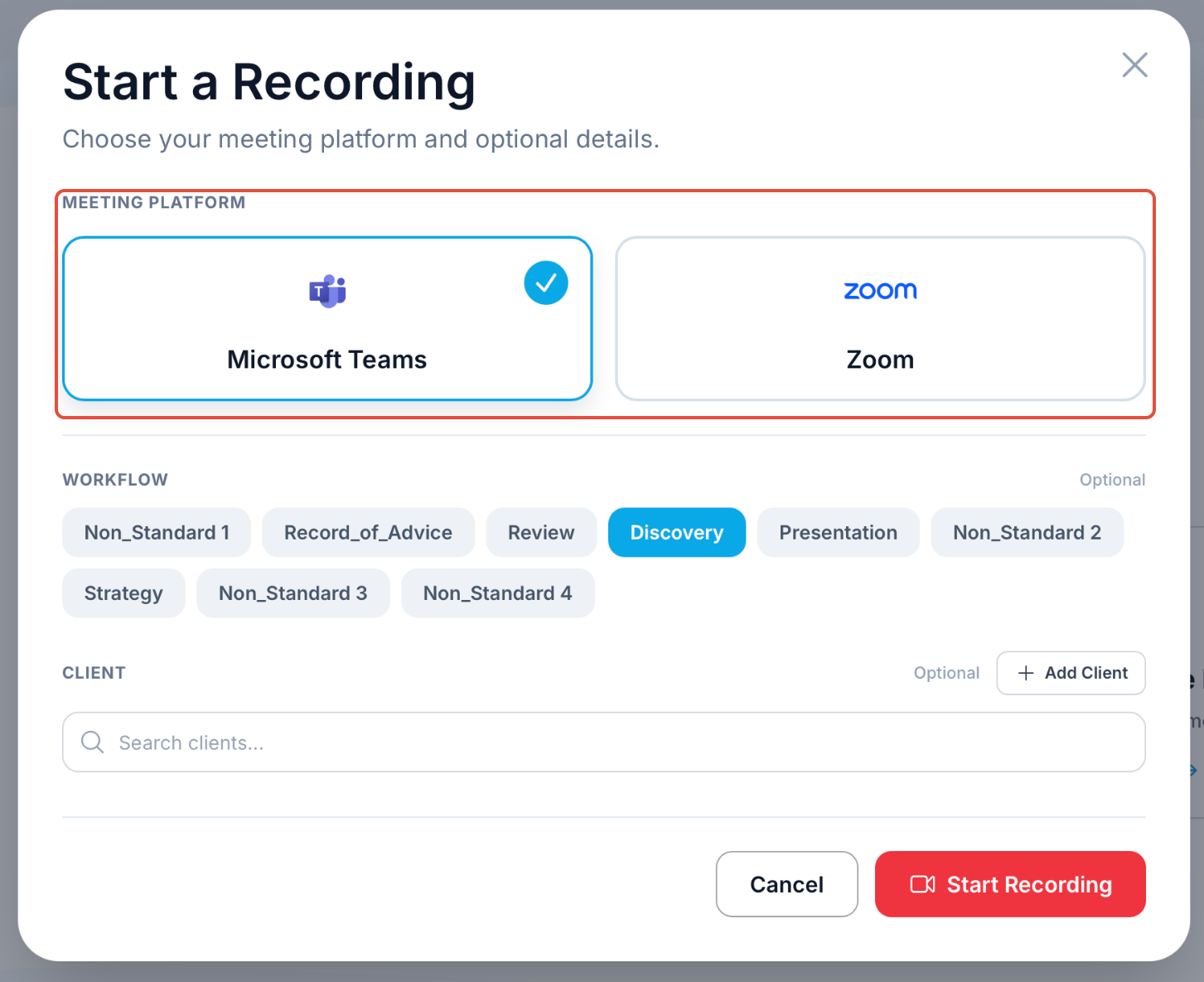
Step 3 — Choose Your Platform
Select your preferred meeting platform: Teams or Zoom.
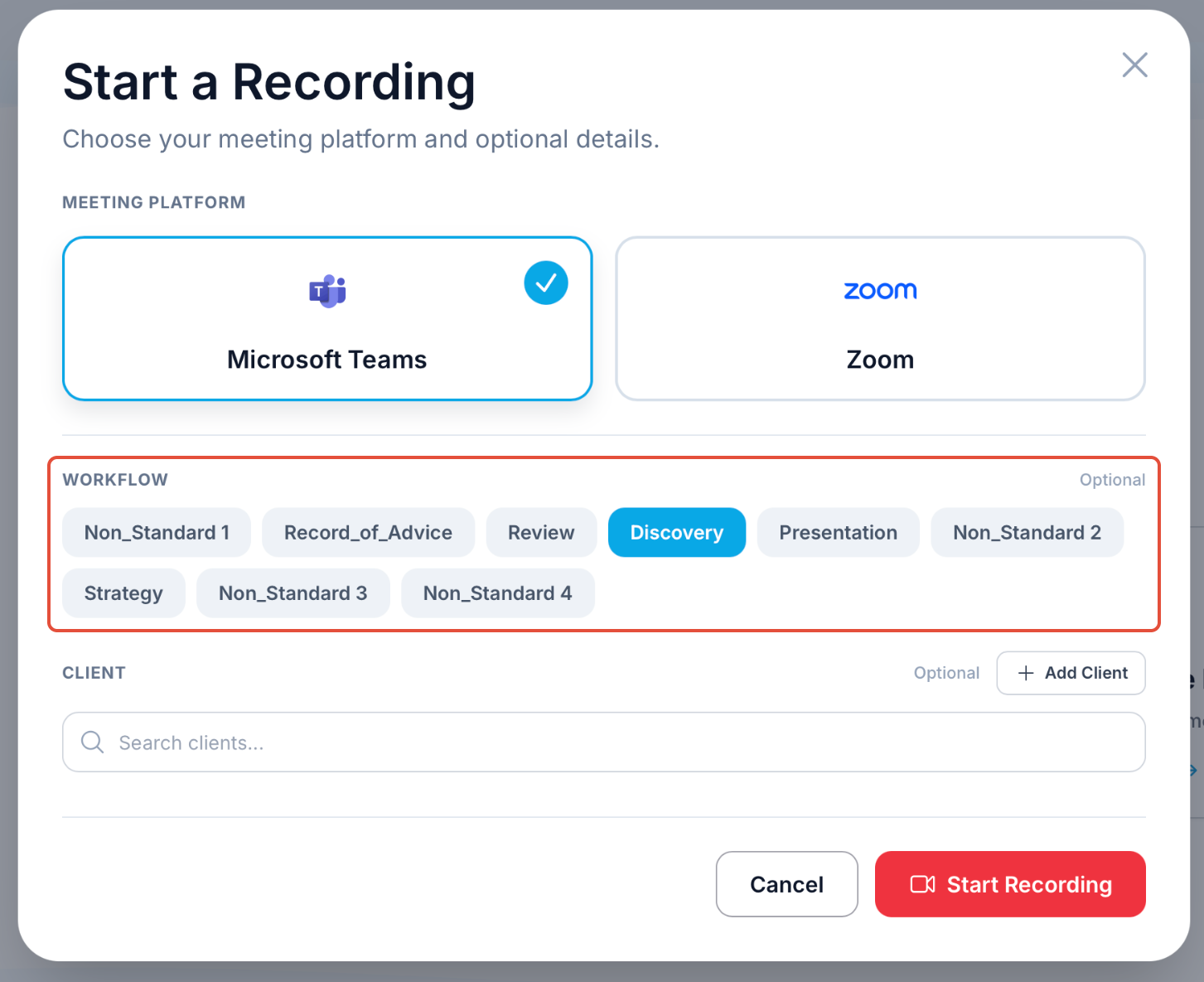
Step 4 — Set the Workflow Stage
Select the Workflow Stage that matches this meeting (e.g., Discovery).
| ★ Why this matters The Workflow Stage tells the AI which document templates to generate after the meeting — for example, a Discovery File Note, Letter of Engagement, or Mind Map. |
Step 5 — Select a Client
Choose an existing client from the dropdown, or click Add New Client.
Step 6 — Start Recording
Click the 'Start Recording' button, and your meeting will begin, with 'recording' automatically started.
Was this article helpful?
That’s Great!
Thank you for your feedback
Sorry! We couldn't be helpful
Thank you for your feedback
Feedback sent
We appreciate your effort and will try to fix the article