Welcome to the Filenote AI iOS App!
This app is designed to help you easily capture in-person meetings, ensuring all your important client conversations are securely recorded, uploaded, and processed into actionable file notes.
| ⚠ Important Note You must have an active Filenote AI subscription to access the app. Subscription options can be found at: https://www.filenote.ai/pricing |
| ⚠ Before Getting Started You must activate your Filenote AI account via the web platform to be able to upload your recordings. See how to activate your account here: How to Connect to Filenote AI Platform |
TABLE OF CONTENTS
Active Filenote AI Users (with subscription)
Download the Apple iOS app through the Apple App Store:


After downloading the app, simply sign in using your Microsoft credentials.

This article will guide you through recording meetings, managing your files, working offline, and adjusting your app settings.
Instructions for Using the Mobile App
Here is a step-by-step guide to mastering the Filenote AI app:
- Step 1 — Set up your device for recording
- Step 2 — Record your meeting
- Step 3 — Save or upload your recording
- Step 4 — Manage and combine recordings in your List
- Step 5 — Upload existing phone recordings
- Step 6 — Adjust your audio quality settings
Step 0 — Set up your device for recording
To ensure an uninterrupted recording experience, we highly recommend putting your iPhone on 'Do Not Disturb' mode before starting. This prevents incoming phone calls from interrupting the app's access to your microphone.
| ★ Filenote AI Advantage The Filenote AI app continues to record even if your phone screen locks. |
Step 1 — Record your meeting
Starting a recording is simple and intuitive.
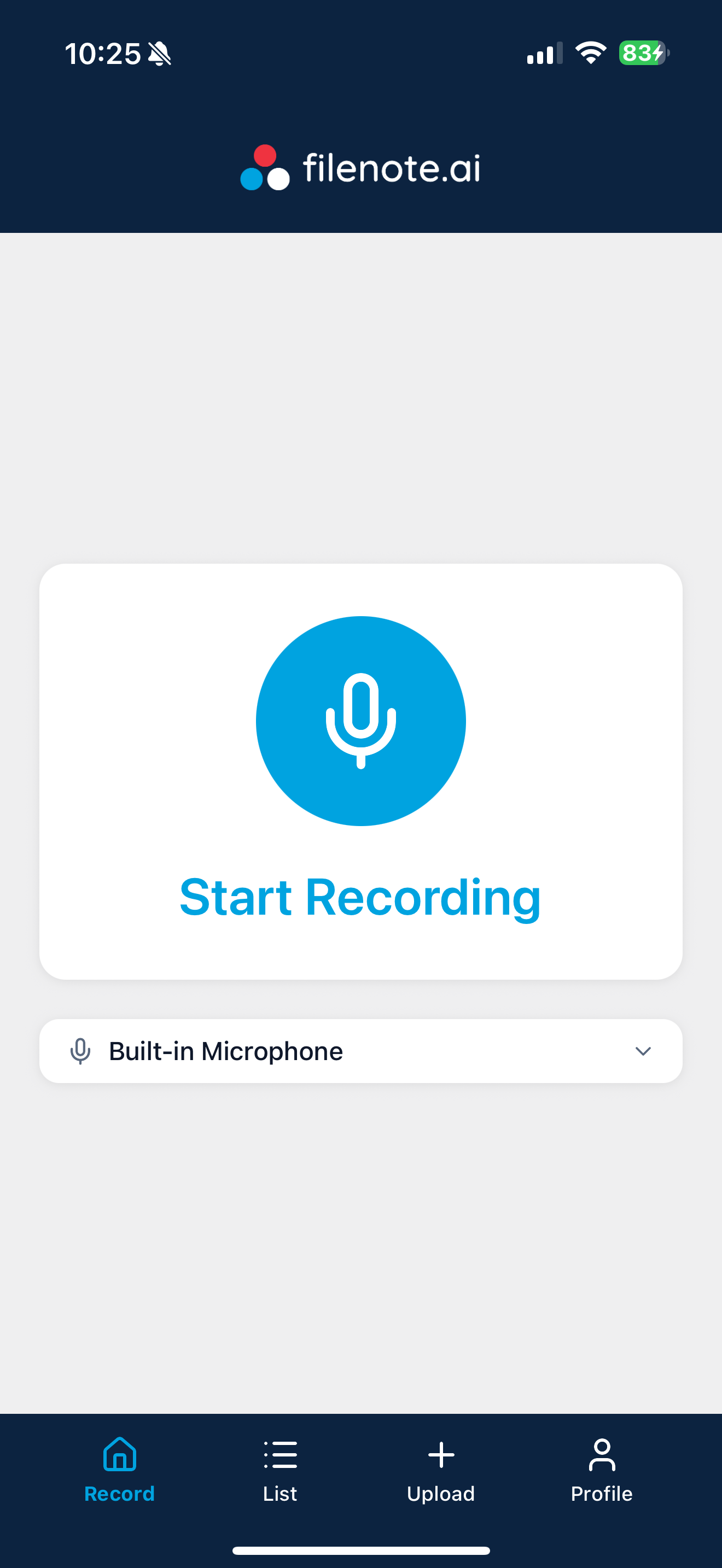
On the primary Record screen (Home), you can first select your preferred audio input using the microphone dropdown menu at the bottom.
Click the large blue Start Recording button.
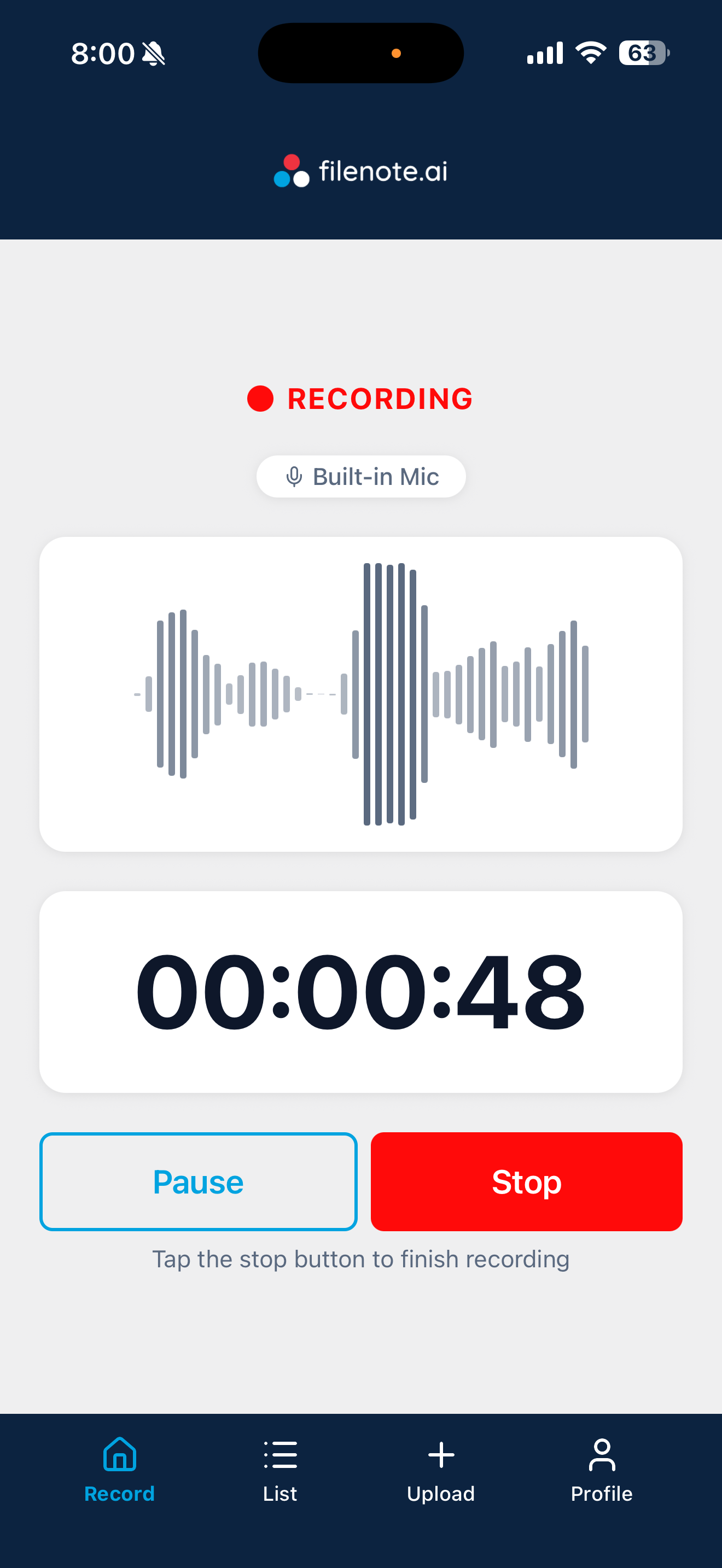
While recording, you have full control: you can Pause at any time, Resume, or Stop the recording when the meeting is finished.
| ✓ Key Feature — Offline Mode You can fully use the recording feature even if you have no cell reception or Wi-Fi! The app allows you to record and save locally to your device, so you can safely capture meetings anywhere and upload them later once you have a connection. |
Step 2 — Save or upload your recording
Once you tap Stop to end your recording, you will be presented with a few options:
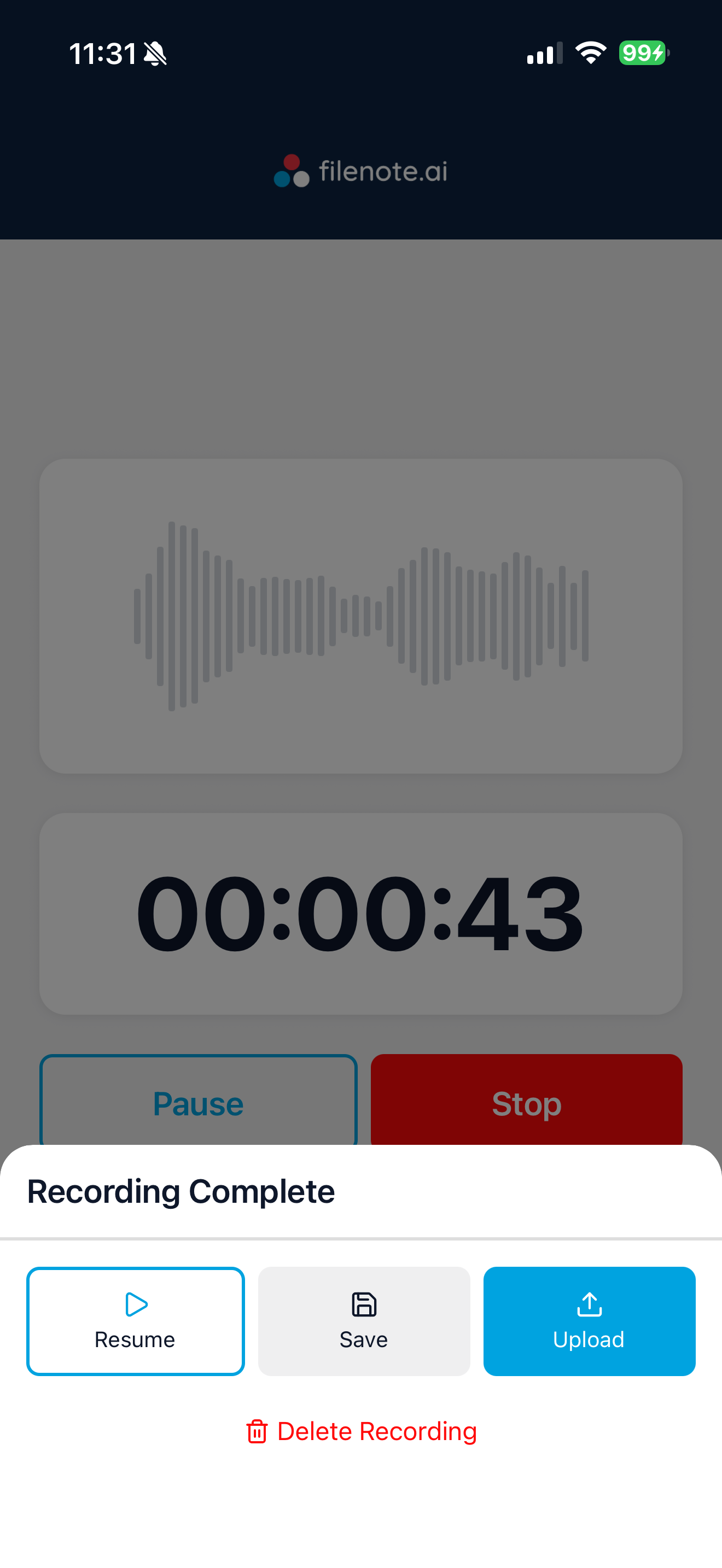
Save: This saves the recording locally to your iPhone. This is the best option if you currently lack Wi-Fi or cellular reception and plan to upload the file later.
Upload: This immediately saves the file and prompts a pop-up window. Here, you will be asked to select a Workflow Type and a Client Name (you also have the option to hit + Add New Client if needed).
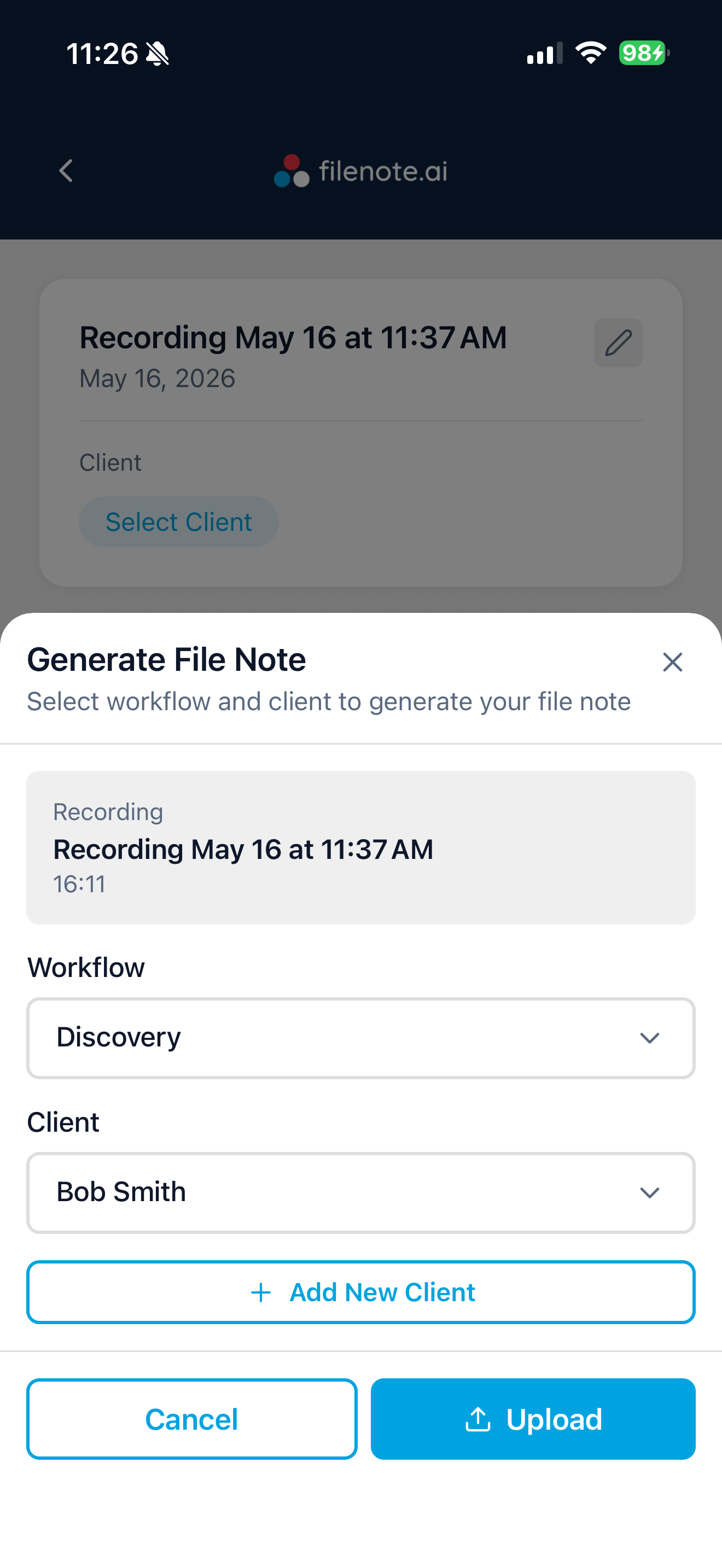
| ★ Filenote AI Advantage By tagging the workflow and client directly within the mobile app during upload, your outputs will automatically generate and be ready for review in the platform instantly. There is no need to wait and manually tag clients later via a web dashboard! |
Step 3 — Edit and Finalise your Output
After you upload, your output will appear as a new task in the Task section on the web platform.
To find your Task:
- log into platform: app.filenote.ai
- Go to Tasks, find your new task
- Open task, and edit your documents
- When complete, you can:
- Save: saves to our platform
- Download: downloads document
- Finalise: saves to your OneDrive or Sharepoint and marks Task as complete
| ✓ Good to Know After you upload, it will take 15 - 25 minutes of processing time before your new Task appears. |
More Useful Info about Phone App
Manage and combine recordings in your List
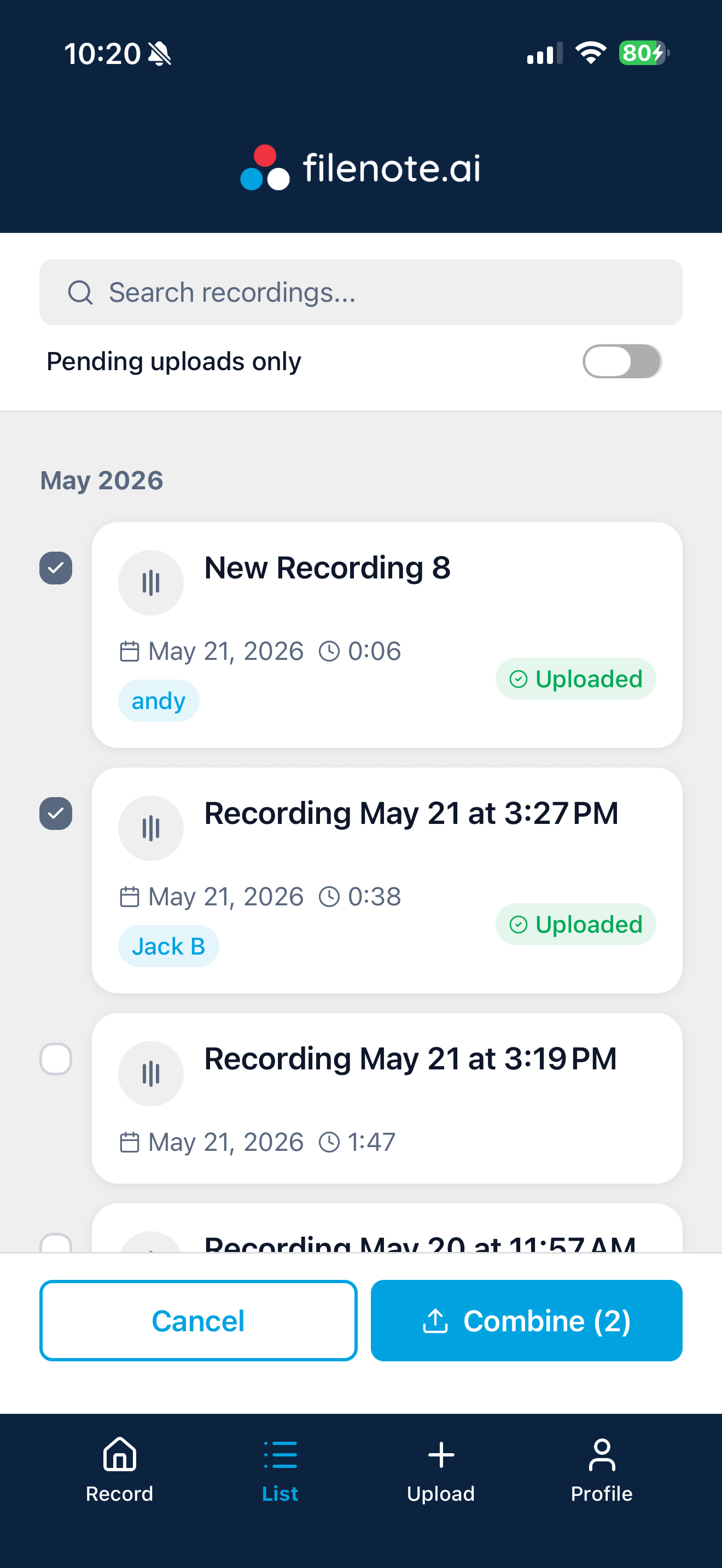
Navigate to the List tab at the bottom of your screen to view all your recordings.
Here, you can easily see the status of each file (whether it is marked as "Uploaded" or still pending). You can also use the Pending uploads only toggle at the top to filter your view.
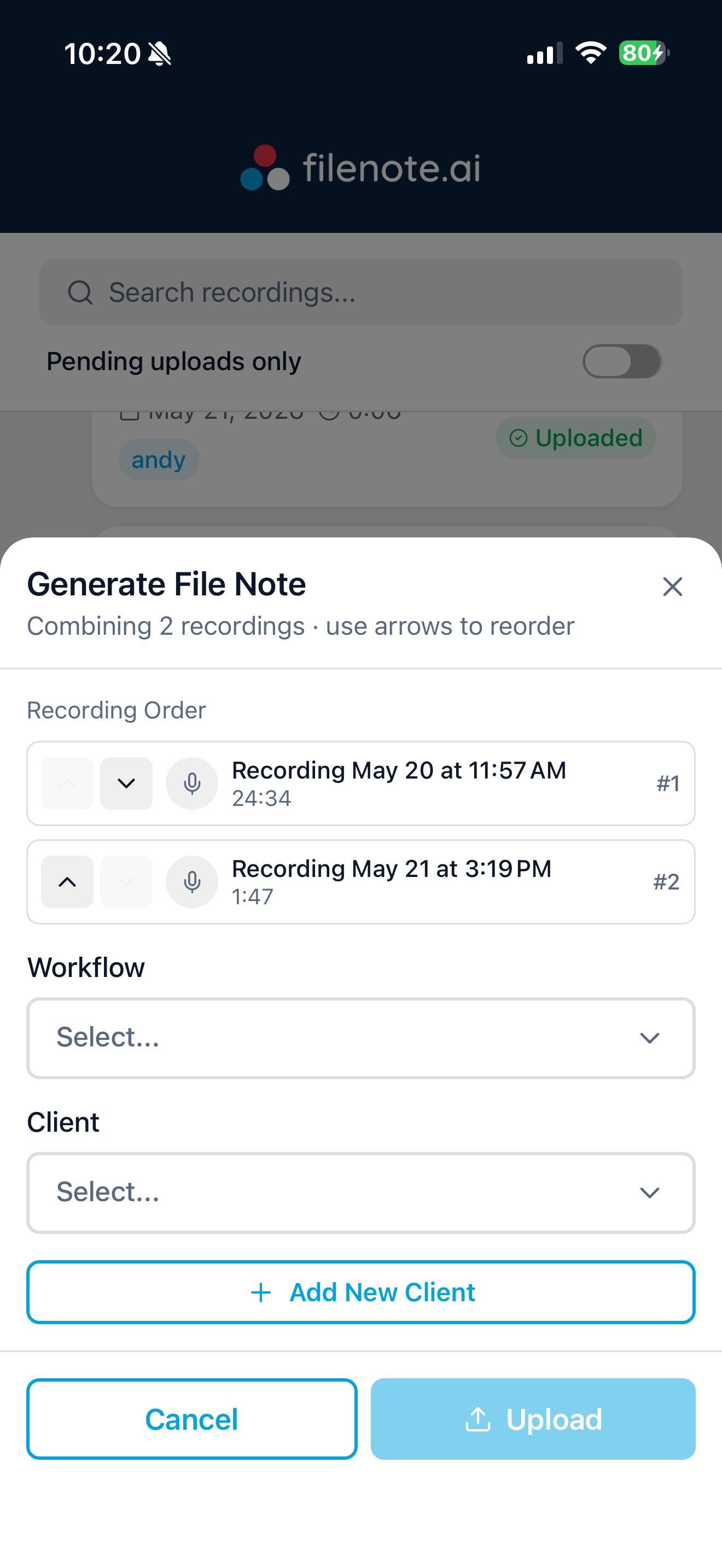
Combining Recordings: If you have more than one recording for the same client (e.g., a meeting was split into two parts), you can combine them. Simply long-press on a recording, check the boxes for any other recordings you wish to combine, and tap Combine. You will then be prompted to select the workflow and client before uploading. You can also re-order your recordings.
| ⚠ Important Note on Deletion All recordings are initially saved directly to your iPhone storage. You can free up space by deleting them at any time (we recommend doing this after you have successfully uploaded them). However, please note that once deleted from the app, they are permanently removed from your device. |
How to Upload existing phone recordings
If you previously recorded a meeting using a different app on your iPhone, you can still bring it into Filenote AI.
Tap the Upload tab in the bottom navigation bar.
Select Choose Files to browse your iPhone's local storage.
Select the relevant audio file. Once uploaded, it will be moved directly into your List tab where you can assign a workflow and client to trigger the output generation.
| ✓ Good to Know Once your file is in the List tab, assigning a workflow and client is all it takes to trigger automatic output generation — no extra steps needed. |
How to Adjust your audio quality settings
You can customise how much storage space your recordings take up by adjusting the audio quality. Navigate to the Profile tab and under Preferences, tap Audio quality.
| Quality | Storage Use | Best For |
|---|---|---|
| Low | ~14 MB/hr | Limited storage or simple dictation |
| StandardDefault | ~28 MB/hr | Most client meetings |
| High | ~58 MB/hr | Noisy environments or critical recordings |
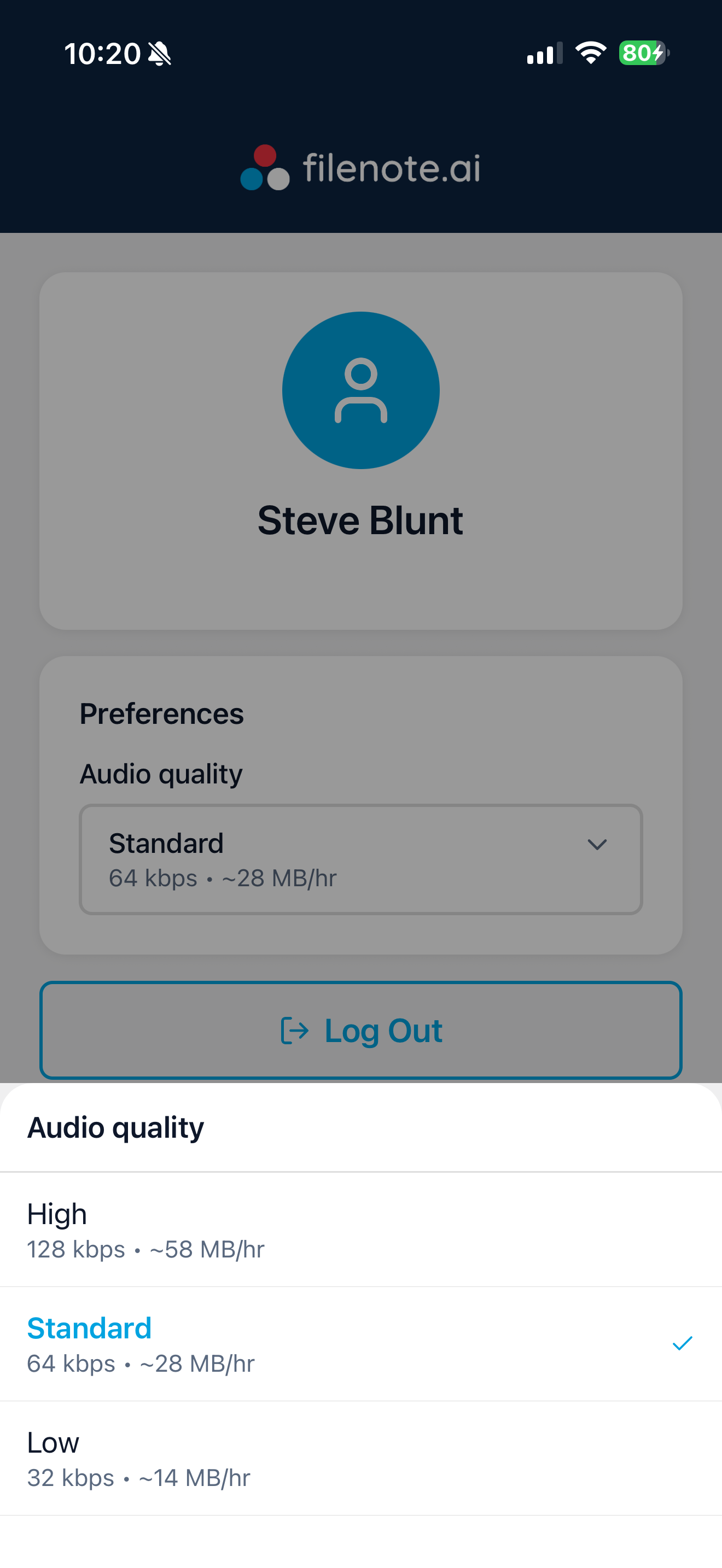
| Recommendation Standard quality is suitable for most client meetings and is selected by default. Only switch to High if you are recording in a noisy environment or need maximum clarity. |
Need help? If you run into any issues or have questions, our support team is here to help. Email Support → support@blvsolutions.com |
Was this article helpful?
That’s Great!
Thank you for your feedback
Sorry! We couldn't be helpful
Thank you for your feedback
Feedback sent
We appreciate your effort and will try to fix the article