If a meeting was captured in more than one recording, for example, because the recording was paused, interrupted or restarted partway through, you can combine the separate recordings into one before processing.
Filenote AI treats the combined recording as a single meeting, so you get one set of outputs instead of several partial ones.
This article walks you through uploading your recordings, putting them in the right order and processing them together.
Steps Overview:
- Step 1 — Upload your recordings
- Step 2 — Click 'Combine'
- Step 3 — Order the recordings
- Step 4 — Select the 'Client' and 'Workflow'
- Step 5 — Click 'Process Recordings'
Step 1 — Upload your recordings
Upload all of the recordings that belong to the same meeting. You'll need at least two recordings to use the combine option.
| ? Tip Only combine recordings from the same meeting. If you have recordings from different meetings, upload and process them separately so each meeting gets its own file note. |
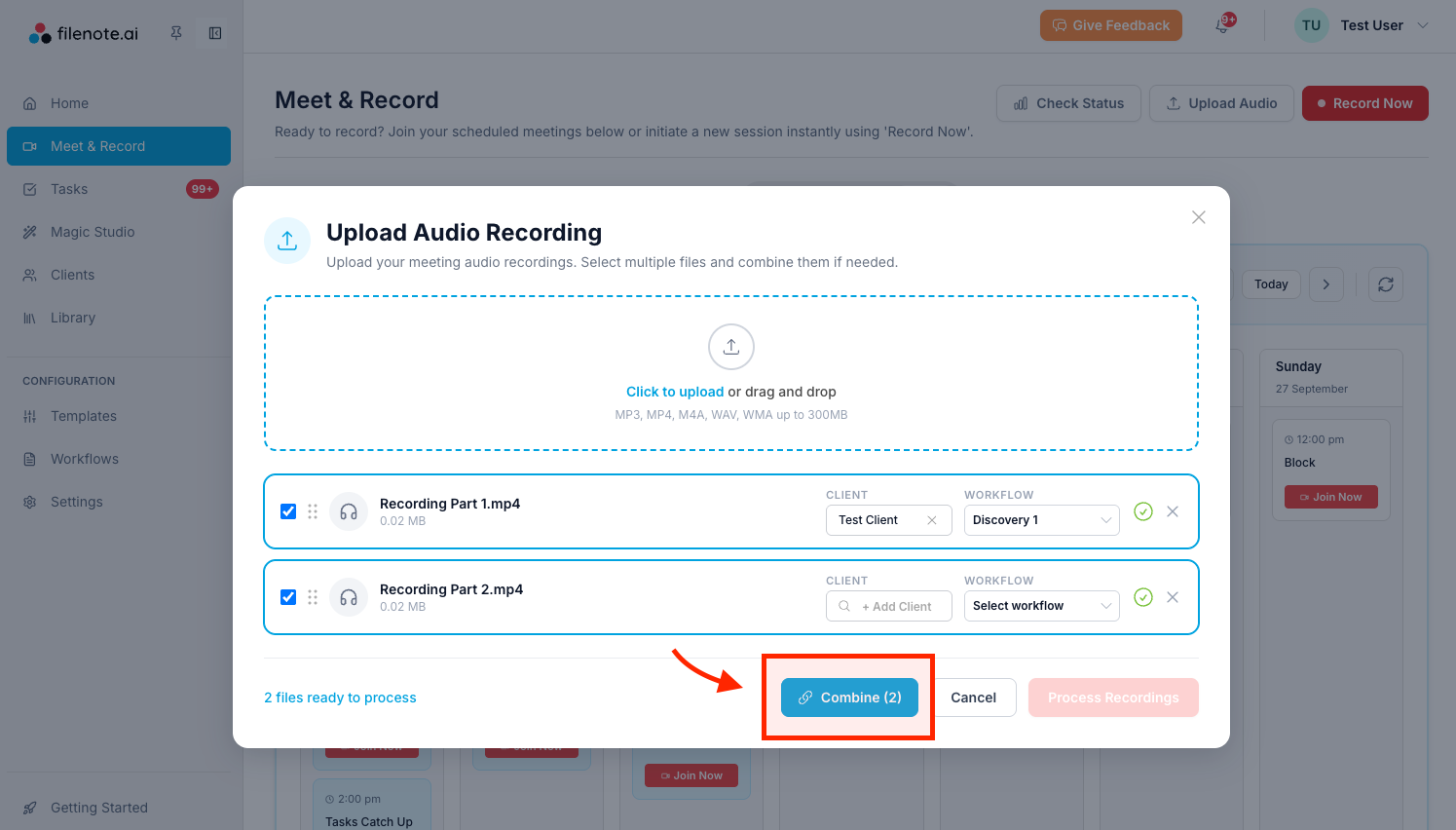
Step 2 — Click 'Combine'
Once your recordings have finished uploading, click 'Combine'.
Step 3 — Order the recordings
Arrange the recordings in the order they happened, with the earliest at the top. Use the ⌃ arrow to move a recording up and the ⌄ arrow to move it down.
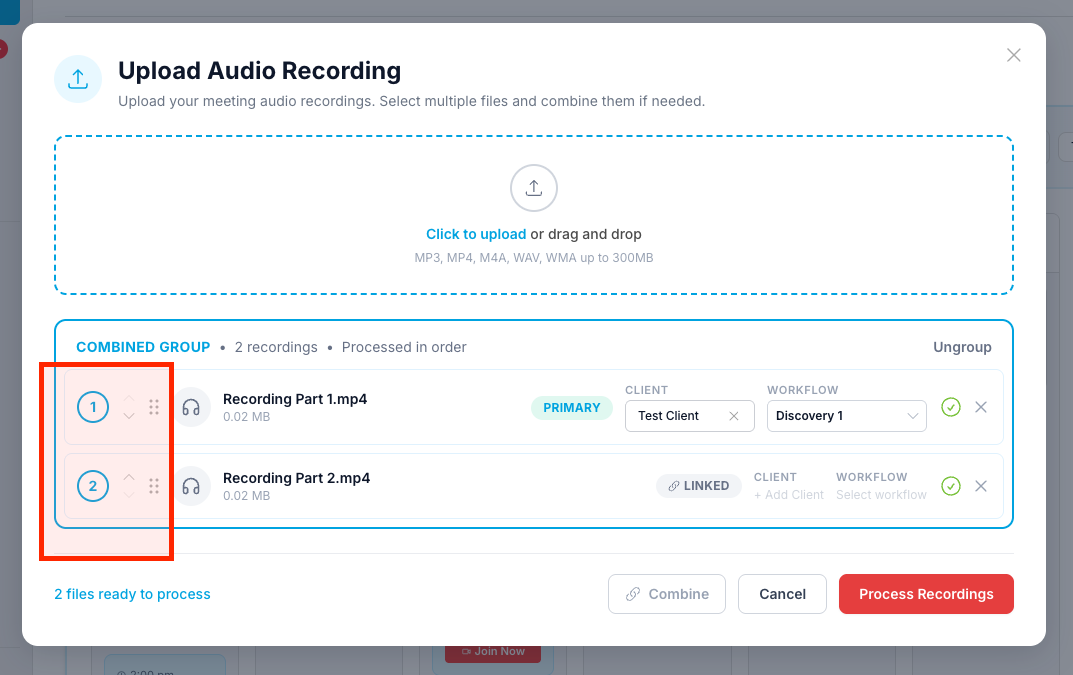
| ⚠ Check the order before you continue The recordings are joined in the order shown here. If they're out of order, the transcript and your generated documents won't follow the flow of the conversation. |
Step 4 — Select the 'Client' and 'Workflow'
Choose the 'Client' the meeting relates to, then select the 'Workflow' you want to use.
The workflow determines which documents Filenote AI generates from your combined recording, such as a file note or client email.
Step 5 — Click 'Process Recordings'
Click 'Process Recordings'.
Filenote AI joins your recordings into one, transcribes the full meeting and generates your documents based on the workflow you selected.
| Need help? If you run into any issues or have questions, our support team is here to help. Email Support → |
Was this article helpful?
That’s Great!
Thank you for your feedback
Sorry! We couldn't be helpful
Thank you for your feedback
Feedback sent
We appreciate your effort and will try to fix the article