Report Packs: Choose Your Reports and Report Dates
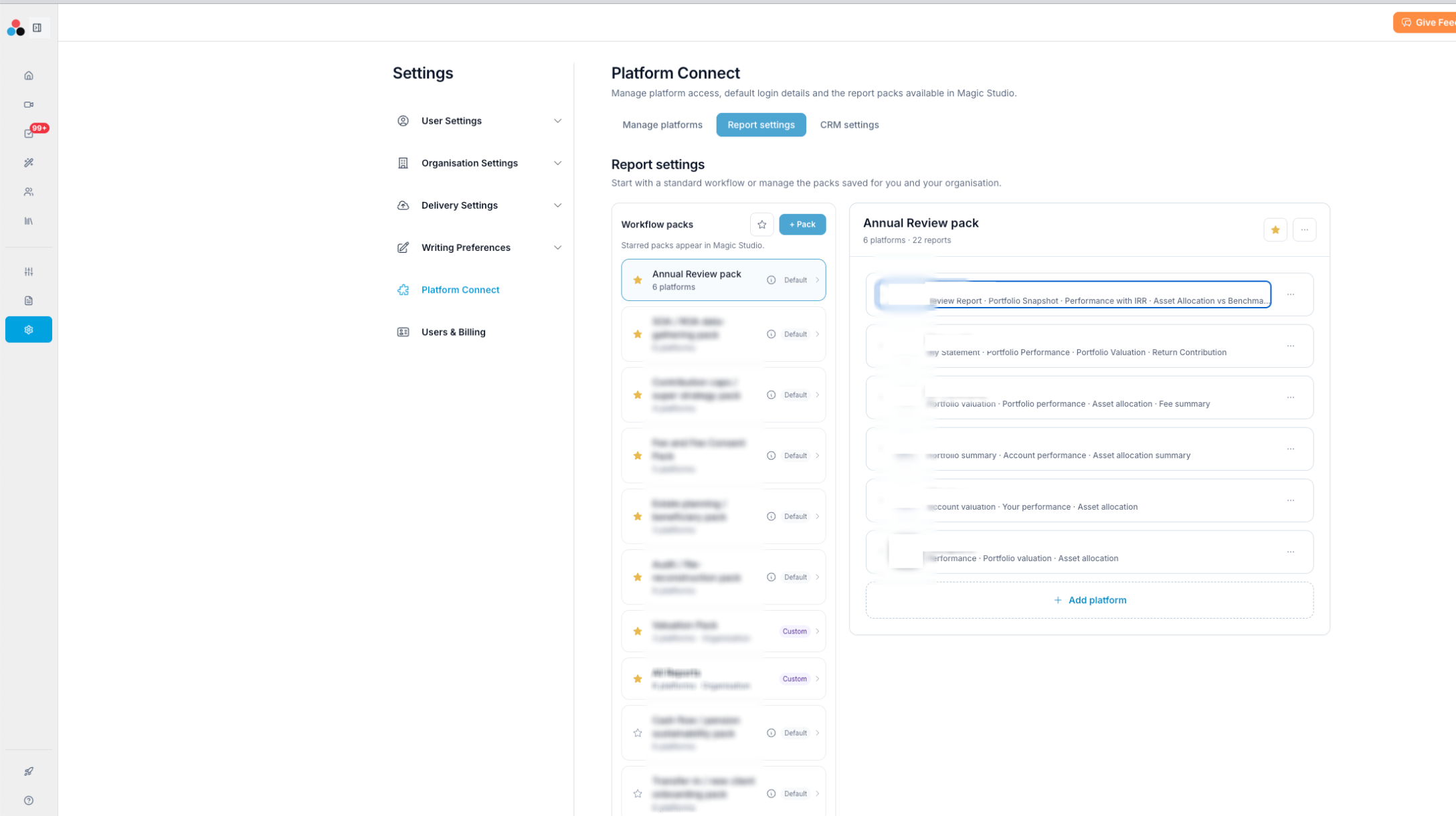
A report pack is a saved set of reports across one or more investment platforms. When you run Platform Reports, you choose a pack instead of picking reports one by one. You manage your packs in Settings / Platform Connect, on the Report settings tab.
| In this article Default and custom packs Star the packs you use Set report dates and options Create a custom pack |
Default and custom packs
| Pack type | What it is |
|---|---|
| Default | Ready-made packs for common workflows, such as Annual Review, SOA / ROA data-gathering, and Fee and Fee Consent. You can use them as they are, but you can't change them. |
| Custom | Packs you create, or copy from a default pack. A custom pack can be just for you or shared with your whole organisation. |
Star the packs you use
Click the ☆ next to a pack to star it. Only starred packs appear in Magic Studio, which keeps your list short and easy to choose from.
Set report dates and options
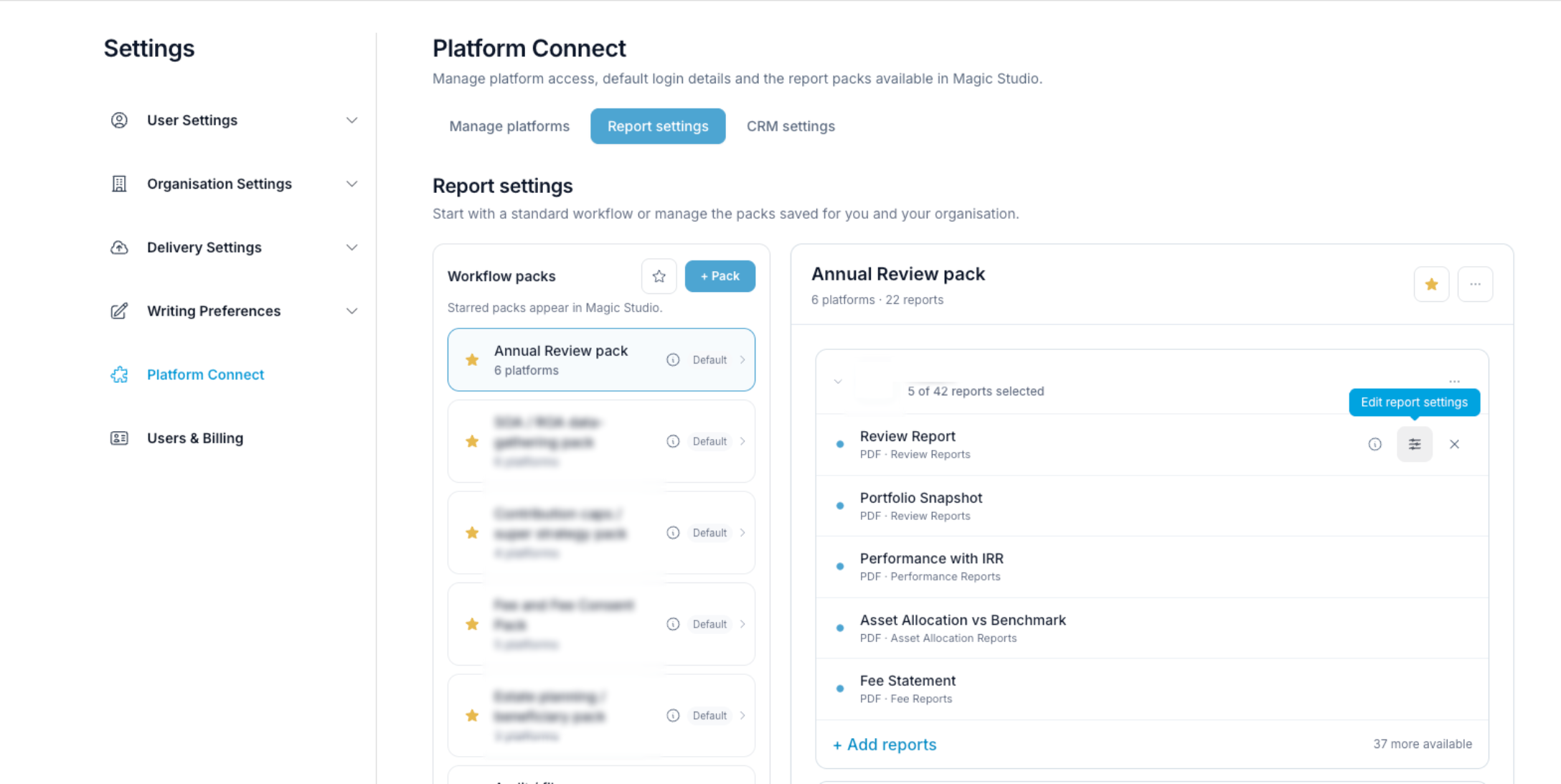
Open a pack, then click the settings icon next to a report. You can set:
- Report format, such as PDF
- Report period, or your own start and end dates
- Include closed accounts
- File per account (a separate file for each account)
Your settings are saved and used every time you run the pack.
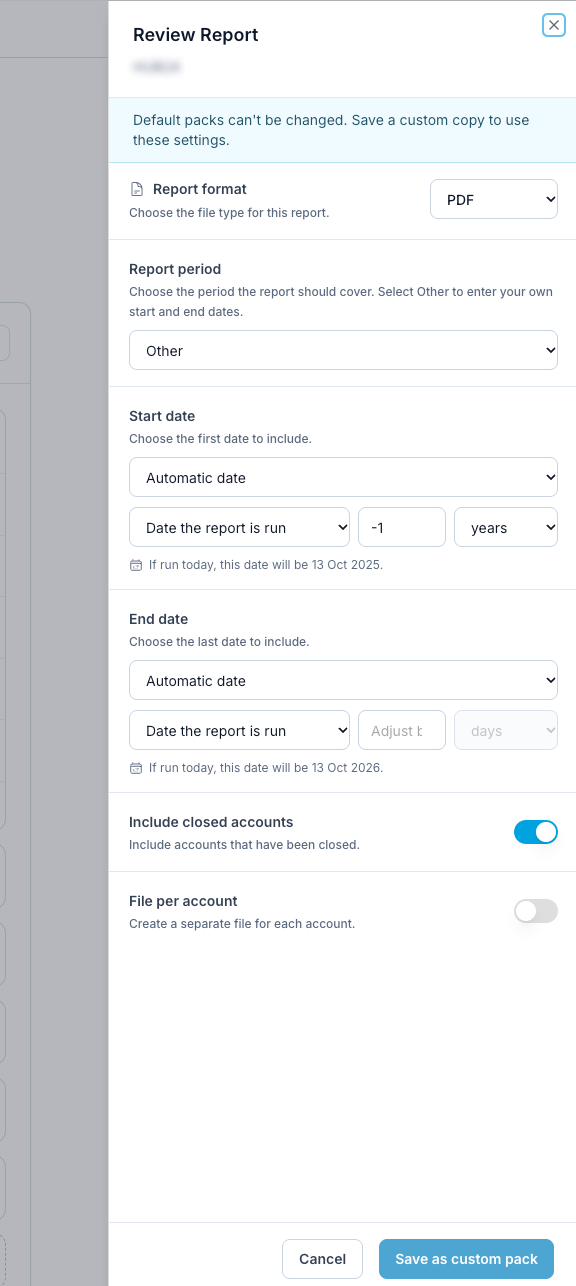
| ? Tip: use automatic dates for a rolling period Set the start date to 1 year before the date the report is run, and the end date to the date the report is run. Every run then covers the last 12 months, with nothing to update. |
| ⚠ Default packs can't be changed If you change a report in a default pack, click Save as custom pack to keep your settings. |
Create a custom pack
- Click + Pack.
- Click Add platform to add each platform you want, then Add reports to choose its reports.
- Give your pack a name.
- Choose whether it's a personal pack or shared with your organisation.
- Star the pack so it appears in Magic Studio.
What's next
Getting Platform Reports running takes three steps. With your report packs ready, you've done the first two.
| 1. Set up | Connect your CRM and investment platforms |
| 2. Configure | Set up your report packs and report datesYou're here |
| 3. Run | Run Platform Reports for your clients |
| Need help? If you run into any issues or have questions, our support team is here to help. Email Support → |
Was this article helpful?
That’s Great!
Thank you for your feedback
Sorry! We couldn't be helpful
Thank you for your feedback
Feedback sent
We appreciate your effort and will try to fix the article