This article explains how to upload a non-Teams recording using your Microsoft Teams app on your Desktop. We support the following audio files: wav, mp4, m4a, mp3, wma formats. Examples of audio files include iPhone call recordings and dictaphone recordings.
Filenote.ai will automatically retrieve audio files uploaded and generate your artefacts.
Please note: you can upload multiple audio files at once into the same meeting. Filenote.ai will retrieve the audio files(s) and generate separate file note for each audio file uploaded.
Step 1: Log on to Microsoft Teams App on Desktop
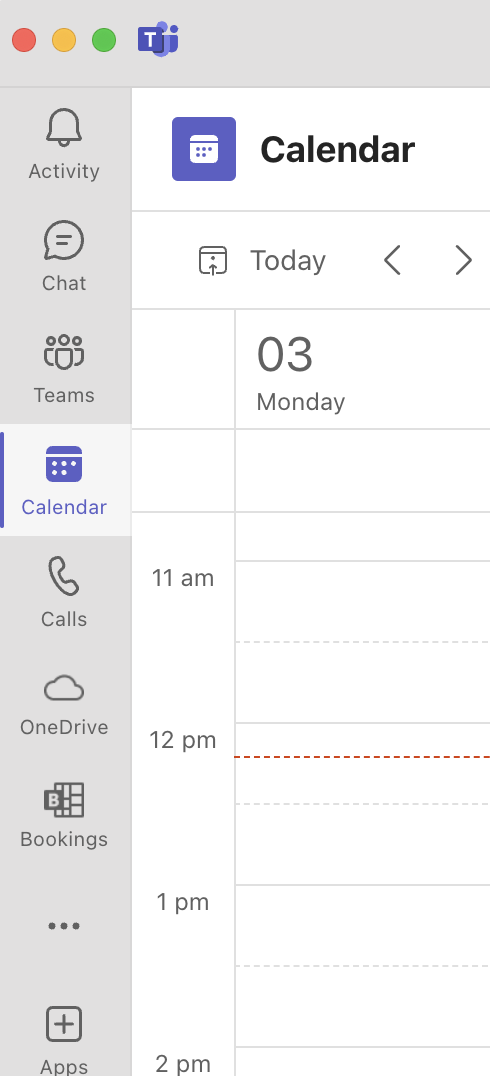
Step 2: Go to 'Calendar'
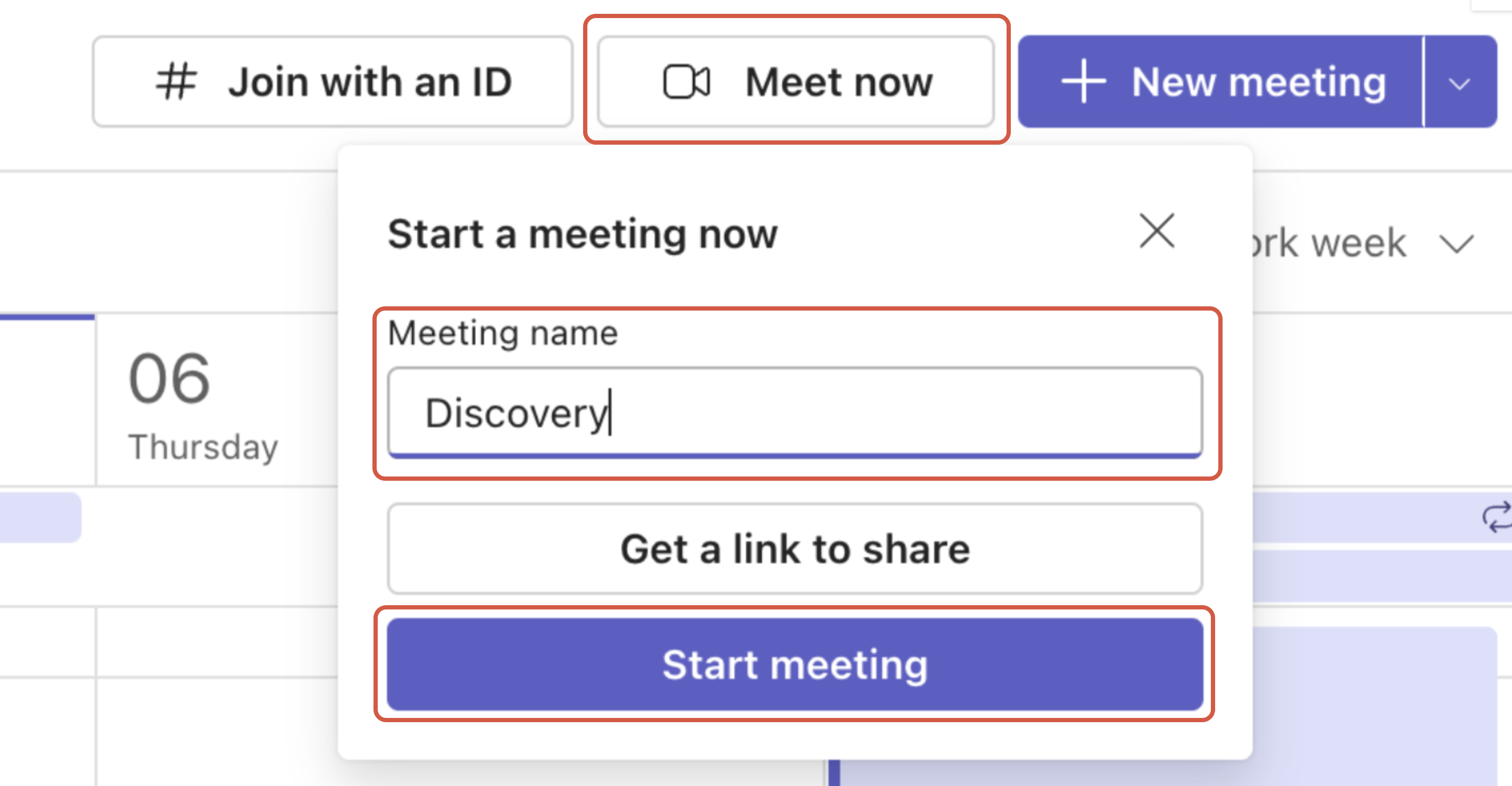
Step 3: Select 'Meet Now', rename the Meeting name using the correct key words and select 'Start meeting'
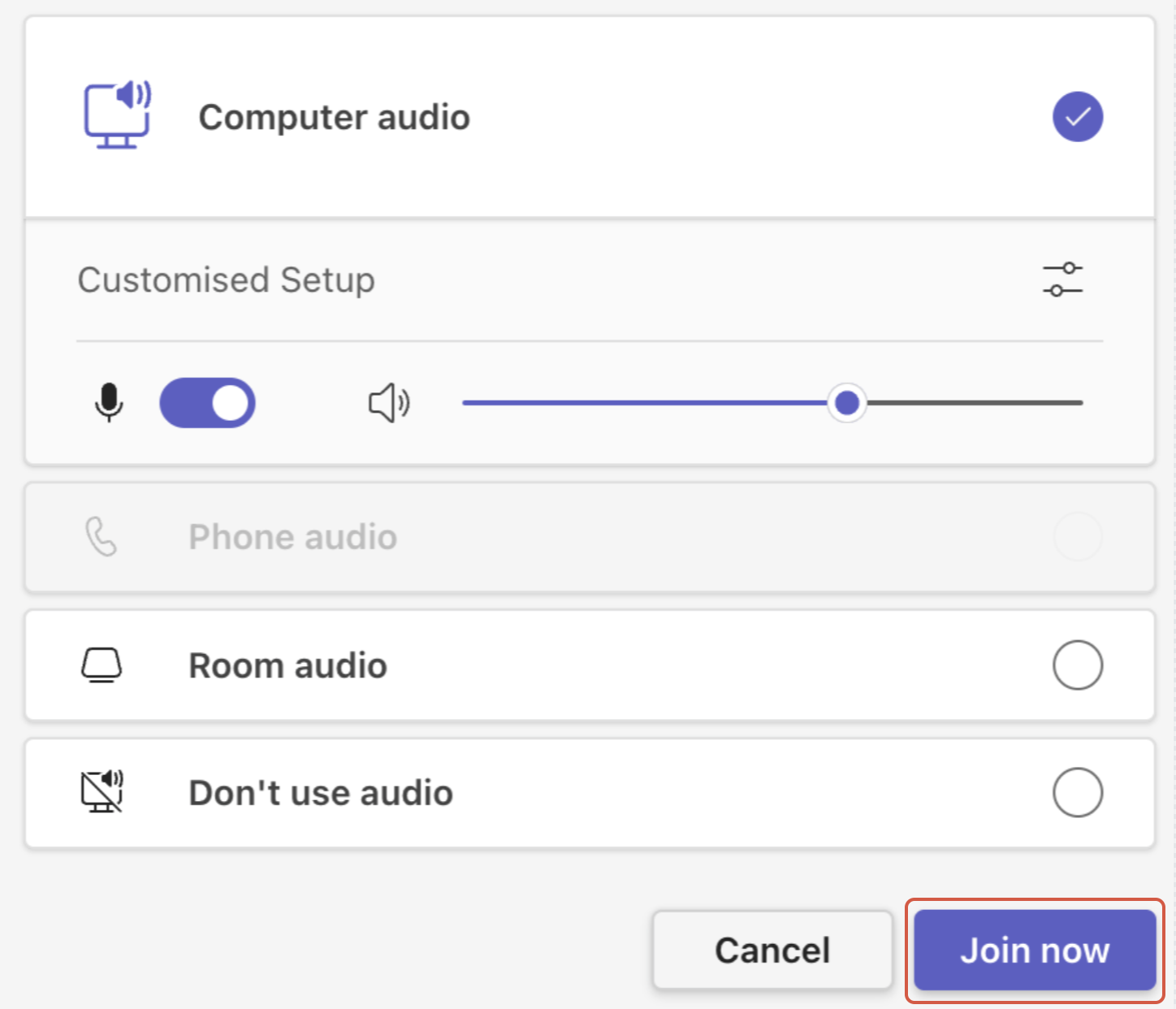
Step 4: Select 'Join Now'
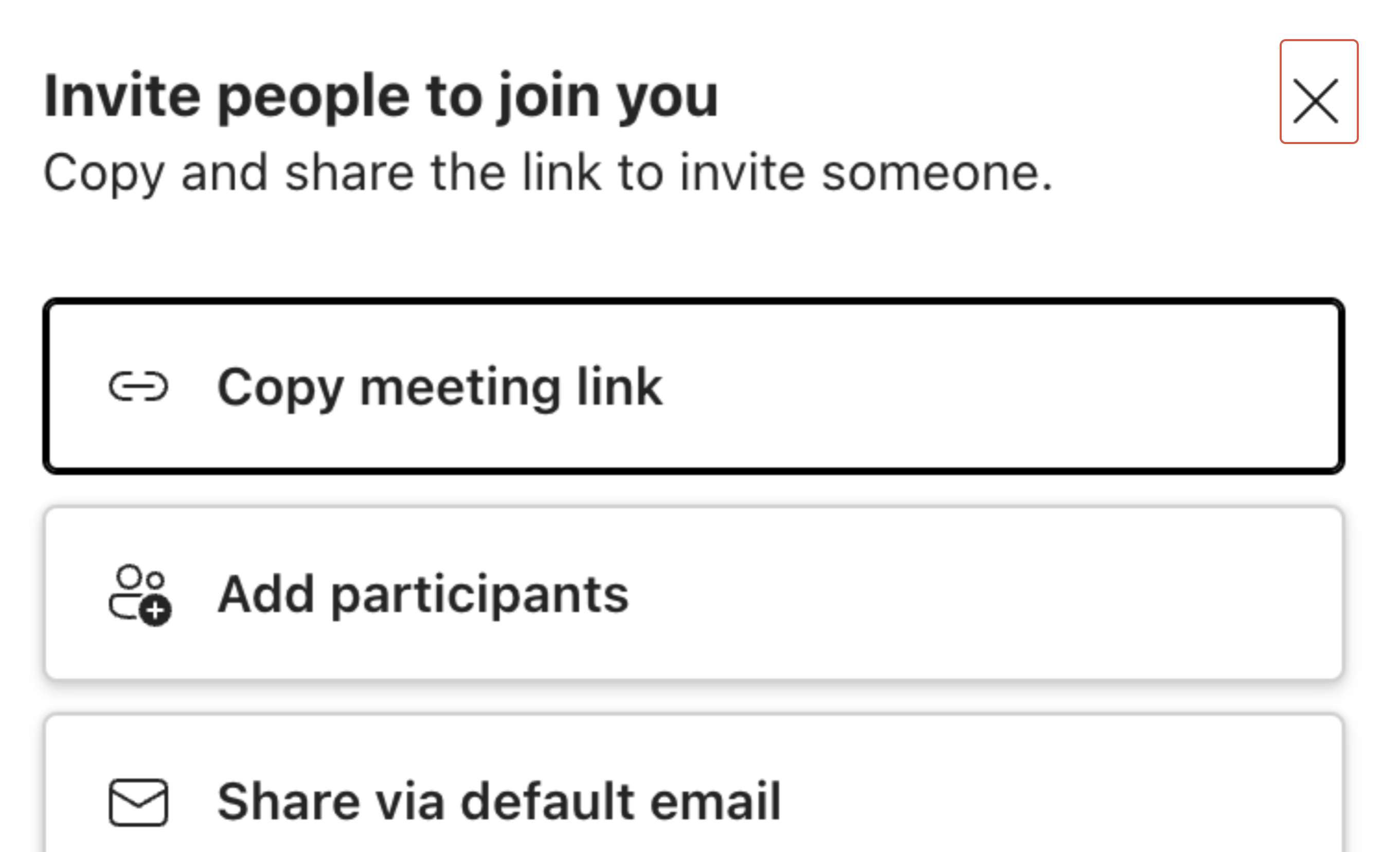
Step 5: Select 'X' - there is no need to invite anyone to an in-person meeting in Teams
Step 6: Go to 'Chat' in Teams

Step 7: Press '+' and then select 'Attach File'

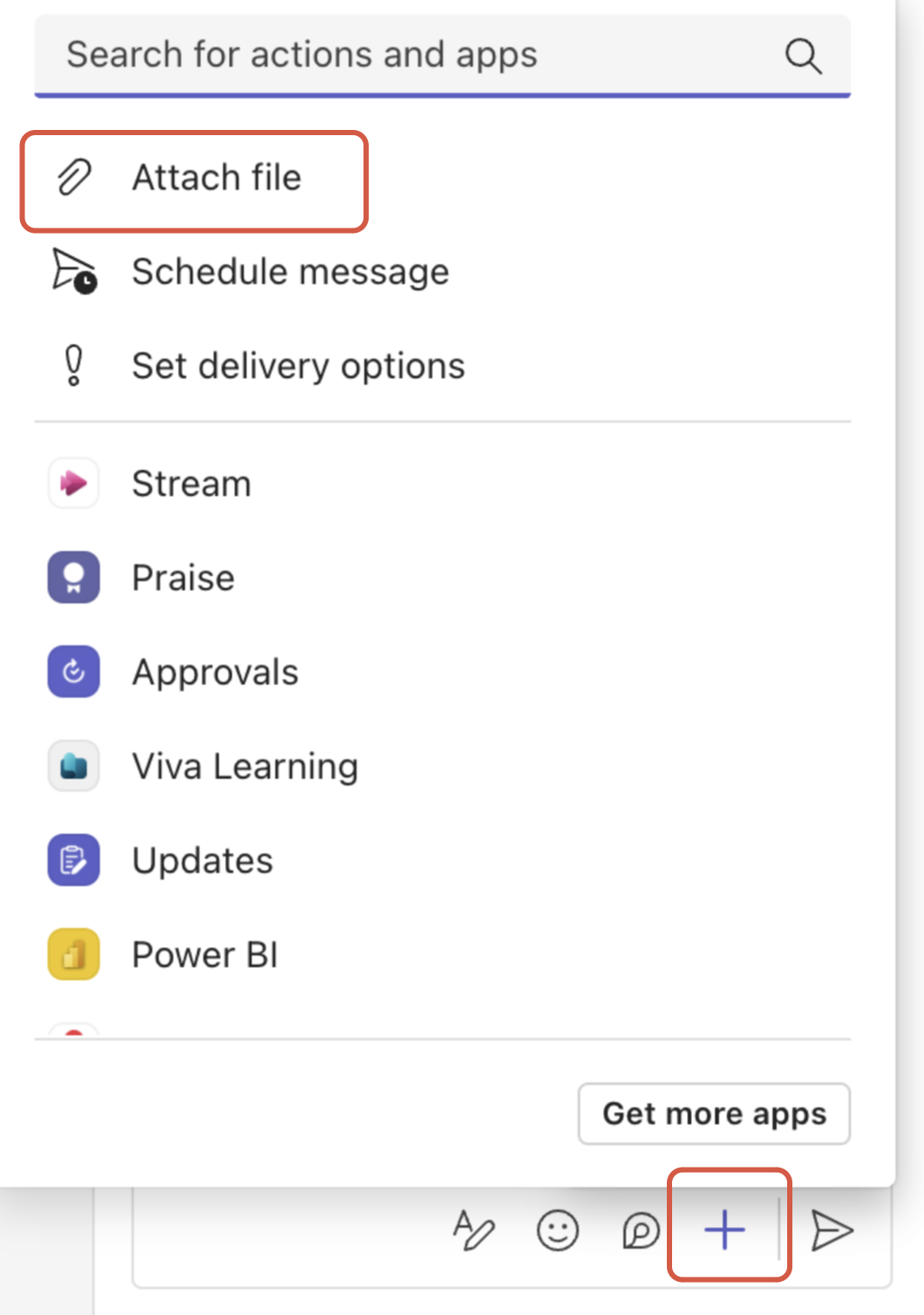
Step 8: Upload your audio file into this Teams chat and press 'Send'

Step 9: Select 'Leave' and 'End meeting'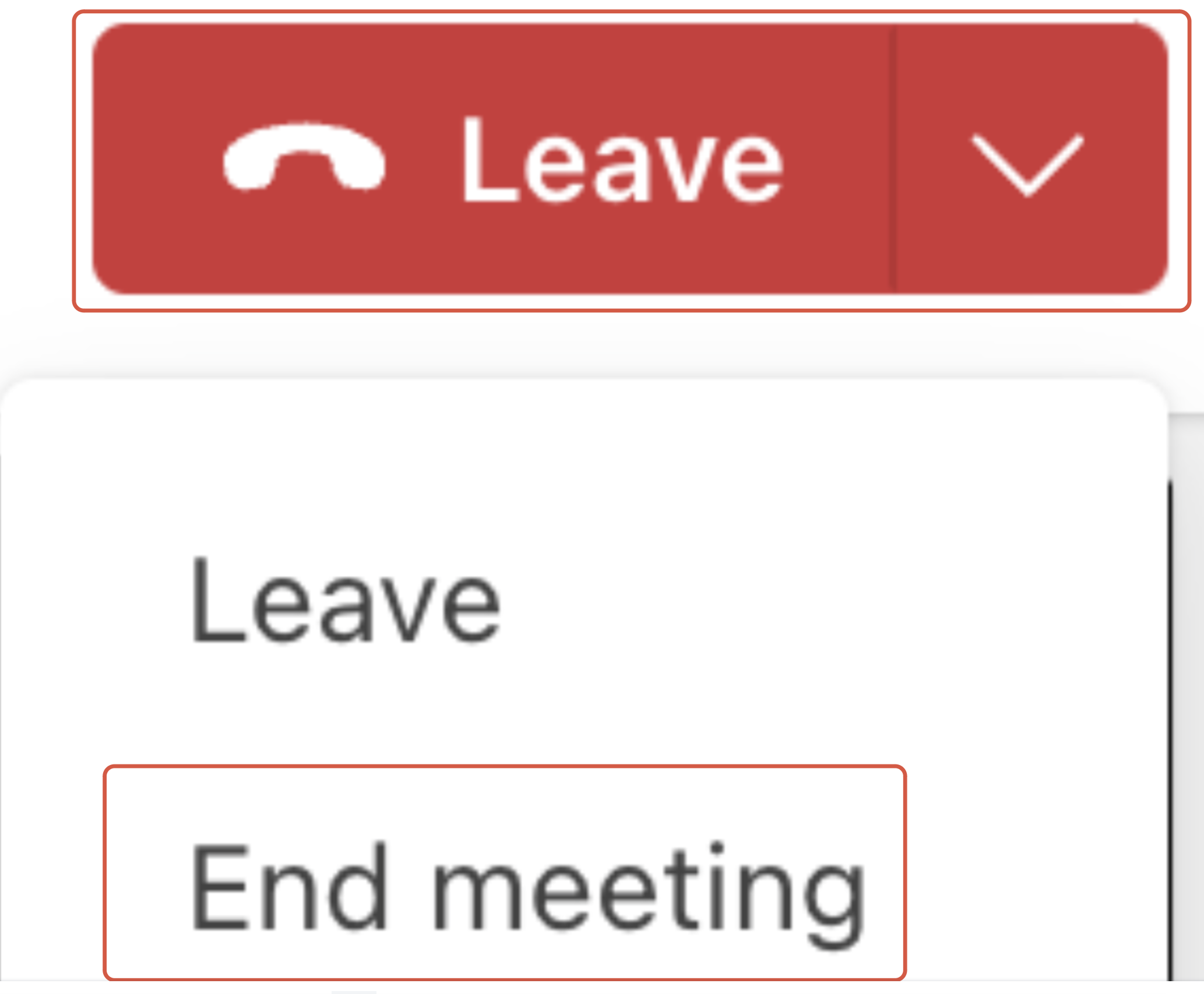
Please note:
- We will automatically generate the artefacts for you once you leave the meeting
Was this article helpful?
That’s Great!
Thank you for your feedback
Sorry! We couldn't be helpful
Thank you for your feedback
Feedback sent
We appreciate your effort and will try to fix the article