This article explains how to record an in-person meeting using your Microsoft Teams app on your Phone
Step 1: Log on to Microsoft Teams App on Phone

Step 2: Go to 'Calendar'

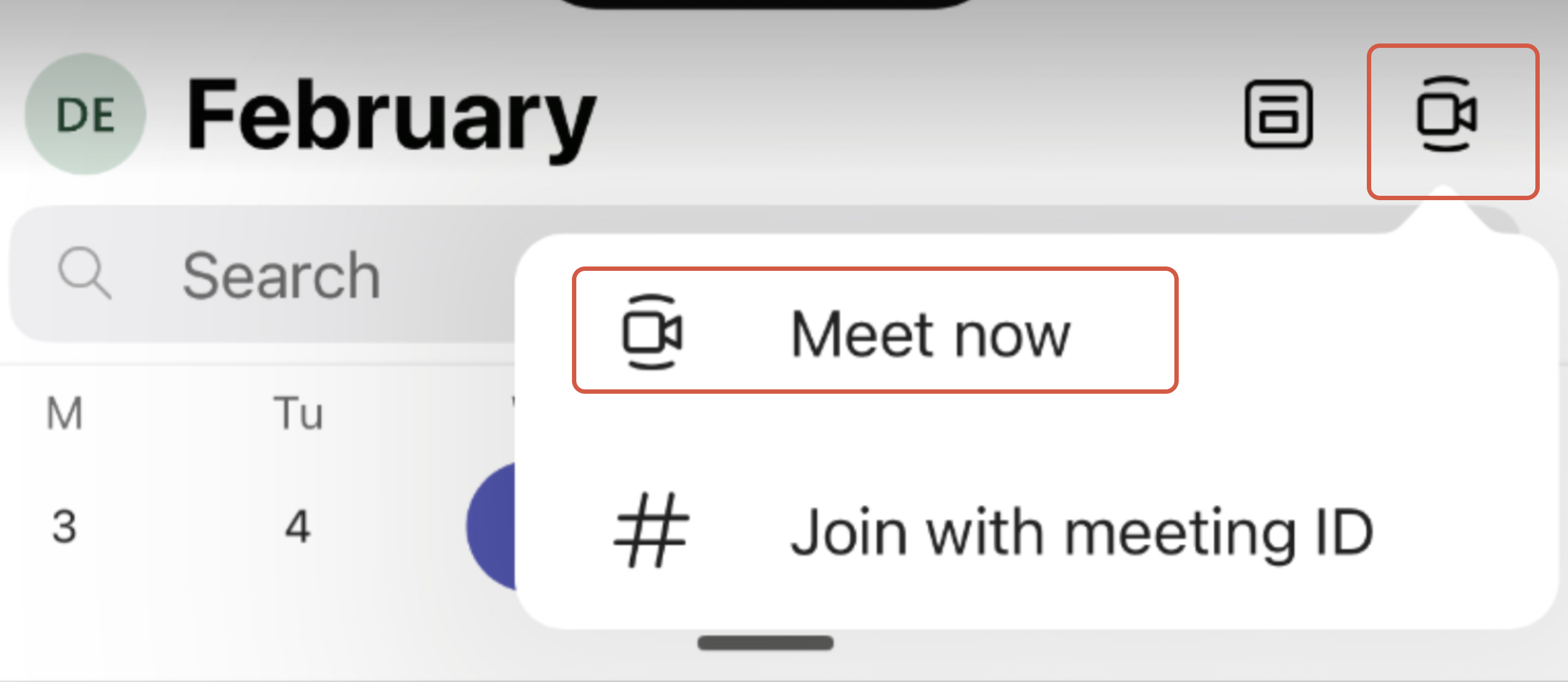
Step 3: To create a new meeting, select Video Recording Icon, and Click ‘Meet Now’.
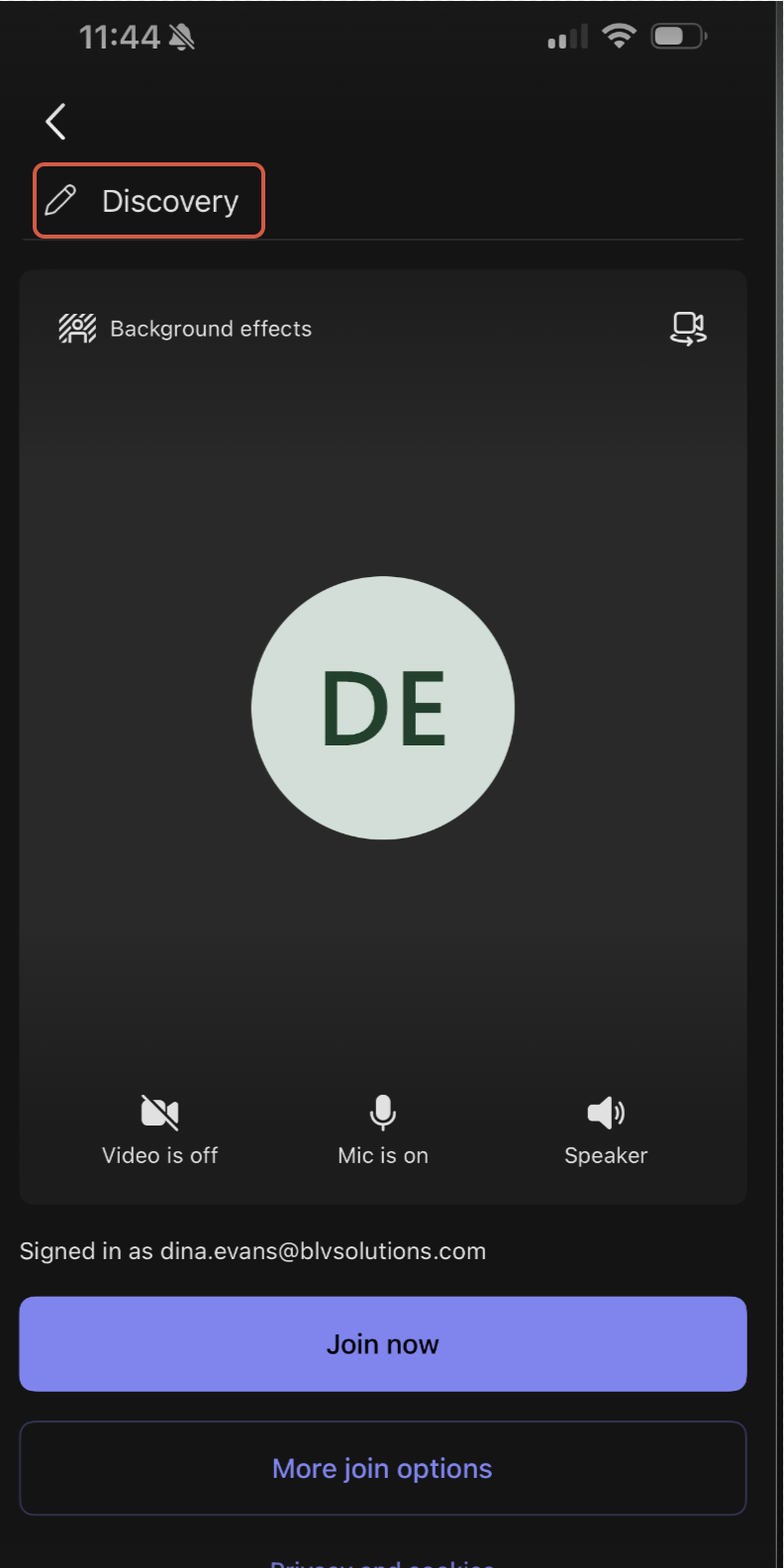
Step 4: If required, rename the meeting using appropriate key words to trigger the correct artefacts
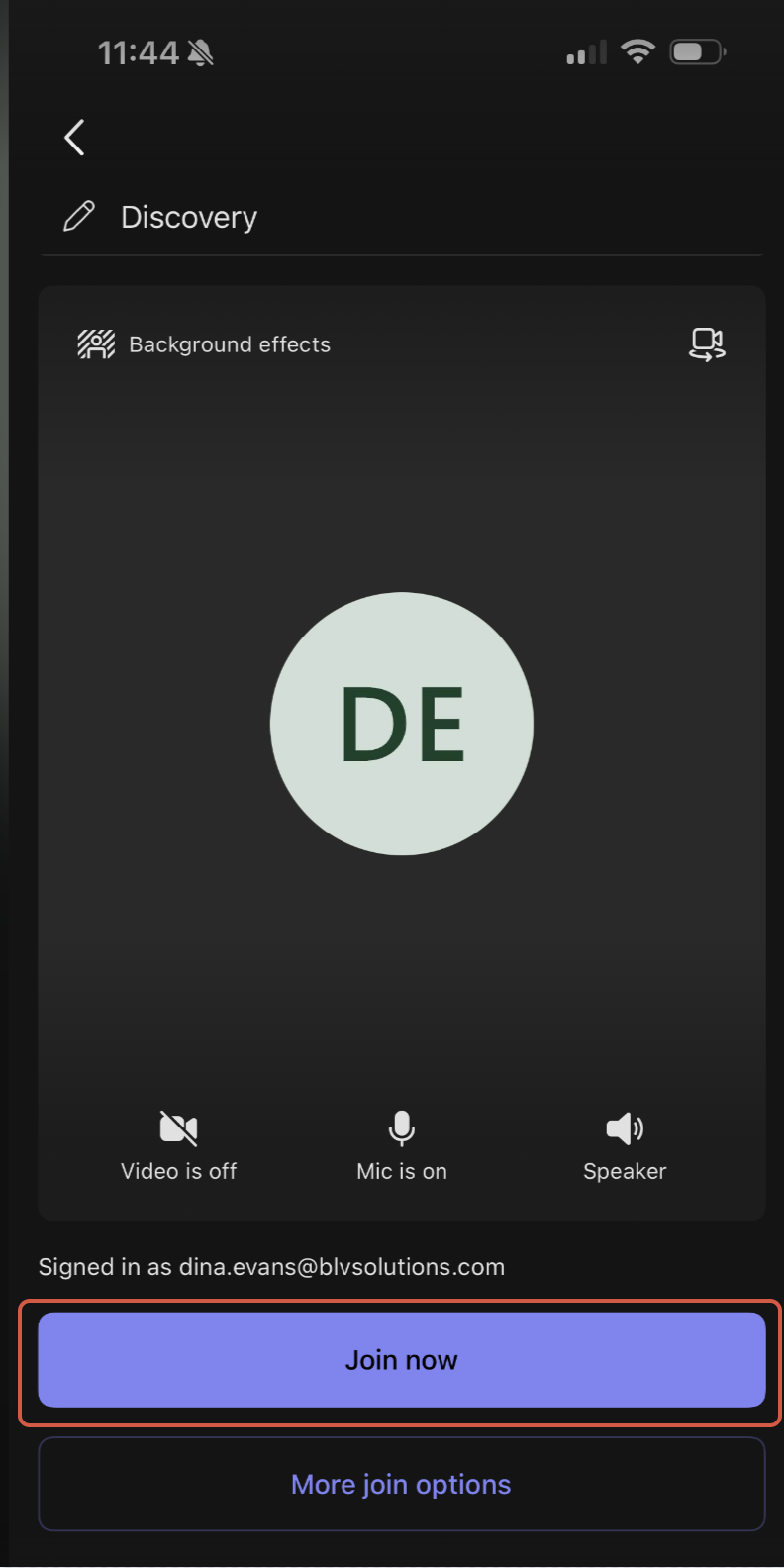
Step 5: Select 'Join Now'
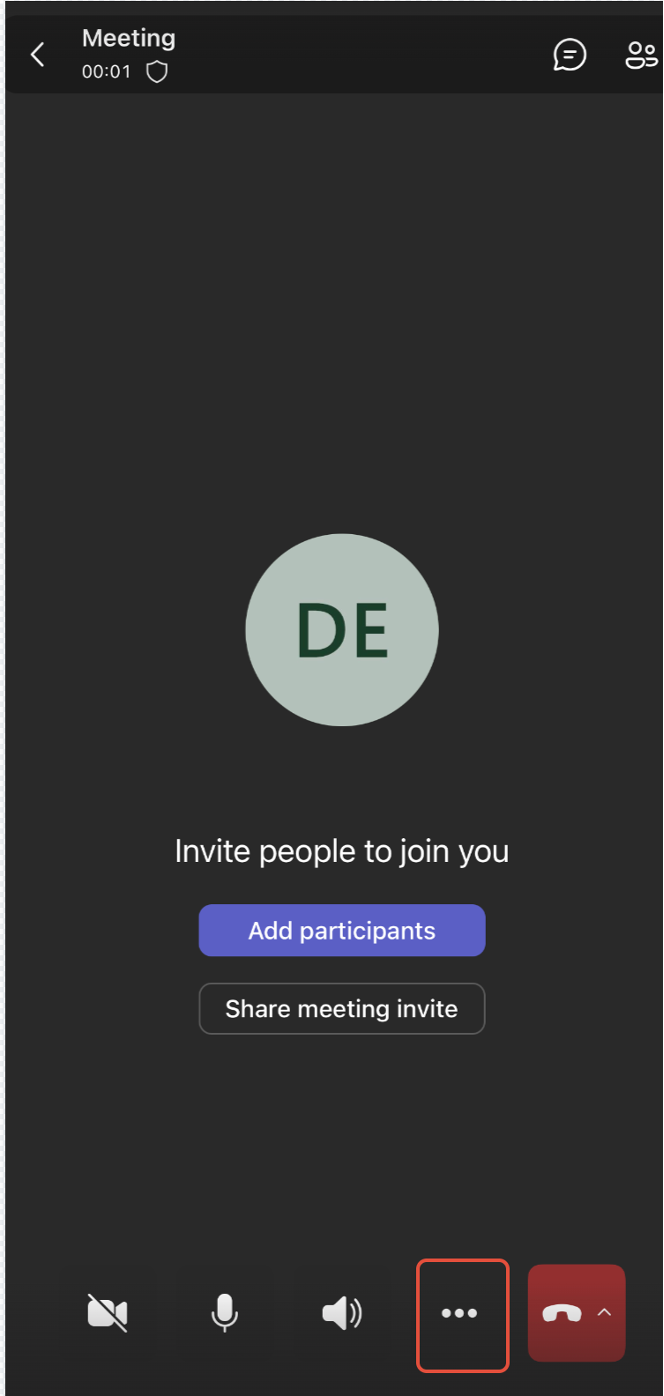
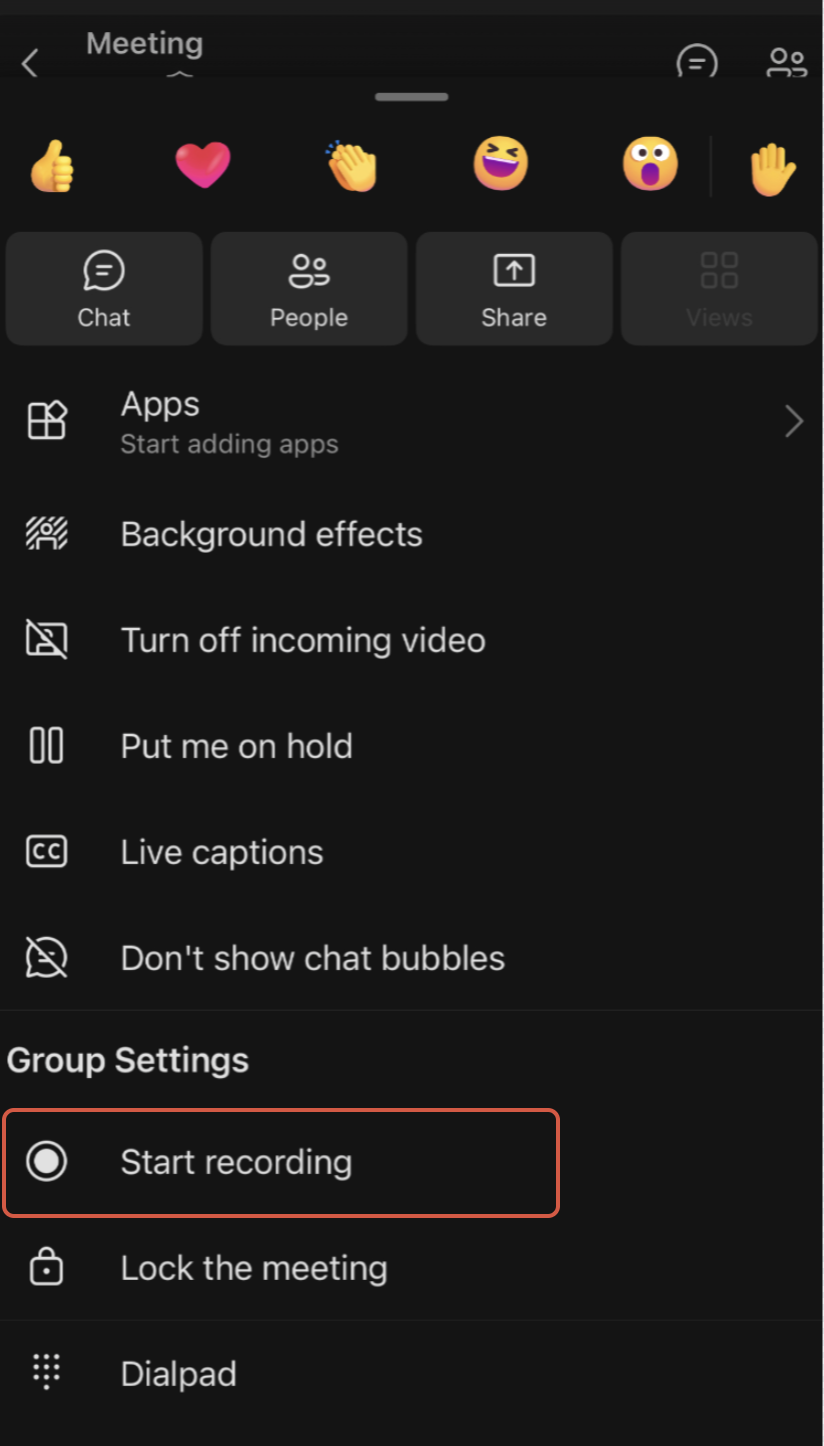
Step 6: Click 3 dots, scroll down and select 'Start Recording'
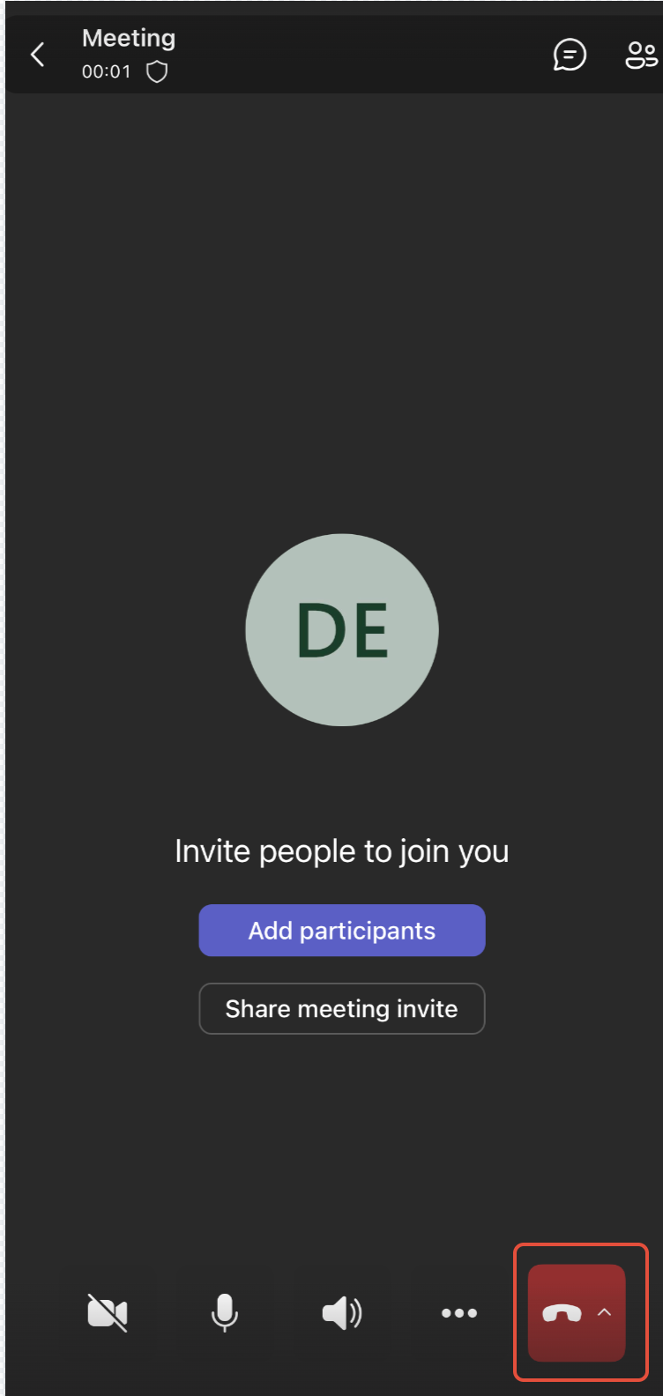
Step 7: Select 'End the Meeting for all' at the end of your meeting
Please note:
- We will automatically generate the artefacts for you once you leave the meeting
- Ensure you are not muted and the phone screen is on throughout the meeting.
- Ensure your microphone is not connected to your headphones
Was this article helpful?
That’s Great!
Thank you for your feedback
Sorry! We couldn't be helpful
Thank you for your feedback
Feedback sent
We appreciate your effort and will try to fix the article