Generate Multiple Outputs in Magic Studio
Follow these steps to generate multiple outputs for your client meetings:
Step Overview
- Step 1 — Go to Magic Studio
- Step 2 — Select Documents
- Step 3 — Select Templates
- Step 4 — Add Context & Upload Files
- Step 5 — Add Instructions
- Step 6 — Review Summary
- Step 7 — Generate Outputs
- Step 8 — Finalise in Tasks
Step 1 — Go to Magic Studio
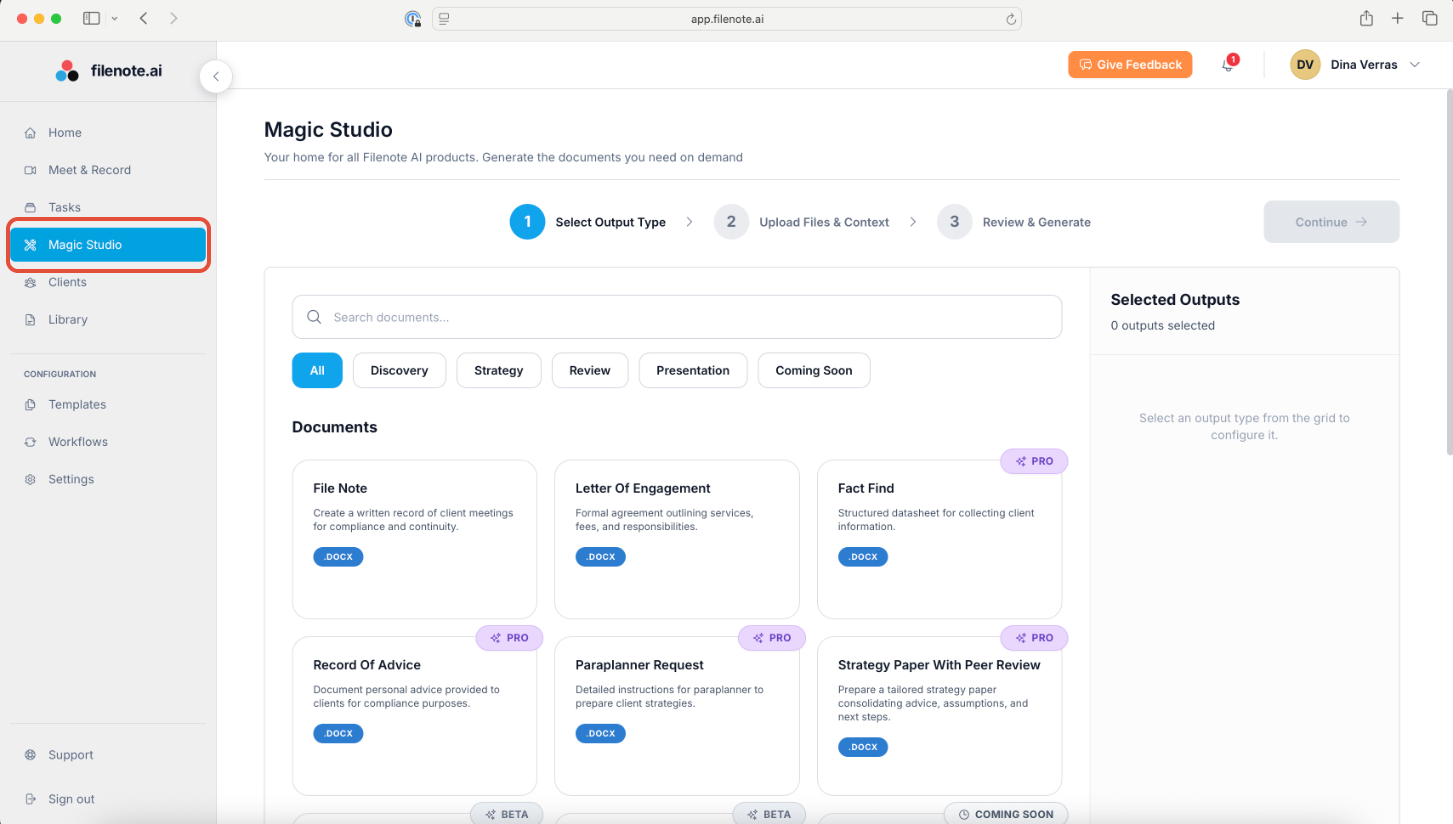
Access the Magic Studio tab on the left-hand navigation bar.
Step 2 — Select Documents
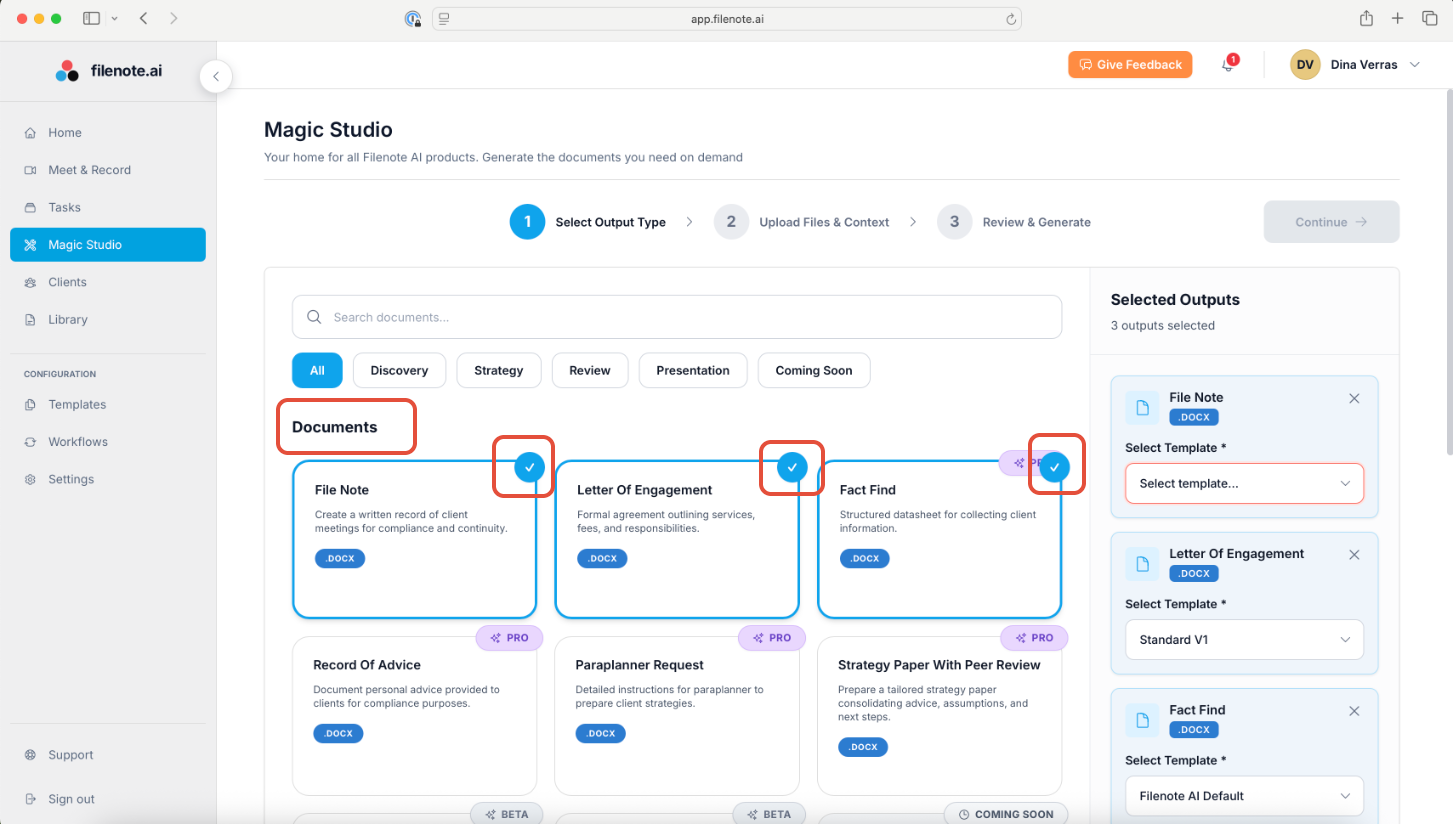
Choose the document(s) you would like generated (e.g., File Notes, Letter of Engagement, Client Mind Map). You can select several at once.
Step 3 — Select Templates
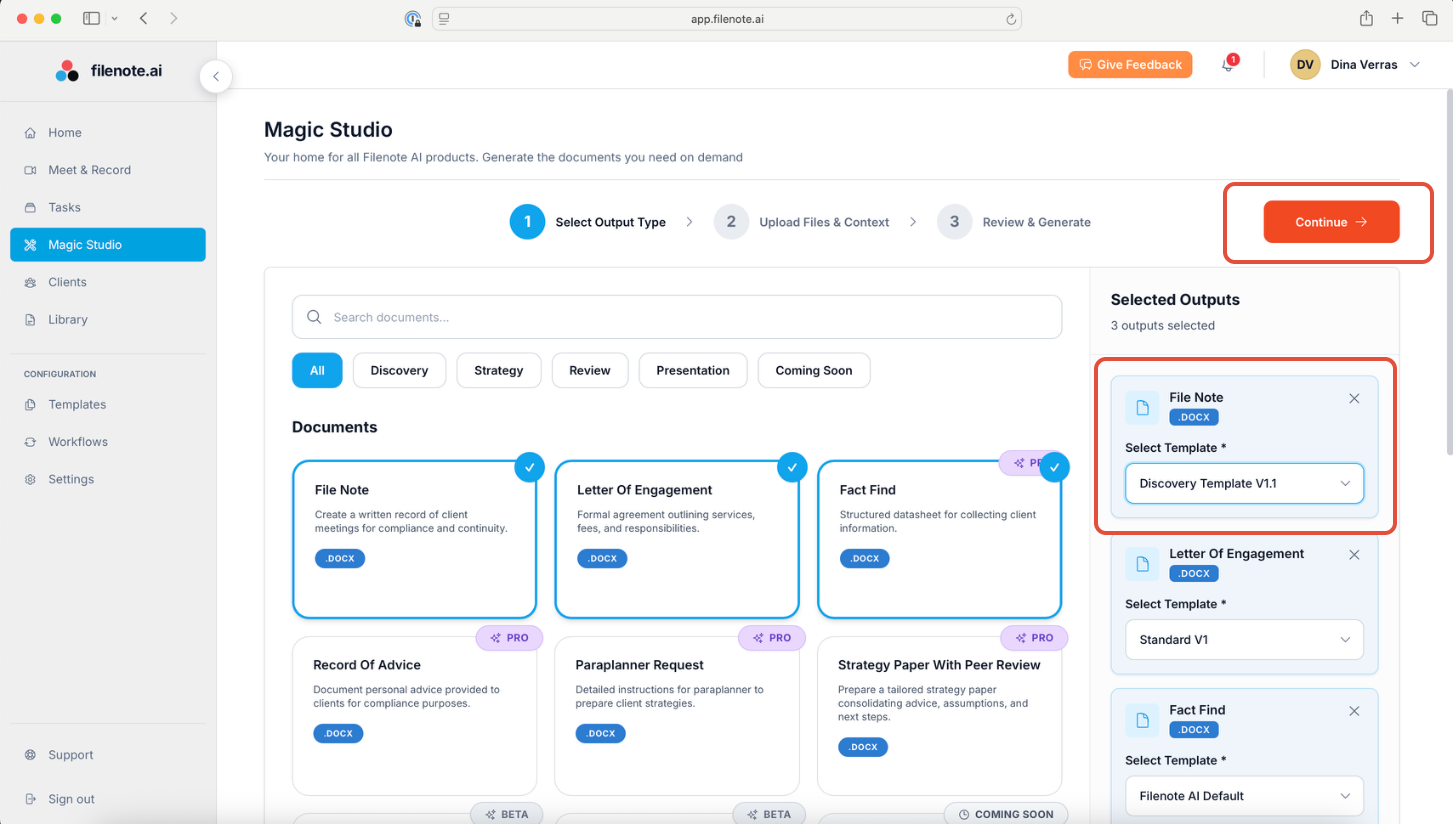
Choose the relevant template for each document (e.g., File Note for Discovery Meeting) and press Continue.
Step 4 — Add Context & Upload Files
Complete the following fields before continuing:
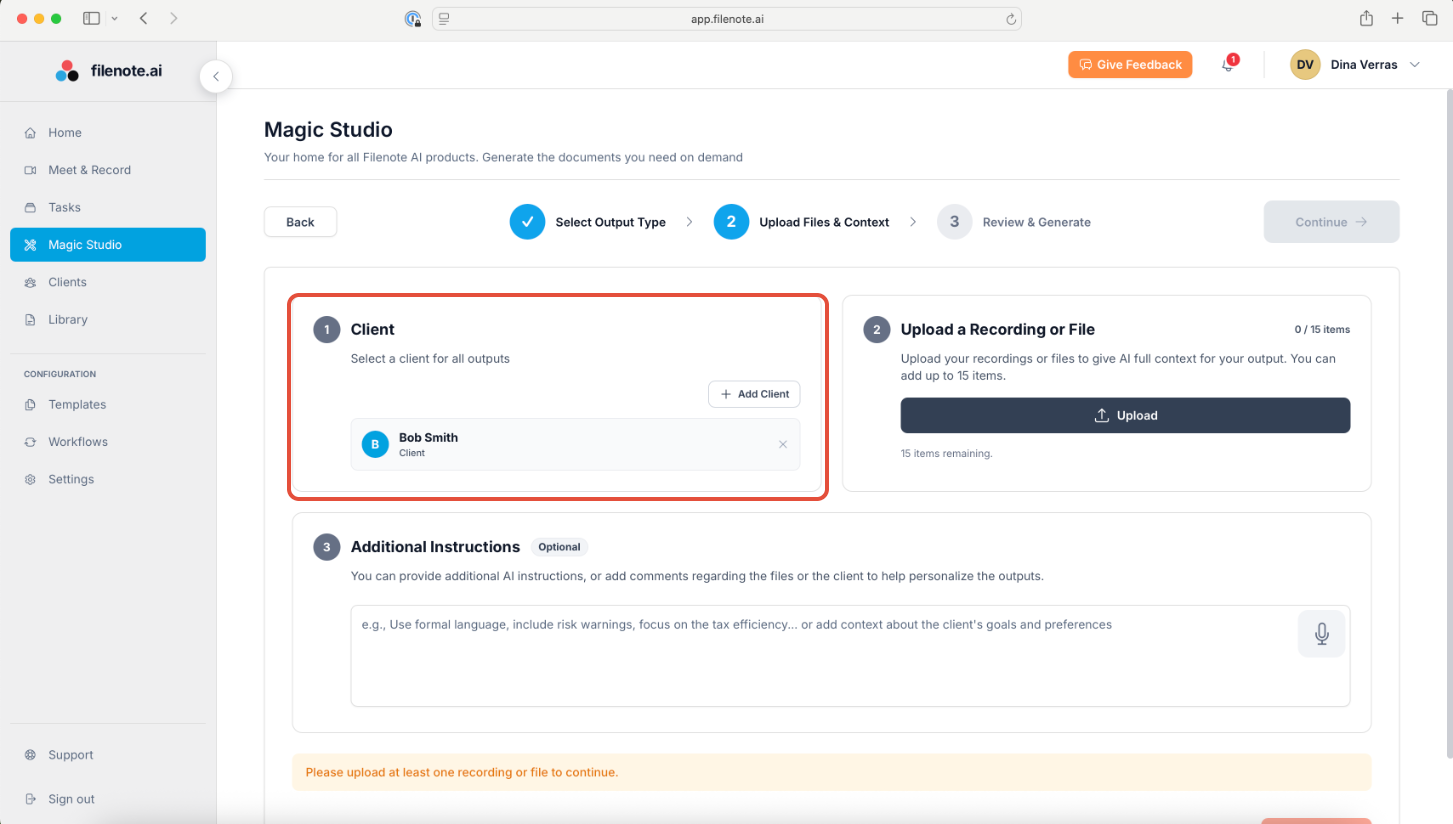
Select Client Name
Select the Client Name.
Upload Recording
We accept MP3, WAV, and M4A.
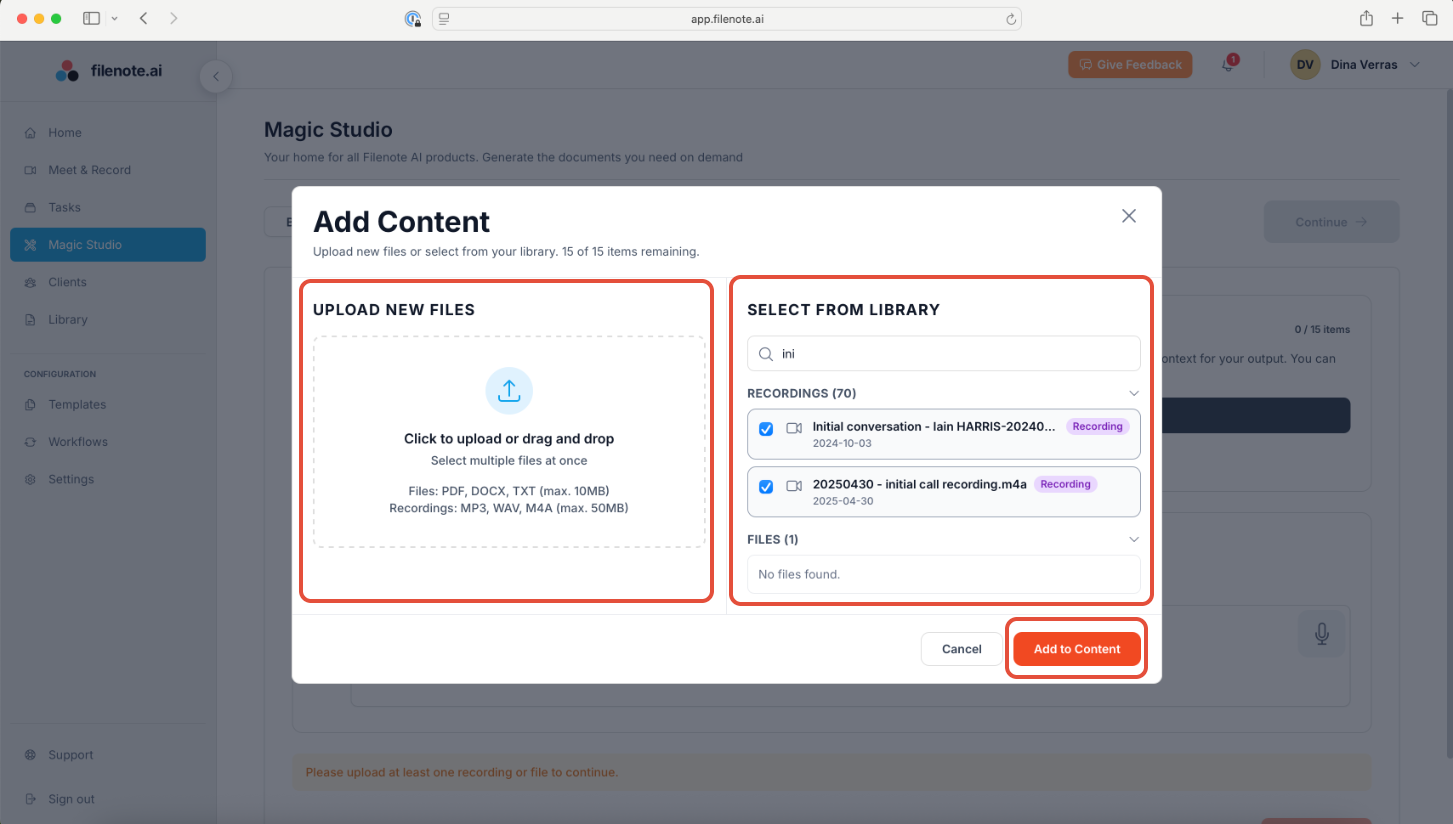
Upload Context Files
We accept PDF, DocX, and TXT.
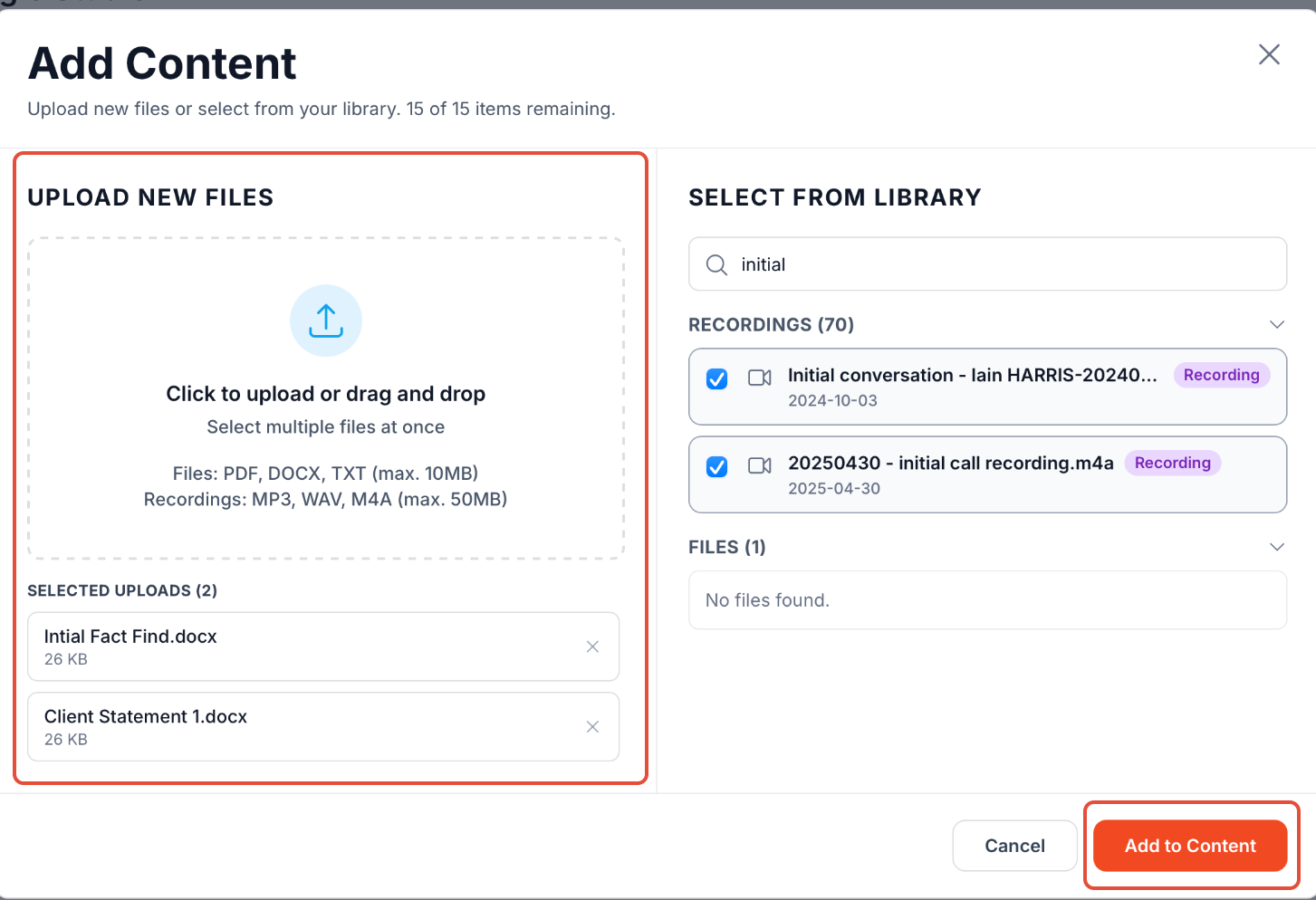
| ✓ Supported File Types Recording uploads support MP3, WAV, and M4A files. Context files support PDF, DocX, and TXT formats. |
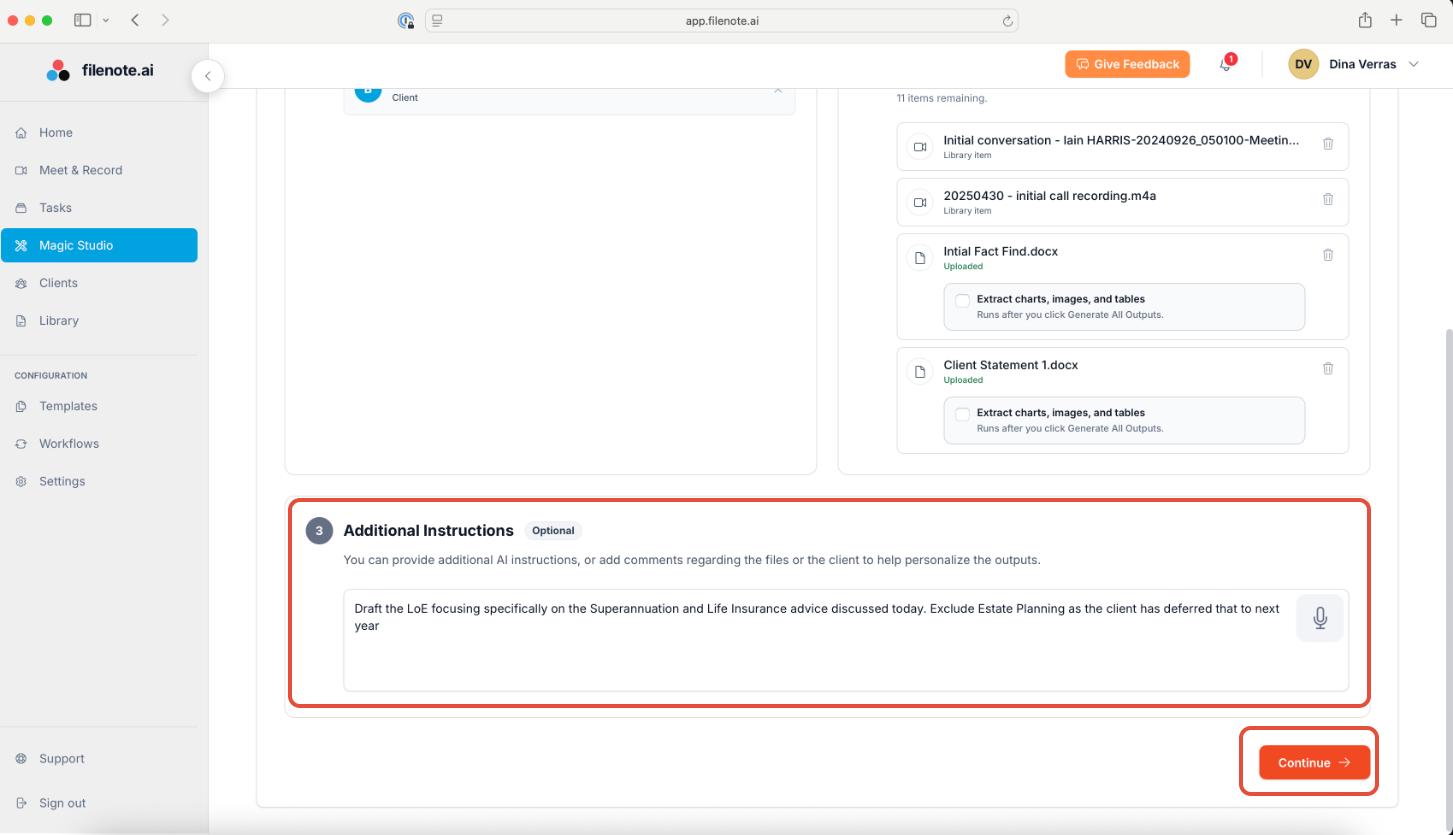
Step 5 — Add Instructions
Type any additional instructions for the AI to help personalize the outputs, then press Continue.
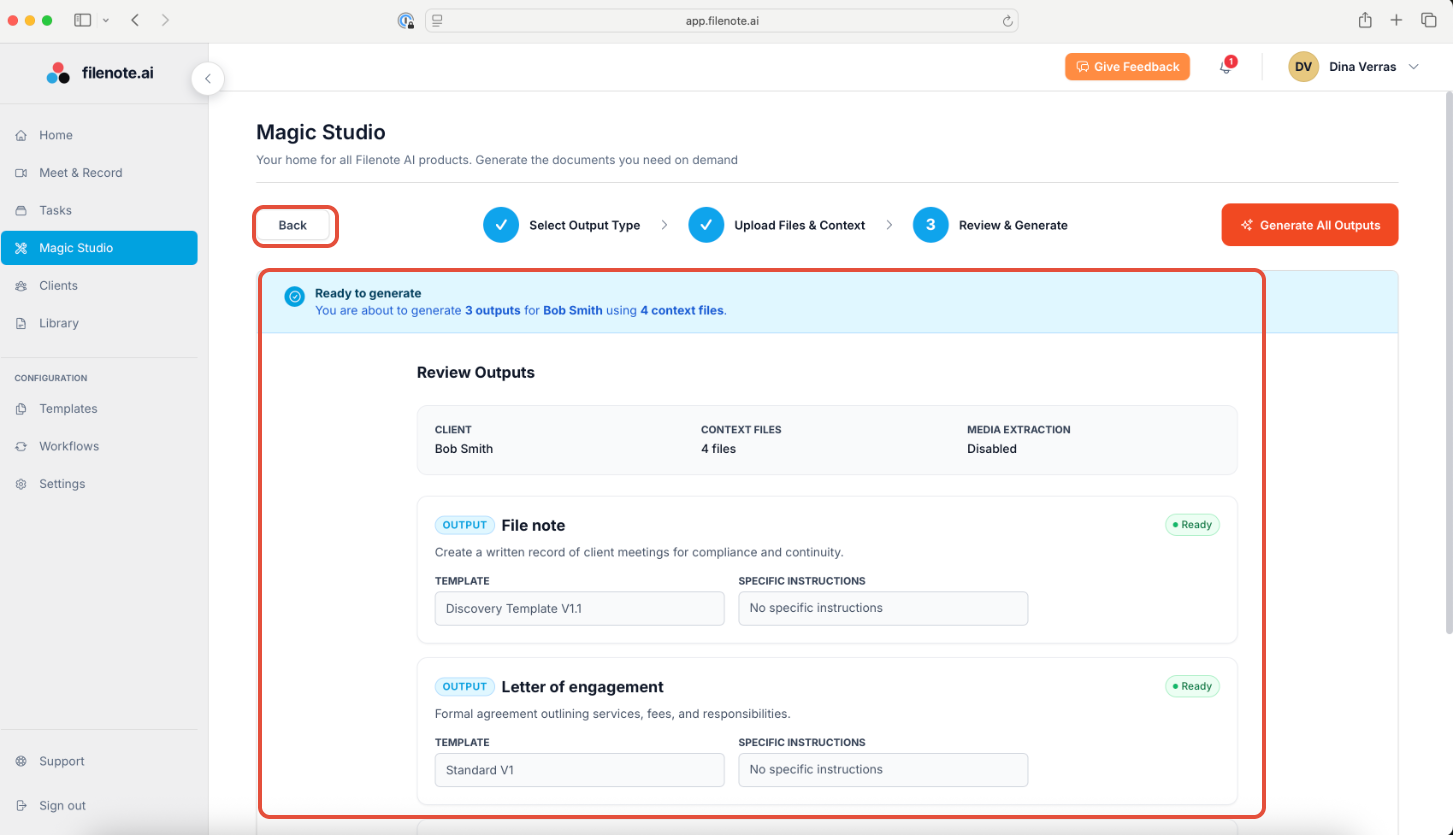
Step 6 — Review Summary
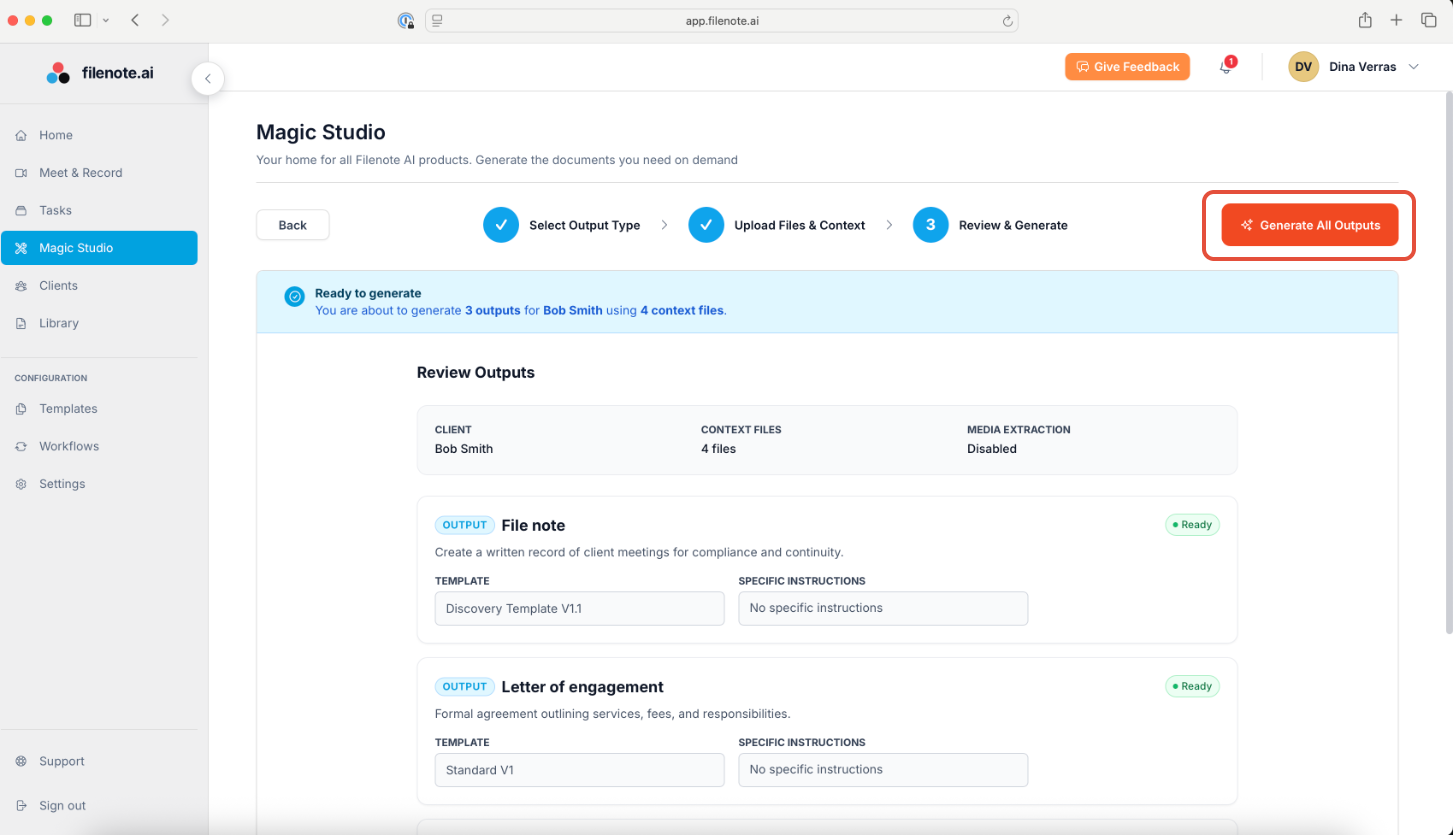
Review the summary of what will be generated and make any necessary amendments. Go Back if necessary.
Step 7 — Generate Outputs
Once ready, select Generate All Outputs.
| ★ Filenote AI Advantage Generate multiple client meeting outputs in a single workflow, helping you save time and maintain consistency across your documentation. |
Step 8 — Finalise in Tasks
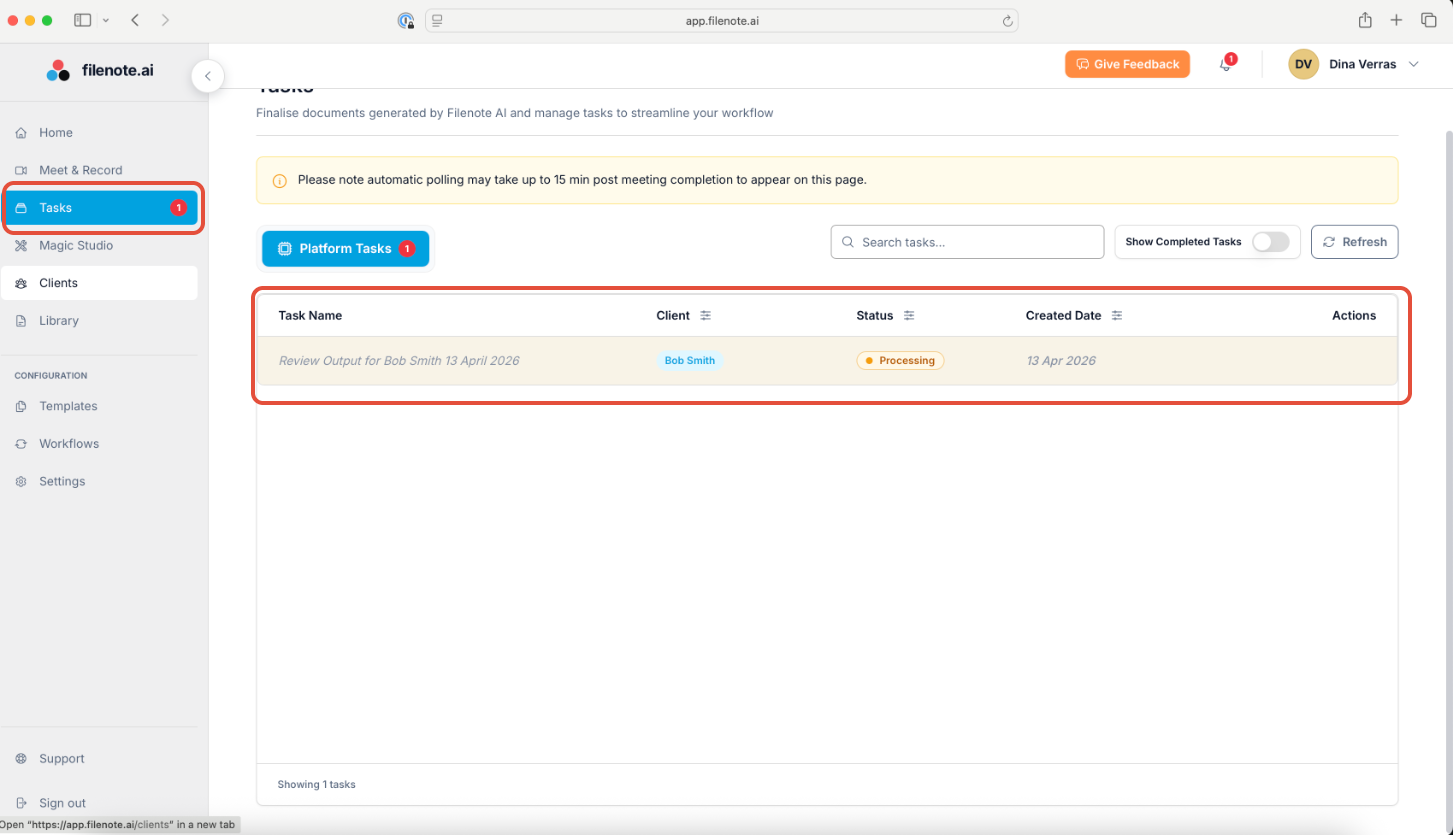
Your documents will be available for review, edit, and finalisation in the Tasks section.
| Need help? If you run into any issues or have questions, our support team is here to help. Email Support → |
Was this article helpful?
That’s Great!
Thank you for your feedback
Sorry! We couldn't be helpful
Thank you for your feedback
Feedback sent
We appreciate your effort and will try to fix the article