Managing your email notifications
Each time a task is completed in Filenote AI, we can send you a confirmation email to let you know it's ready to review. A task is a grouped collection of outputs generated for a single client, such as a file note from a recorded meeting or a document generated in Magic Studio (the document generation tool inside the Filenote AI platform). To learn more, see Understanding Tasks.
This article explains what each notification setting does and how to choose which emails you receive.
| In this article Where to find your notification settings Meetings vs Platform/App The two notification types How to change your notification settings Related articles |
Where to find your notification settings
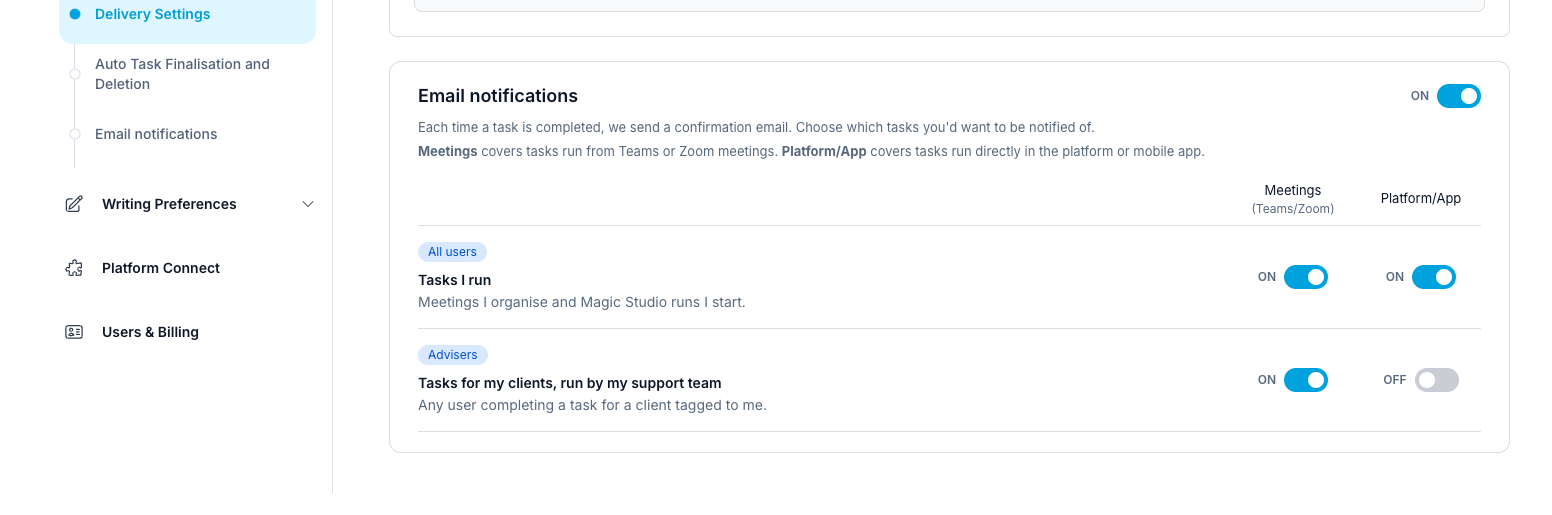
Go to [Settings > Notifications] and look for the Email notifications panel.
Meetings vs Platform/App
Each notification type has two switches, one for each place a task can be started. This lets you choose, for example, to be notified about meetings but not about documents.
| Column | What it covers |
|---|---|
| Meetings (Teams/Zoom) | Tasks created from meetings run or recorded in Microsoft Teams or Zoom. |
| Platform/App | Tasks run directly in the Filenote AI platform or mobile app, including documents generated in Magic Studio. |
The two notification types
Tasks I runAll users
You'll receive an email when a task you started is ready. This includes:
- Meetings you organise and record in Teams or Zoom
- Documents you generate in Magic Studio
Tasks for my clients, run by my support teamAdvisers
If you're an adviser (a Paid user), you'll receive an email when someone else completes a task for a client tagged to you. This includes:
- Meetings your support staff (such as a paraplanner or client service officer) run or record in Teams or Zoom for your clients
- Documents your support staff generate in Magic Studio for your clients
| ? Tip If your support team runs client meetings or prepares documents on your behalf, turn this setting on so you know as soon as the work is ready for your review. |
| ✓ Setting up your support team To let a colleague book recorded meetings on your behalf or see and action your tasks, see Managing Team & Support Access. |
How to change your notification settings
| Step 1 | Turn email notifications on or off |
| Step 2 | Choose the tasks you want to hear about |
Step 1: Turn email notifications on or off
Use the main ON/OFF switch at the top right of the Email notifications panel. When this is on, the individual settings below apply.
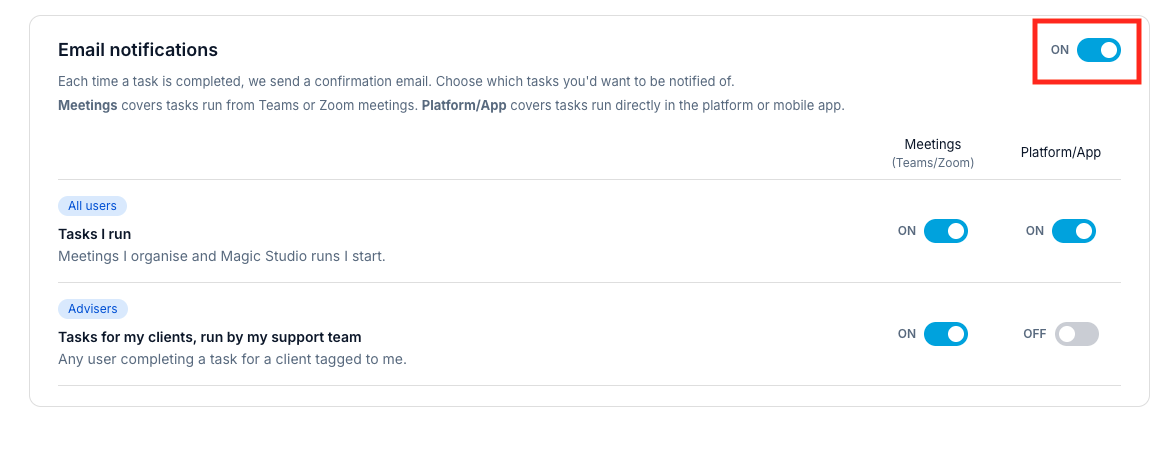
| ⚠ Important Turning the main switch off stops all task confirmation emails, regardless of your individual settings. Your tasks will still be completed as normal and remain available in the platform. |
Step 2: Choose the tasks you want to hear about
For each notification type, switch Meetings (Teams/Zoom) and Platform/App on or off. Your changes apply to tasks completed from that point on.
| ✓ Good to know The Tasks for my clients, run by my support team setting only appears for advisers. Support staff will see the Tasks I run setting only. |
Related articles
- Understanding Tasks
- Managing Team & Support Access
- Generate Documents in Magic Studio
- Review, Edit and Finalise Your Filenote AI Output
- How to Set Your Output Delivery Preferences to the Platform
| Need help? If you run into any issues or have questions, our support team is here to help. Email Support → |
Was this article helpful?
That’s Great!
Thank you for your feedback
Sorry! We couldn't be helpful
Thank you for your feedback
Feedback sent
We appreciate your effort and will try to fix the article