How to Review, Edit, and Finalize Your Filenote AI Output
Once your output has been generated—whether from a recorded Teams/Zoom meeting, an uploaded audio file, or a custom document from Magic Studio—follow these simple steps to finalise it:
| Step 1 | Navigate to Your Tasks |
| Step 2 | Review and Edit |
| Step 3 | Regenerate (Optional) |
| Step 4 | Create Additional Documents (Optional) |
| Step 5 | Finalise and Export |
Step 1 — Navigate to Your Tasks
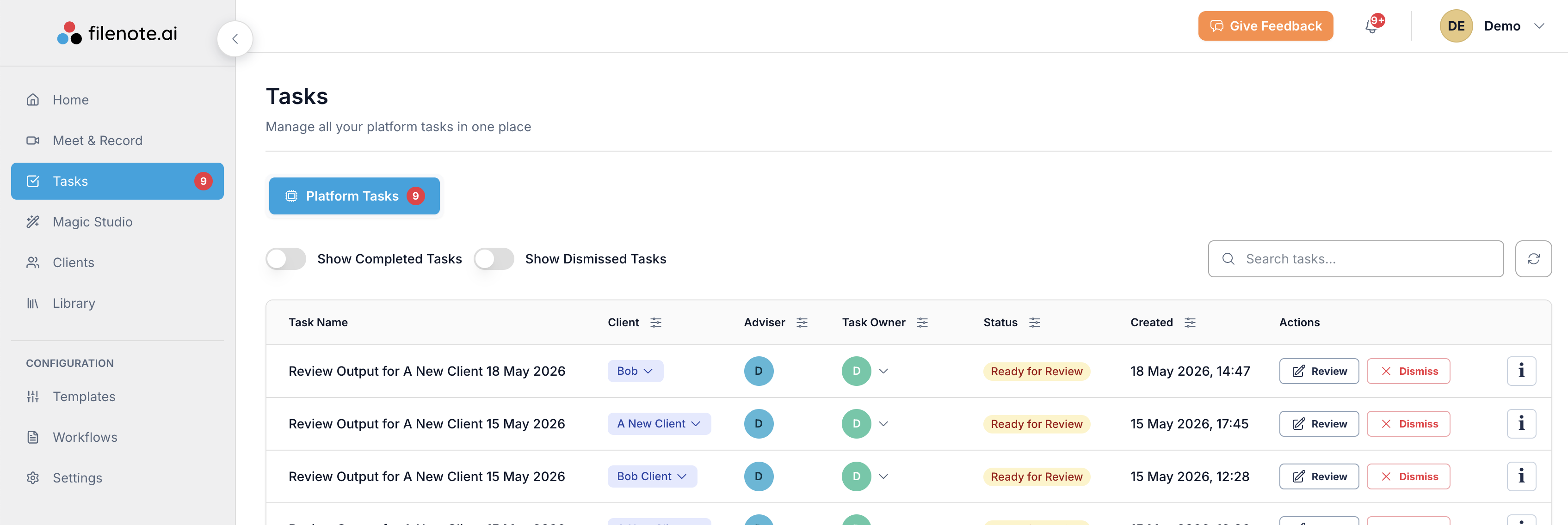
- Go to the Tasks page within the platform.
- Select the specific Task you would like to review.
Step 2 — Review and Edit
- View Outputs: All generated versions for that specific recording or task will appear on the left-hand side of the screen.
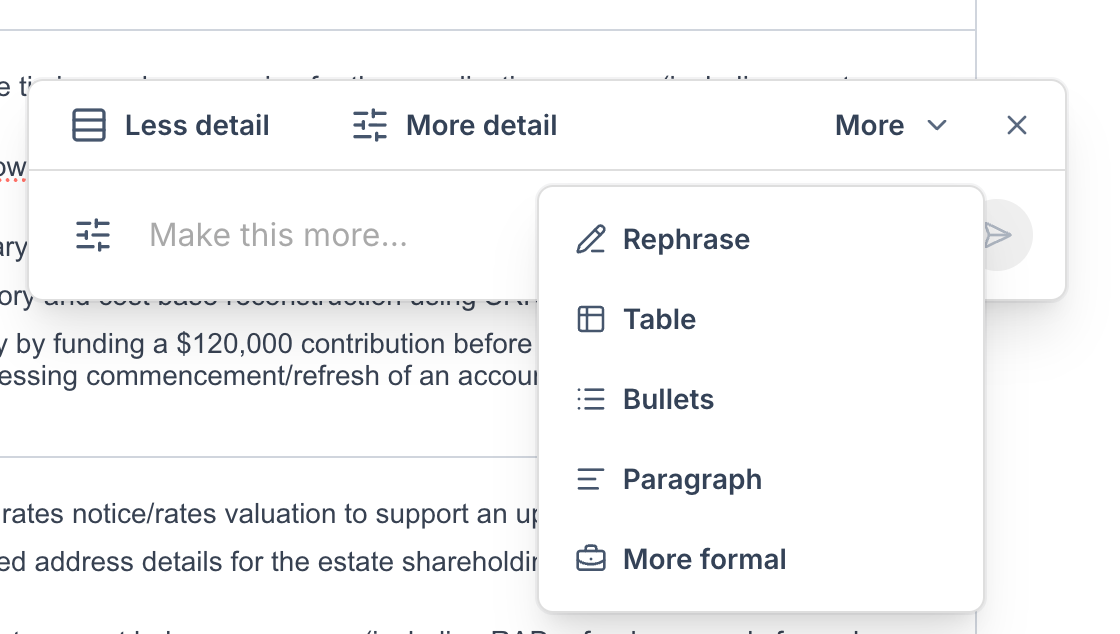
- Direct Editing with AI: Simply highlight the text you want to edit and click Refine. From there, you can choose a quick action (e.g., More Detail, Less Detail) or type a custom prompt to specify exactly how you want the AI to rewrite it.
Step 3 — Regenerate (Optional)
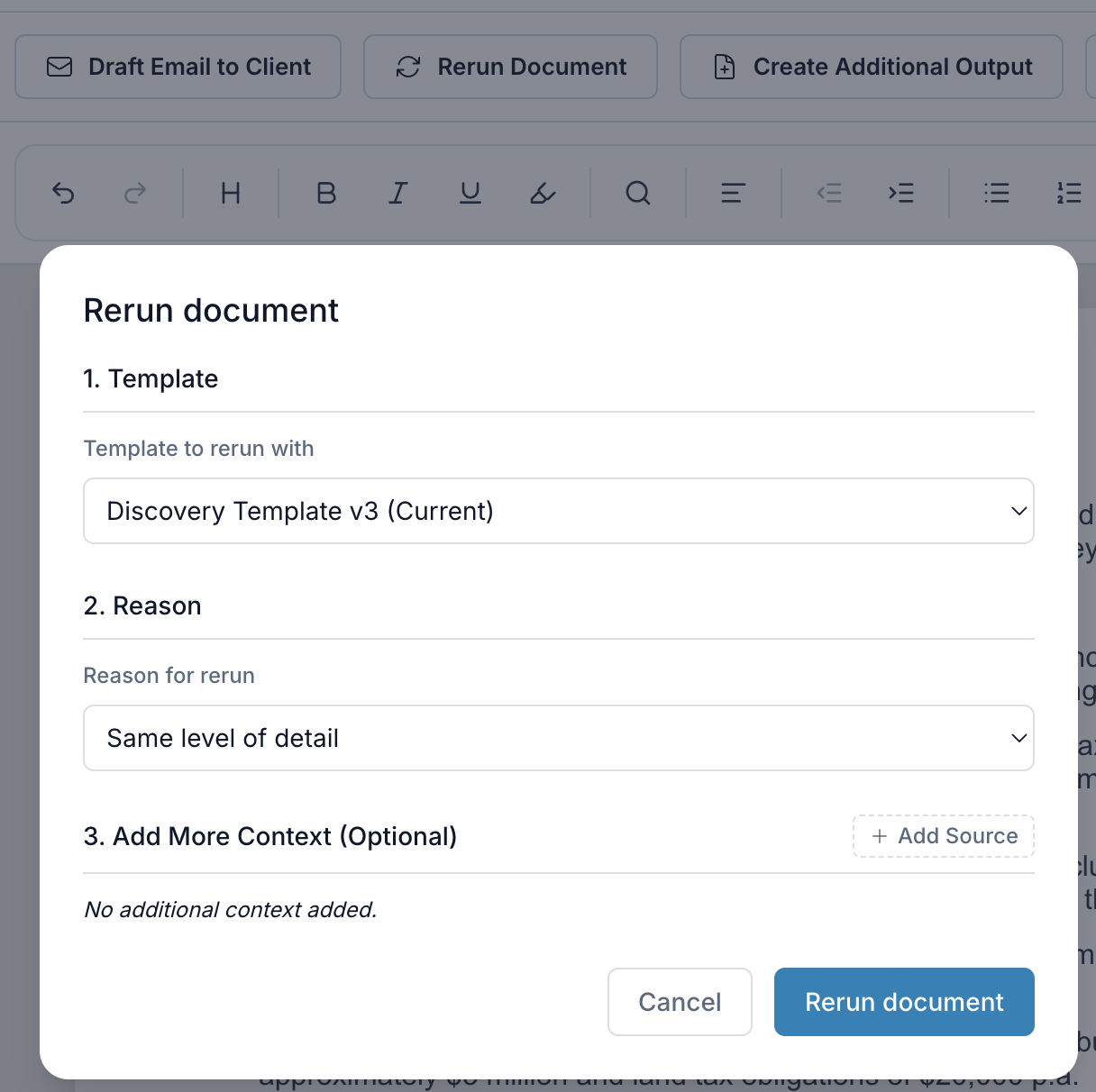
- If you need a completely different format or style, select Rerun Document.
- Click Regenerate Note to process the new version.
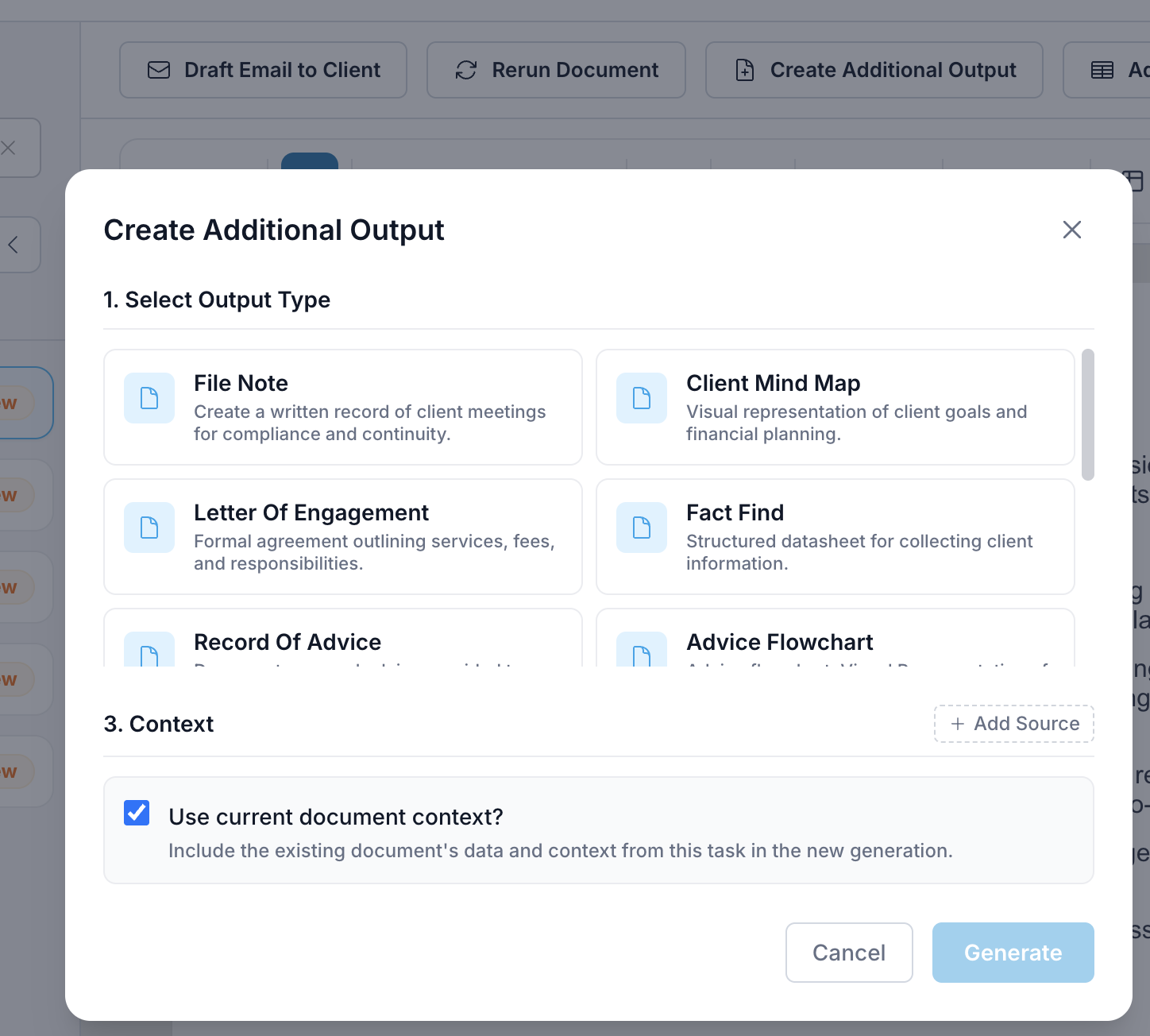
Step 4 — Create Additional Documents (Optional)
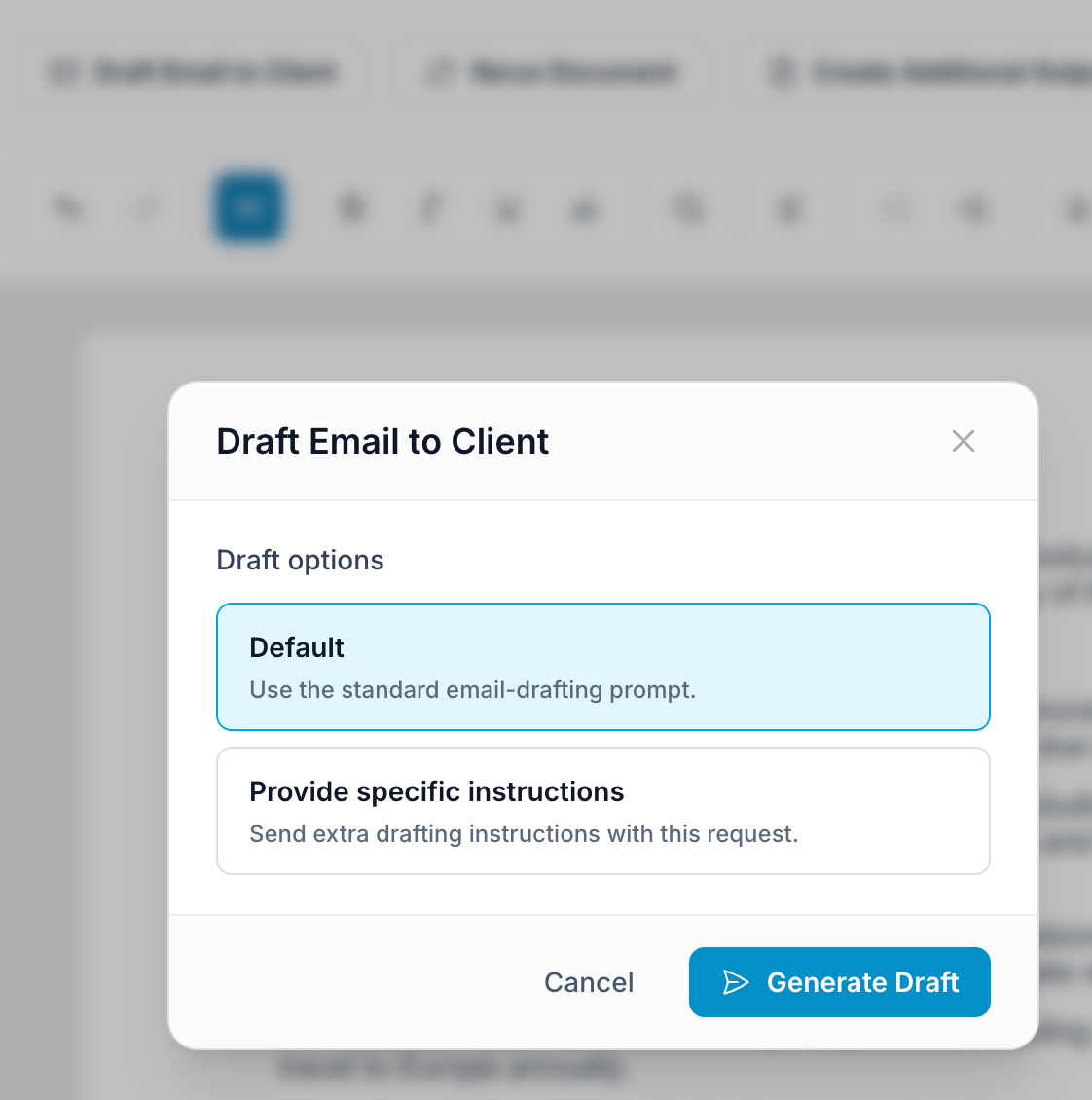
- Draft Client Communications: Once you are satisfied with the core text, you can click Draft Email to Client to instantly generate a companion message.
- Create Additional Output: Select this option to generate secondary documents (like paraplanner request forms or mind maps) based on your updated file note.
Step 5 — Finalise and Export
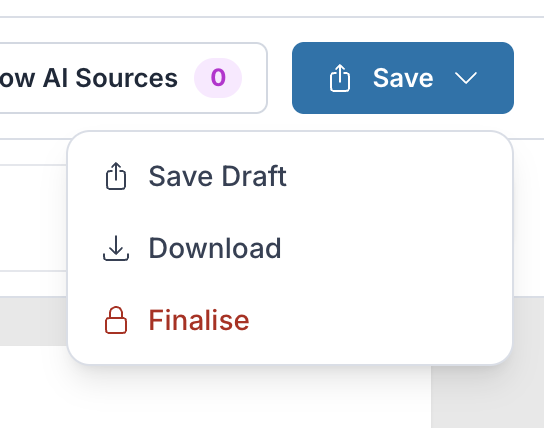
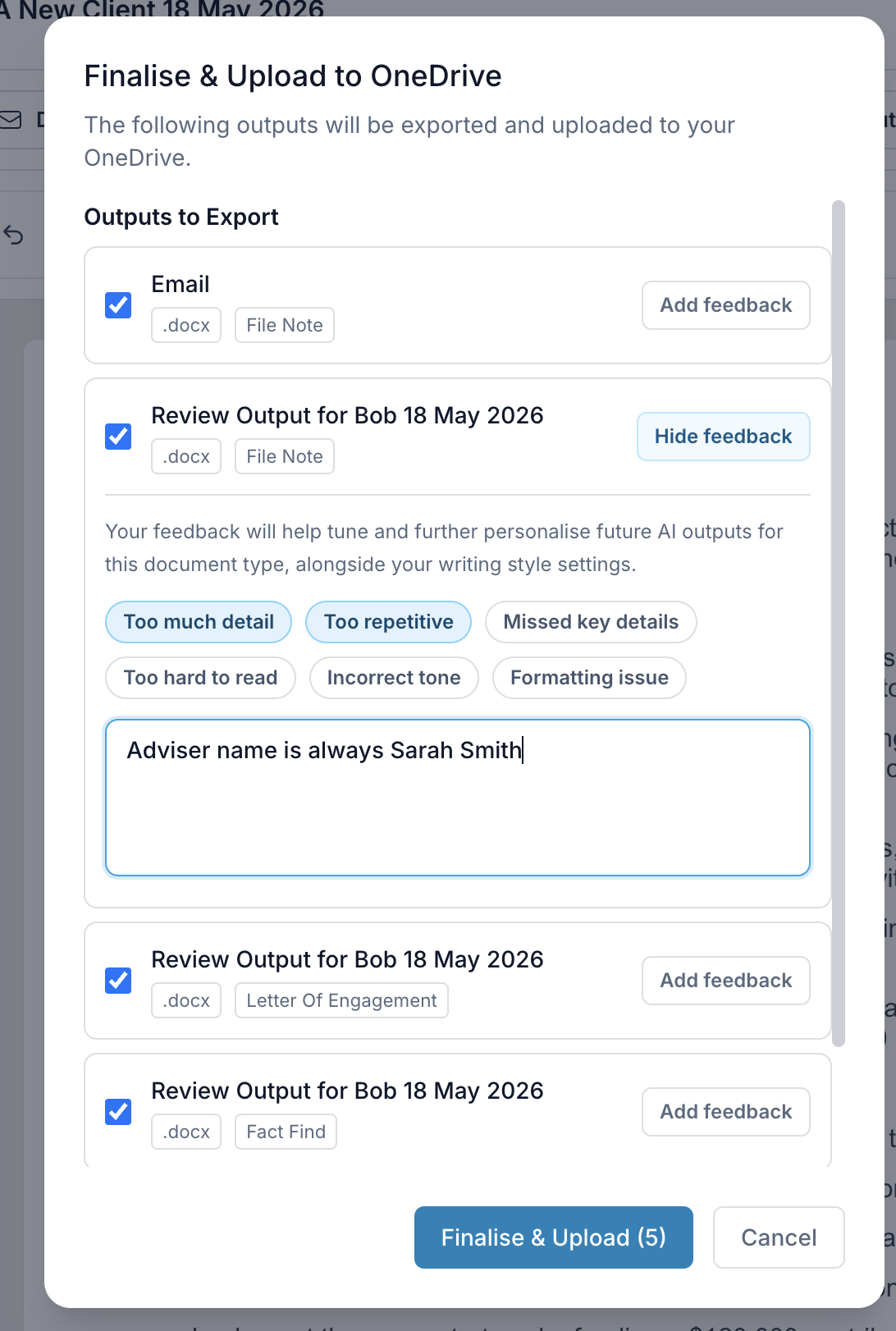
- Finalise and Sync: Click Finalise. This locks the document and automatically saves it directly to your connected OneDrive or SharePoint folder.
- Submit Feedback: When finalising, you can add quick feedback so the AI continuously learns your preferences for future outputs.
- Download: Alternatively, click Download to save the file directly as a Word document to your local downloads folder.
| Need help? If you run into any issues or have questions, our support team is here to help. Email Support → |
Was this article helpful?
That’s Great!
Thank you for your feedback
Sorry! We couldn't be helpful
Thank you for your feedback
Feedback sent
We appreciate your effort and will try to fix the article