Background
Filenote.ai automatically generates file notes based on meetings financial advisors have with clients.
To enable this, you will need to setup a Zoom App with a secure “Server-to-Server” access. More details about this type of access can be found in the following link: Zoom Documentation
| ⚠ Before you start Ensure you have admin access to your organisation’s Zoom account. You will not be able to create a Server-to-Server OAuth app without it. |
Set Up
| Step | What you’ll do |
| Step 1 | Sign in to the Zoom App Marketplace |
| Step 2 | Click ‘Developer’ |
| Step 3 | Click “Develop” and then “Build App” |
| Step 4 | Select ‘Server to Server OAuth App’ |
| Step 5 | Name your app and create it |
| Step 6 | Copy your Account ID, Client ID and Client Secret |
| Step 7 | Populate the developer information |
| Step 8 | Press continue |
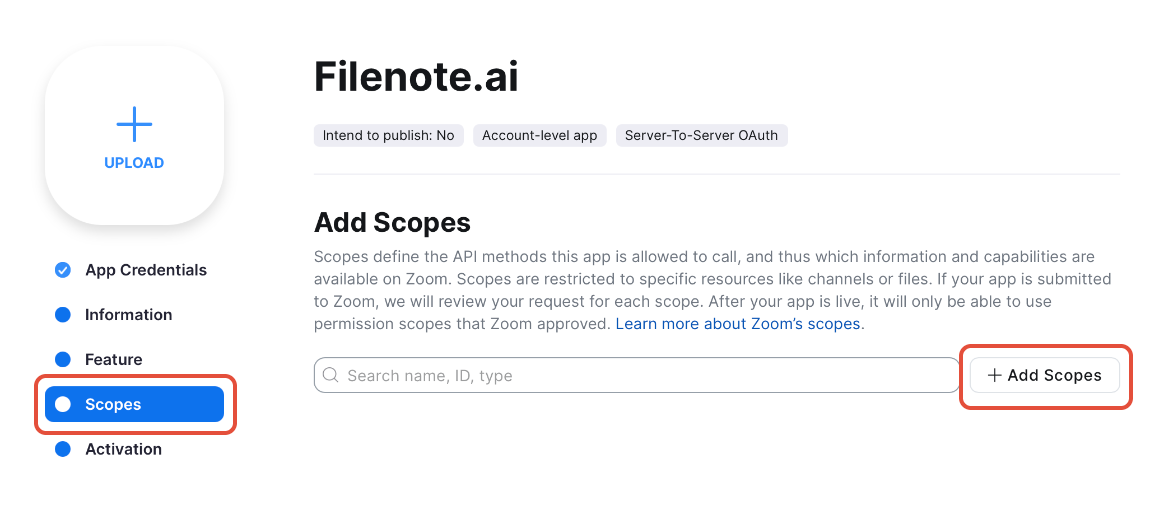
| Step 9 | Open “Scopes” and click “Add Scopes” |
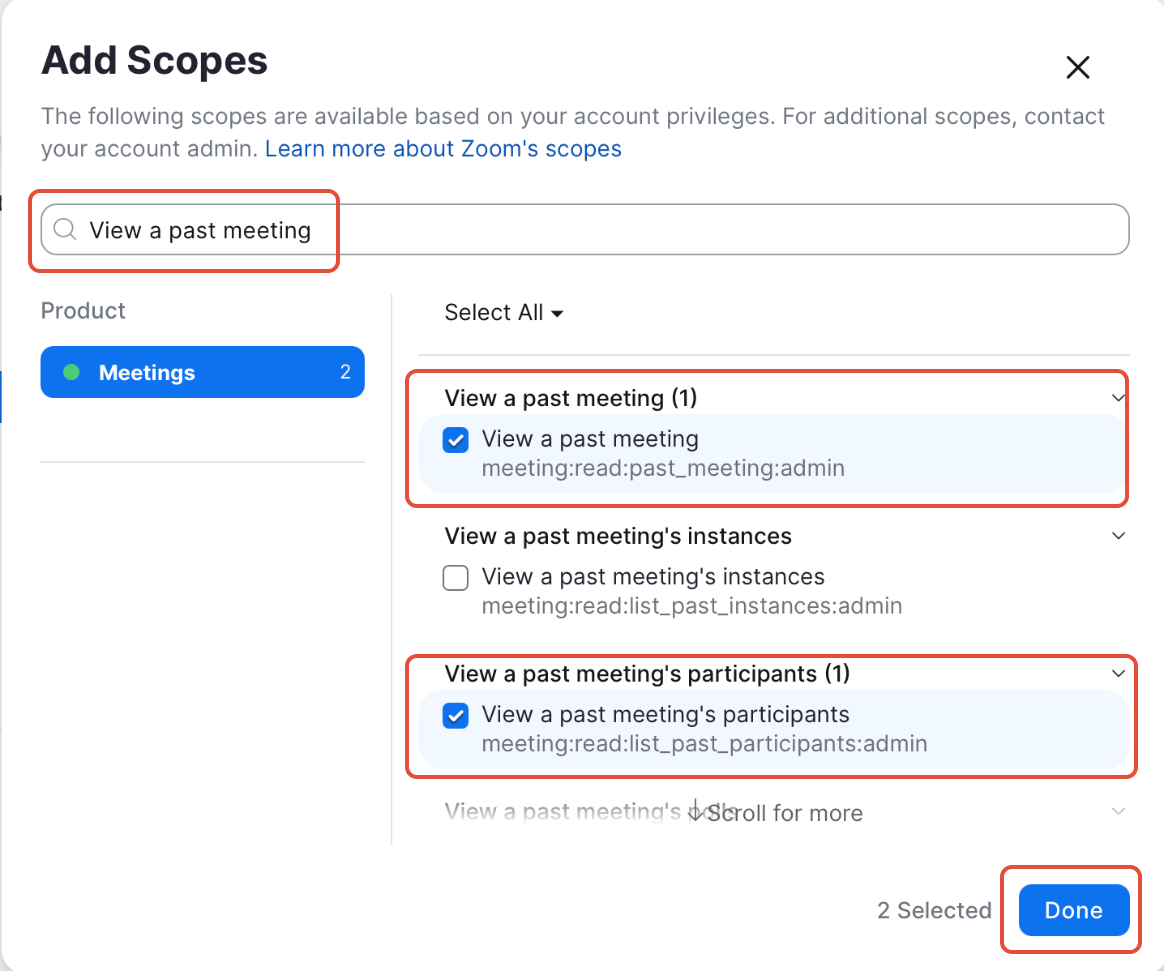
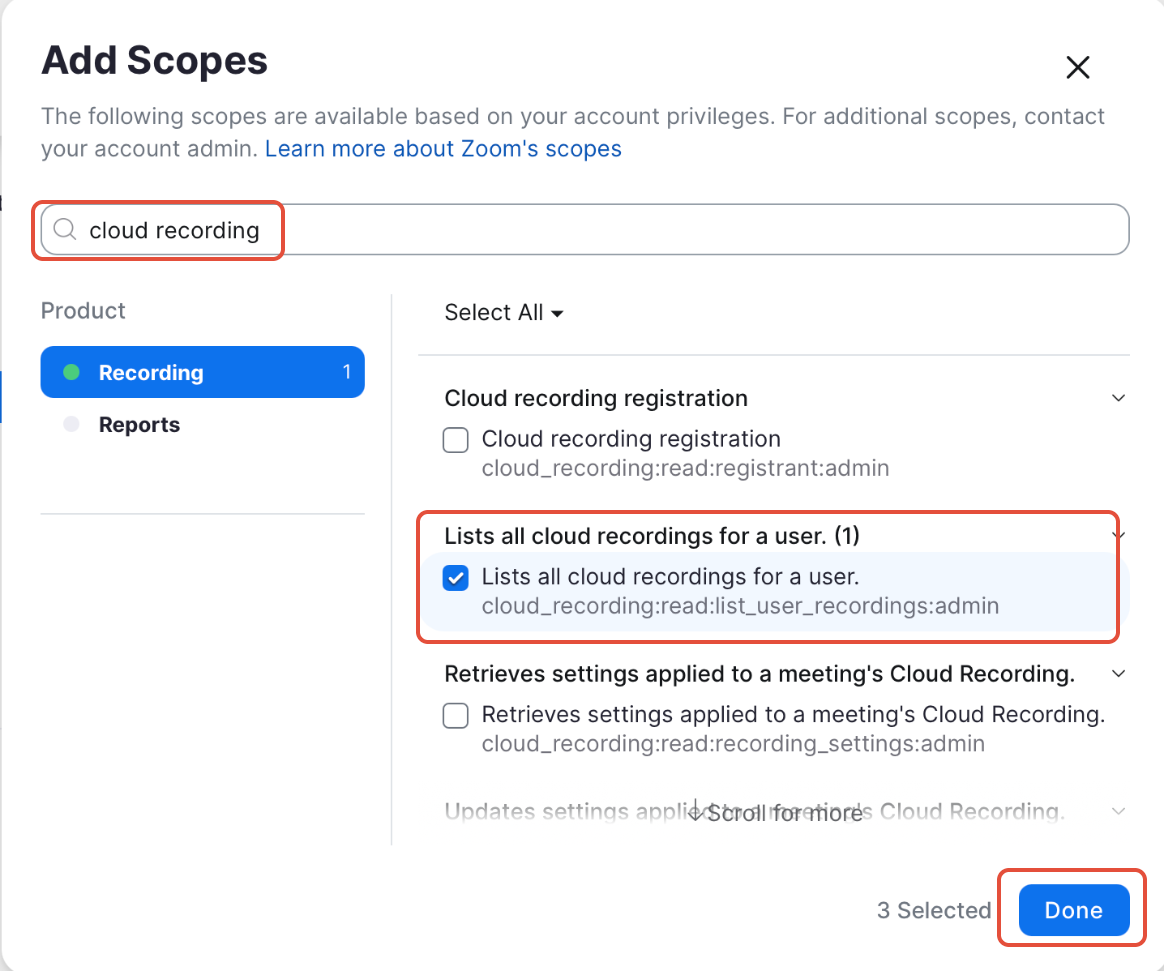
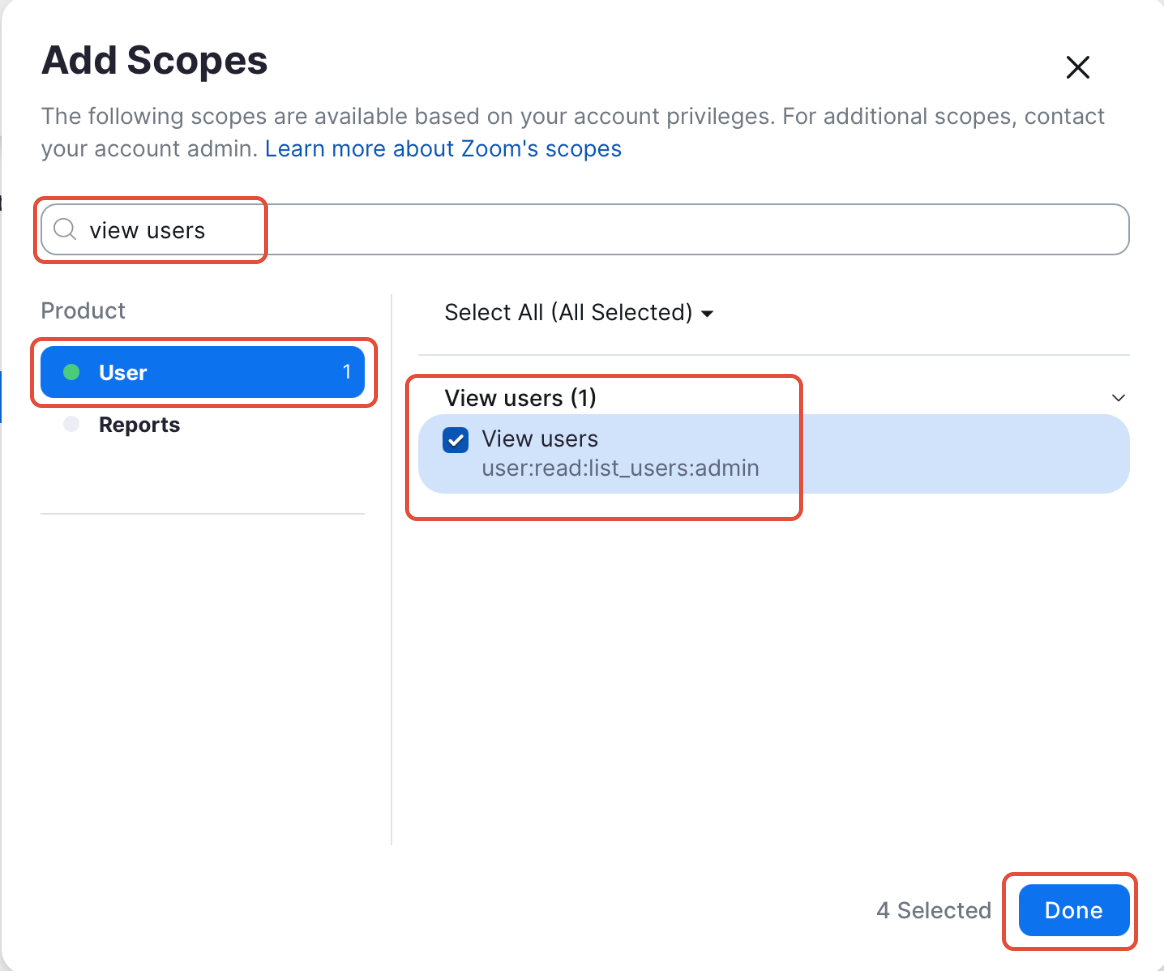
| Step 10 | Add the three required scopes |
| Step 11 | Continue and activate your app |
| Step 12 | Complete Setup in Filenote AI |
Step 1 — Sign in to the Zoom App Marketplace
Visit the Zoom App Marketplace and sign in to your account. Ensure you have admin access to your organisation’s Zoom.
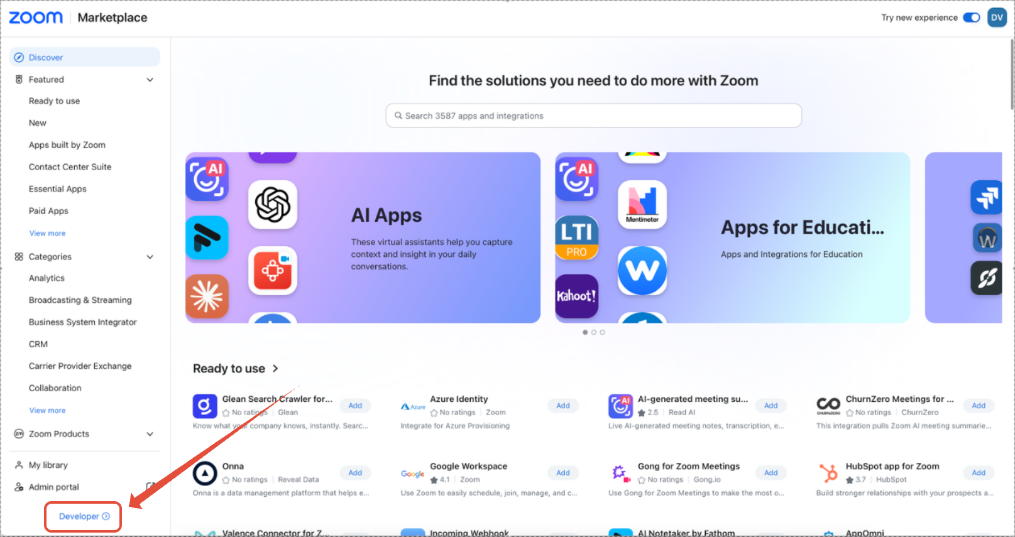
Step 2 — Click ‘Developer’
Click 'Developer' on the bottom right of the screen
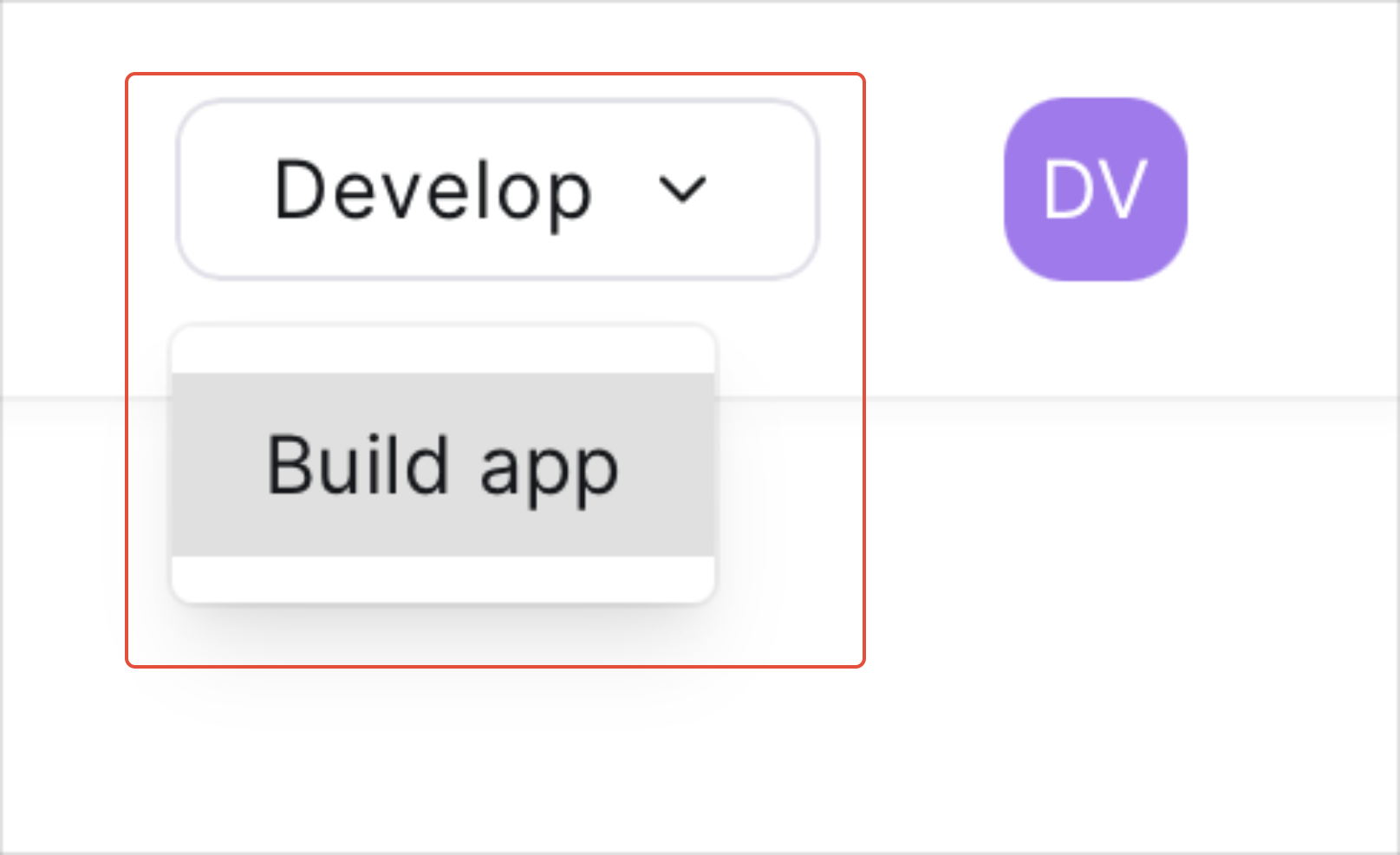
Step 3 — Build your app
Click “Develop” and then “Build App”
| ✓ Good to Know Note, by default, Apps created are private to your organisation and are not published to the marketplace. |
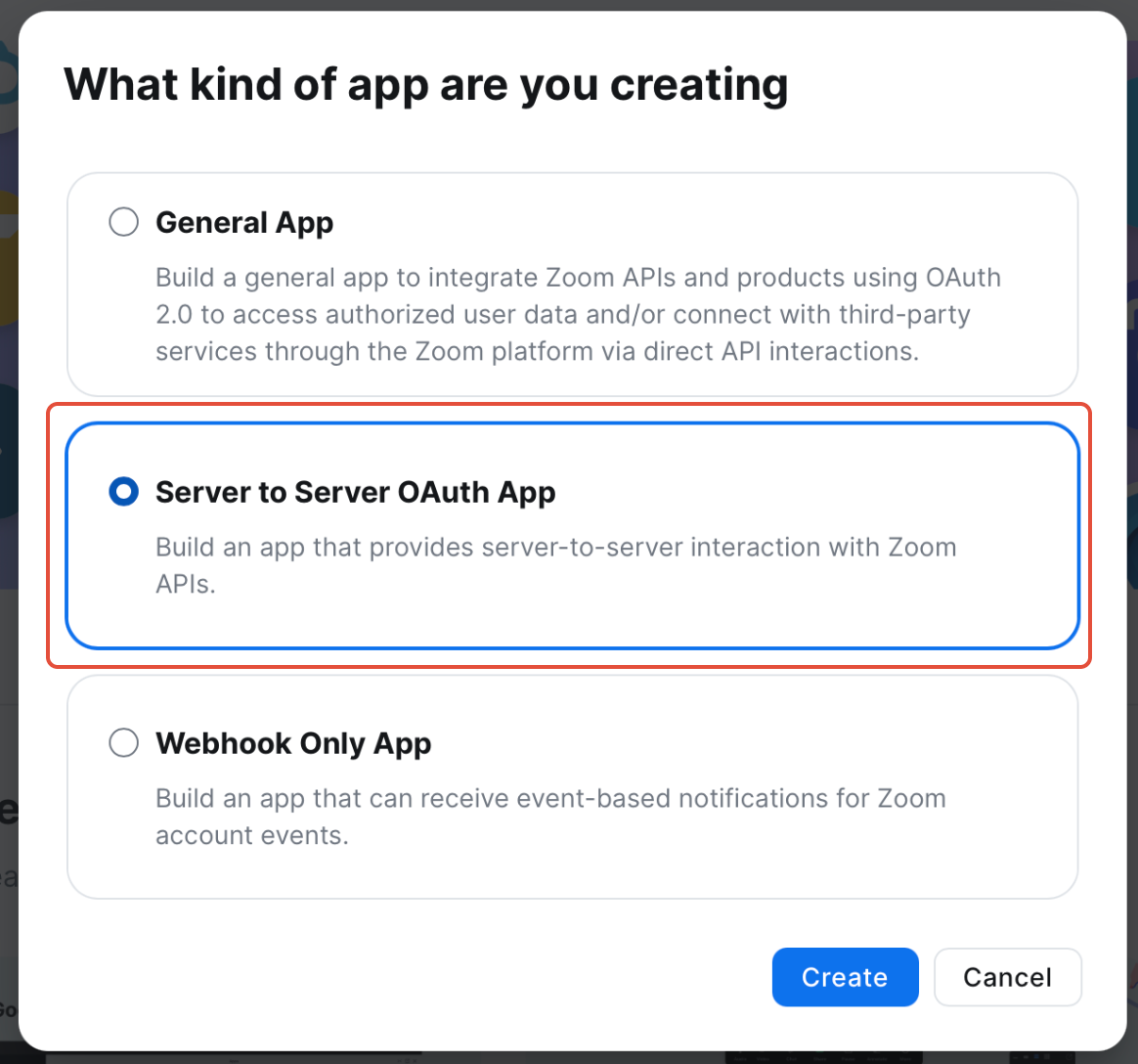
Step 4 — Choose the app type
Click ‘Server to Server O Auth App’ and select ’Create’
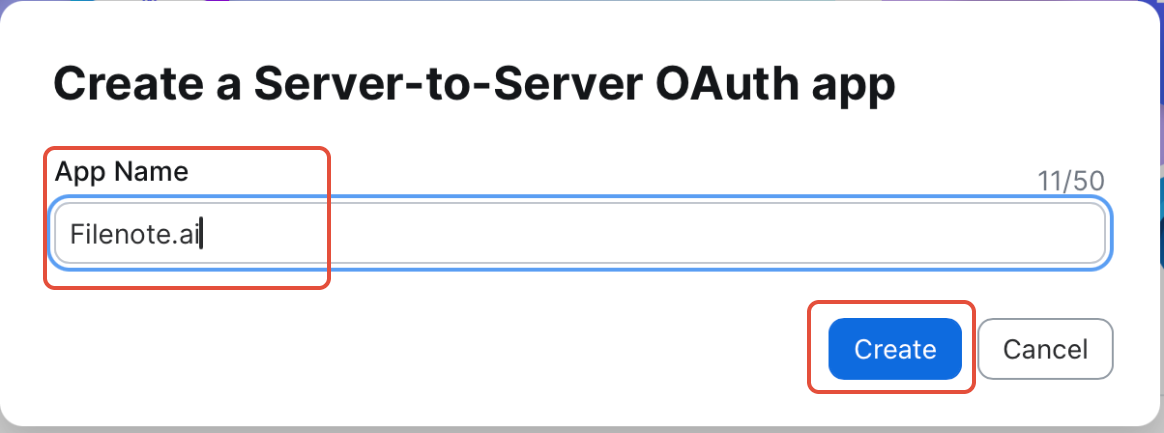
Step 5 — Name your app
Provide a name for the app, e.g. Filenote.ai and then click 'Create'
Step 6 — Copy your app credentials
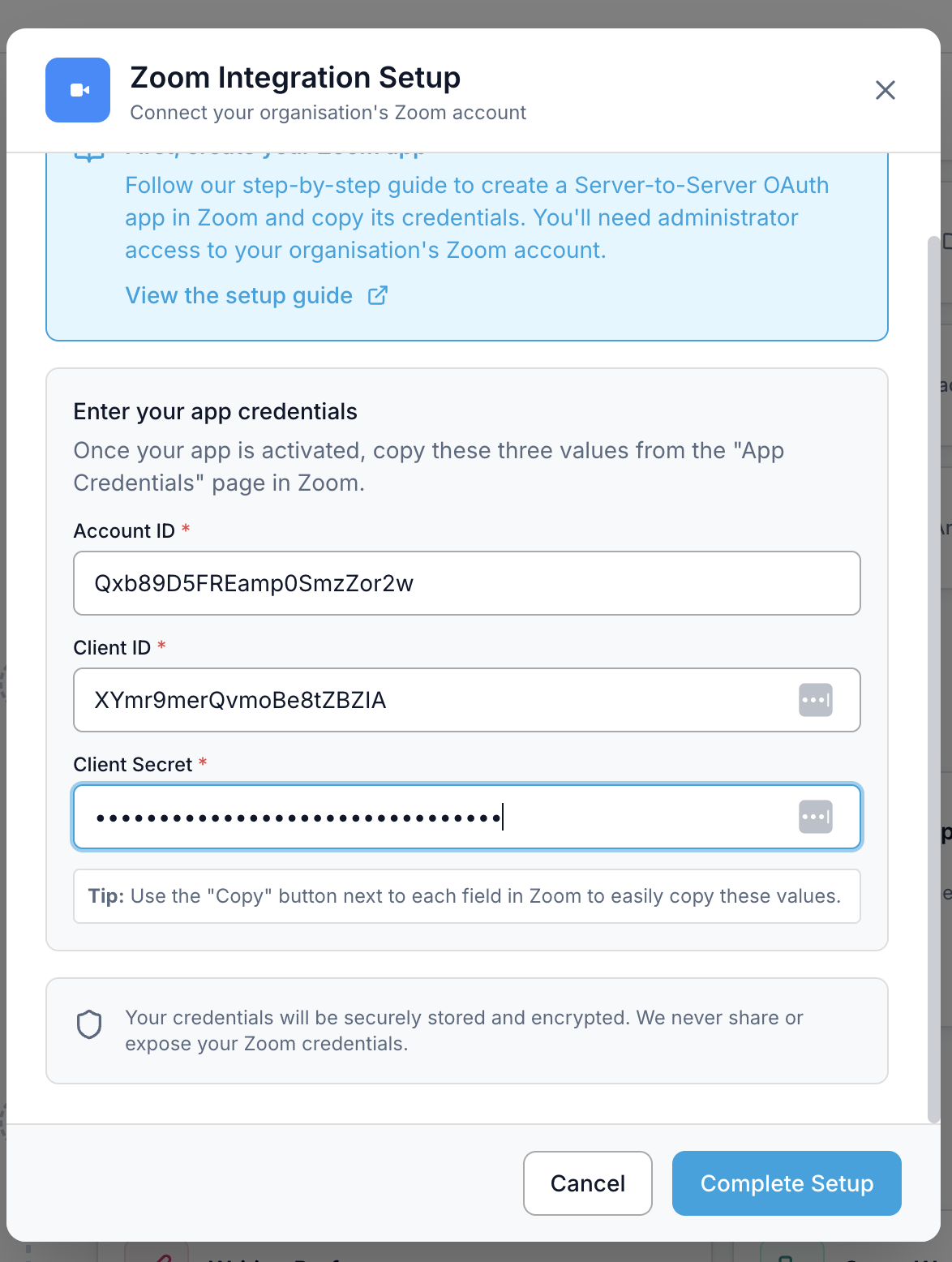
The first page will have Account ID, Client ID and Client Secret for the app. Please copy and paste all 3 values and add them to Platform, under Getting Started tab, under Zoom setup.
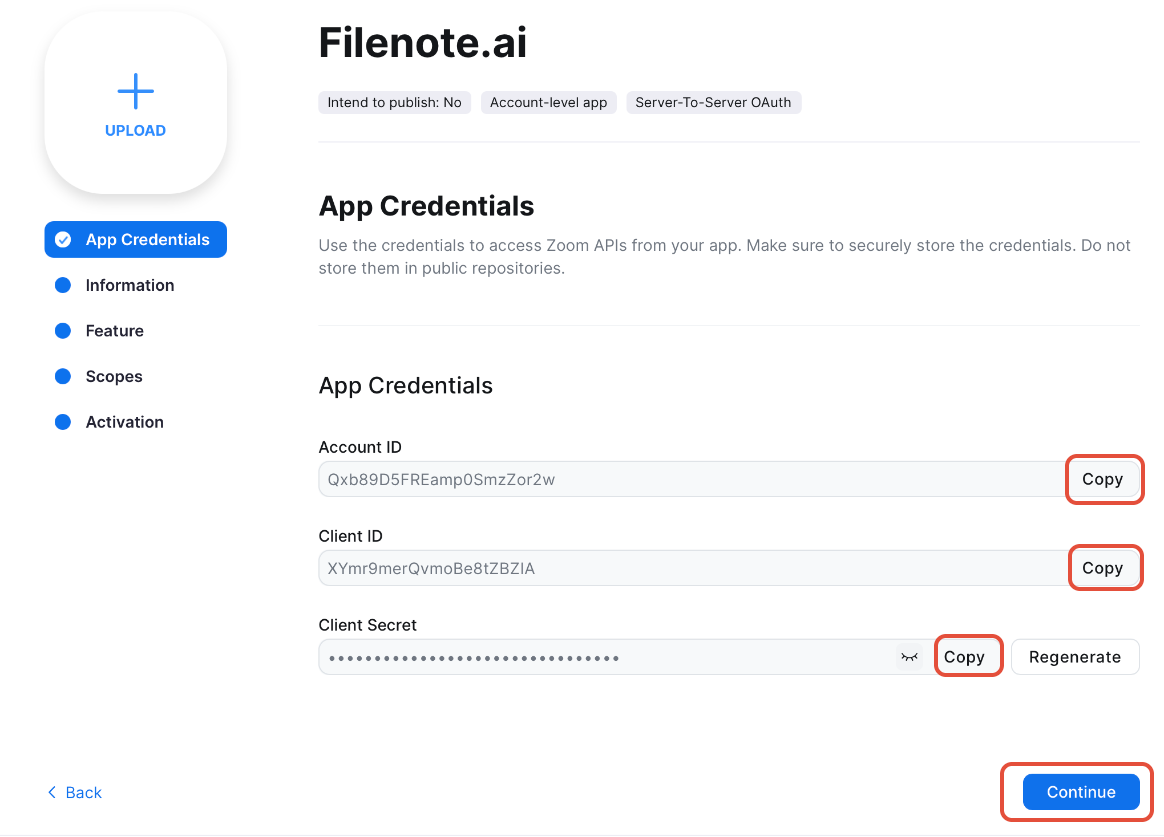
| ⚠ Don’t forget All three values are required. Keep this page open until you have added them to Filenote AI. |
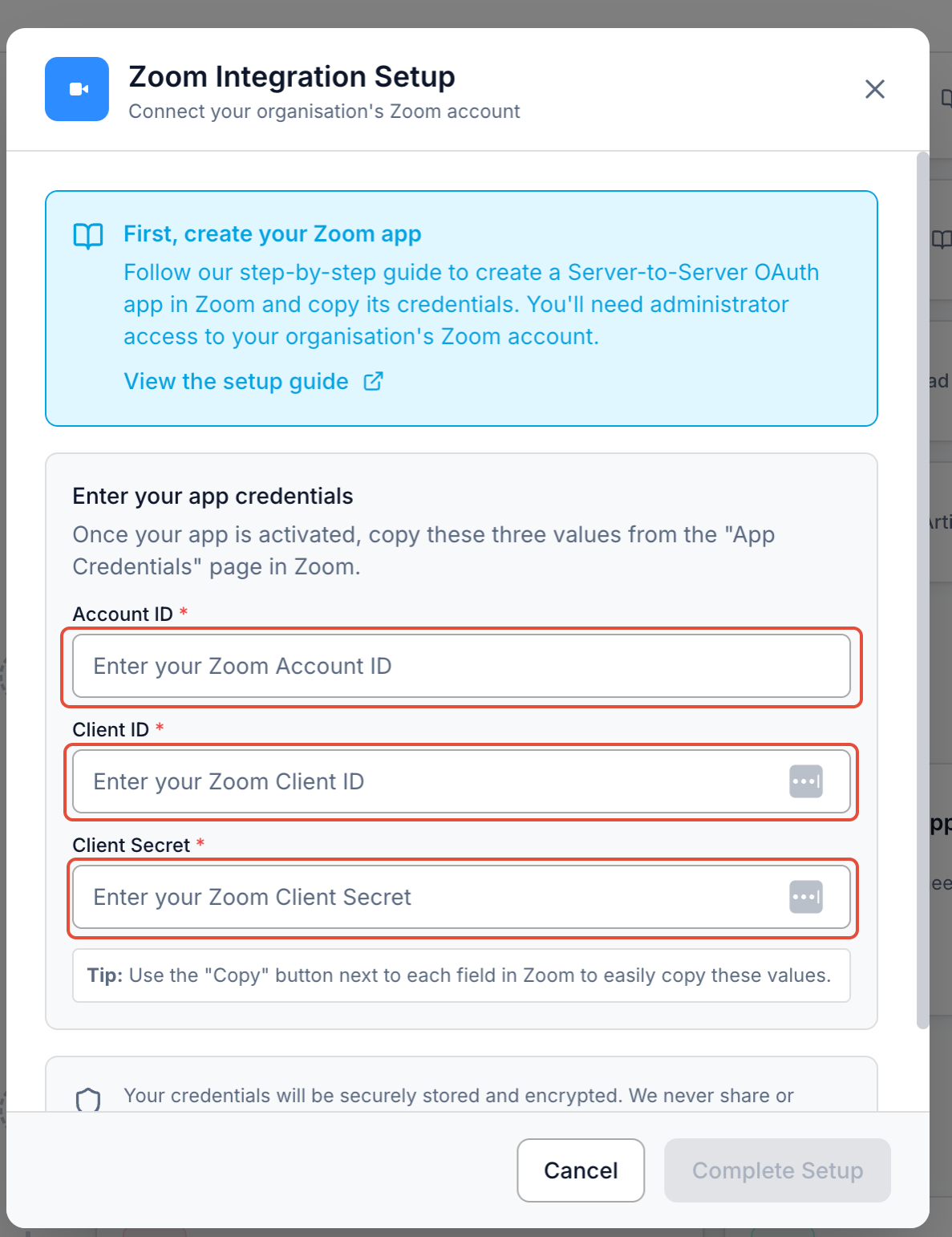
Note: DO NOT select 'Complete Setup' until you finalise the setup in Zoom |
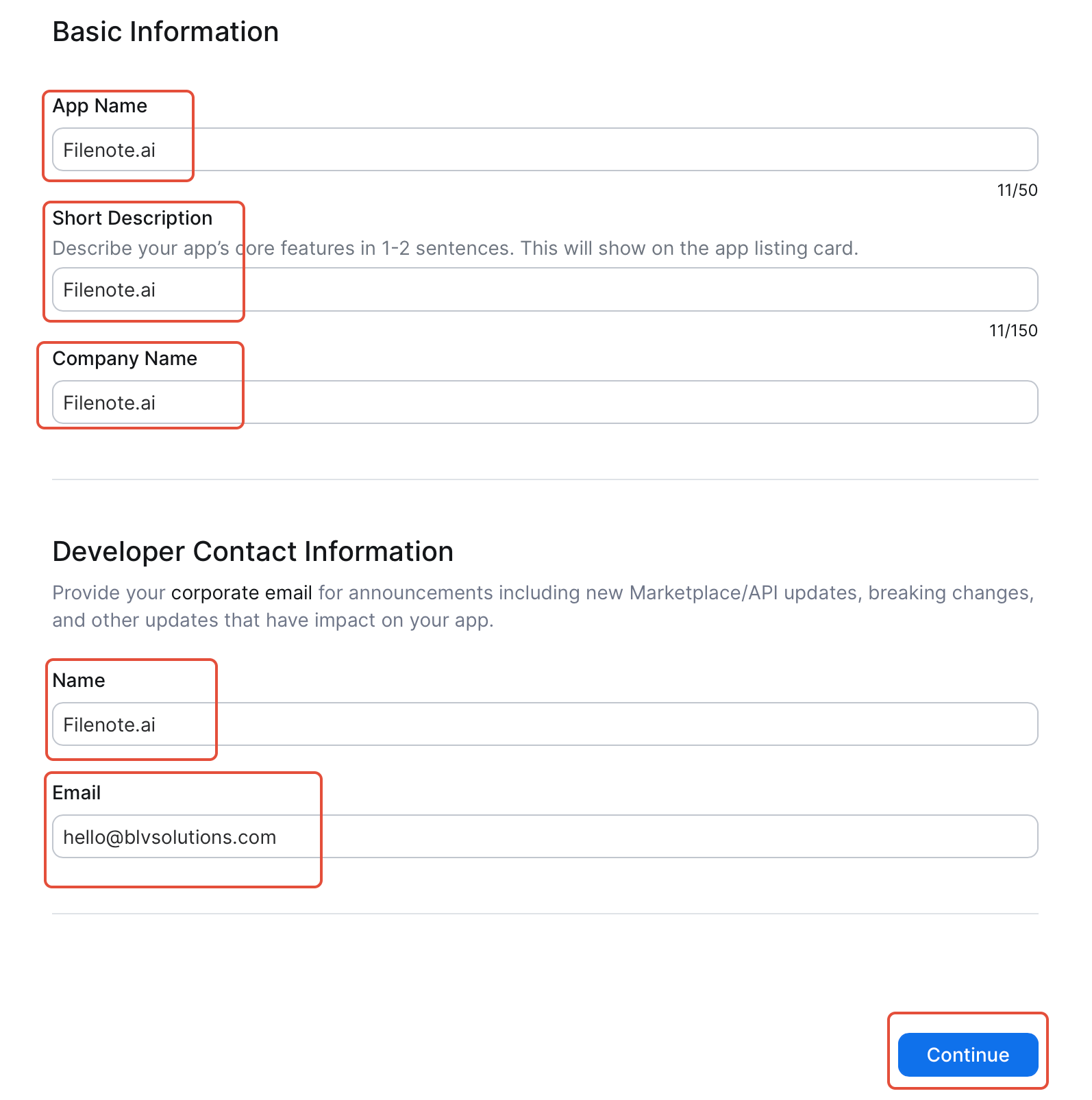
Step 7 — Populate the developer information
Populate the developer information as per screenshot:
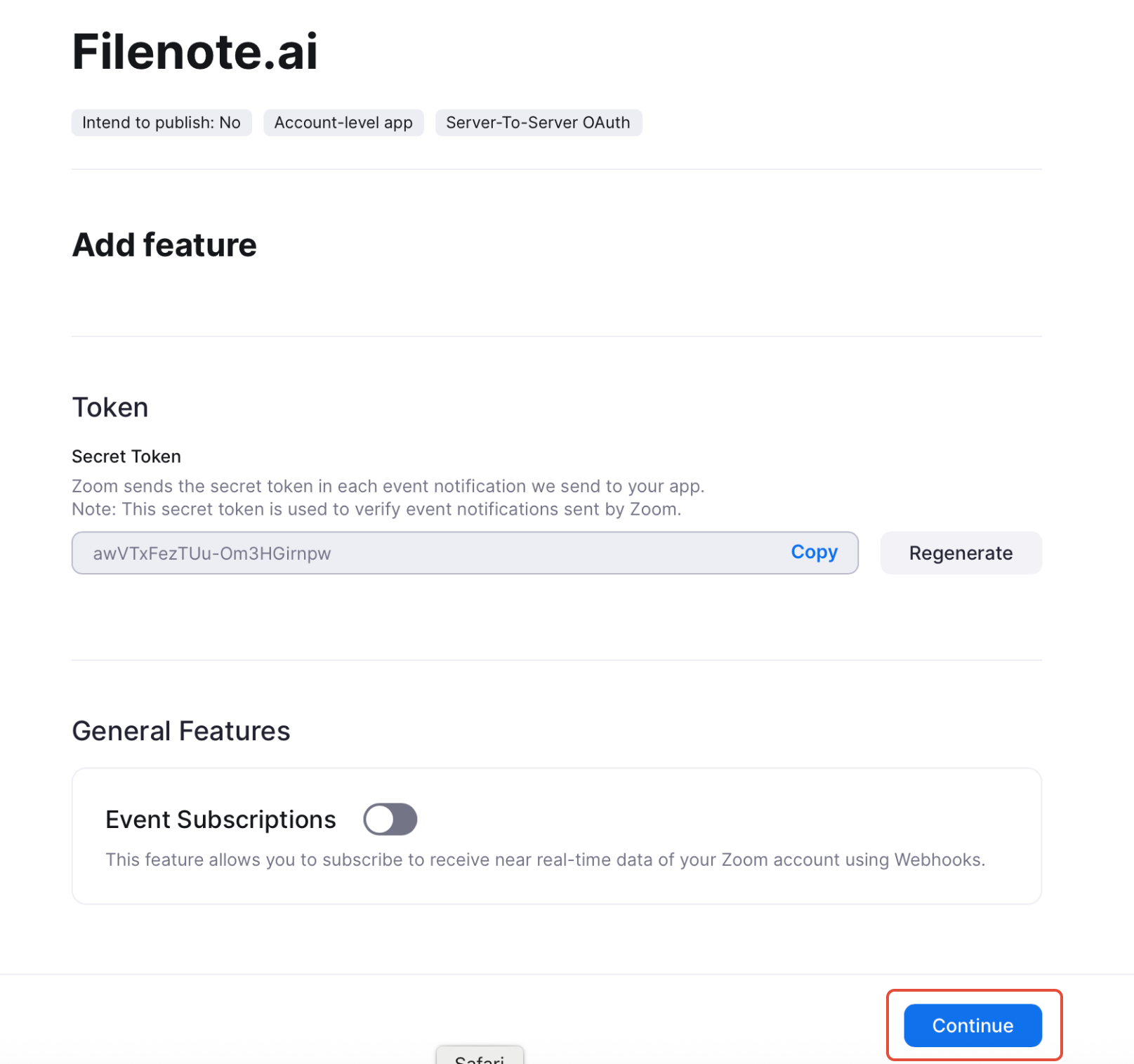
Step 8 — Press continue
Press continue:
Step 9 — Open Scopes
Click on “Scopes” on the left hand side and then “Add Scopes”:
Step 10 — Add the required scopes
On the pop up, separately:
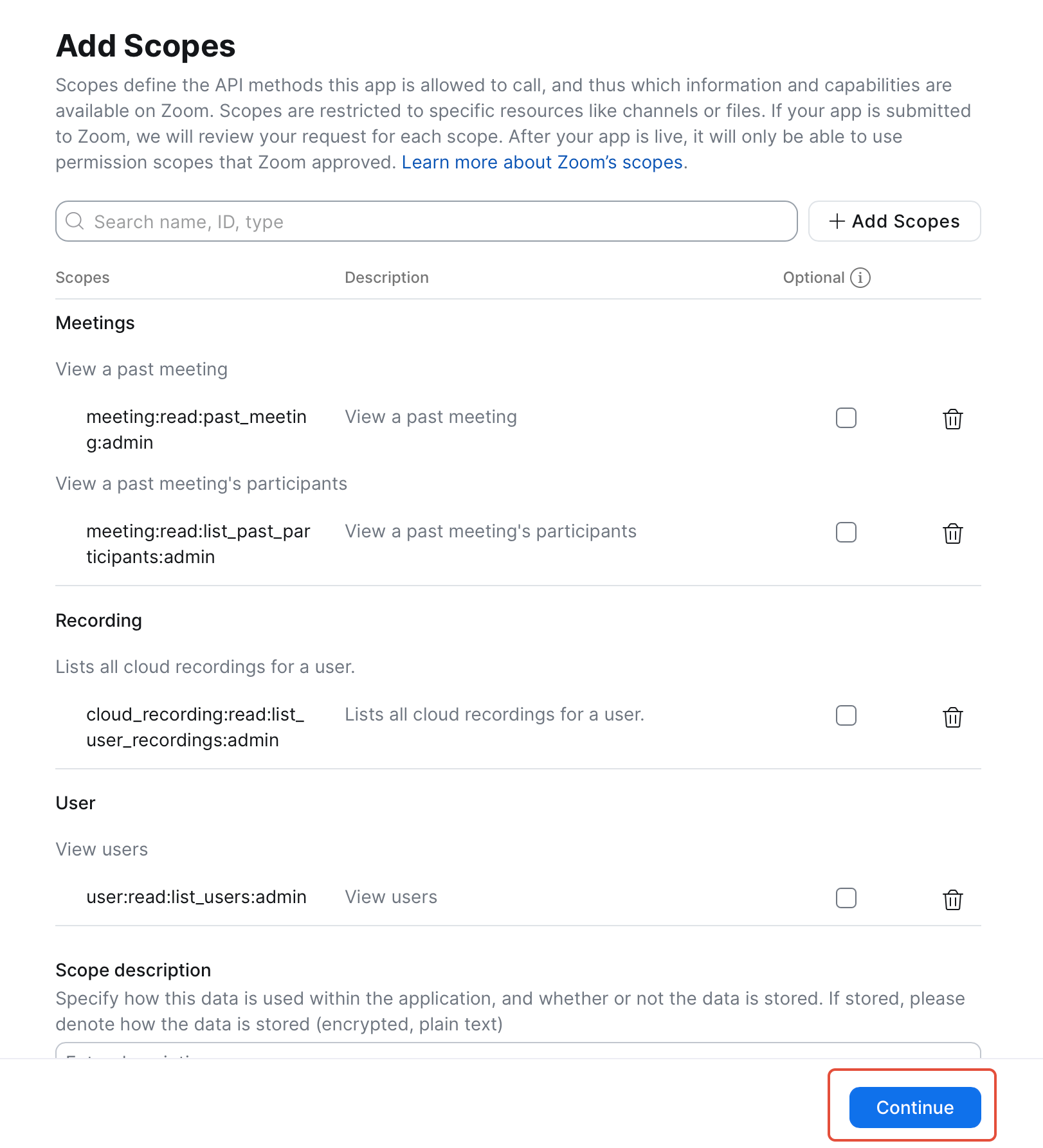
- Search for “View a past meeting”, Select both of the “View a past meeting’s participants” & “View a past meeting” as per the screenshot:
- Search for “cloud recording”, select “Lists all cloud recordings for a user” as per the screenshot:
- Search for “View users”, go to ‘Users’ tab and select “View users” as per the screenshot:
| ⚠ Don’t forget Once completed, double check you have provisioned all the required scoped. Your scope should look identical to the below: |
Step 11 — Activate your app
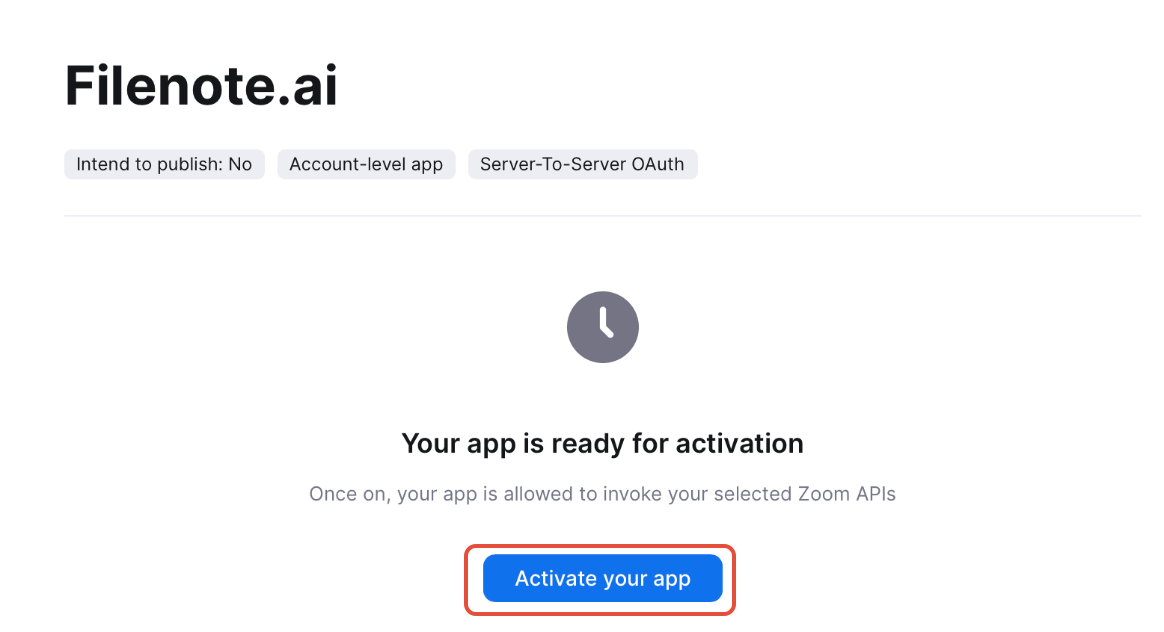
Click “Continue” and “Activate your app” at the next screen:
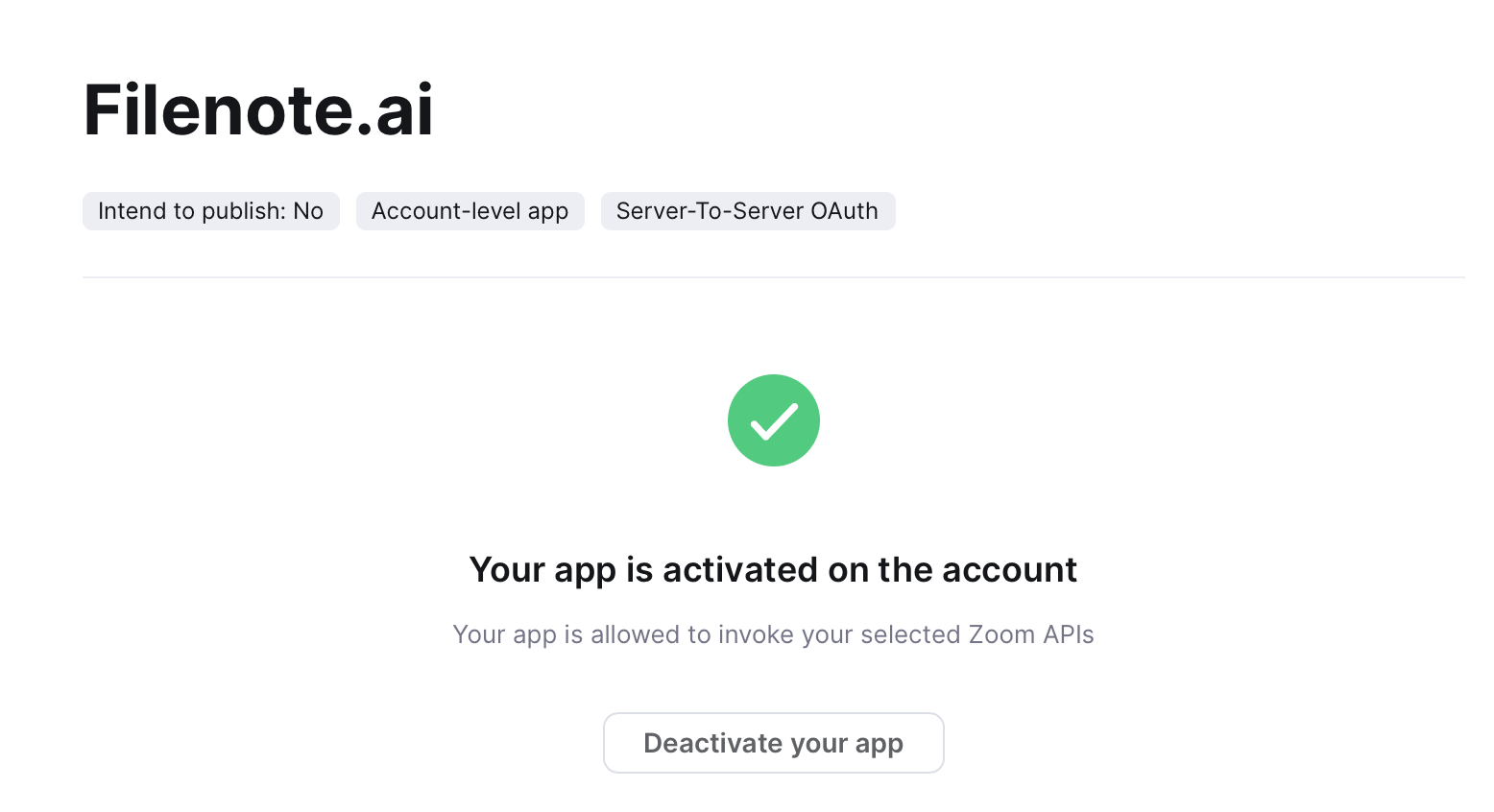
| ★ App Activated! You Zoom account is now connected to Filenote AI . All meetings 'recorded to the cloud' will automatically sync and process. You output will appear in the Tasks tab in the Filenote AI platform for you to review and finalise. |
Step 12 — Complete Setup in Filenote AI
Press "Complete Setup" in Filenote AI Platform to finalise your setup
| Need help? If you run into any issues or have questions, our support team is here to help. Email Support → |
Was this article helpful?
That’s Great!
Thank you for your feedback
Sorry! We couldn't be helpful
Thank you for your feedback
Feedback sent
We appreciate your effort and will try to fix the article