Understanding User Permissions
Welcome! This short guide explains how User Permissions work in Filenote AI and what settings you can control for your team.
1. Important Rules
Before adjusting your settings, please keep these two important rules in mind:
| ⚠ Admin Access Required Only an admin user can make changes to user permissions. Standard users do not have access to this page. |
| ✓ Organisation-Wide Impact Any changes made to these permissions apply to your entire organisation, rather than on an individual user basis. |
2. Available Permissions
Here is a look at the permissions you can toggle on or off for your organisation:
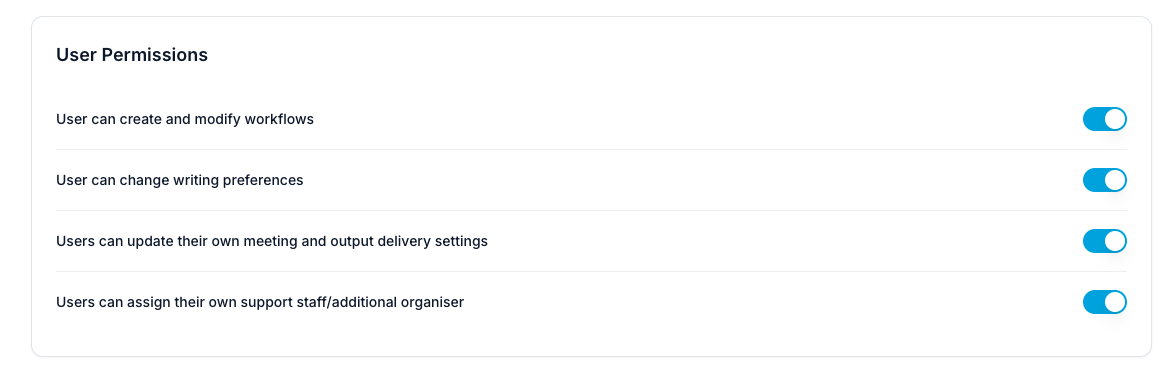
| Permission Setting | What it allows users to do |
| Create and modify workflows | Build or edit custom document workflows (in WorkFlows section). |
| Change writing preferences | Adjust the AI's writing style used in populating your outputs. |
| Update meeting and delivery settings | Control how their individual meetings are captured (keywords) and delivered (OneDrive / SharePoint). |
| Assign support staff/organiser | User can add support team members who can access (View and Edit) their tasks. |
3. Managing Admin Roles
Because adjusting permissions requires administrative access, you may need to grant admin rights to another team member to help manage your setup.
| ? How to Add or Change Admins Admin roles can be easily updated, changed, or added by navigating to the Users & Billing section in your main Filenote AI menu. |
| Need help? If you run into any issues or have questions, our support team is here to help. Email Support → |
Was this article helpful?
That’s Great!
Thank you for your feedback
Sorry! We couldn't be helpful
Thank you for your feedback
Feedback sent
We appreciate your effort and will try to fix the article