Reopen a finalised task to re-run or add an output
Once a task in Filenote AI has been finalised, its outputs (such as the File Note, Email, or Transcript) are locked and can no longer be edited directly. This article walks you through how to reopen a finalised task so you can re-run an existing output or generate an additional output type.
Before you begin
You will first need a complete the IT setup to Connect to the Filenote AI Platform. If your organisation hasn't finished this step yet, an IT admin will need to complete it before you can use the platform. For setup instructions, see: How to Connect to Filenote AI Platform
Step 1 — Log in to Filenote AI
- Go to app.filenote.ai in your browser.
- Sign in using your Microsoft credentials.
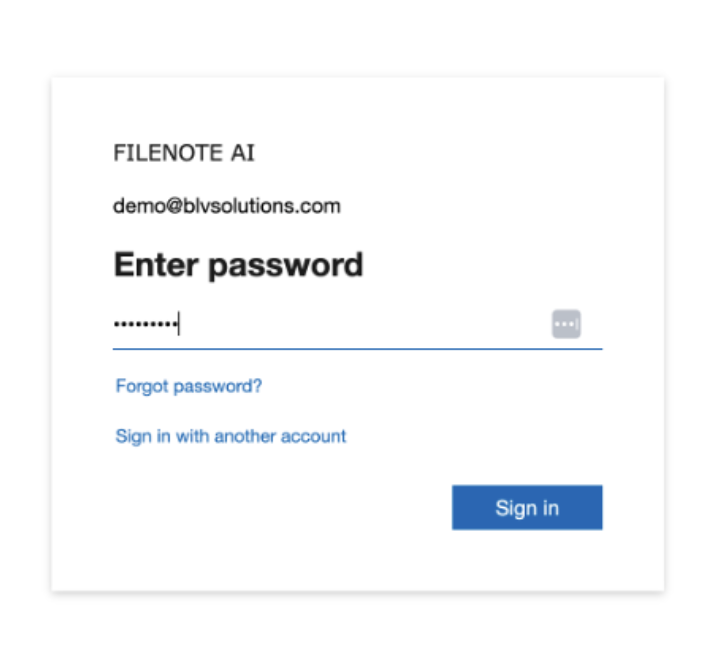
Step 2 — Find the finalised task
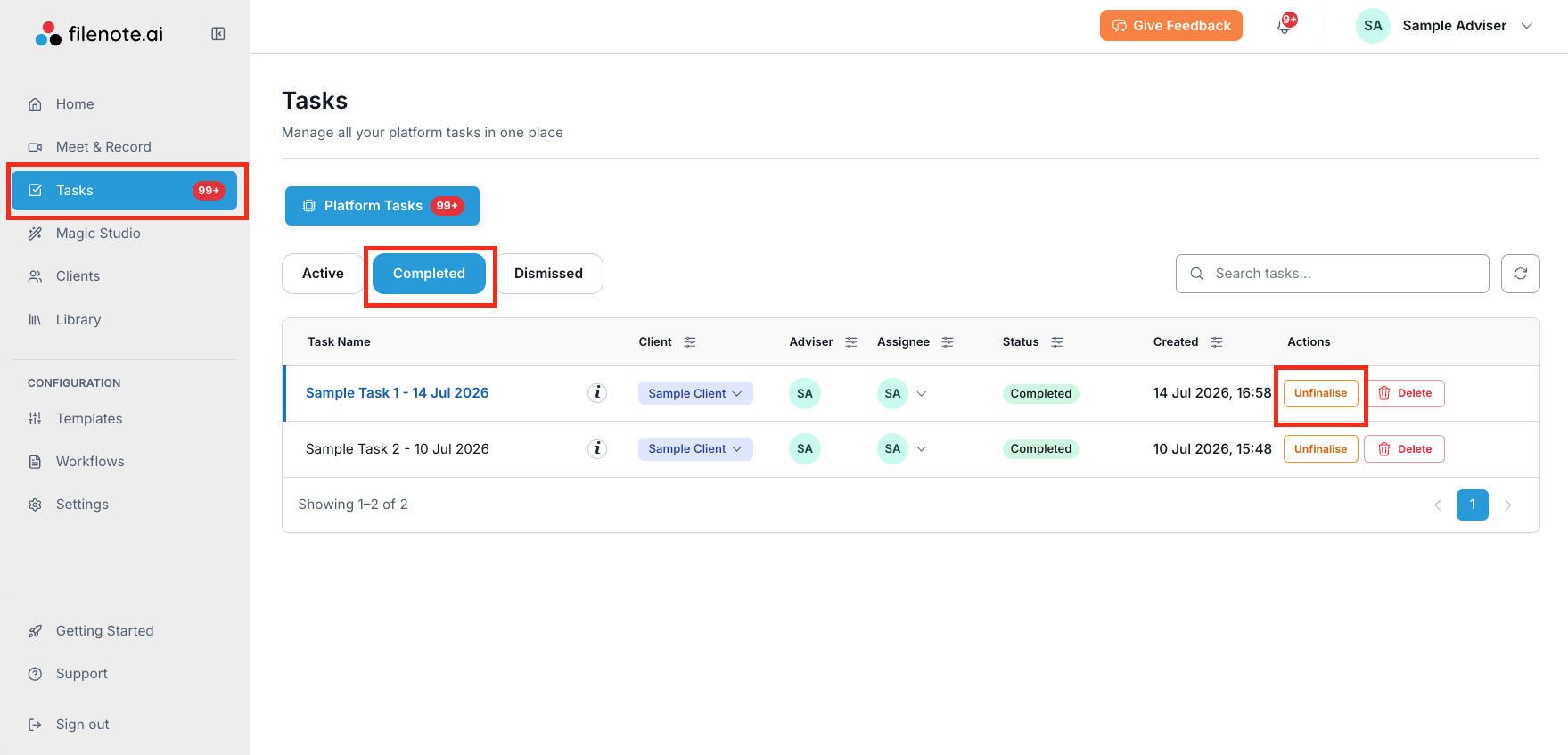
- In the left-hand navigation, click Tasks.
- Turn on the Show Completed Tasks toggle so that finalised tasks appear in the list.
Step 3 — Unfinalise the task
- Locate the relevant task in the list.
- Click Unfinalise in the Actions column for that task.
This unlocks the task and moves it back into your Open Tasks, allowing its outputs to be edited, re-run, or added to again.
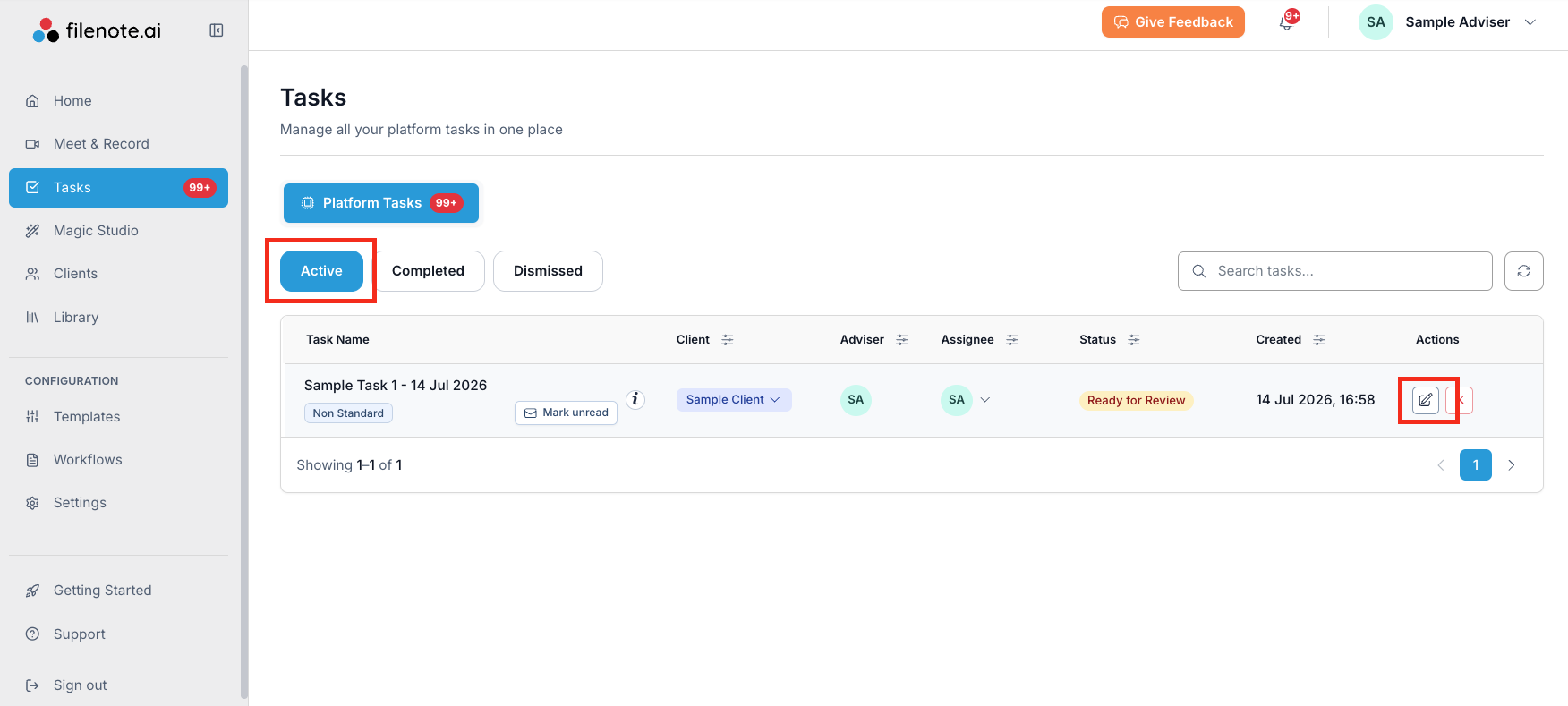
Step 4 — Open the task
- Under Open Tasks, click on the task to open it in the editor.
- In the toolbar above the document, you'll see two relevant options: Rerun and Additional Output.
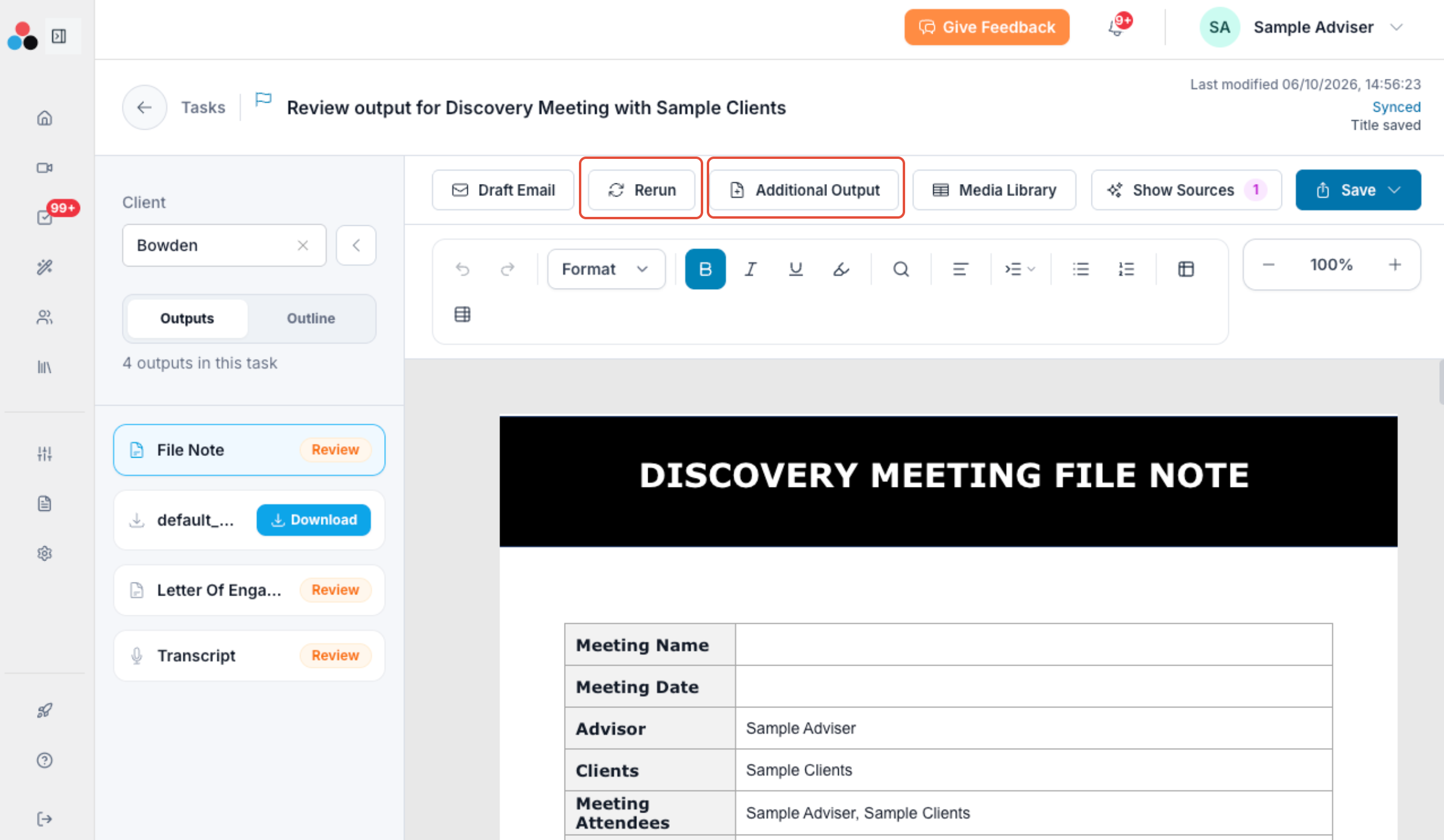
Step 5 — Re-run or add an output
Re-run the existing output
Use Rerun when you want to regenerate the current output, for example with a different template or level of detail.
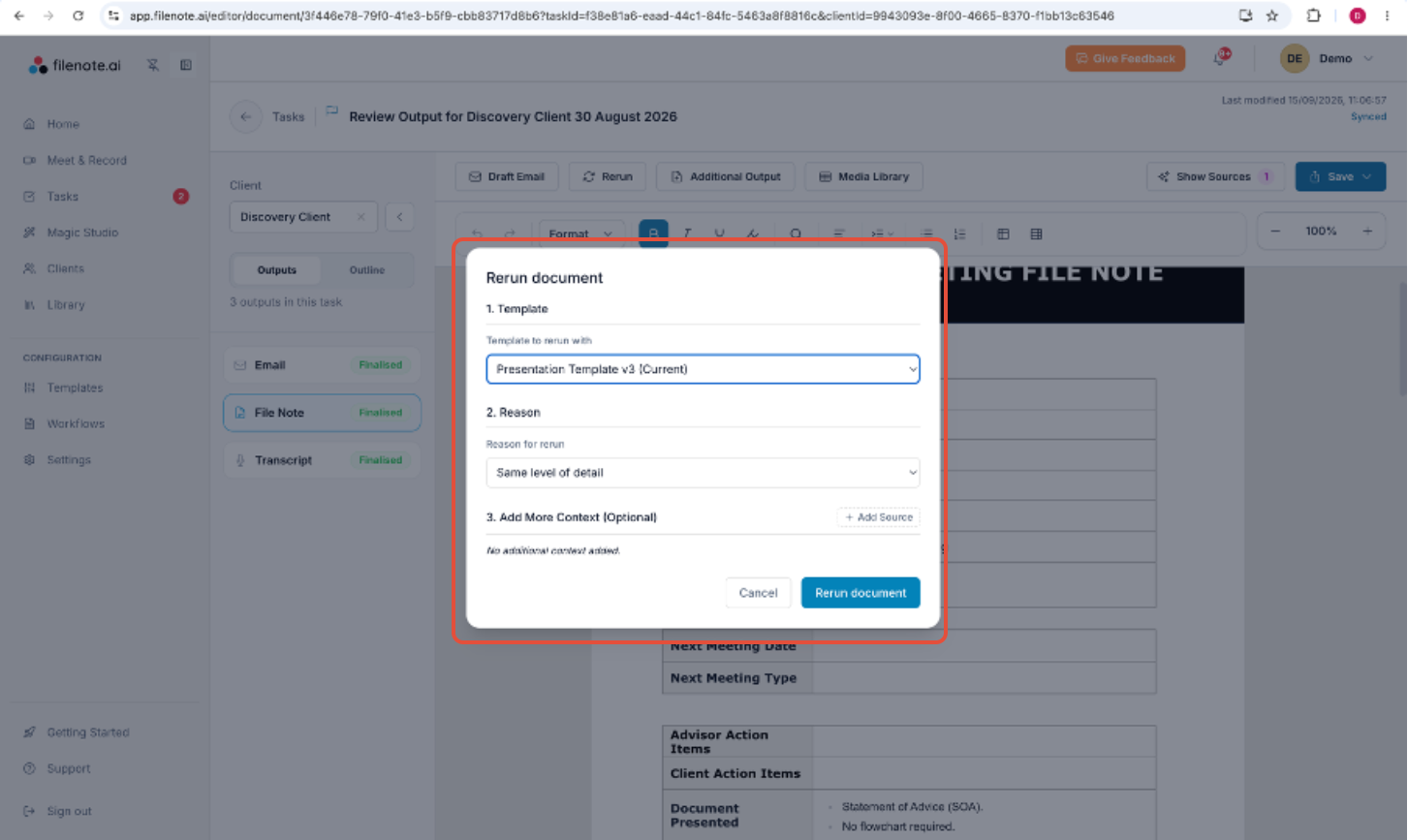
- Click Rerun.
- Under 1. Template, select the template you want to rerun with.
- Under 2. Reason, select a reason for the rerun (for example, Same level of detail).
- Optionally, under 3. Add More Context, click + Add Source to include any additional context relevant to this rerun.
- Click Rerun document to generate the new version.
Generate an additional output
Use Additional Output when you want to create a new output type from the same task (for example, a Letter of Engagement alongside an existing File Note).
- Click Additional Output.
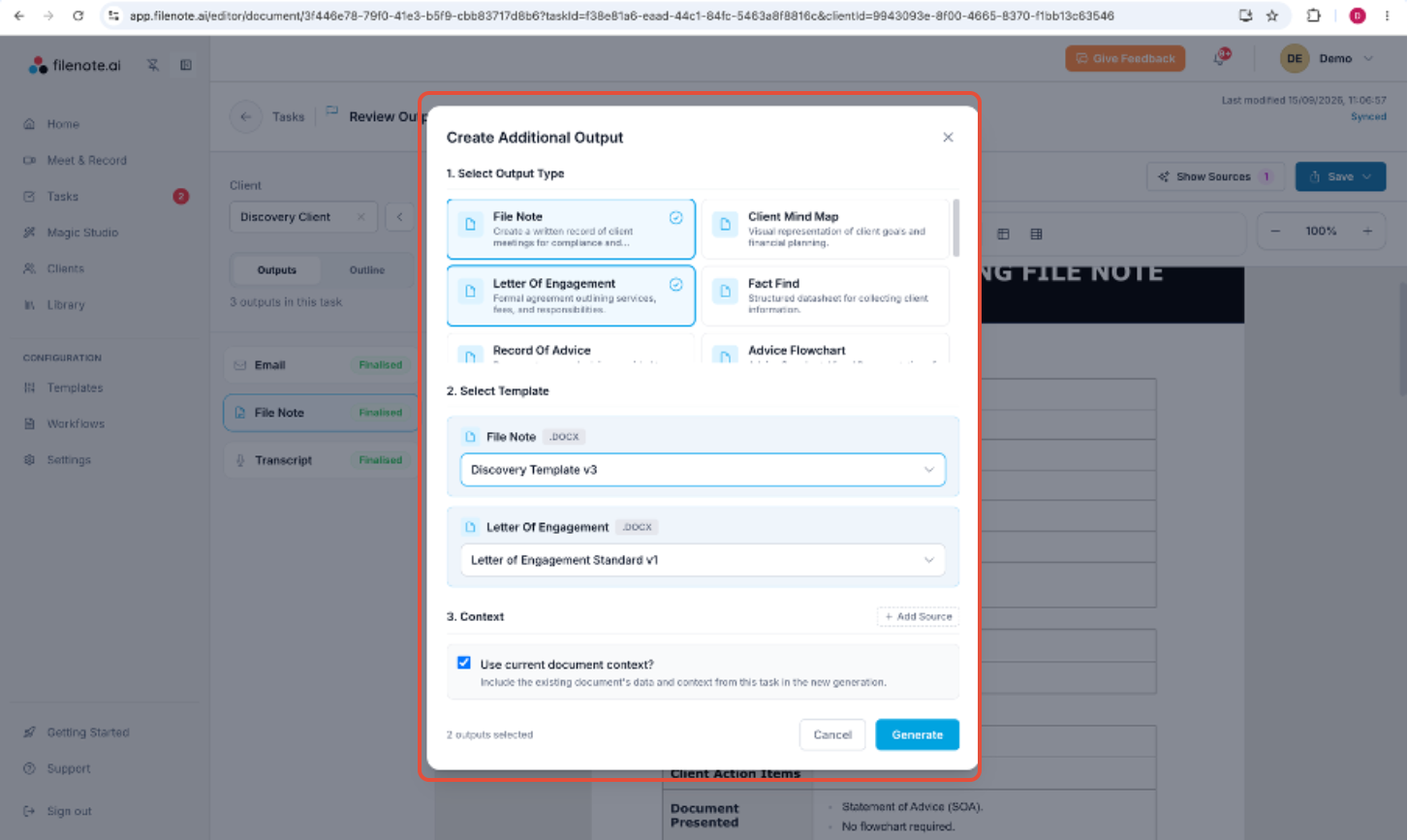
- Under 1. Select Output Type, choose one or more output types you want to generate, such as File Note, Client Mind Map, Letter of Engagement, Fact Find, Record of Advice, or Advice Flowchart.
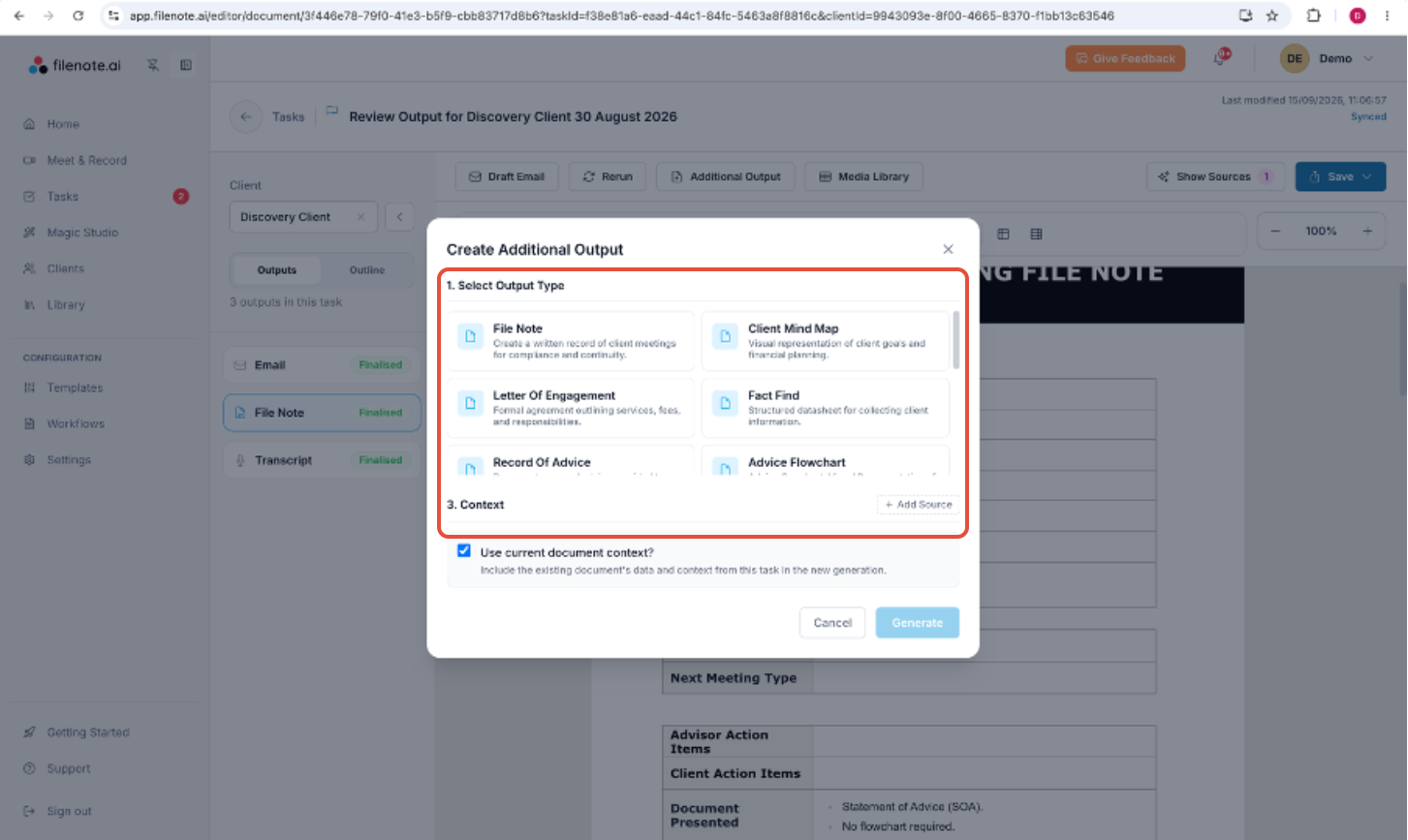
- For each output type selected, choose the template to use under 2. Select Template.
- Under 3. Context, leave Use current document context checked to carry over the existing task's data, or click + Add Source to bring in additional context.
- Click Generate to create the new output(s).
Step 6 — Review and finalise
- Review the newly generated output and make any edits directly in the document.
- Once you're happy with the result, click Finalise to lock the output again.
The task will move back into your list of completed tasks, and its outputs will be locked until you choose to unfinalise it again.
| Need help? If you run into any issues or have questions, our support team is here to help. Email Support → |
Was this article helpful?
That’s Great!
Thank you for your feedback
Sorry! We couldn't be helpful
Thank you for your feedback
Feedback sent
We appreciate your effort and will try to fix the article