By default, output generated by Filenote AI lands in the platform so you can review, edit and finalise it before it's delivered. If you'd rather skip that step, you can turn on auto-finalisation. Your output will then be delivered to your chosen location (email, OneDrive or SharePoint) and marked as finalised as soon as generation completes.
Good to know: Auto-finalisation is a personal setting. Turning it on or off only affects your own tasks, not anyone else's in your organisation.
Auto-finalise your Filenote AI output
By default, output generated by Filenote AI lands in the platform so you can review, edit and finalise it before it's delivered. If you'd rather skip that step, you can turn on auto-finalisation. Your output will then be delivered to your chosen location (email, OneDrive or SharePoint) and marked as finalised as soon as generation completes.
| ✓ Good to know Auto-finalisation is a personal setting. Turning it on or off only affects your own tasks, not anyone else's in your organisation. |
| In this article What auto-finalisation does Before you start Turn on auto-finalisation Turn off auto-finalisation Re-run output after it's been auto-finalised |
What auto-finalisation does
When you record a meeting in Teams or Zoom, auto-finalisation creates your output, marks the Task as completed in the platform, and sends the output to your delivery location. If your delivery default is Email, you'll receive an email with your output files attached.
| ★ Why use it Many advisers simply want their documents in their inbox. With auto-finalisation on, you don't need to sign in to the platform to review and complete each Task: your output comes straight to you. |
Before you start
Check where your output will be delivered. Auto-finalised output goes to your Delivery default location, so confirm this is set correctly first (see article on how to Choose Where Your Outputs Are Delivered).
Turn on auto-finalisation
- Go to app.filenote.ai and sign in with your Microsoft credentials.
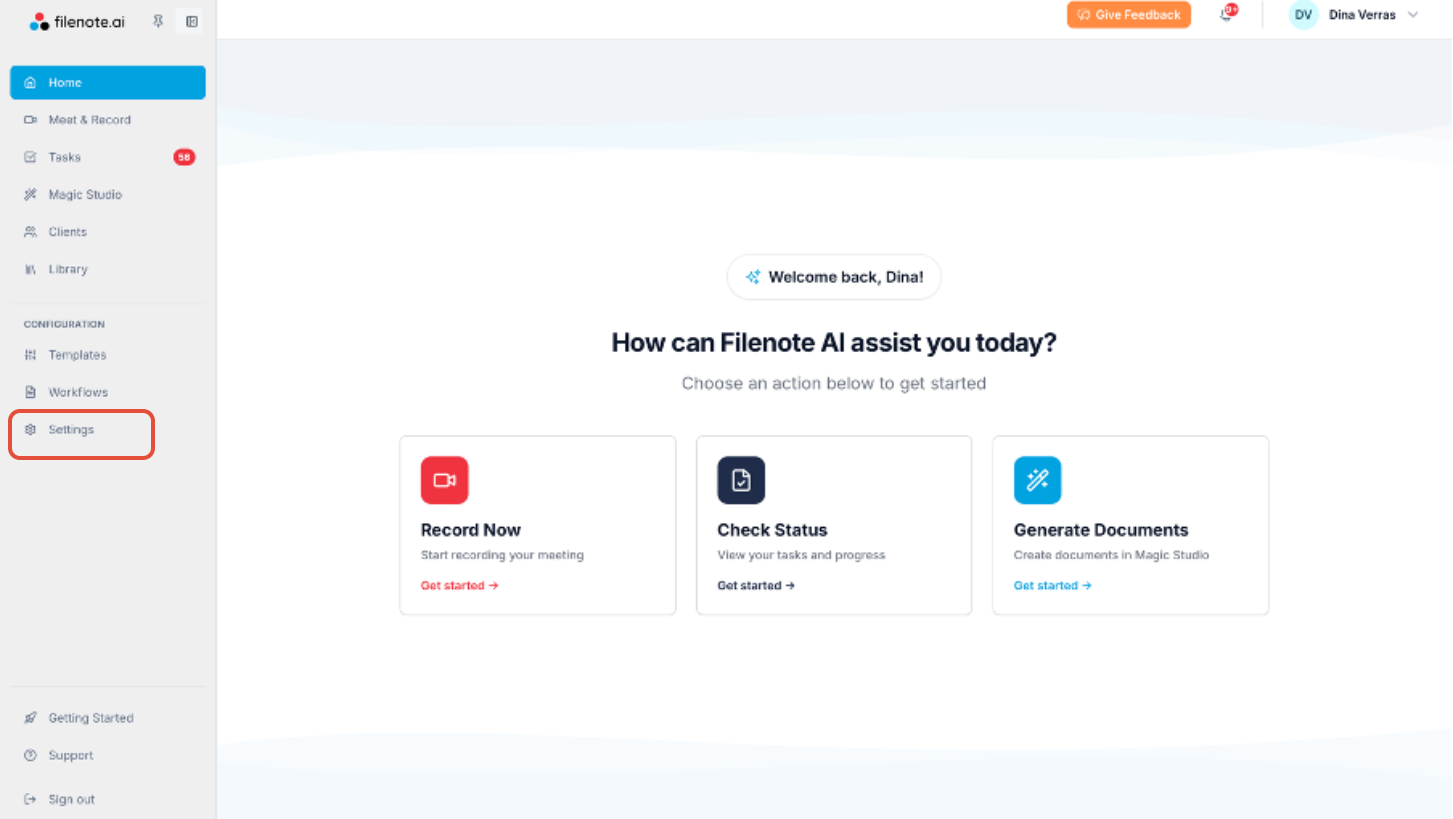
- In the left-hand menu, under Configuration, click Settings.
- Click Delivery Settings, then select Auto Task Finalisation and Deletion (or scroll down to that section).
- Turn on the Auto-finalise generated tasks toggle.
- Optional: To auto-finalise documents created in Magic Studio too, turn on the Auto-finalise Magic Studio tasks toggle.
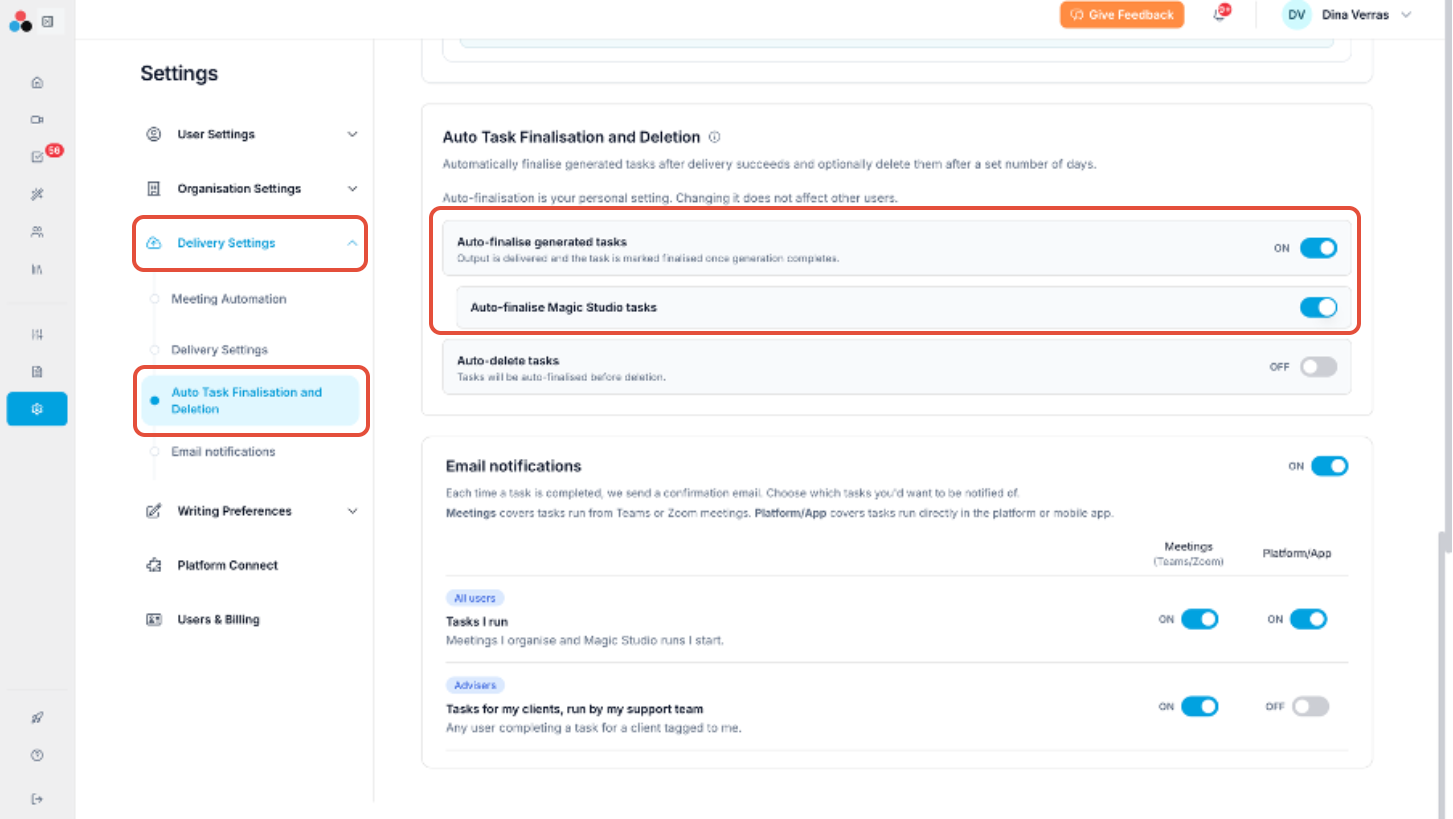
Your changes apply to new tasks from this point on.
Turn off auto-finalisation
Prefer to review and edit in Filenote AI platform first? Turn off auto-finalisation. New tasks will then open in the platform, where you can edit them with the AI editor before finalising them to your nominated location.
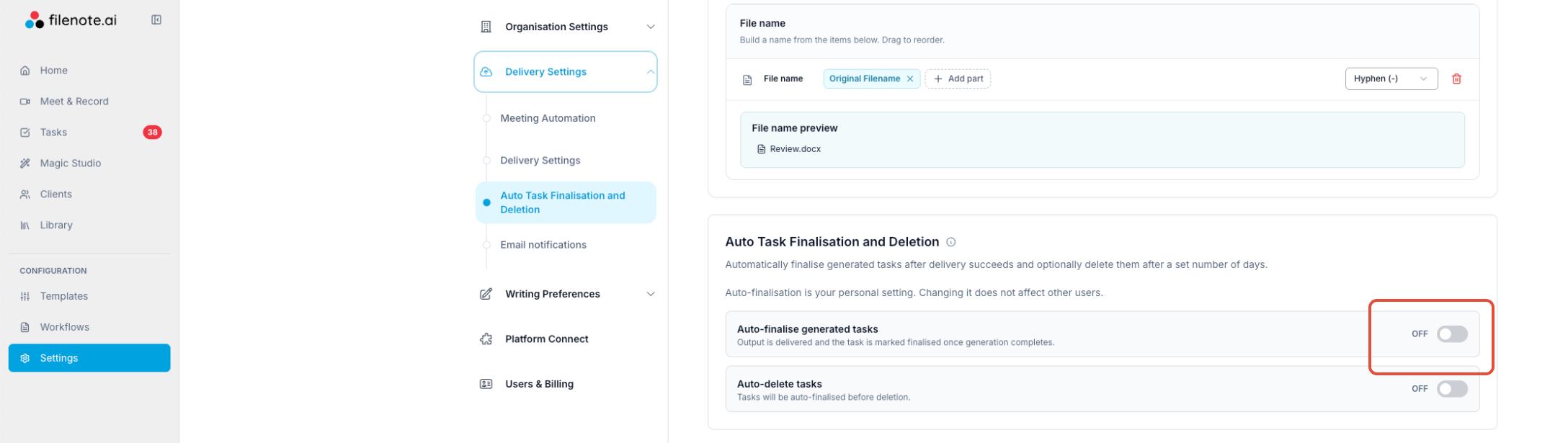
- Go to Settings / Delivery Settings, then select Auto Task Finalisation and Deletion.
- Switch off Auto-finalise generated tasks.
- Click Save.
What happens when it's off
All new Tasks, from recorded meetings and from Magic Studio, appear as active Tasks in Tasks. To complete one:
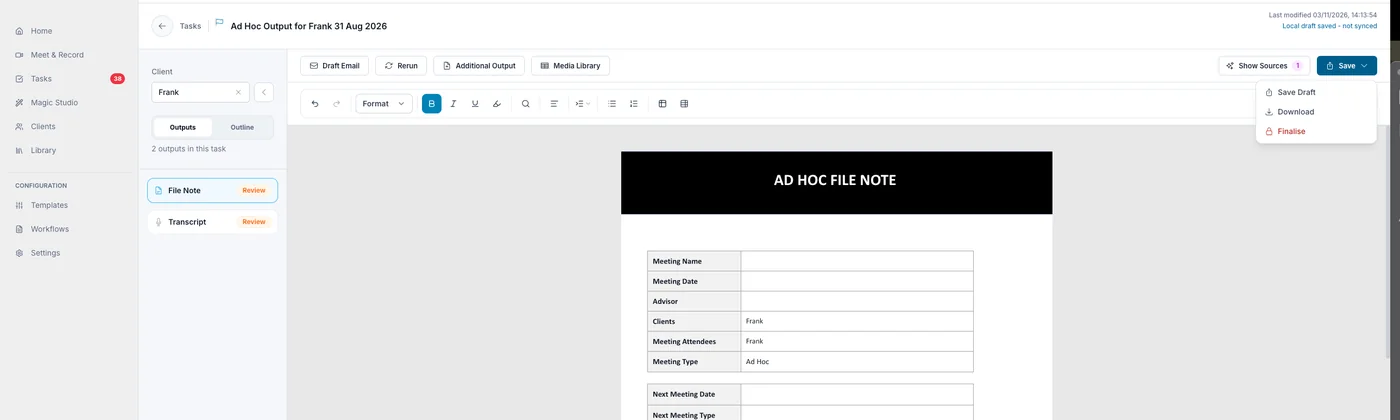
- Open the Task, then review and edit your output.
- To keep your changes and come back later, click Save, then Save Draft.
- When you're done, click Save, then Finalise.
- Choose where to save your output (OneDrive, SharePoint, Email or Xplan), then click Finalise & save.
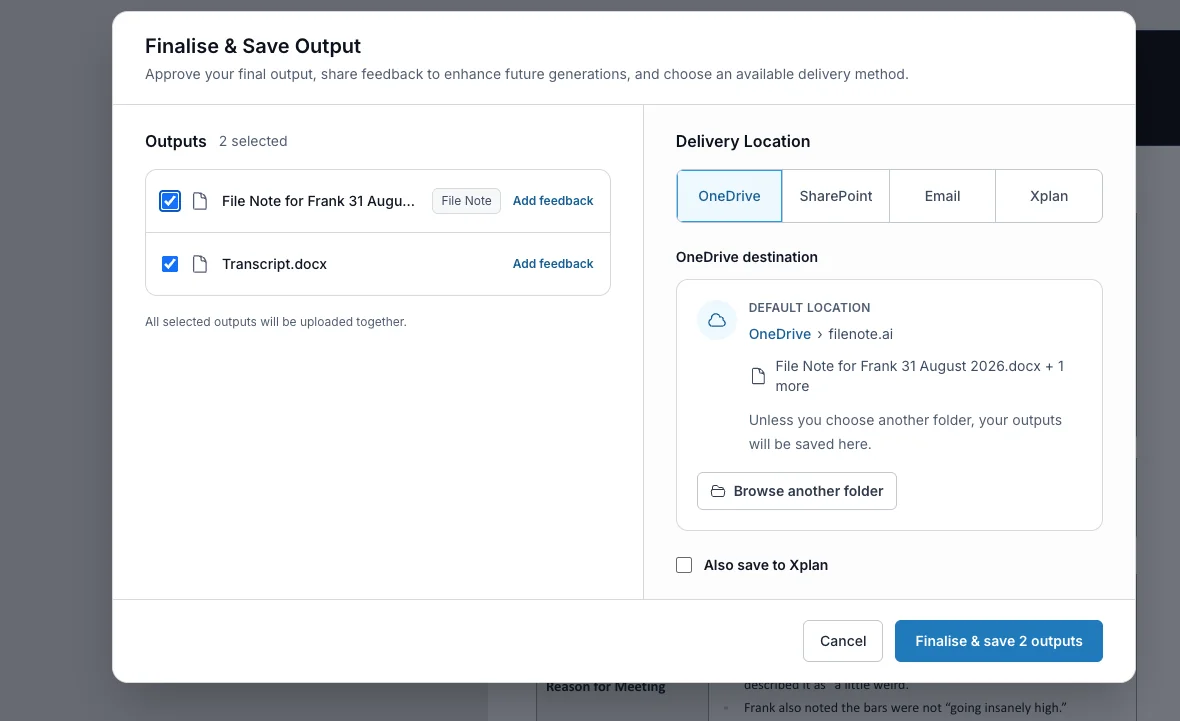
| ? Tip When you finalise, click Add feedback next to an output to tell us what to improve. Your feedback helps make future outputs better. |
Re-run output after it's been auto-finalised
Auto-finalised Tasks stay in the platform, under Completed Tasks, so you can find them later. This is useful if you want to re-run a meeting with a different template:
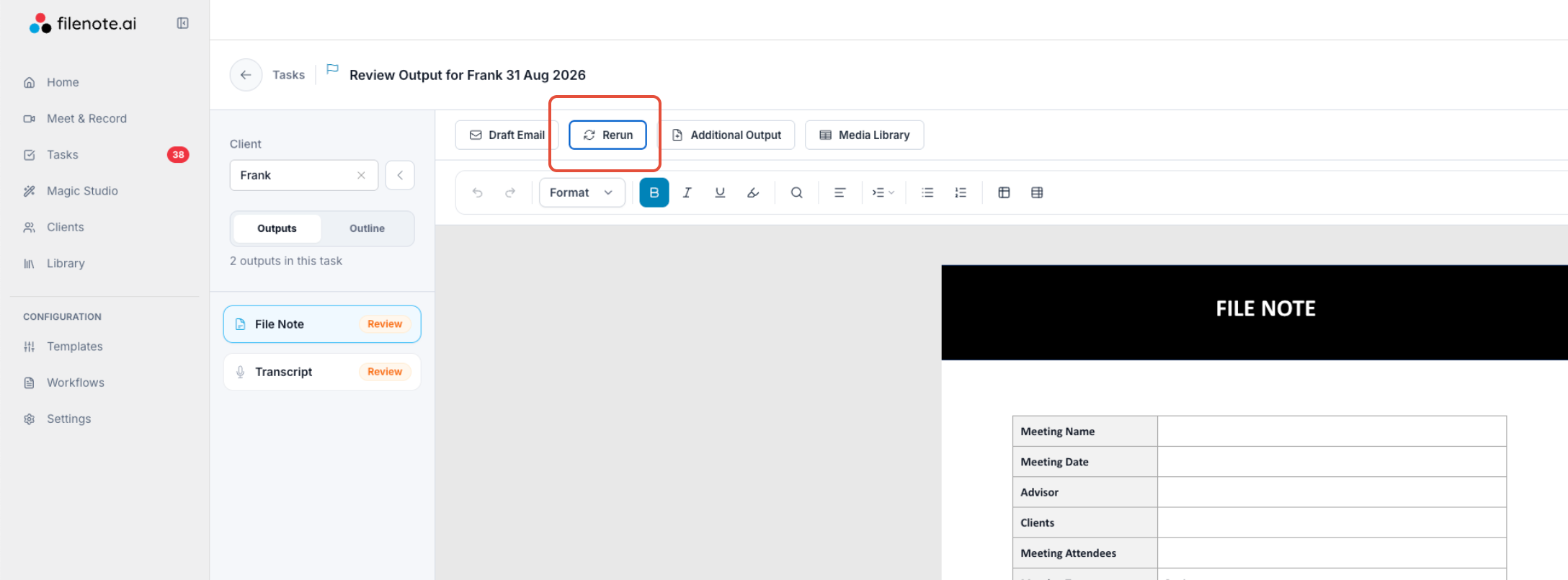
- Find the Task in Completed Tasks and click Unfinalise.
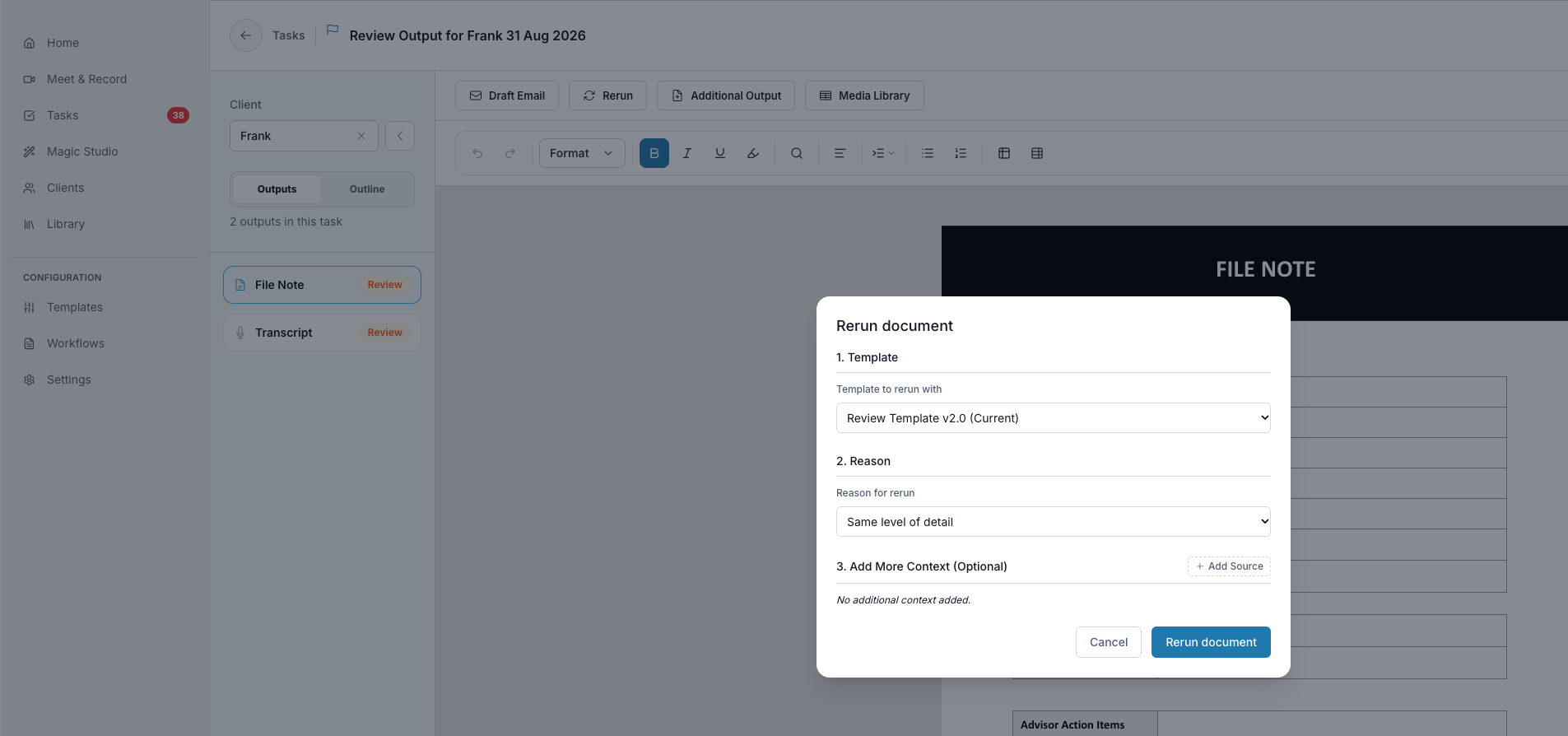
- Open the Task and click Rerun.
- Select the template you want.
For more detail, see How to unfinalise a task. If you regularly want to review output before it's sent, it's easier to leave auto-finalisation off.
Related articles
- Choose Where Your Outputs Are Delivered
- How to Re-run or Add Output on a Finalised Task in Filenote AI
- Direct Save to CRM: Set up delivery and finalise your outputs
| Need help? If you run into any issues or have questions, our support team is here to help. Email Support → |
Was this article helpful?
That’s Great!
Thank you for your feedback
Sorry! We couldn't be helpful
Thank you for your feedback
Feedback sent
We appreciate your effort and will try to fix the article