Welcome to your guide on Tasks. If you have been generating documents in Filenote AI, you have likely seen Tasks in your workspace. This article explains what a Task is, why we use them instead of traditional email attachments, and how you can use them to efficiently manage your client documentation.
Table of Contents
| What is a Task? | Learn how outputs are grouped. |
| The Advantage of Tasks over Email | Understand how Tasks improve security and build client history. |
| Reviewing and Editing Your Outputs | How to use the built-in Editor for your documents. |
What is a Task?
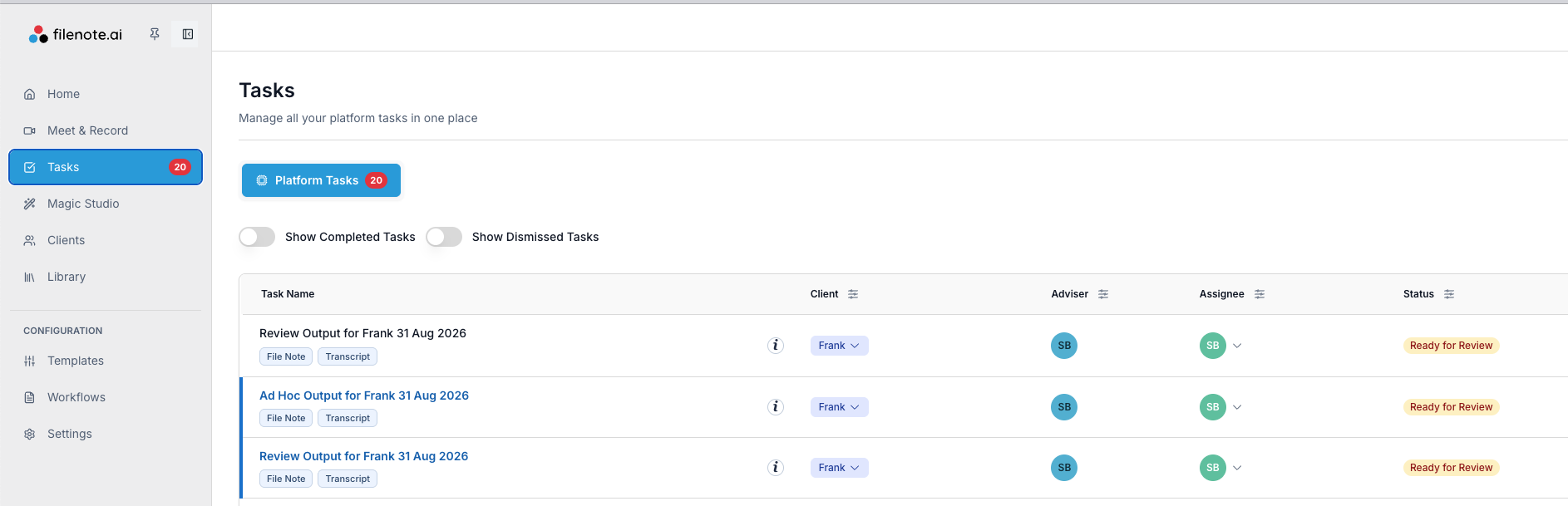
A Task is a grouped collection of outputs generated for a single client from a specific request. When you generate documents via a recorded meeting (Teams / Zoom) or using Magic Studio, all the resulting materials—such as your Filenote, Statement of Advice (ROA), or mindmap—are bundled together into one convenient Task.
The Advantage of Tasks over Email
You can think of a Task as being similar to receiving an email with multiple attachments, but built specifically for a modern advisory workflow. Instead of sending an email full of attachments that you need to download and manage manually, the Task keeps all your outputs within the Filenote AI platform in a much more secure way.
| ★ Building Client History By keeping everything securely on the platform, each document in a Task is automatically tagged to a specific Client. Over time, this builds a comprehensive history for that client, which actually helps the AI learn their context and improves the quality and accuracy of future outputs for them. |
Reviewing and Editing Your Outputs
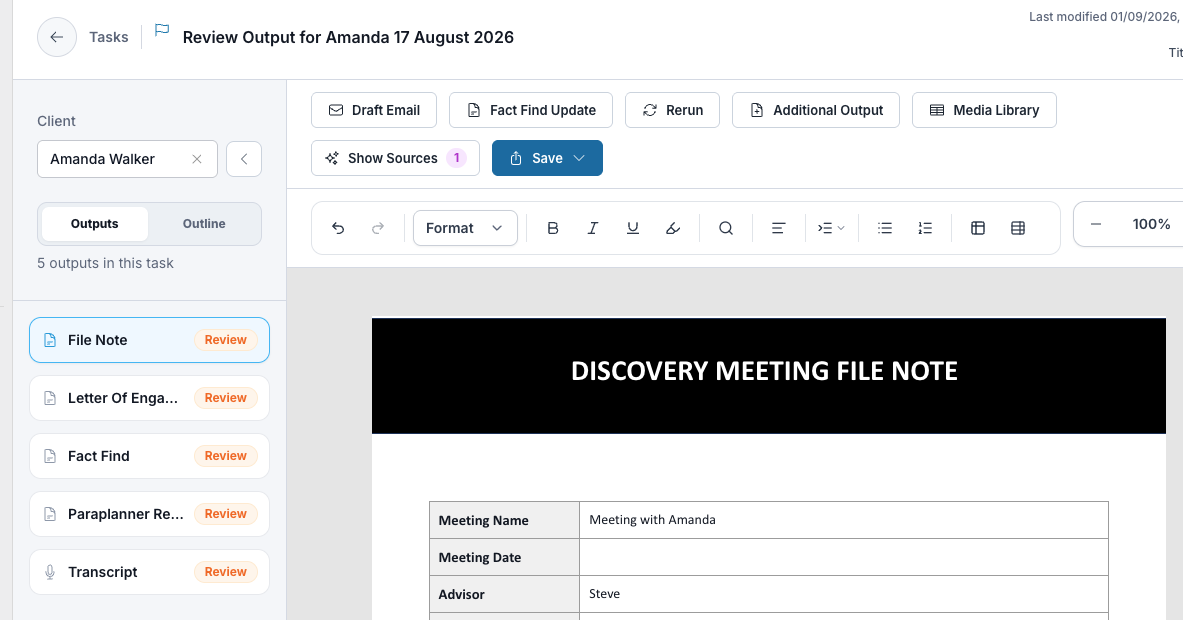
A Task is designed to be your complete workspace for a specific client interaction, holding all generated outputs ready for your review and editing.
When you open a Task, you can click into any individual output. Doing so will display the document directly in our built-in Editor. This allows you to easily review, make adjustments, and finalise your documents without needing to export them to another program first.
| ? Recommendation: Mastering the Editor To get the most out of editing within a Task, we recommend reading our step-by-step guide on how to review, edit, and finalise your Filenote AI output. |
Related articles
- Generate Outputs in Magic Studio
- Review, Edit and Finalise Your Output
- How to Record and Generate a File Note
| Need help? If you run into any issues or have questions, our support team is here to help. Email Support → |
Was this article helpful?
That’s Great!
Thank you for your feedback
Sorry! We couldn't be helpful
Thank you for your feedback
Feedback sent
We appreciate your effort and will try to fix the article