Set Your Writing Style: Voice and Note Length
Choose how Filenote AI writes your file notes and documents: the voice it writes in, and how much detail it includes. You can set both separately for each document type, in Settings / Writing Preferences.
| Step 1 | Choose a document type |
| Step 2 | Choose your writing voice |
| Step 3 | Set the note length |
Step 1: Choose a document type
Go to Settings / Writing Preferences and select the document type you want to set up, such as File Note, Record of Advice or Paraplanner request.
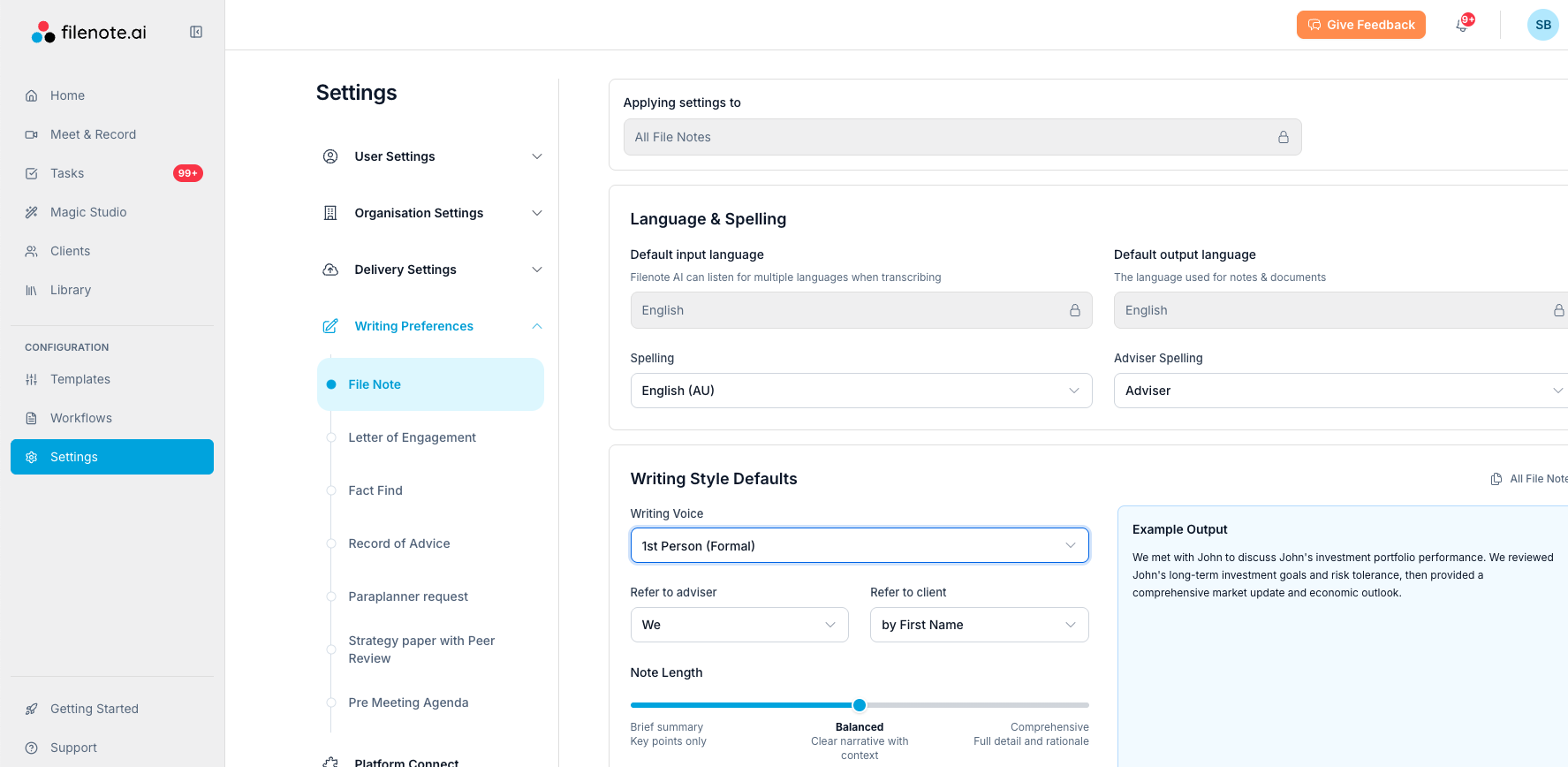
Step 2: Choose your writing voice
Under Writing Style Defaults, open the Writing Voice drop-down and choose 1st Person (Formal), 1st Person (Direct) or 3rd Person. The default is 1st Person (Formal).

Step 3: Set the note length
Drag the Note Length slider to choose how much detail to include. The default is Balanced.
| Length | What you get |
|---|---|
| Brief summary | Key points only |
| Balanced | A clear narrative with context |
| Comprehensive | Full detail and rationale |
| ? Tip: set a different style for each document type Select each document type in turn and set its voice and length. For example, keep file notes Balanced and make your Record of Advice Comprehensive. |
| ✓ Good to know The Example Output panel shows how your notes will read. On the same page, you can also choose how to refer to the adviser and client, include direct client quotes, and add other specific instructions. |
| Need help? If you run into any issues or have questions, our support team is here to help. Email Support → |
Was this article helpful?
That’s Great!
Thank you for your feedback
Sorry! We couldn't be helpful
Thank you for your feedback
Feedback sent
We appreciate your effort and will try to fix the article