Automating Your Workflow with Keywords
The Workflow tab is where you teach Filenote AI to recognize your meeting types. By mapping specific keywords in your Teams or Zoom meeting titles, the platform automatically triggers the correct templates—like generating a File Note, Letter of Engagement, Fact Find and a Mind Map every time it sees a "Discovery Meeting."
How to Edit Existing Workflows
Refine how the system identifies your meetings and which documents it produces.
Navigate to Workflow: Select the Workflow tab from the main menu.
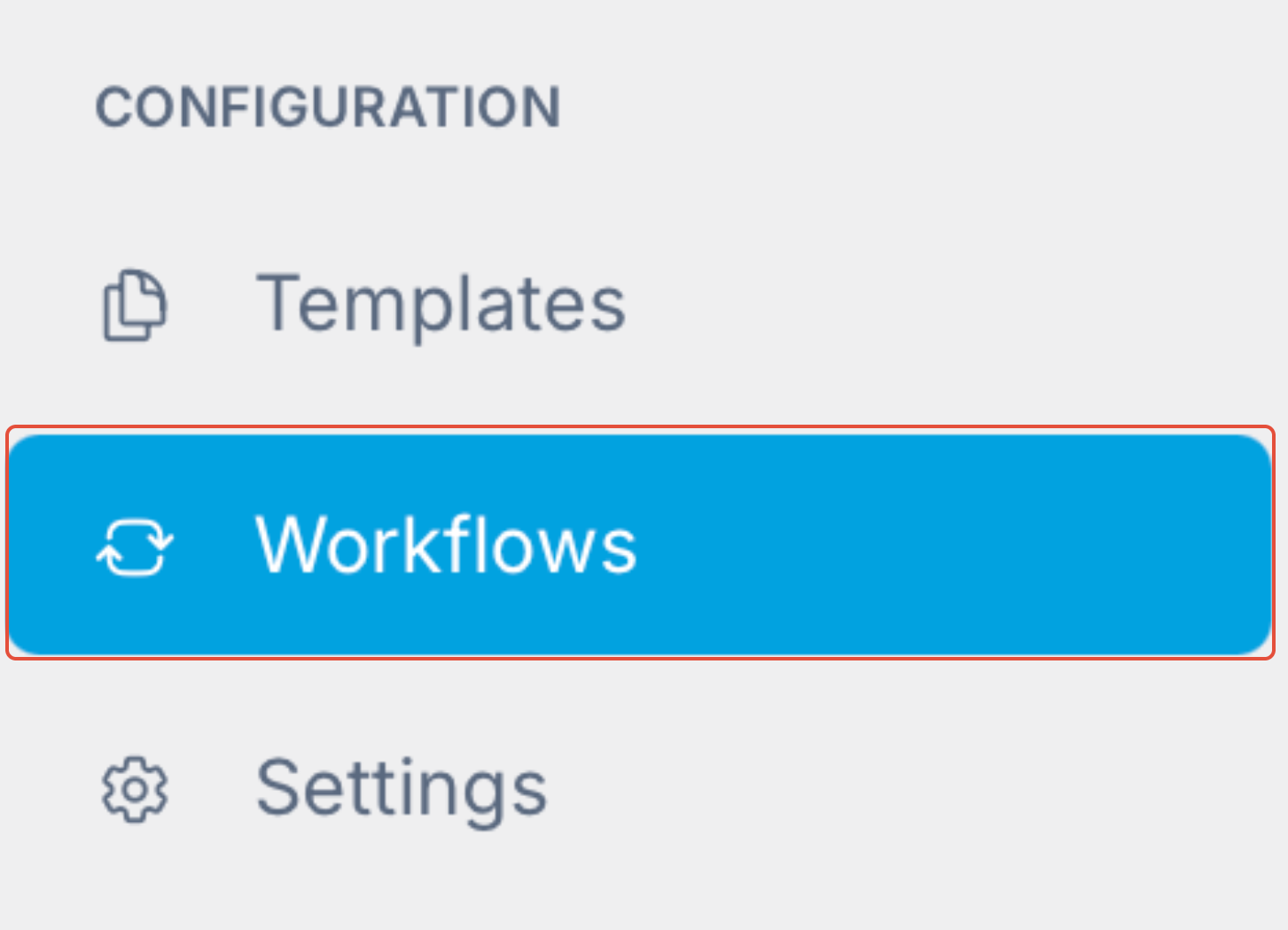
Enter Edit Mode: Click the Edit button on the workflow you wish to modify. Note: If a workflow is no longer needed, you can deactivate it at any time by toggling the Active switch to off. This keeps your automation list clean without permanently deleting your settings

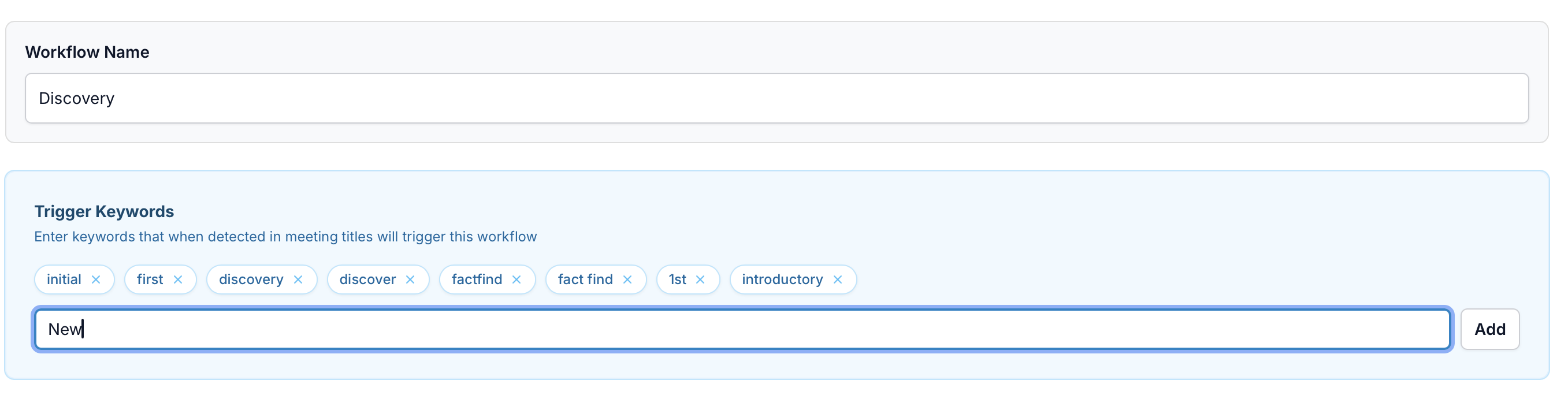
Manage Keywords: Add new keywords or delete ones you no longer use.
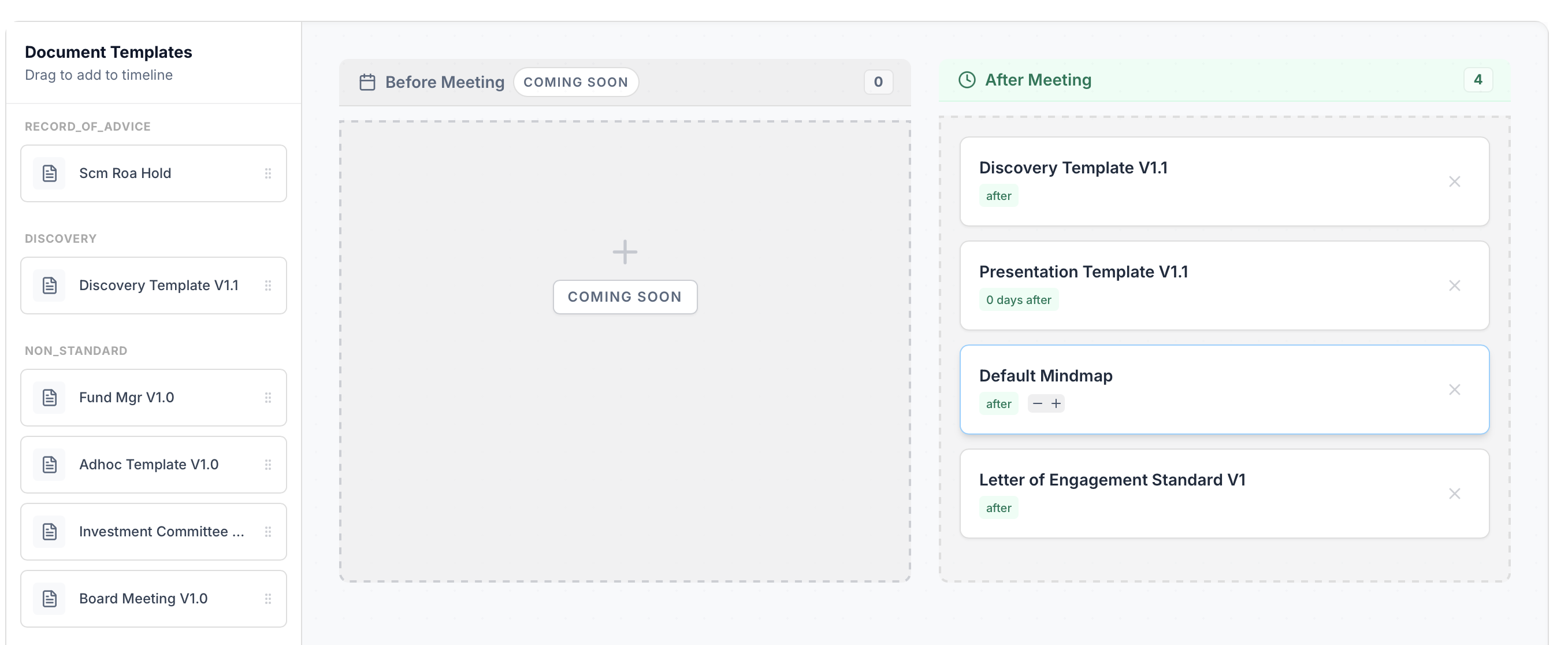
Map Templates: Drag and drop your desired documents from the Document Templates list into the After Meeting section. This ensures the right outputs are generated for that specific meeting type.
Save: Click save to apply your changes.
Creating a New Workflow
Need a specialised process for a new meeting type? Here is how to build one from scratch:
Add New Workflow: Click the Add New Workflow button.

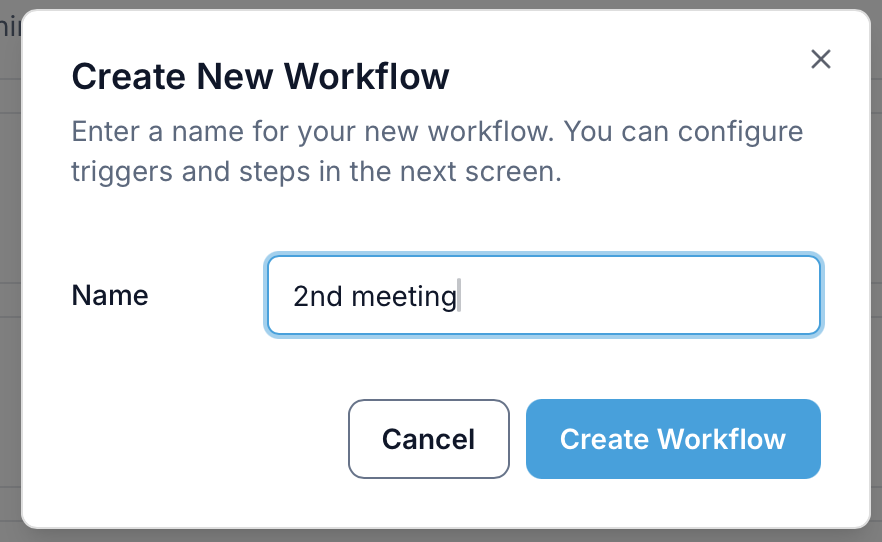
Name Your Workflow: Give it a specific name (e.g., "Aged Care Strategy") and click Create Workflow.
Define Rules: Assign your specific Keywords and select the Document Types you want the AI to generate.
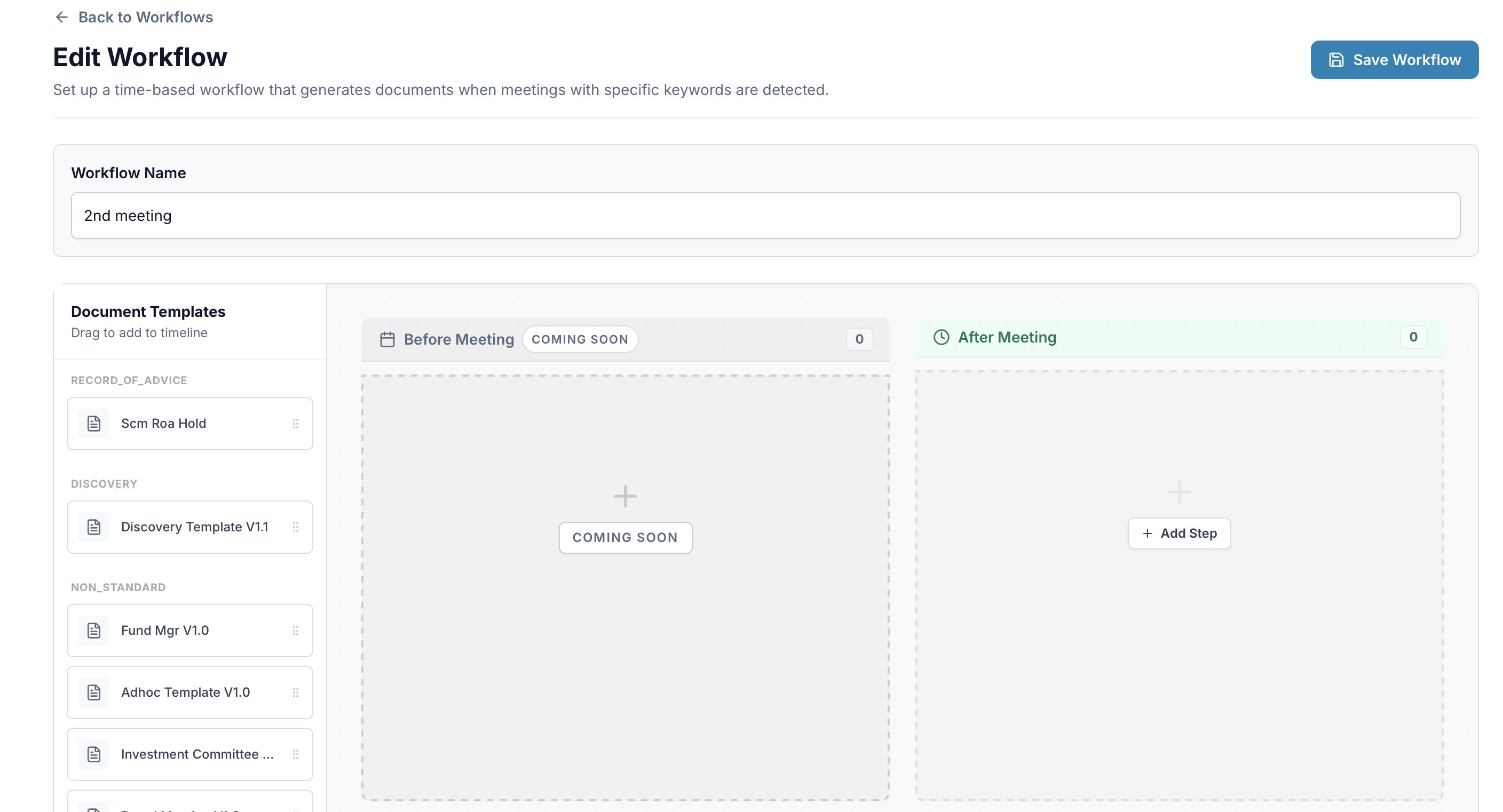
Save: Click Save to take your new automation live.
Pro-Tip: Keep it Simple
You don't need to match the meeting title exactly—just one unique keyword is enough! If your meeting is called "Jones Discovery Session," simply having Discovery as a keyword in your workflow will do the trick.
Was this article helpful?
That’s Great!
Thank you for your feedback
Sorry! We couldn't be helpful
Thank you for your feedback
Feedback sent
We appreciate your effort and will try to fix the article